1
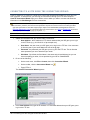
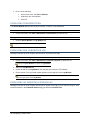
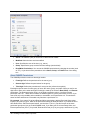
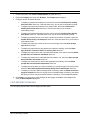
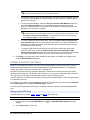
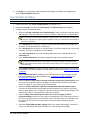
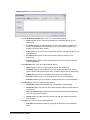
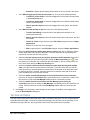
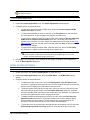
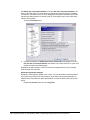
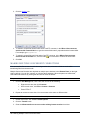
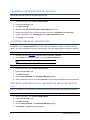
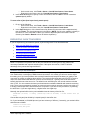
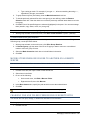
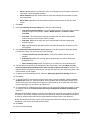
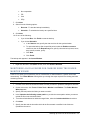
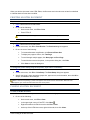
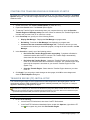
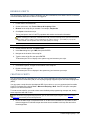
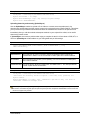
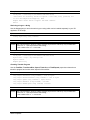
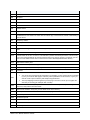
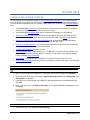
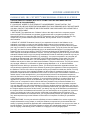
Not saving passwords at all is useful in shared system environments, where CuteFTP is likely
being used by multiple users on the same physical computer.
•
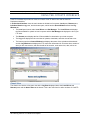
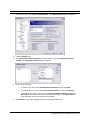
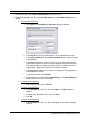
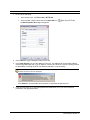
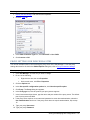
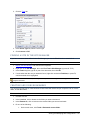
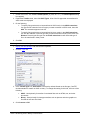
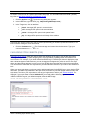
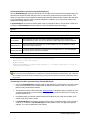
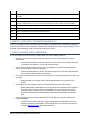
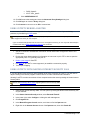
The default location to store the Site manager is displayed in the Site Manager path box.
To move your Site Manager to a different location on your computer or network, type or
browse for a new path.
•
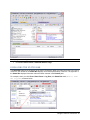
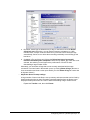
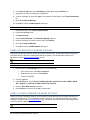
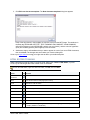
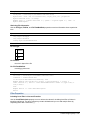
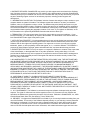
To secure the Site Manager, select the Encrypt contents of Site Manager check box,
then click Change Password. You must supply a password every time you start
CuteFTP. Clear this check box, and CuteFTP starts without requiring a password. Site
Manager and all its sites are available.
When this option is not used (default) CuteFTP uses mild encryption with a system-generated
password to protect your Site Manager's contents. It is highly recommended that you select
Encrypt the contents of the Site Manager, as it protects the contents of the Site Manager
with strong encryption, using a password you supply.
•
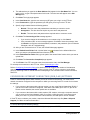
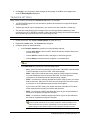
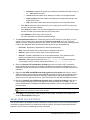
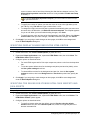
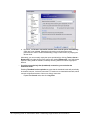
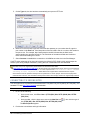
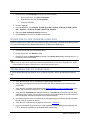
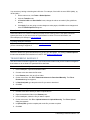
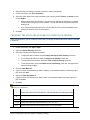
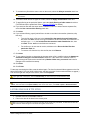
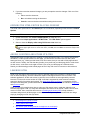
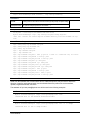
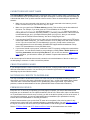
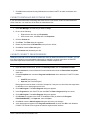
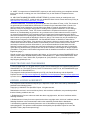
To remove passwords from queued items, select the Remove Queue file passwords
upon program exit check box. Next time you start CuteFTP, you will be prompted for a
password to complete the transfer. Clear this check box to allow passwords to be sent
automatically for queued items.
•
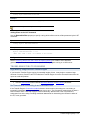
To erase any URLs and remove all sites from the Quick Connect drop-down when
CuteFTP is shut down, select the Remove Quick Connect and Connect to URL
history upon program exit check box. Clear this check box to keep URLs and to keep a
list of sites in the Quick Connect drop-down list even when CuteFTP is closed.
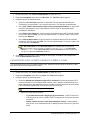
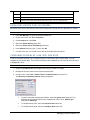
4. Click Apply if you are going to make changes to other pages; click OK to save changes and
close the Global Options dialog box.
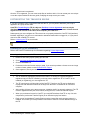
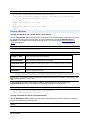
OPENPGP SECURITY SETTINGS
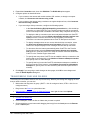
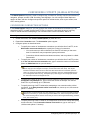
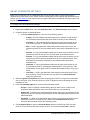
CuteFTP uses OpenPGP, based on the open source implementation of Pretty Good Privacy (PGP), to
safeguard transferred data. PGP provides cryptographic privacy and authentication by encrypting the
content of any data, such as any computer file or message text.
OpenPGP uses asymmetric key encryption algorithms, with which the recipient must have previously
generated a linked key pair, a Public key, and a Private key. This key pair is associated with a particular
site. The public key encrypts the data and the private key helps in decrypting data.
CuteFTP allows you to create keys and ensures security of the transferred data. A file is encrypted before
it is uploaded to a server.
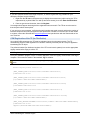
For example, if you want to upload result.txt as OpenPGP encrypted file, the system encrypts result.txt
into result.txt.pgp and then uploads result.text.pgp to a server.
The topics below provide the procedures for managing, importing, exporting, and uploading OpenPGP
keys.
Managing OpenPGP keys
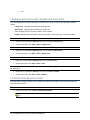
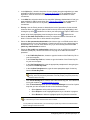
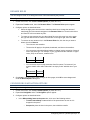
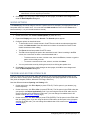
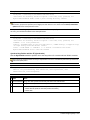
CuteFTP allows you to create, import, export, and delete OpenPGP keys.
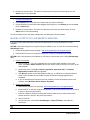
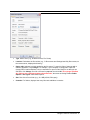
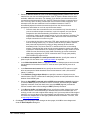
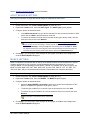
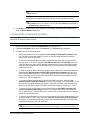
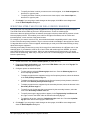
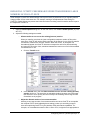
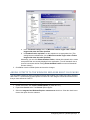
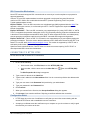
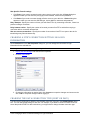
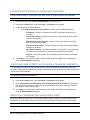
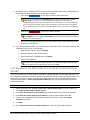
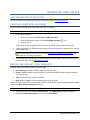
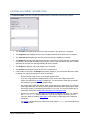
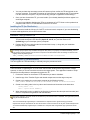
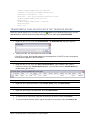
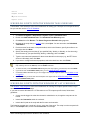
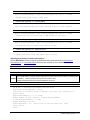
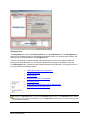
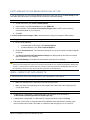
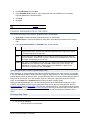
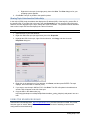
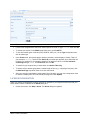
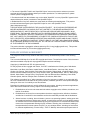
To specify an OpenPGP key to use
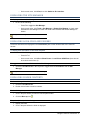
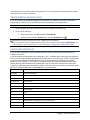
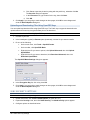
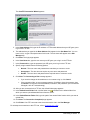
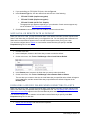
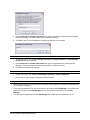
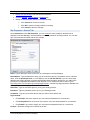
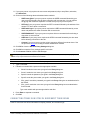
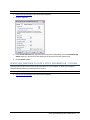
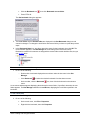
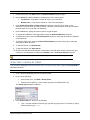
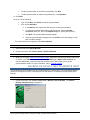
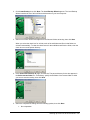
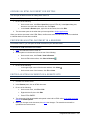
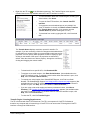
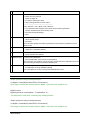
1. On the toolbar, click the OpenPGP Mode icon
appears.
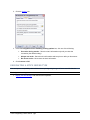
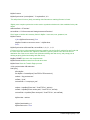
2. In the Select key list, click a key.
48 ● OpenPGP Security Settings
. The OpenPGP Mode Settings dialog box