1
CANNOT RESOLVE HOST NAME
The Cannot Resolve Host Name message is displayed when CuteFTP cannot make a connection to the
FTP host address that you specified when you set up the connection. It could be compared to browsing to
a Web site that either is not up at the moment or does not exist. There are several ways to approach this
situation:
•
Make sure you are connected to the Internet. If you are not connected to the Internet, you will
need to connect before you can connect to any FTP sites.
•
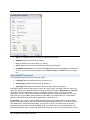
Make sure you typed in the FTP Host Address correctly. This would be just the host address of
the server. For example, if you were given an FTP Host Address in the format:
ftp://ftp.yourhost.com, you would only type ftp.yourhost.com. Also be sure there is
nothing after the host address, especially slashes ("/") indicating subdirectories. If the server does
not automatically put you in your default directory when you log in to it, then you can add the
directory into the "Default Remote Directory" box when configuring this site.
•
If you are using CuteFTP Home or Lite, make sure you are not trying to connect to a HTTP server
such as http://www.cuteftp.com. You cannot connect to a HTTP (web) server with CuteFTP Home
or Lite. If you do not know the FTP Host Address for your site, you will need to contact your
server administrator for more information. GlobalSCAPE support staff does not know or keep
track of FTP host addresses of every ISP/Web server.
•
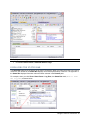
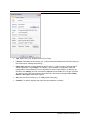
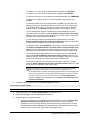
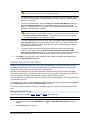
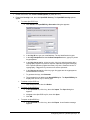
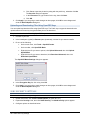
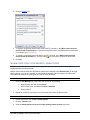
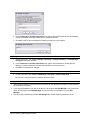
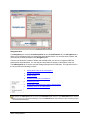
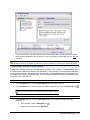
If you have a firewall or proxy server, make sure CuteFTP is properly configured to work with the
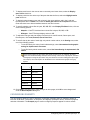
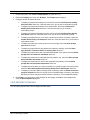
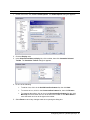
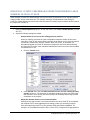
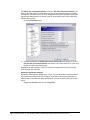
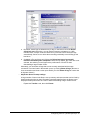
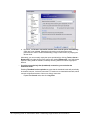
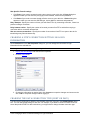
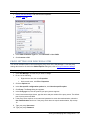
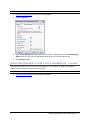
proxy server. You can edit the firewall or proxy settings by clicking Tools > Global Options and
expanding Connection and selecting Proxy Server. If you are not sure what the settings for the
proxy should be, you will need to contact your network or system administrator for that
information.
If all of these options fail with the same results, contact the server administrator of the site to which you
are attempting to connect to in order to resolve the problem.
CHILD TRANSFER FAILED
If you attempt to transfer a folder or directory and see this error, it simply means that an item or items
within the folder failed to transfer. You can check your connection log to find a more detailed error
describing why the item failed to transfer.
NOT ENOUGH CREDITS TO DOWNLOAD
You may not be able to download from some FTP sites until you have uploaded something to them. In
other words, you have to give them a file before they give you one -- a type of file trading. Most of these
"ratio sites" have a text file that explains how to upload files to them to get credits. If you have any
problems, contact the administrator of the site. (GlobalSCAPE does not have this information.)
PERMISSION DENIED
Every time an FTP account (for uploading your Web pages) is opened, your server determines all the
things that you are allowed to do, like upload, download, write to a file, delete a file, make new directories,
etc. If permissions have not been set up correctly, you will not be able to upload your files to the server. If
you receive this message, your server administrator has not established your permissions correctly.
Contact the server administrator to reset the permissions.
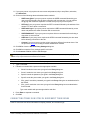
If none of the transactions you try with CuteFTP seem to be completed, refer to the log pane for any
entries that are colored red or any messages indicating a potential problem. You can copy the contents of
the log into an email or text file to send to your administrator or Web hosting provider.
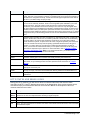
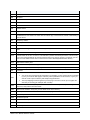
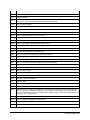
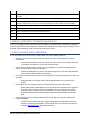
Refer to FTP Error Codes and HTTP Status and Error Codes for information about error codes.
Troubleshooting ● 261