1
LOG FILE SETTINGS
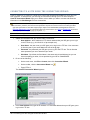
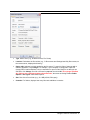
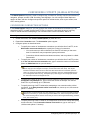
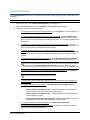
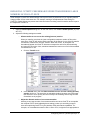
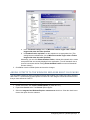
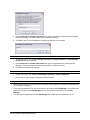
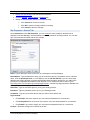
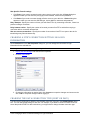
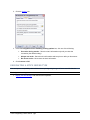
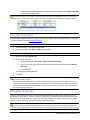
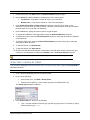
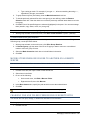
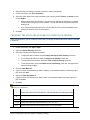
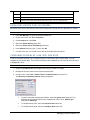
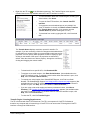
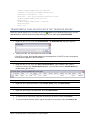
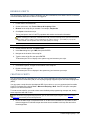
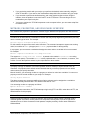
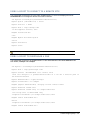
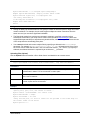
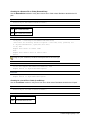
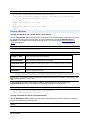
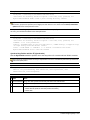
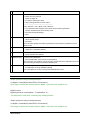
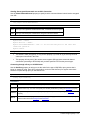
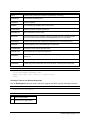
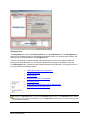
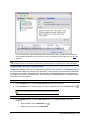
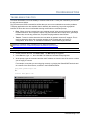
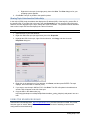
In the Global Options dialog box, you can specify where and when log files are saved, and how they are
displayed.
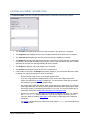
To configure the log file settings
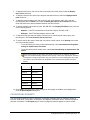
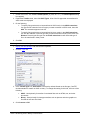
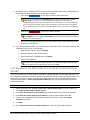
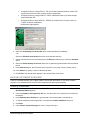
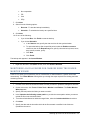
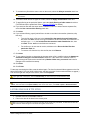
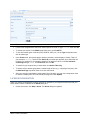
1. On the main menu, click Tools > Global Options (or press ALT+F7).
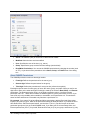
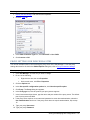
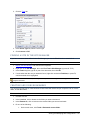
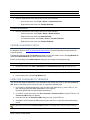
2. Expand the General node, then click Log Files. The Log Files options appear.
3. Configure the options as described below.
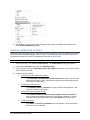
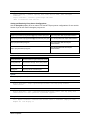
•
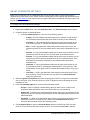
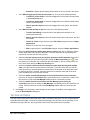
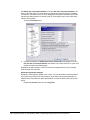
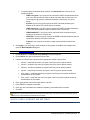
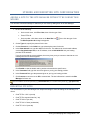
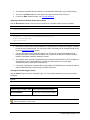
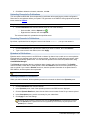
To specify the location at which logs are saved, in the Log path box, click the folder icon
to browse for the folder or type a different path.
•
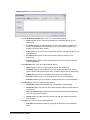
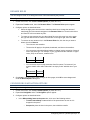
To delete log files automatically at time intervals you specify, select the Delete saved
logs every check box. Specify whether to delete files after a specified number of days,
hours, or minutes. Clear the check box to keep all log files, or if you plan to delete them in
other ways.
•
To delete error logs automatically when the Transfer Engine shuts down, select the
Delete error logs after quitting the Transfer Engine check box. Clear the check box to
keep error logs after the Transfer Engine shuts down.
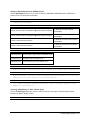
•
To delete the associated logs automatically immediately after a successful task is
finished, select the Delete logs of successful transfers immediately after completion
check box. Clear the check box to keep the associated logs after a successful task is
finished.
•
To include the date and time in all log files, select the Record/Display time stamps in
logs check box. Clear the check box to exclude the date and time from all log files.
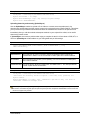
This option consumes additional system resources due to insertion of time and date stamp at
each log event. The Record/Display time stamps in logs check box is selected by default.
Select the check box if you are copying logs to send to customer support for troubleshooting.
•
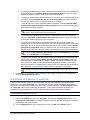
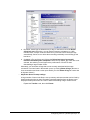
To remove all log files from your log folder that are currently not in use, click Delete all
logs.
Logs for active sessions are not automatically deleted.
•
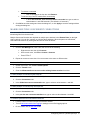
To remove all remote file and folder listings CuteFTP has saved on your computer for
offline browsing, click Delete listing cache.
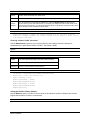
•
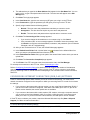
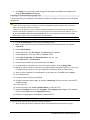
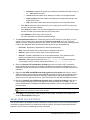
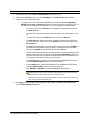
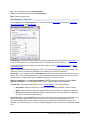
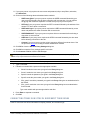
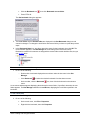
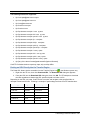
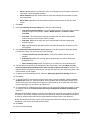
To configure thumbnail cache options, in the When the transfer engine exits box,
specify one of the following actions:
o
Retain images in thumbnail cache - Thumbnails stored in the cache are not
deleted when you exit CuteFTP or the Transfer Engine.
o
Delete images in thumbnail cache - The thumbnail cache is emptied when the
Transfer Engine is exited.
o
Delete images older than value specified - Thumbnails are stored for the time
specified by the thumbnail cache expiration drop down menu.
•
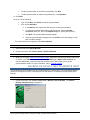
To empty the thumbnail cache immediately, click Delete thumbnail cache.
•
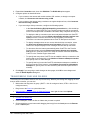
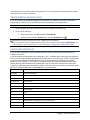
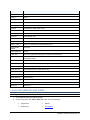
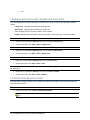
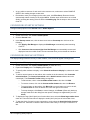
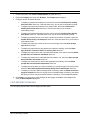
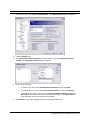
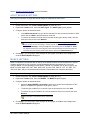
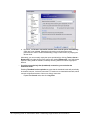
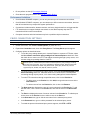
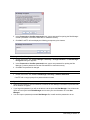
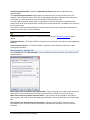
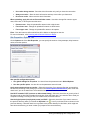
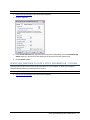
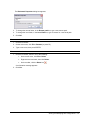
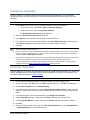
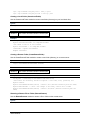
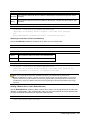
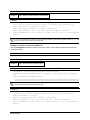
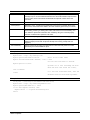
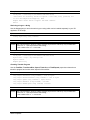
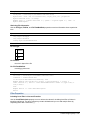
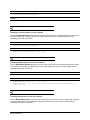
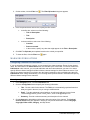
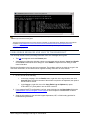
To access the log display and log saving options, click Logs. The Log options appear.
Configure options as described below.
46 ● Log File Settings