1
RUNNING SCRIPTS
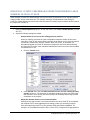
You can execute a script you create in Windows, from the command line, from within CuteFTP's interface,
or as a scheduled task to be run with no user logged in.
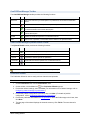
To execute a script directly in windows
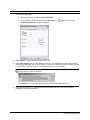
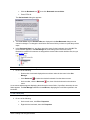
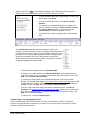
1. Launch CuteFTP Professional.
2. On the main menu, click Tools > Macros & Scripting > Run.
3. Browse for the script file you created. For example, sample.vbs.
4. Click Open to launch the script.
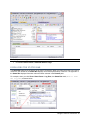
The log and queue view in CuteFTP populates with session and transfer information.
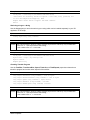
When creating your VB scripts, remember that in VB, you aren't checking to see if the returned value is
the string "True" or "False"; you're checking for the *value* True (i.e., -1) or False (i.e., 0). So, the
values should *not* be quoted. The rule is, with quotes, it's a string.
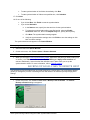
To execute a script from the command line
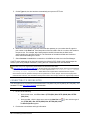
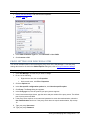
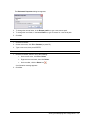
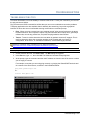
1. On the Windows task bar, click Start > Run.
2. In the Run dialog box, type CMD, then press ENTER.
3. Navigate to the location of the script file.
4. Type the name of the file, then press ENTER.
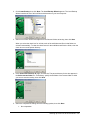
TE launches (the TE icon display in the system tray) and executes your script.
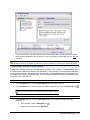
To execute a script directly in Windows
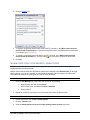
1. In Windows Explorer, navigate to the location of the script file.
2. Double click the script file
TE launches (the TE icon displays in the system tray) and executes your script.
CREATING SCRIPTS
You can interact with the TE directly from your own custom applications using common programming
languages such as Visual Basic (VB) or in a scripting language supported by the Windows Scripting Host
(WSH).
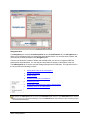
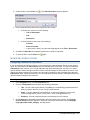
You can create a script from the development IDE of your choice, or you can create scripts from within
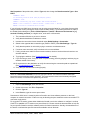
CuteFTP Professional by clicking Tools > Macros & Scripting > New. CuteFTP will open a template
script file in a document window.
To create a new script file, you need to have some familiarity with programming concepts and, ideally,
some experience with VB or Java.
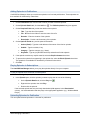
If you do not have any programming experience, you can still create scripts using the session Record and
Playback functionality in CuteFTP Professional.
•
Due to the wide range of scripts that CuteFTP is able to accommodate, we are unable to offer
technical support on individual scripts other than what is available in the help files and online
Knowledge Base.
Transfer Engine (SDK) ● 185