1
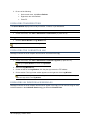
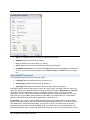
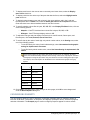
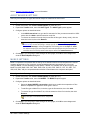
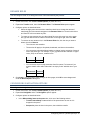
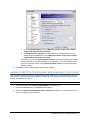
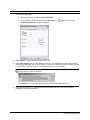
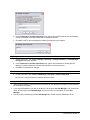
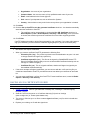
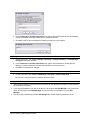
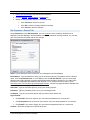
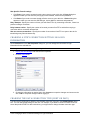
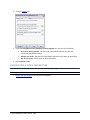
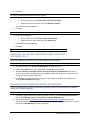
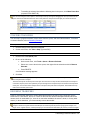
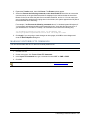
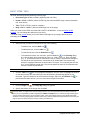
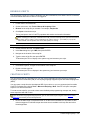
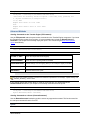
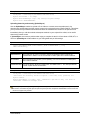
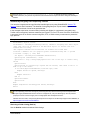
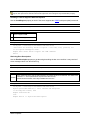
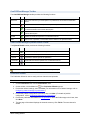
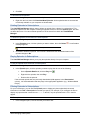
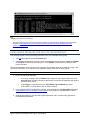
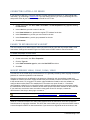
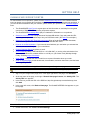
1. Click the site in the Site Manager.
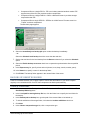
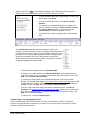
2. On the main menu, click File, then click Properties. The Site Properties dialog box appears.
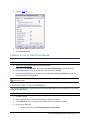
3. Click the Type tab.
4. Select the Clear Command Channel check box.
5. Click OK or Connect.
Not all servers support or allow the CCC (Clear Command Channel) command argument.
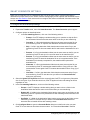
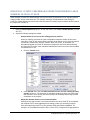
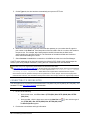
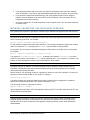
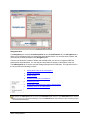
To configure other SSL settings
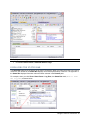
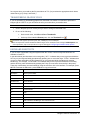
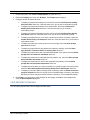
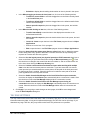
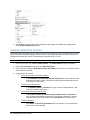
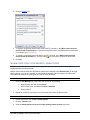
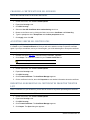
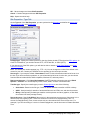
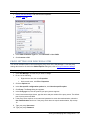
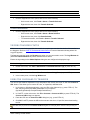
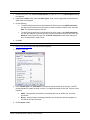
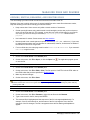
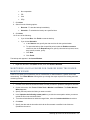
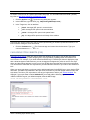
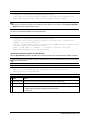
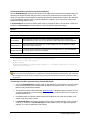
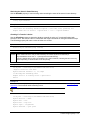
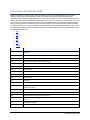
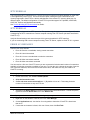
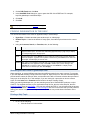
1. On the main menu, click Tools, then click Global Options.
2. Expand the Security node.
3. Select SSL Security.
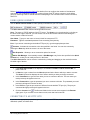
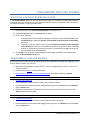
CuteFTP Professional supports keyboard interactive authentication. This authentication method involves
connecting to servers with a challenge/response type of password-based authentication, and requires a onetime-use password typically generated by hardware-based or, less commonly, software-based password
generators.
CREATING SSL CERTIFICATES
SSL servers use certificates to determine whether they will allow you to connect. With CuteFTP, you can
create and sign digital certificates.
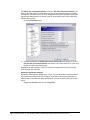
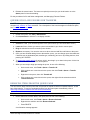
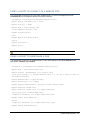
To create an SSL certificate
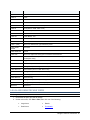
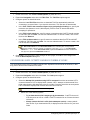
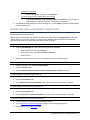
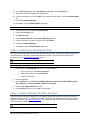
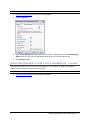
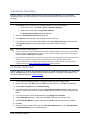
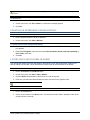
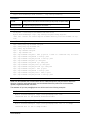
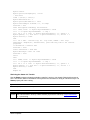
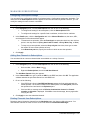
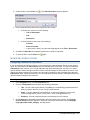
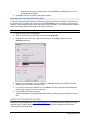
1. On the main menu, click Tools > Global Options.
2. Expand the Security node.
3. Click SSL Security.
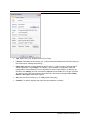
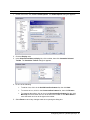
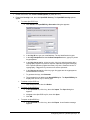
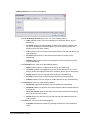
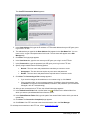
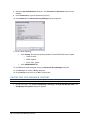
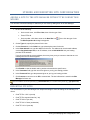
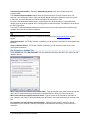
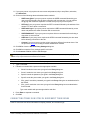
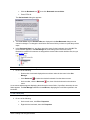
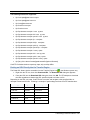
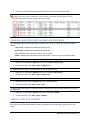
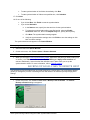
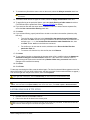
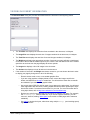
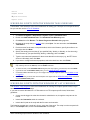
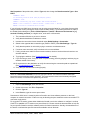
4. Click Create Certificate. The Create Client SSL Certificate Set wizard appears.
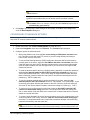
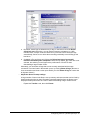
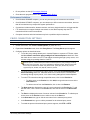
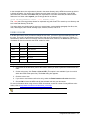
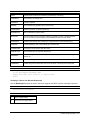
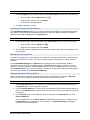
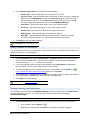
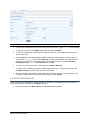
5. In the Certificate Set Name box, type the name of the certificate that will be generated by the
Certificate Wizard.
6. In the Output Location box, click the folder icon to select a folder in which to save the certificate.
7. In the Key length in bits box, click a bit length for the certificate private key. CuteFTP supports
keys up to 4,096 bits.
8. In the Expiration box, specify how long the certificate is to remain valid.
9. Enter and confirm the Passphrase. The passphrase, which is used to encrypt the private key,
can be any combination of characters or spaces. Do not lose the passphrase, as the certificate is
useless without it.
10. Click Next.
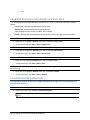
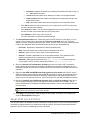
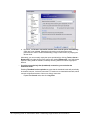
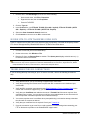
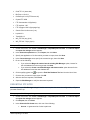
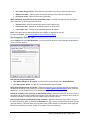
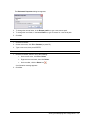
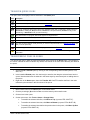
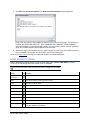
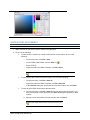
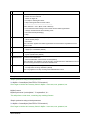
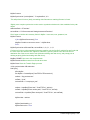
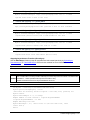
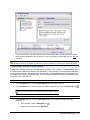
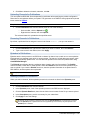
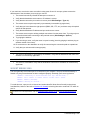
11. In the Certificate Information area, type the following required information:
•
City/Town - the city/town where your organization is located.
•
State/Province - the state/province where your organization is located.
Secure Connections ● 91