1
AM-800CL / AB-800CL
Tool is connected to a camera and the camera is turned on.
10.2.2
Communication Window
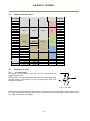
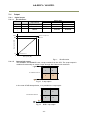
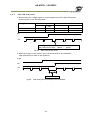
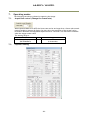
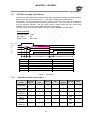
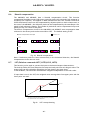
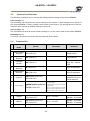
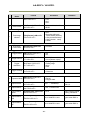
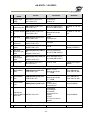
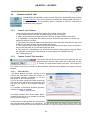
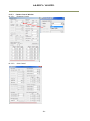
The Communication Window is used to connect
the Camera Control Tool with the JAI camera.
Depending on the camera there are 2 possible
ways to communicate with a JAI camera.
RS-232C
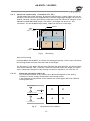
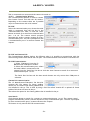
Select the communication port, where the serial
cable is connected from the list box in the
„Communication Port‟ field, or click the „Auto‟
button to search for a camera on communication
port 1 to 16. The camera control program
automatically sends a camera request on every
communication port. The user is prompted to use
a communication port if a camera answers the
request.
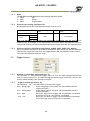
RS-232C and Camera Link
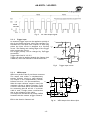
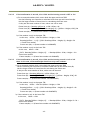
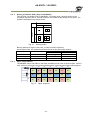
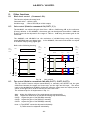
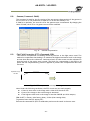
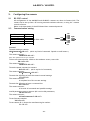
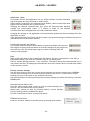
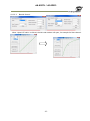
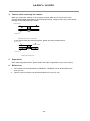
The Communication Window looks a bit different when it is possible to communicate with the
camera using Camera Link and RS-232 com port. The Communication area contains 2 list boxes now.
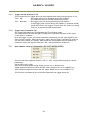
RS-232CCommunication
1. Select ‟COM-ports‟ from the ‟CL
Manufacturer/COM-ports‟ list Box.
2. Select the communication port, where
the serial cable is connected to the
camera from the ‟Serial Port‟ list box or click the „Auto‟ button to search for a camera on
communication port 1 to 16.
The Serial Port list box and the Auto search button are only active when COM-ports is
selected.
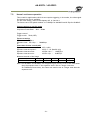
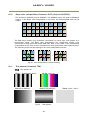
Camera Link communication
The ‟CL Manufacturer/COM-ports‟ list box also
contains DLL file names (or frame grabber
names) for all Camera Link frame grabbers that
are installed in the pc. This is done by using a DLL file called "clserial.dll" to upload all frame
grabber DLLs that are found in the pc.
Just select the option for the frame grabber that is installed in the pc.
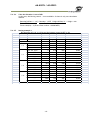
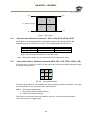
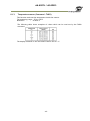
Auto Search
Click the auto button to search for a camera on communication port 1 to 16. The camera control
program automatically sends a camera request on every communication port. The user is prompted
to use a communication port if a camera answers the request.
This button is only used for RS-232 communication.
- 54 -