1
7
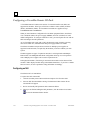
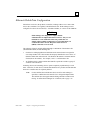
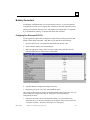
Configuring a VersaMax Modular Rack
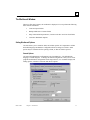
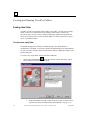
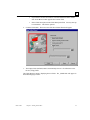
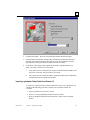
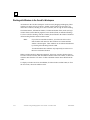
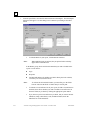
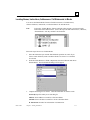
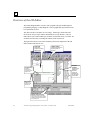
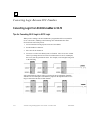
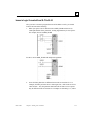
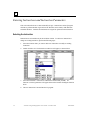
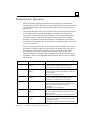
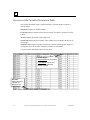
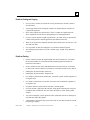
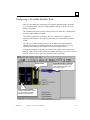
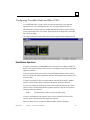
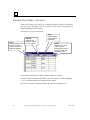
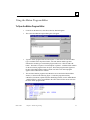
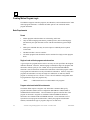
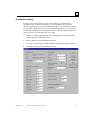
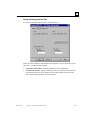
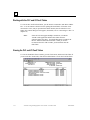
When you enter Hardware Configuration for VersaMax equipment folders, the default
view is the Rack (Main). The power supply (PWR001) and CPU (CPU001) are in the
default configuration.
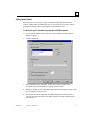
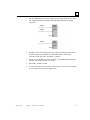
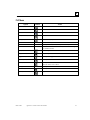
The VersaMax rack system is built by selecting carriers into which I/O, communications
and power supply modules are added.
The default VersaMax rack system has a main rack. Multiple power supplies are
supported on the main rack, as required by the modules you need to add into your rack
system.
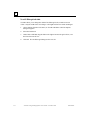
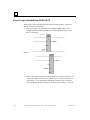
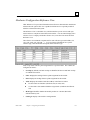
Two types of VersaMax expansion networks are available: Local Single Rack and
Multiple Remote Rack. The Multiple Remote Rack configuration allows up to seven
expansion racks. Multiple power supplies can be used in expansion racks.
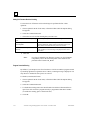
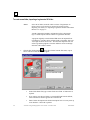
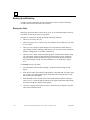
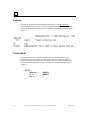
In the physical hardware, field wiring is connected to the module carriers instead of the
modules. HWC displays module wiring in the Module Parameters. If you move a module
between carriers, be sure to update the wiring information accordingly.
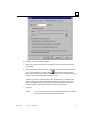
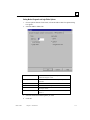
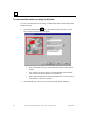
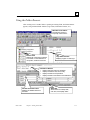
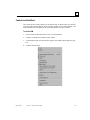
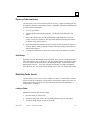
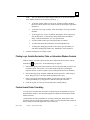
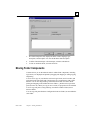
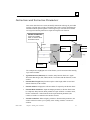
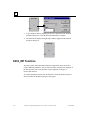
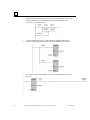
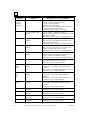
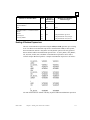
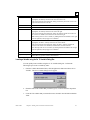
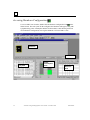
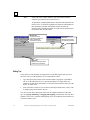
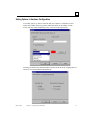
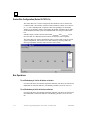
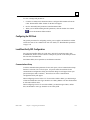
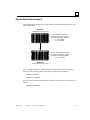
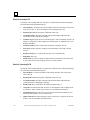
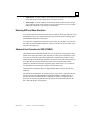
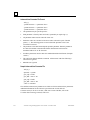
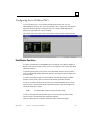
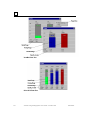
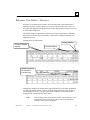
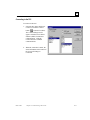
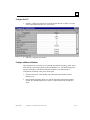
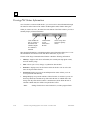
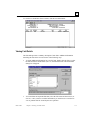
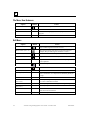
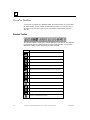
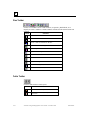
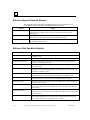
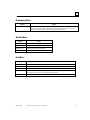
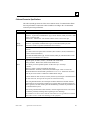
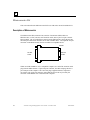
Empty Carrier
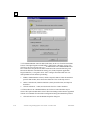
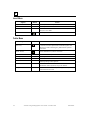
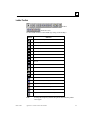
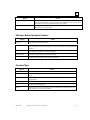
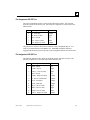
Right Mouse Menu Choices:
Click the right mouse button to view
list of available commands for the
active carrier/module.
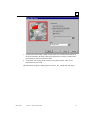
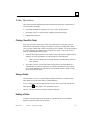
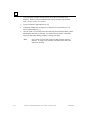
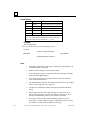
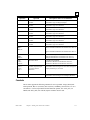
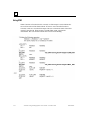
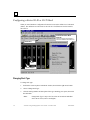
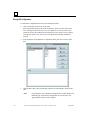
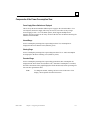
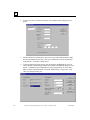
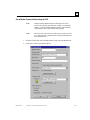
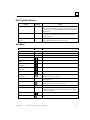
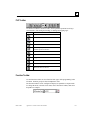
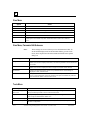
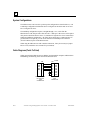
Power Supply and CPU:
To edit CPU parameters, click the
right mouse button and select
Configure CPU Parameters.
GFK-1670D
Chapter 7 Configuring PLC Hardware
7-19