1
3 Getting Around Banner
Entering Information
•
Search by SSN (U.S.), SIN (Canada), TFN (entities), or birth date.
•
Use a product-specific search form.
•
Search by the pattern of characters in the name (Oracle Soundex).
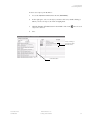
To enter a complete ID:
1.
Enter the full ID (for example, 2314780) in the ID field.
2.
Press Enter. The ID and name appear.
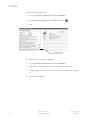
To enter a complete name:
1.
Make sure the ID field is blank.
2.
Tab to the Name field (unlabeled field next to the ID field).
3.
Enter the full name.
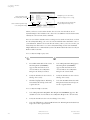
The format is last, first, middle with a comma between each part of the name.
Spaces between each piece are optional. Characters can be upper or lower
case. (You get the same results whether you enter upper or lower case letters.)
Examples:
Smith, Thomas, James
Smith, Thomas (no middle name)
4.
Press Enter.
•
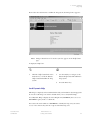
If one match is found, the ID and name are returned to the form.
•
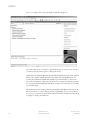
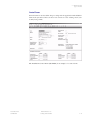
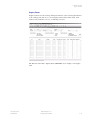
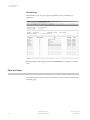
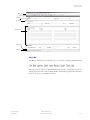
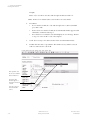
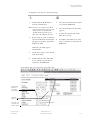
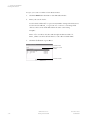
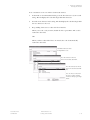
If more than one match is found, the ID and Name Extended Search
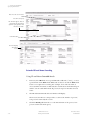
window appears. You can select an ID (see “To select an ID from the ID and
Name Extended Search window”), reduce your search (see “To reduce
your search in the ID and Name Extended Search window”), or access a
product-specific search form (see “To access a search form from the ID and
Name Extended Search window”).
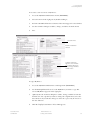
To search by partial ID:
1.
Enter a partial ID in the ID field. Use the Oracle wildcard % to represent any
number of unspecified characters.
Example:
Enter 21% to search for all IDs that start with “21”.
2.
3-18
Press Enter.
•
If one match is found, the ID and name are returned to the form.
•
If more than one match is found, the ID and Name Extended Search
window appears. You can select an ID (see “To select an ID from the ID and
Banner Release 7.4
Getting Started Guide
November 2006
Confidential