1
2 All About Forms
Elements on a Form
•
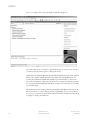
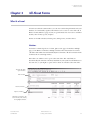
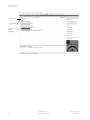
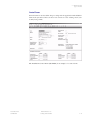
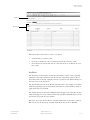
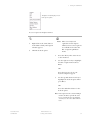
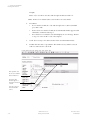
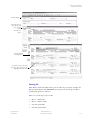
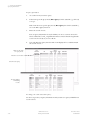
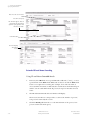
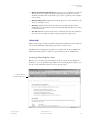
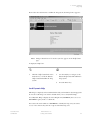
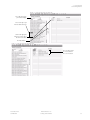
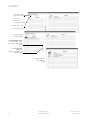
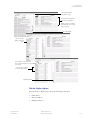
A vertical scroll bar, located directly to the right of the rows, indicates there are
more records than are shown. A record can have one or more fields and one or
more lines. A vertical scroll bar is disabled if all the records appear at once.
•
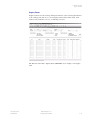
A horizontal scroll bar, located directly under the window, indicates there are
more columns of information than are shown.
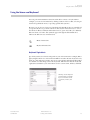
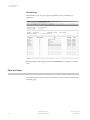
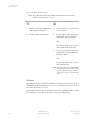
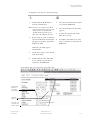
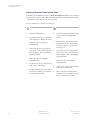
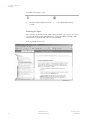
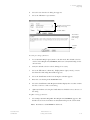
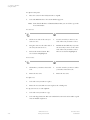
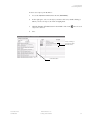
To use a scroll bar:
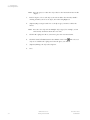
Click and drag the scroll box up/down
(vertical) or left/right (horizontal).
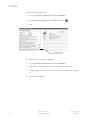
1.
Select the Next Item function to
move to one of the fields controlled
by the scroll bar.
2.
To move up and down (vertical
scroll bar), select the Next Record
or Previous Record function.
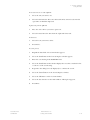
OR
Click the arrow at either end of the scroll
bar. The scroll box moves in the
direction of the arrow.
OR
Click anywhere in the scroll bar. The
scroll box moves between the previous
location and where you click.
OR
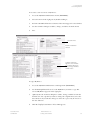
To move left and right (horizontal
scroll bar), select the Next Item or
Previous Item function.
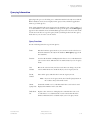
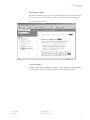
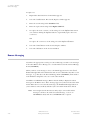
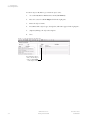
Fields
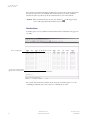
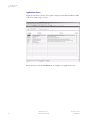
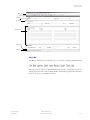
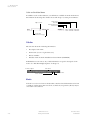
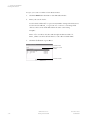
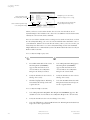
Fields are areas on a form where you can enter, query, change, and display specific
information. A field is sometimes called an item. This is the case in the names of the
functions Next Item, Previous Item, and Duplicate Item. The following terms describe a
field:
2-34
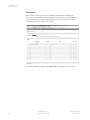
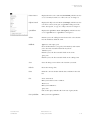
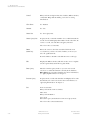
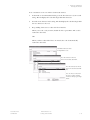
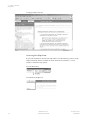
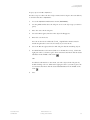
•
Enabled. You can put the cursor in the field. Information in the field appears
in black text.
•
Disabled. You cannot put the cursor in the field. Information (if it exists)
appears in black text, the same as enabled fields. Your site administrator may
choose to change the color of disabled text for your site. Refer to the Banner
Middle Tier Implementation Guide for more information.
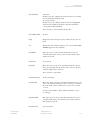
•
Enterable. You can enter information in the field. The field is usually enabled.
In certain situations, however, it may be disabled.
•
Display only. You cannot enter information in the field.
Banner Release 7.4
Getting Started Guide
November 2006
Confidential