1
3
Getting Around Banner
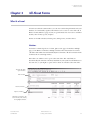
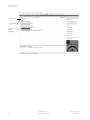
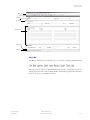
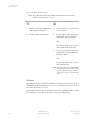
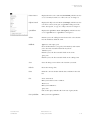
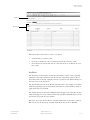
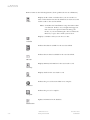
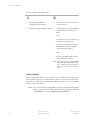
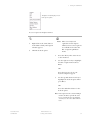
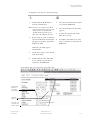
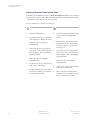
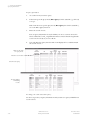
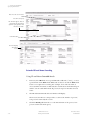
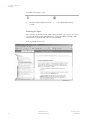
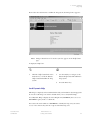
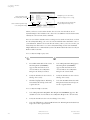
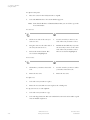
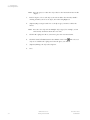
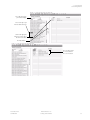
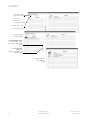
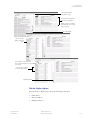
To navigate between tabbed windows:
•
•
Click the tab.
•
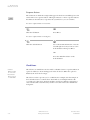
The List Tab Pages key (F2) displays
a list of other tabbed windows on
the form. Use the mouse to select a •
different tab from the list. For
forms that have tabs within a tabbed
window, navigation is based on the •
location of the cursor when List Tab
Pages is selected.
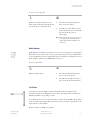
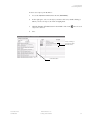
Control-Tab moves forward and
Control-Shift-Tab moves backward
through the tabs on a form.
Control-Page Up moves forward
and Control-Page Down moves
backward through the tabs.
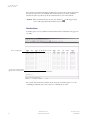
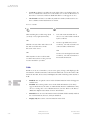
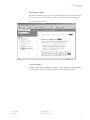
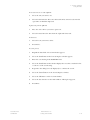
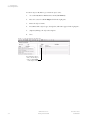
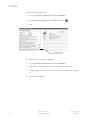
The List Tab Pages key (F2) displays
a list of other tabbed windows on
the form. Use the up and down
arrow keys to select a different tab
from the list. For forms that have
tabs within a tabbed window,
navigation is based on the location
of the cursor when List Tab Pages is
selected.
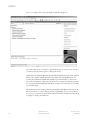
Options Menu
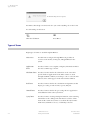
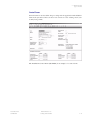
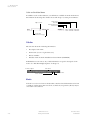
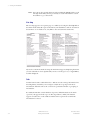
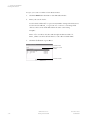
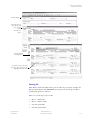
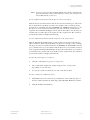
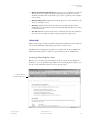
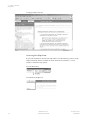
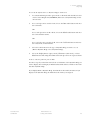
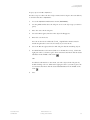
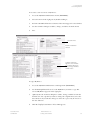
You can use the Options menu in the menu bar to navigate within Banner. Options
in the menu depend on where the cursor is currently located. Some options take you
to other blocks and windows within the current form. Other options take you
outside the current form to other related forms.
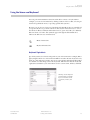
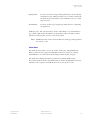
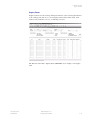
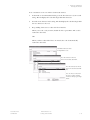
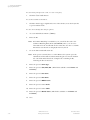
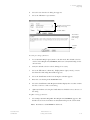
The Options menu optionally displays the form name associated with each option
that takes you outside the current form. You can set up this option on the General
User Preferences Maintenance Form (GUAUPRF). See "Displayed Form Names" in
chapter 5.
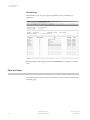
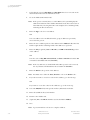
Banner is delivered with standard navigation options. The system administrator at
your institution can use the Options Maintenance Form (GUAOPTM) to change
and add navigation options for your institution. Only those staff members with
appropriate security can perform this task.
Note: Only the first 24 options defined on GUAOPTM will appear in the
Options pull-down menu.
November 2006
Confidential
Banner Release 7.4
Getting Started Guide
3-5