1
PASSWORD SECURITY
®
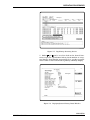
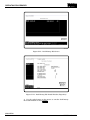
Use the ACCESS utility to change the default security levels
and assign passwords. To assign passwords to security levels:
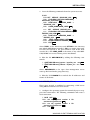
1. Select Utilities from the main menu.
2. Select ACCESS from the utilities menu with the mouse or
press F1 . An engineer level password is required to use the
ACCESS utility.
If a security level not high enough message is displayed while
attempting to execute the ACCESS utility, press Ctrl - P and
enter the engineer password at the Password>< prompt.
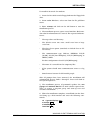
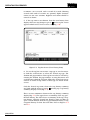
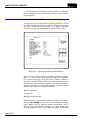
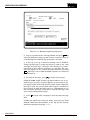
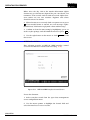
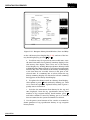
3. Start up the access utility.
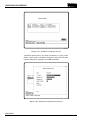
4. Use the mouse or ← and → to highlight Setup at the bottom of the of ACCESS utility screen. Click on the selection
using the mouse or press Enter .
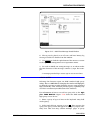
5. Select GCS using the mouse or keyboard.
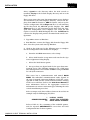
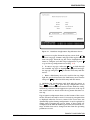
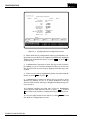
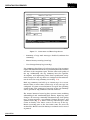
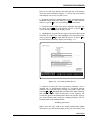
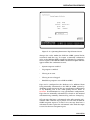
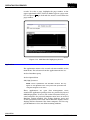
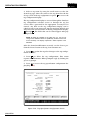
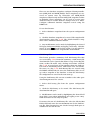
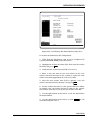
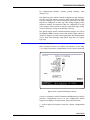
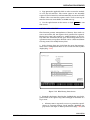
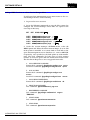
6. From the System Configuration Utility screen select Security to bring up the password definition screen.
The top entry shows the number of passwords available. This
entry can be modified from zero to 10 to set up the number of
password levels to use. If zero is entered in the number of passwords field there is no password security for any screen or
function. To the left of each password level listed is a four character field in which a password can be defined.
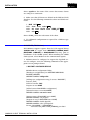
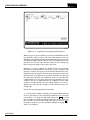
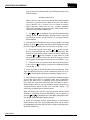
7. To define a password, highlight a password field by pointing to it with the mouse, then type in the password to be used
for that security level, then press Enter . Define as many password security levels as desired.
8. When finished click, the left button on the mouse to exit
the password definition screen.
9. To exit the ACCESS Utility, select quit using the mouse or
keyboard to exit a particular menu level.
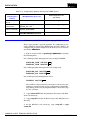
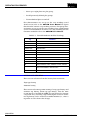
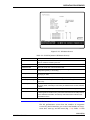
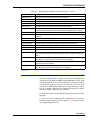
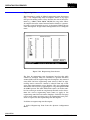
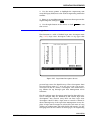
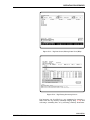
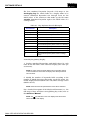
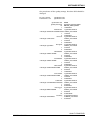
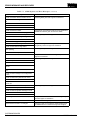
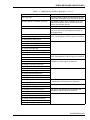
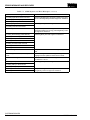
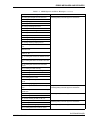
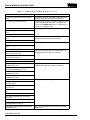
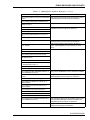
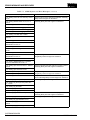
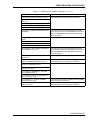
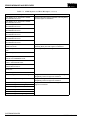
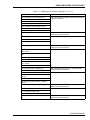
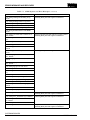
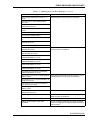
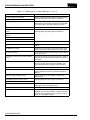
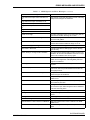
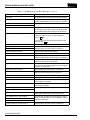
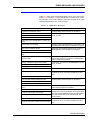
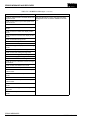
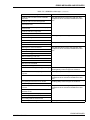
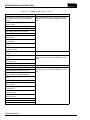
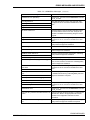
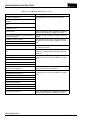
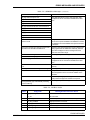
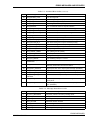
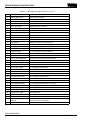
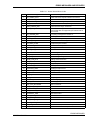
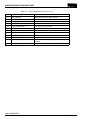
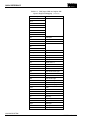
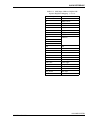
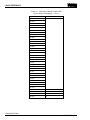
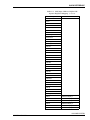
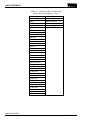
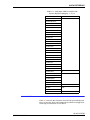
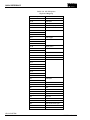
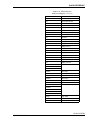
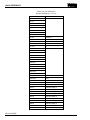
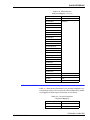
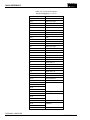
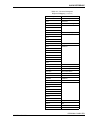
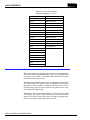
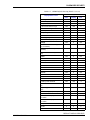
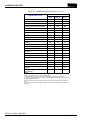
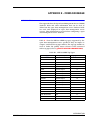
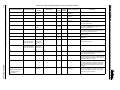
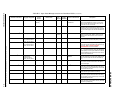
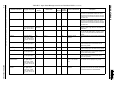
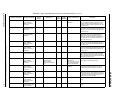
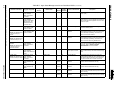
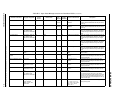
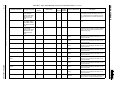
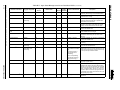
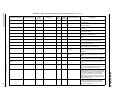
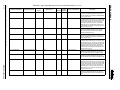
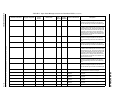
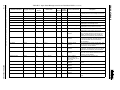
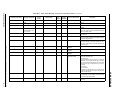
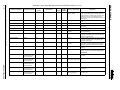
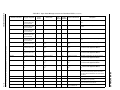
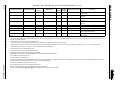
Table C-1. ODMS Default Security Levels
Display Name or Icon
Security Level
Data1
Display
Icon2
pimtitle
N/A
0
N/A
F1
N/A
N/A
0
pimmenu
N/A
0
N/A
F1 Operations
N/A
N/A
0
F2 Applications
N/A
N/A
0
F3 Utilities
N/A
N/A
0
DEFAULT DISPLAY SECURITY
C-2
WBPEEUI350003B0