1
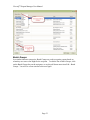
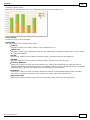
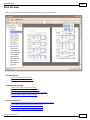
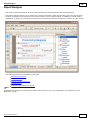
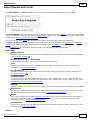
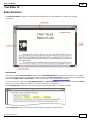
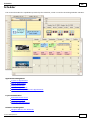
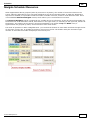
CleverQ™ Report Manager User Manual Introduction This document is to be used to learn how to use Report Manager Plus both as a user viewing reports, and also as a user who creates reports. It is highly recommended that you have previously read all other CleverQ manuals. Report Manager Plus is a new addition to CleverQ that will eventually replace the existing Report Manager. Report Manager Plus will be simply referred to within this document as the Report Manager since it will be the only Report Manager at some point. The CleverQ Report Manager is a powerful reporting tool that runs as a separate program and is launched from within CleverQ. The Report Manager is based on the latest technology available and provides numerous and powerful features as listed below. Features include: Create reports from almost any data source including CleverQ QBD files, Microsoft Access, or any ODBC source including SQL Server, MySQL, Oracle, etc. Run reports immediately or later based on a scheduled time using a familiar calendar view (day, week, month, timeline) or a simple list view Reports can be previewed, printed, or emailed Reports can be saved in different file formats including: PDF, HTML, MHT, RTF, TXT, CSV, XLS, XLXS, BMP, EMF, GIF, JPEG, PNG, TIFF, and WMF Reports can be predefined as a system report or a user report User reports can be optionally shared among other users Reports can be categorized based on a system or user defined category Reports can be grouped so a group of reports can be scheduled with a single selection All report designs and definitions are stored in a single file so they can easily be retrieved and managed Includes user defined report filtering Charts and pivot tables can be included on a report Reports can include data grouping, sorting, sub-reports, pictures, advanced styles, summaries, calculated fields, scripting, watermarks, bookmarks, and more Different reports can be based on different data sources Reports can be scheduled to run once or in a recurrence pattern (i.e. daily, weekly, monthly, etc.) Report designs and definitions can be copied to make new designs or definitions easily Browse reports using the unique report carousel Report output can be saved in a user defined folder or repository An automatically created HTML home page providing a link to folders and reports in the repository can be created to provide a static web site of reports. Reports can be send to an FTP site to be part of a external web site. Page 4