1
Report Designer
424
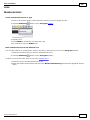
Step 4 - Choose Columns to Display in Your Report
Purpose
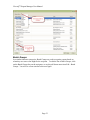
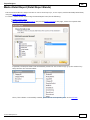
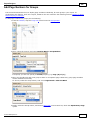
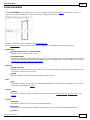
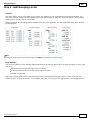
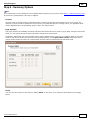
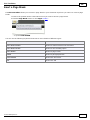
Choose fields (attributes) whose data will be displayed in your report. The selected fields and corresponding
captions will be automatically added to your report, arranged one under another.
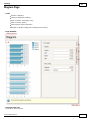
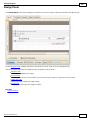
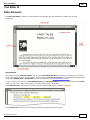
Page Interface
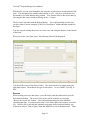
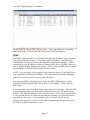
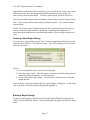
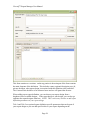
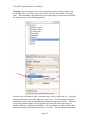
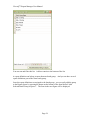
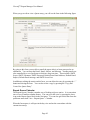
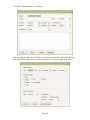
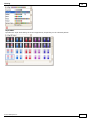
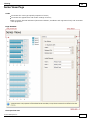
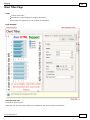
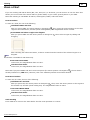
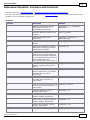
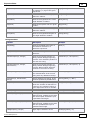
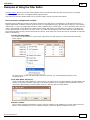
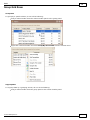
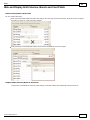
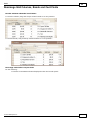
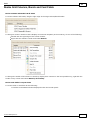
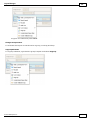
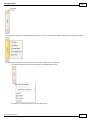
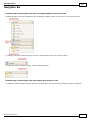
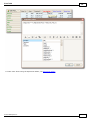
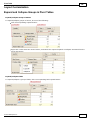
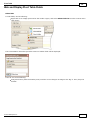
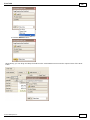
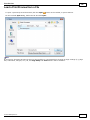
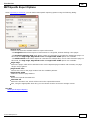
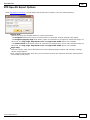
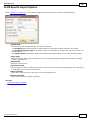
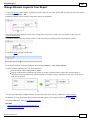
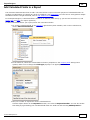
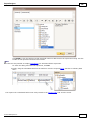
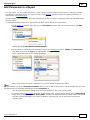
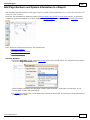
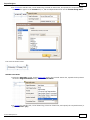
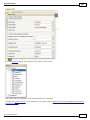
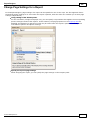
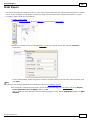
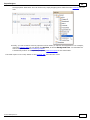
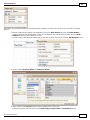
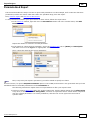
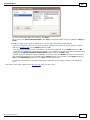
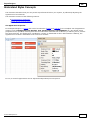
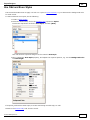
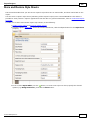
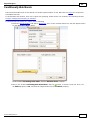
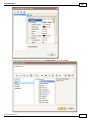
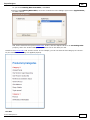
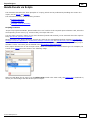
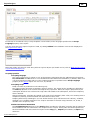
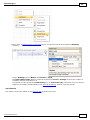
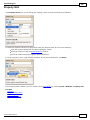
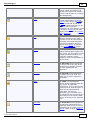
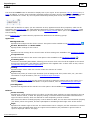
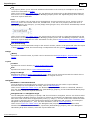
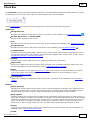
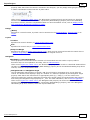
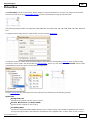
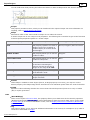
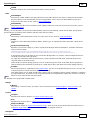
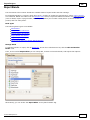
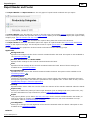
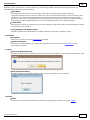
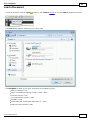
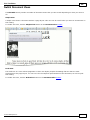
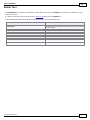
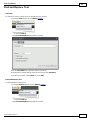
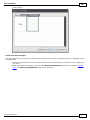
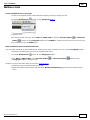
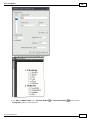
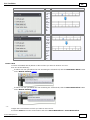
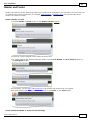
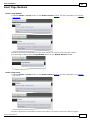
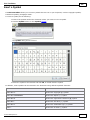
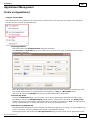
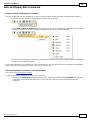
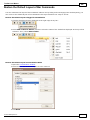
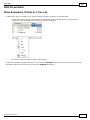
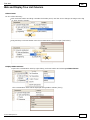
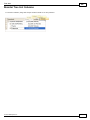
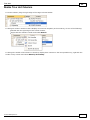
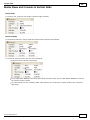
The list on the left-hand side shows all available fields (attributes). To select the required fields, double-click them
or drag them to the list box on the right-hand side. Another way to select fields is to use arrow buttons to move
them back and forth.
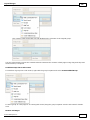
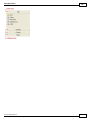
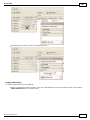
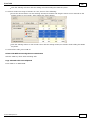
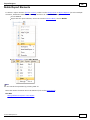
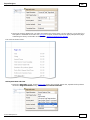
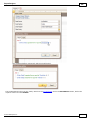
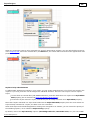
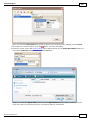
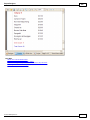
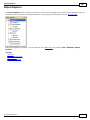
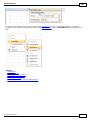
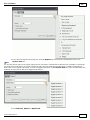
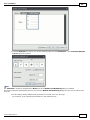
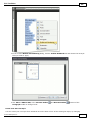
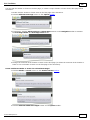
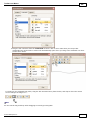
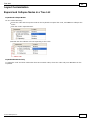
Note that you can move multiple fields at once. To do this, you first need to select them by clicking while holding
CTRL or SHIFT, or by using SHIFT+UP ARROW or SHIFT+DOWN ARROW shortcuts.
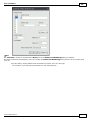
Note
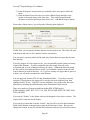
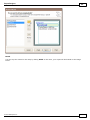
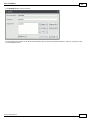
To continue or finish report creation, you must select at least one field.
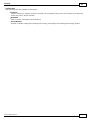
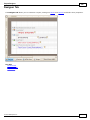
Result
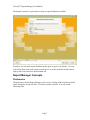
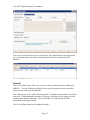
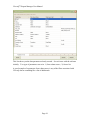
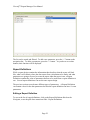
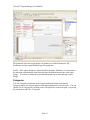
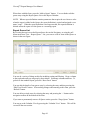
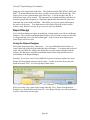
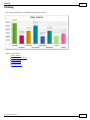
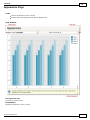
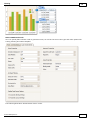
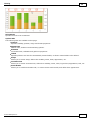
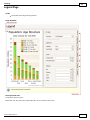
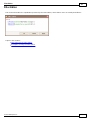
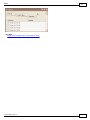
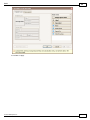
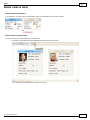
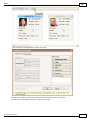
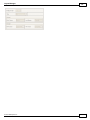
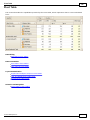
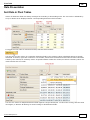
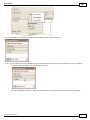
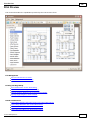
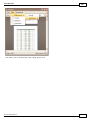
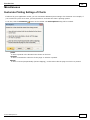
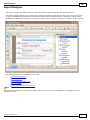
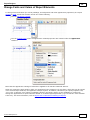
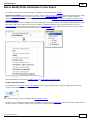
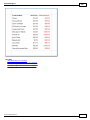
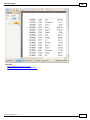
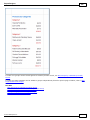
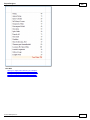
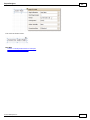
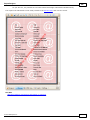
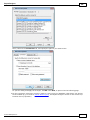
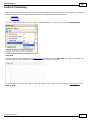
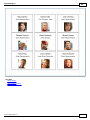
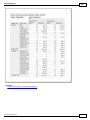
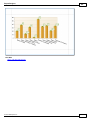
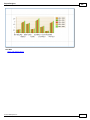
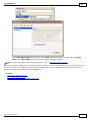
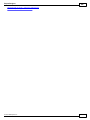
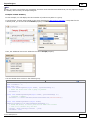
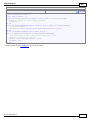
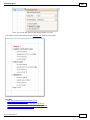
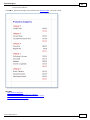
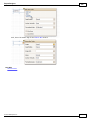
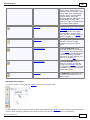
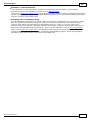
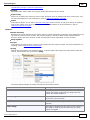
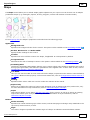
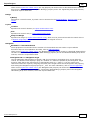
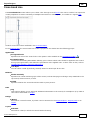
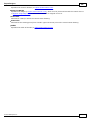
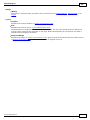
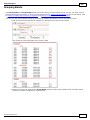
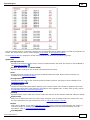
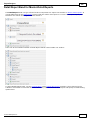
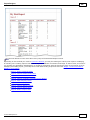
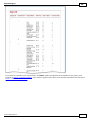
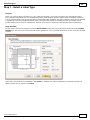
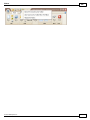
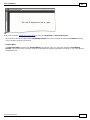
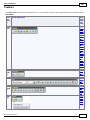
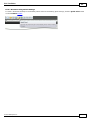
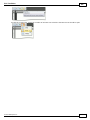
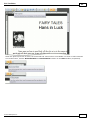
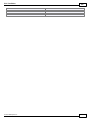
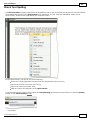
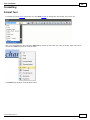
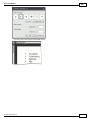
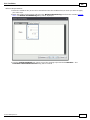
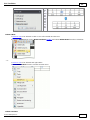
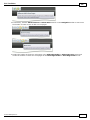
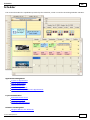
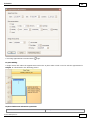
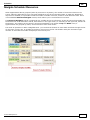
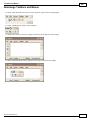
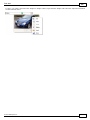
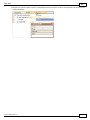
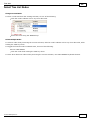
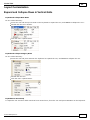
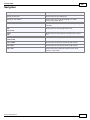
You can stop the wizard at this step by clicking Finish. In this case, your report will look similar to the image
below.
© 2011 DevExpress Inc.
424