1
6.4 Addition and Subtraction of Data
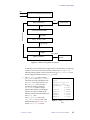
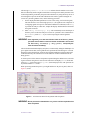
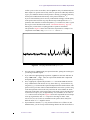
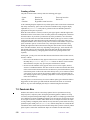
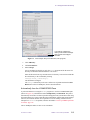
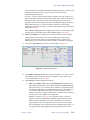
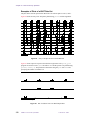
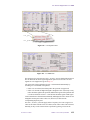
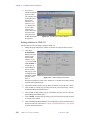
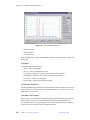
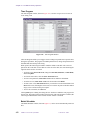
first entered, this spectrum is the sum (1 + 2) by default. The Interactive Add/Subtract menu
(described in the next section) also appears.
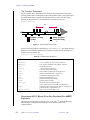
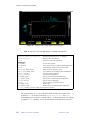
Displayed at the bottom of the screen is the name of the currently active spectrum (the
interactive one). Also displayed there is the current result mode (add, sub, or min).
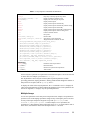
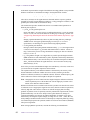
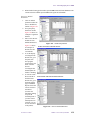
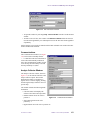
Interactive Add/Subtract Menu
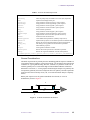
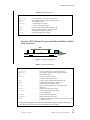
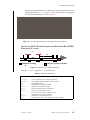
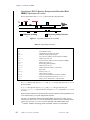
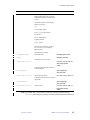
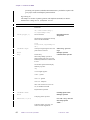
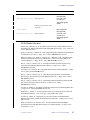
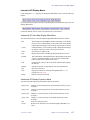
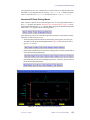
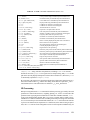
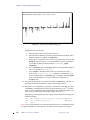
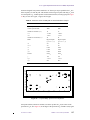
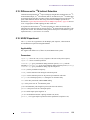
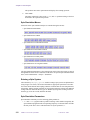
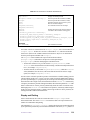
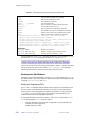
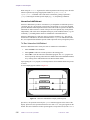
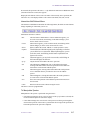
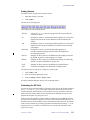
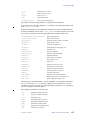
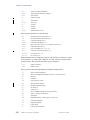
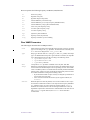
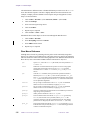
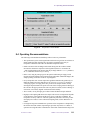
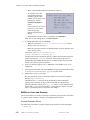
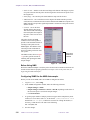
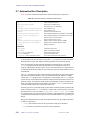
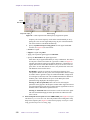
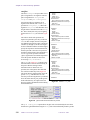
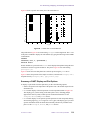
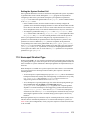
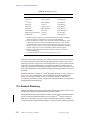
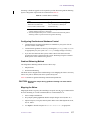
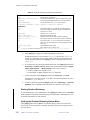
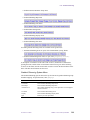
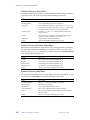
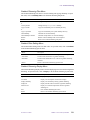
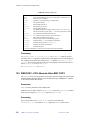
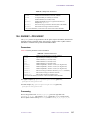
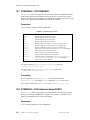
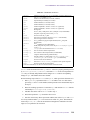
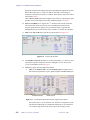
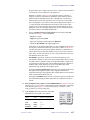
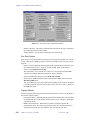
The Interactive Add/Subtract Menu has the following buttons (the labels on some buttons
change depending on what mode you are in):
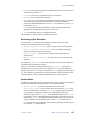
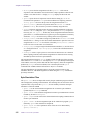
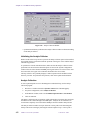
Each button functions as follows:
Box
Cursor
Select
Expand
Full
sp wp
sub
min
add
save
return
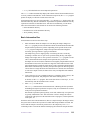
The first button is labeled Box or Cursor. When Box appears, you
are in the cursor mode, and clicking on this button changes you to
the box mode with two cursors.
When Cursor appears, you are in the box mode, and clicking on this
button changes you to the cursor mode with one cursor.
Selects whether the current, add/sub, or result spectrum is active.
The third button is labeled Expand or Full, depending on whether
you are in the box or cursor mode. When Expand appears, you are
in the box mode, and clicking on this button expands the area
between the cursors.
When Full appears, you are in the cursor mode, and clicking on
this button displays the full area.
Adjusts the start and width of the active spectrum.
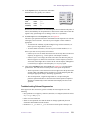
The fifth button is labeled sub, min, or add. When sub appears,
clicking on the button makes the result spectrum to be the difference
between the current and the add/sub spectra.
When min appears, clicking on the button makes the result spectrum
to be a minimum intensity of either the current or the add/sub
spectra.
When add appears, clicking the button makes the result spectrum to
be a sum of the current and the add/sub spectra.
Saves the result spectrum in the add/sub experiment and returns to
the last menu.
Returns to the last menu without saving the result.
This menu is not user-programmable.
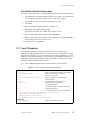
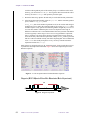
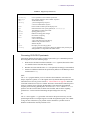
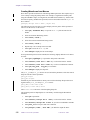
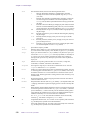
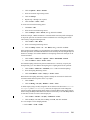
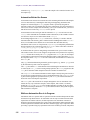
To Manipulate Spectra
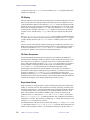
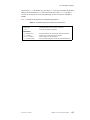
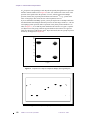
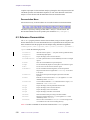
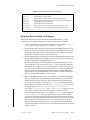
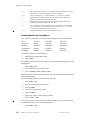
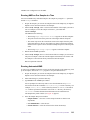
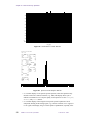
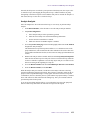
Manipulation of the spectra is performed using the mouse:
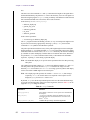
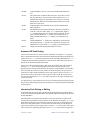
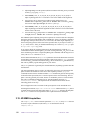
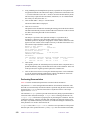
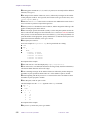
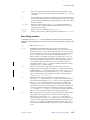
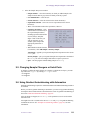
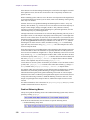
• Left button positions the cursor or pair of cursors. If the sp wp button is selected, the
left mouse button adjusts the start of the display.
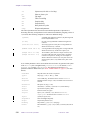
• Center button changes the vertical scale of the spectrum so that it goes through the
current mouse position. If the mouse is positioned at the left edge of the spectrum, the
horizontal position of the spectrum is adjusted.
01-999161-00 A0800
VNMR 6.1C User Guide: Liquids NMR
217