1
Chapter 7: Selecting and Querying Data
In the first part of this chapter, we discussed selections and query tables as a result of using Query
Select command. We now turn our attention to an extremely powerful and useful feature in MapInfo
Professional, querying by SQL Select.
While MapInfo Professional’s Select command lets you formulate sophisticated queries, SQL Select
goes even further. The records in the query table generated by the Select command don’t have any
information in them that isn’t contained in the records of the base table. They are, in fact, the same
records. They have been arranged so that they can be viewed together.
With SQL Select you can create query tables containing information that was only implicit in the
base table(s).
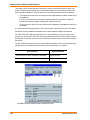
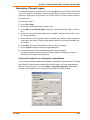
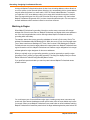
The SQL Select dialog box is one of the most elaborate ones in MapInfo Professional. But don’t be
intimidated. Once you learn what each box is used for, it is fairly simple to create powerful selection
statements. You can type directly into the boxes or you can use the pop up menus on the right to
enter items into the boxes.
The easiest way to describe the dialog box is to walk you through an example, step-by-step. This
example uses data from the WORLD table included in MapInfo Professional, so you can try out this
SQL Select exercise yourself. We have included a brief description of the parts of the dialog box with
each step. A complete description of each box is given after the example.
Note Expanding the text controls is no guarantee that the resulting query can be handled by
MapInfo Professional. You can still receive the Query too complex error when adding larger
queries.
Example 1 — Computing Population Density Using Area
In this example, we’ll use the world map to create a table of all the countries that have a population
density of over 500 people per square mile.
The following formula computes population density:
•
POPULATION / AREA
While the WORLD table has a population column (pop_1994), it does not include a column for
country area. However, since the WORLD table has graphic objects associated with the records,
MapInfo Professional can compute the total area for each country.
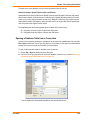
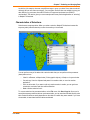
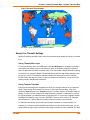
Open the WORLD.TAB table, and maximize its display by clicking the window’s maximize button.
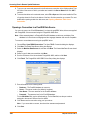
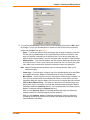
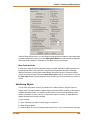
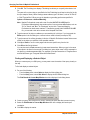
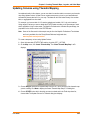
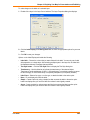
On the Query menu, click SQL Select to display the SQL Select dialog box.
To complete the SQL Select dialog box:
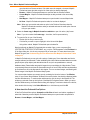
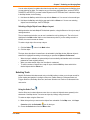
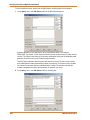
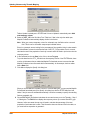
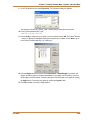
1. In the From Tables box, choose WORLD from the Tables drop-down list.
You can specify more than one table in an SQL statement. This example uses only one table,
WORLD.
2. You should fill in the From Tables box before you fill in the Select Columns box. MapInfo
Professional uses the tables in the From Tables box to generate the list of columns in the
Columns drop-down list.
User Guide
171