1
Chapter 10: Stylizing Your Map for Presentations and Publishing
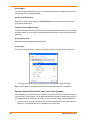
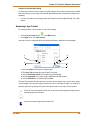
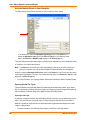
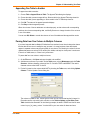
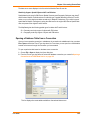
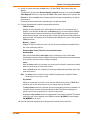
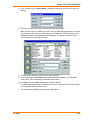
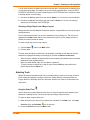
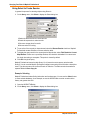
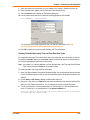
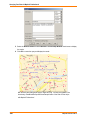
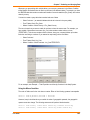
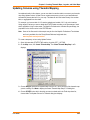
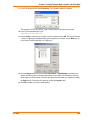
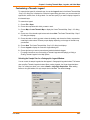
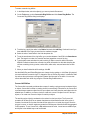
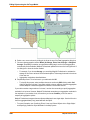
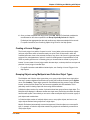
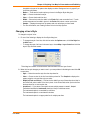
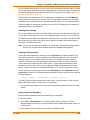
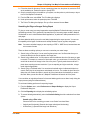
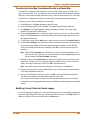
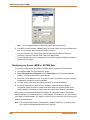
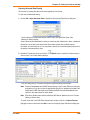
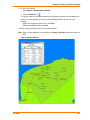
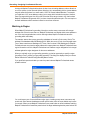
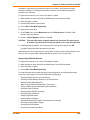
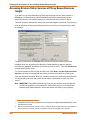
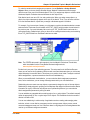
To make changes to the labels of a selected layer:
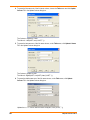
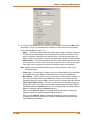
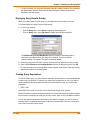
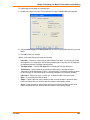
1. Double-click a layer in the Layer Control window. The Layer Properties dialog box displays.
2. Click the Label Display and Labeling Rules tabs to select the appropriate options for your new
labels.
3. Click OK to save your changes.
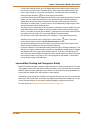
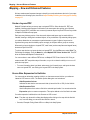
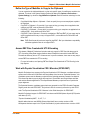
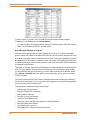
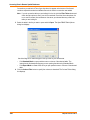
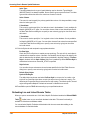
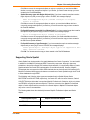
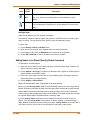
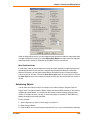
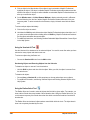
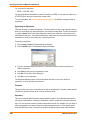
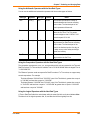
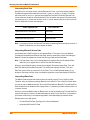
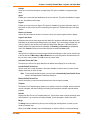
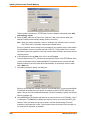
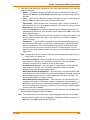
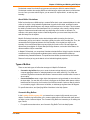
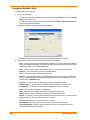
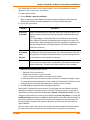
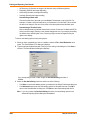
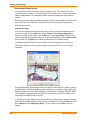
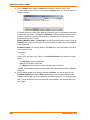
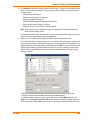
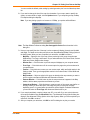
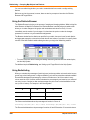
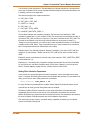
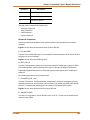
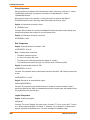
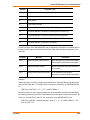
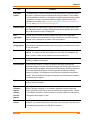
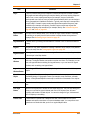
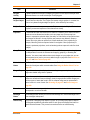
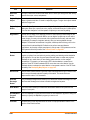
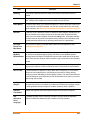
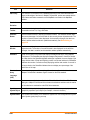
Options on the Label Display tab include the following.
•
•
•
•
•
•
•
User Guide
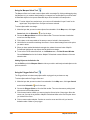
Label with – Choose the column that you want reflected in the label. You can only set a Label
with expression on a single layer. After selecting multiple layers in the Layer list, the Label with
list disables and shows a message that says Mixed.
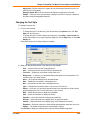
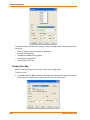
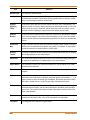
Text Style button – Click the Text Style button to display the Text Style dialog box.
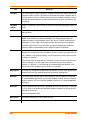
Translucency – Use this slider bar to indicate the translucency of the selected object.
Translucency can be set between 0-100%. A 0% translucency is completely opaque (or cannot
be seen through). A 100% translucency is completely transparent (or completely invisible).
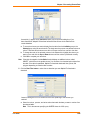
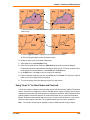
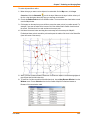
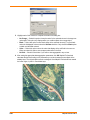
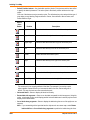
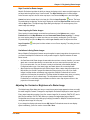
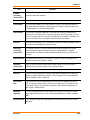
Label Lines – Select a line type, or no line type, to attach the label to the anchor point.
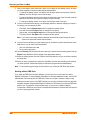
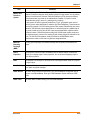
None – Do not display a line with the label.
Simple – Create a callout by using a simple line that connects the label to the anchor point.
Label lines display after you move the label from where it was originally created.
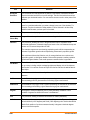
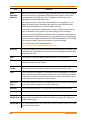
Arrow – Create a callout by using an arrow and line that connects the label to anchor point.
Label lines display after you move the label from where it was originally created.
261