1
Working with Legends
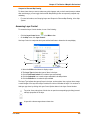
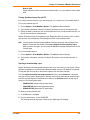
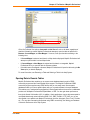
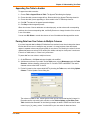
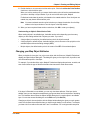
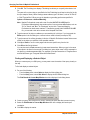
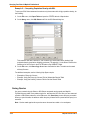
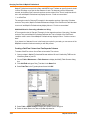
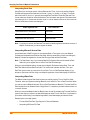
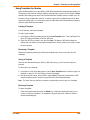
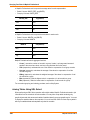
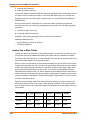
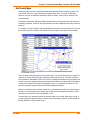
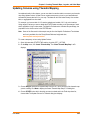
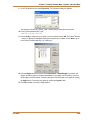
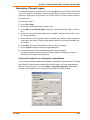
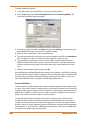
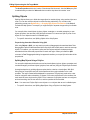
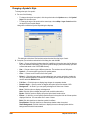
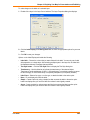
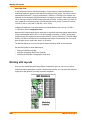
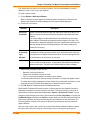
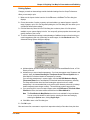
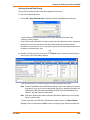
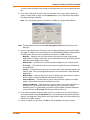
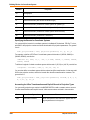
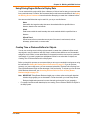
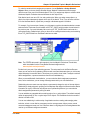
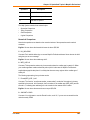
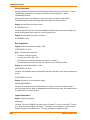
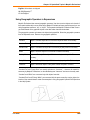
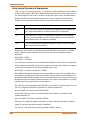
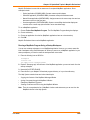
To change the style sample size of an existing Cartographic Legend window:
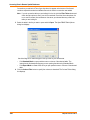
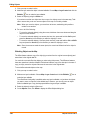
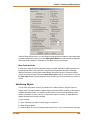
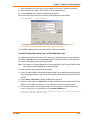
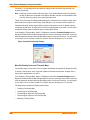
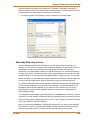
1. From the Legend menu, select Refresh to display the Refresh Legend window.
2. Select Refresh Style Sample Size and select either Small or Large.
3. Click OK to refresh the legend.
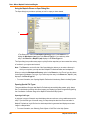
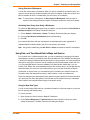
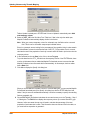
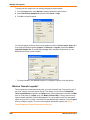
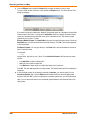
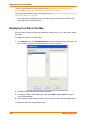
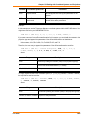
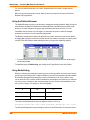
You can also change the default value for style sample size shown in Create Legend - Step 2 of 3.
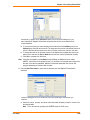
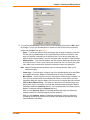
In the Legend Preferences window (Options > Preferences > Legends), select either Small or
Large Style Sample Size. The initial default is Large. After changing the preferences, you can
Refresh Styles through the user interface.
•
For more information, see Metadata Support for Cartographic Legends in the Help System.
What are Thematic Legends?
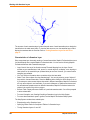
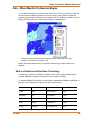
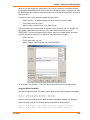
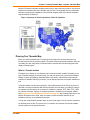
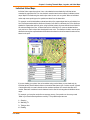
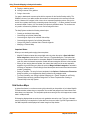
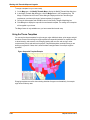
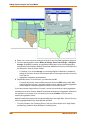
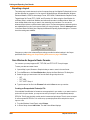
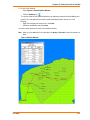
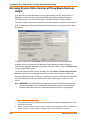
Theme legends are created automatically when you create a thematic map. They provide a key of
the colors, symbols, and styles used in the map. Their display is controlled via the Show/Hide
Theme Legend Window command in the Options menu. Use the appropriate command in the Map
menu to modify them (on the Map menu, click Modify Thematic Map), or simply double-click the
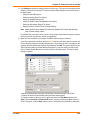
legend to display the Modify Thematic Map dialog box. If a theme legend is part of a cartographic
legend, and you click it to modify it, the Modify Thematic Map dialog box displays. Click the Legend
button to modify the legend. For more on theme legends and thematic mapping, see Using
Thematic Mapping to Analyze Information on page 196.
228
MapInfo Professional 10