1
Creating Territories by Combining Objects
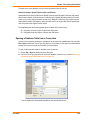
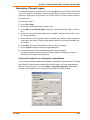
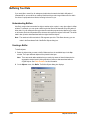
Combining Objects Using Column
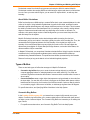
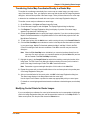
Combine Objects Using Column allows you to modify geographic data to create new map objects
that contain data about the group. This feature is similar to redistricting in that it groups objects
together, but goes beyond redistricting to combine a copy of the relevant objects while leaving the
original objects untouched.
To access Combine Objects Using Column:
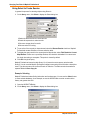
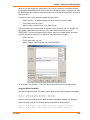
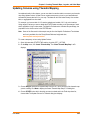
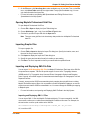
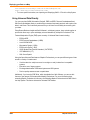
1. On the Table menu, click Combine Objects Using Column.
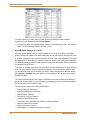
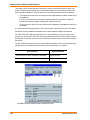
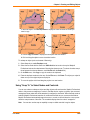
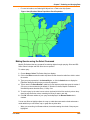
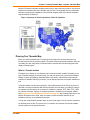
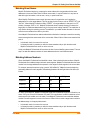
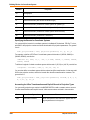
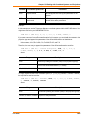
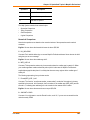
For example, you have a layer of states. You want to combine the state boundaries to create
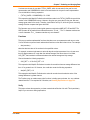
sales territories. The data record associated with each state looks like this:
SALES_REP
STATE
CUSTOMERS
AVG_SALES
Benita
West Virginia
1782
24231.4
Benita
Ohio
121
33265.0
• SALES_REP: Sales representative assigned to that state
• CUSTOMERS: Number of customers per state
• AVG_SALES: Average spent per customer
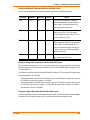
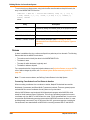
You would like to aggregate the data in the following manner:
• SALES_REP: Combine all records that list Benita as the sales representative
• CUSTOMERS Sum up the number of customers in the sales territory
• AVG_SALES: Average the amount spent per customer in the sales territory
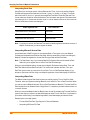
When performing a Combine Objects Using Column operation, you must specify which column
contains the grouping information. In the preceding example, the grouping information is located
in the SALES_REP column. We want to combine all of Benita’s individual territories into one
large territory.
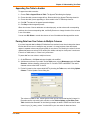
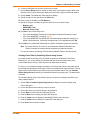
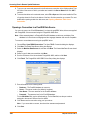
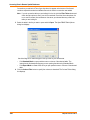
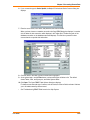
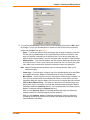
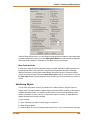
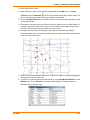
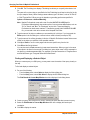
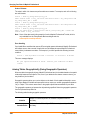
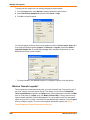
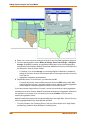
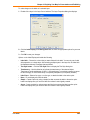
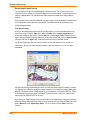
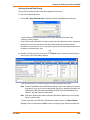
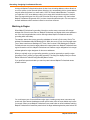
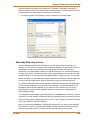
2. Choose the appropriate column from the Group Objects by Column popup. In our example, you
would choose the SALES_REP column from the Group Objects By Column popup. MapInfo
Professional combines all records that have common data in the column. In other words,
MapInfo Professional combines all records that have the same sales representative.
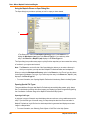
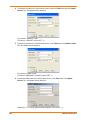
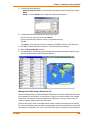
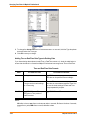
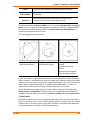
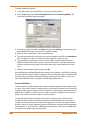
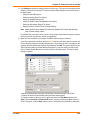
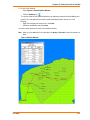
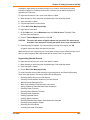
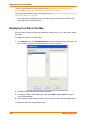
3. Specify the table and the grouping column.
•
•
250
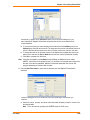
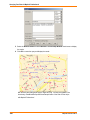
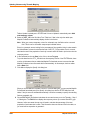
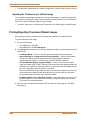
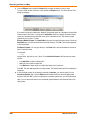
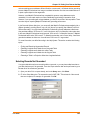
If you chose <New> from the Store results in table drop-down list to create a new table for
the combined objects, a series of dialog boxes prompt you to create the new table.
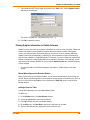
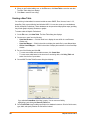
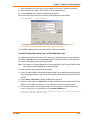
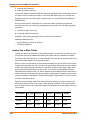
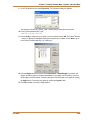
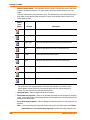
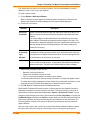
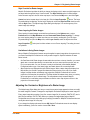
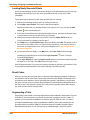
If you specified an existing table, you need to specify how to combine the data. To aggregate
your data, click Next to display the Data Aggregation dialog box.
MapInfo Professional 10