1
24 | User Guide for EPiServer Commerce 1 R2 SP1
Getting Started
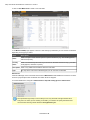
In the following sections we will describe how you can access, log on to and navigate an EPiServer Commerce website. Note that the logon procedures may be slightly different from what is described here, depending on how your website and infrastructure is set up.
Logging on to the Website
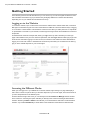
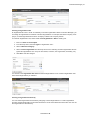
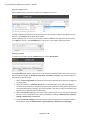
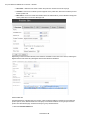
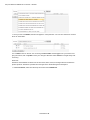
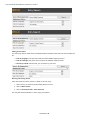
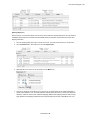
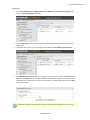
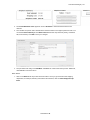
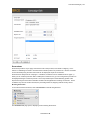
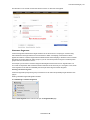
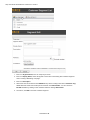
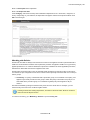
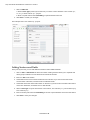
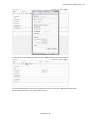
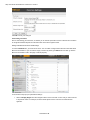
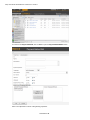
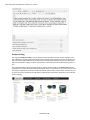
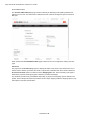
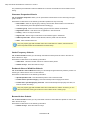
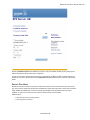
To access the website, open a web browser and enter the address of the website. Most often, Commerce Manager is accessed through the front-end of the EPiServer CMS site. There are different ways of logging on as an editor or administrator of an EPiServer Commerce site. Often you add a path such as "epi/ui/edit" or "epi/ui/admin" to the URL of your website, or there might be a login link as for the EPiServer Commerce sample site.
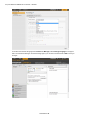
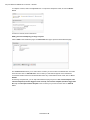
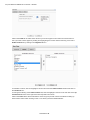
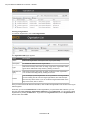
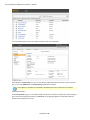
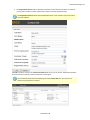
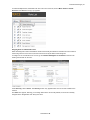
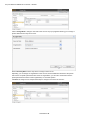
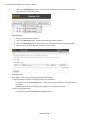
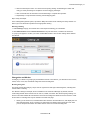
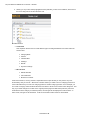
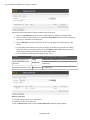
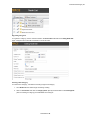
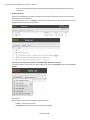
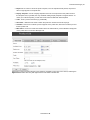
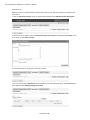
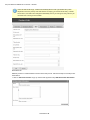
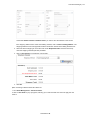
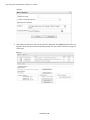
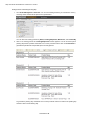
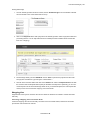
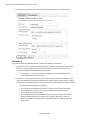
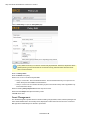
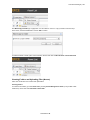
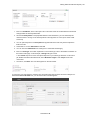
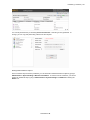
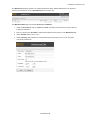
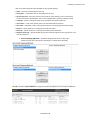
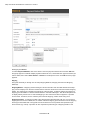
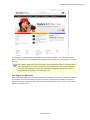
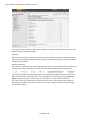
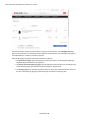
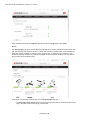
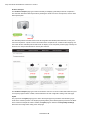
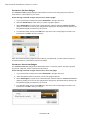
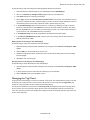
On the EPiServer Commerce sample site, clicking on Log in in the top menu will take you to the login page of the website. Enter your user name and password, and click Log In. Note that this login page is the same for both customers logging on to their account, as well as for web editors and store administrators logging on to work with content or administer the online store parts. What you are allowed to do after logging on to the website depends on your access rights.
Accessing the Different Modes
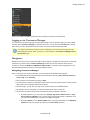
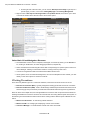
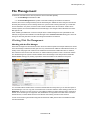
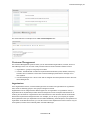
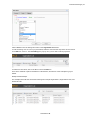
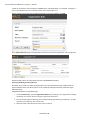
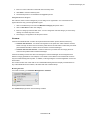
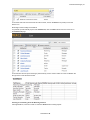
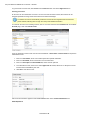
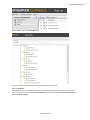
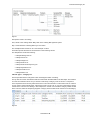
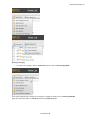
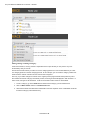
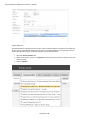
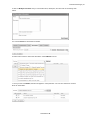
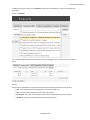
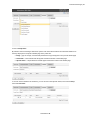
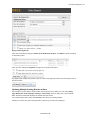
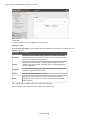
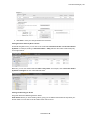
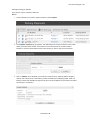
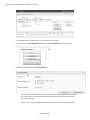
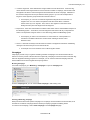
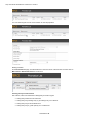
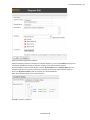
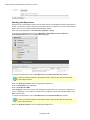
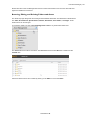
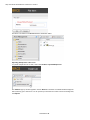
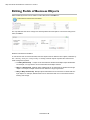
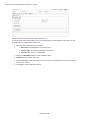
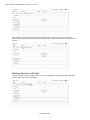
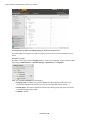
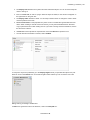
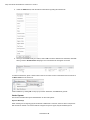
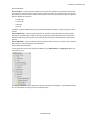
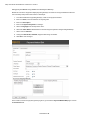
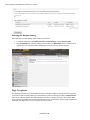
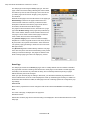
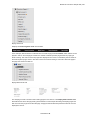
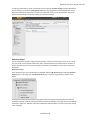
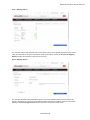
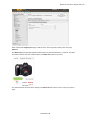
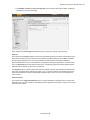
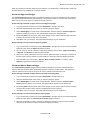
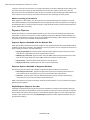
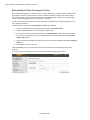
When you are logged on to your EPiServer Commerce website, right-clicking on a page will display a menu with a number of options. What you see here depends on your access rights, here we assume that you have full permission to the different parts.
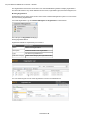
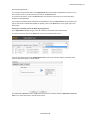
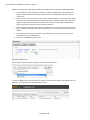
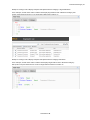
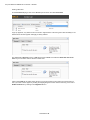
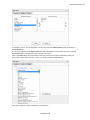
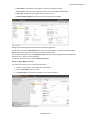
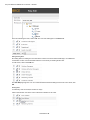
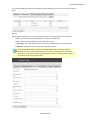
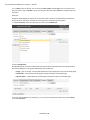
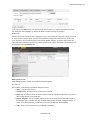
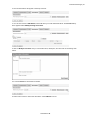
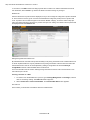
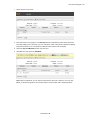
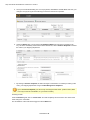
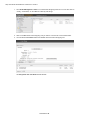
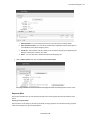
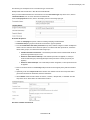
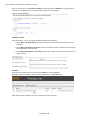
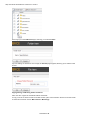
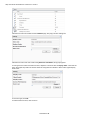
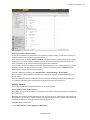
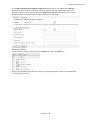
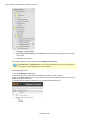
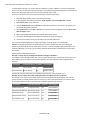
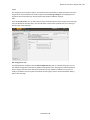
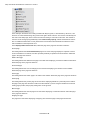
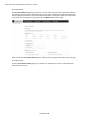
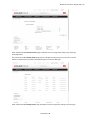
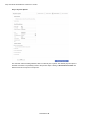
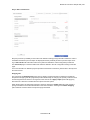
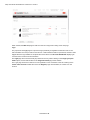
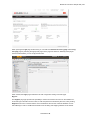
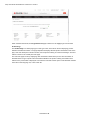
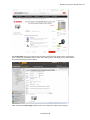
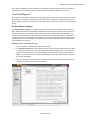
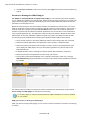
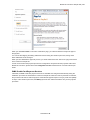
From the EPiServer right-click menu you can directly access the Commerce Manager module of EPiServer Commerce. Choosing this option will take you directly to the Commerce Manager administration interface. Selecting the Edit or Admin mode will take you to the EPiServer CMS editor or administration interface. If you select Dashboard you will be taken to the Dashboard of the EPiServer OnlineCenter.
© EPiServer AB