1
Playing Back and Evaluating Recordings
121/396
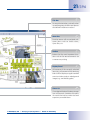
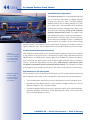
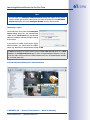
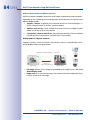
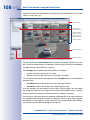
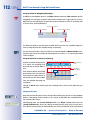
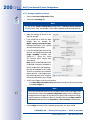
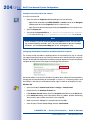
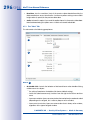
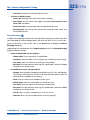
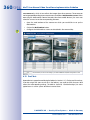
Property bar
Predefined
event searches
Selected video
(doble-click to open event
in Player window)
Search results
Player window
Player controls
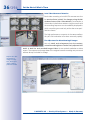
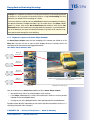
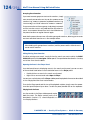
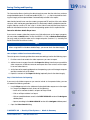
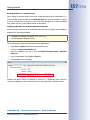
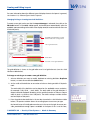
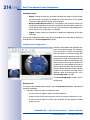
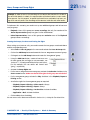
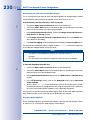
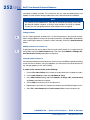
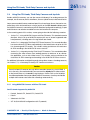
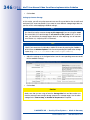
The figure above contains the event images of all selected cameras in the search results
panel in the sort order set in the properties bar (e.g. by name, descending).
Event Search User Interface Elements
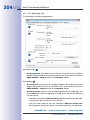
• Properties bar: It contains the controls to select cameras, filter the events, set the
time range to search in, etc. The «Creating an Ad-Hoc Event Search» section below
explains how to use the elements of the properties bar.
• Predefined event searches: These searches have been stored in the MxControlCenter
installation. Simply click on any search in the EVENT SEARCHES section of the Navigator
sidebar panel to open the search. There are two types of searches:
– Event searches: This is the default search type that finds the events recorded by
the selected cameras in the specified time range.
– Post Video Motion searches: This search type finds all events in which
MxControlCenter detects movements in a custom “search window” of one camera
(more on this in Section 3.5.9, «Using Post Video Motion Detection in Recordings»).
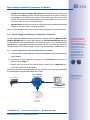
• Search results: This panel shows the events found by MxControlCenter using the
search criteria defined in the properties bar. Move your mouse over any event to get a
tooltip help with information on the event (camera name, date/time and event type).
• Selected event: Click on any event in the search results panel to select it (MxControlCenter
highlights the event with a dotted frame).
• Player panel: This panel shows the recorded video stream of the event and allows
setting export ranges.
© MOBOTIX AG • Security-Vision-Systems • Made in Germany
www.mobotix.com • [email protected]