1
60/396
MxCC User Manual: System Installation and Initial Operation
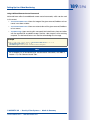
• Use SHIFT-click to select a range of cameras.
Note
If one or more of the selected cameras are not directly accessible (i.e., on a different
logical network), MxControlCenter automatically offers to reconfigure these cameras
(see «Reconfiguring Cameras on Different Logical Networks» below)
Reconfiguring Cameras on Different Logical Networks
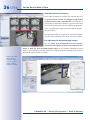
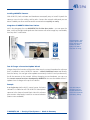
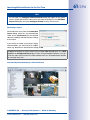
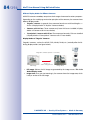
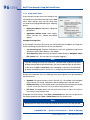
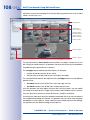
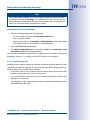
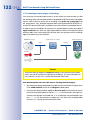
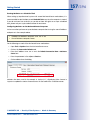
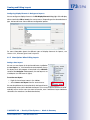
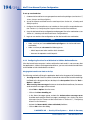
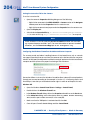
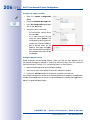
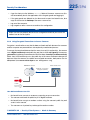
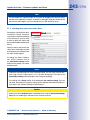
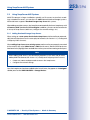
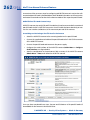
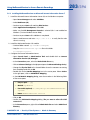
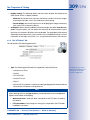
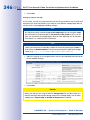
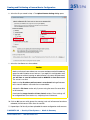
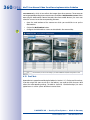
If one or more of the selected MOBOTIX cameras
have the status Different subnet (e.g. cameras with
factory IP addresses), MxControlCenter automatically
offers to reconfigure the network settings of these
cameras. In this case, the application will display the
dialog shown at the right. Click on Yes to reconfigure
the cameras for the subnet of your computer.
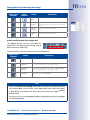
In most networks, a DHCP server automatically assigns the IP addresses for network
devices so you can apply the default settings in the Configure Selected Cameras dialog
box (Get IP address automatically).
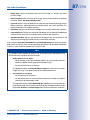
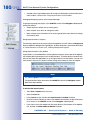
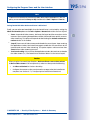
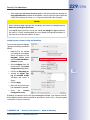
If the IP addresses for devices on the network are manually assigned, ask your network
administrator for an IP address range (start and end addresses), a subnet mask and a
default gateway. Once you have obtained this information, do the following:
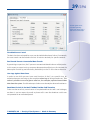
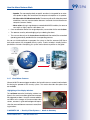
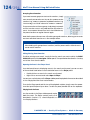
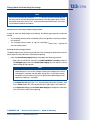
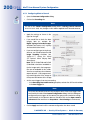
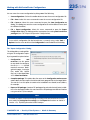
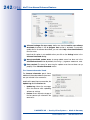
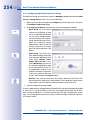
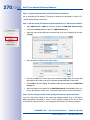
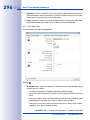
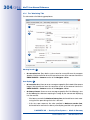
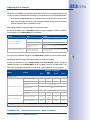
• Activate the Use the following IP
address (range) option.
• IP address (start): Enter the first
address of the range.
• IP address (end): Enter the last
address of the range (this field is
only active if you had selected more
than one camera in the Add Video
Sources dialog).
• Subnet mask: Enter the subnet
mask.
• Default gateway: Enter the IP
address of the default gateway.
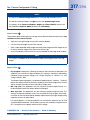
Now wait until MxControlCenter modifies the network settings of the cameras and restarts
them. The status of the reconfigured cameras changes from Different subnet (yellow dot)
to OK (green dot).
© MOBOTIX AG • Security-Vision-Systems • Made in Germany
www.mobotix.com • [email protected]