1
353/396
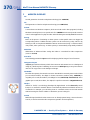
Adjusting Sets of Cameras
can also use the Update Assistant to distribute parts (“sections”) of a configuration, you can
use this mechanism to apply specific settings to sets of cameras as in the examples below:
• Set a specific storage target for a set of cameras (when using several file servers/NAS).
• Apply specific image settings (e.g. the Panorama display mode) to all Hemispheric
cameras that have been mounted to a wall.
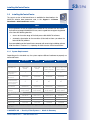
Distributing a Specific Storage Target to a Set of Cameras
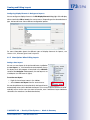
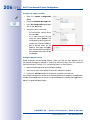
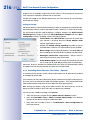
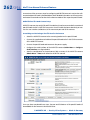
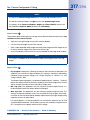
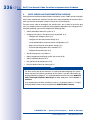
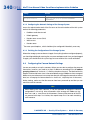
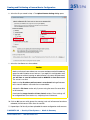
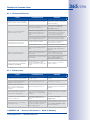
In order to distribute only the File Server section using the Update Assistant, set the following options in the Admin Menu of one camera:
Dialog
Storage on External File
Server / Flash Device
Storage Failure Detection
Task
Remark
Change storage target
Use different file servers/NAS for one
group, if available (redundancy).
Change storage limits
Always configure Storage Size limit!
Activate external
logging
Store web server logfile/system messages.
Enable, Blink LEDs,
select e-mail profile
Max. two cameras per file server/NAS
recommended.
For help on the individual settings of the Admin Menu, please consult the camera help.
Distributing Specific Image and Event Settings to a Set of Cameras
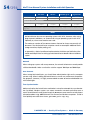
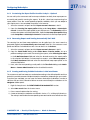
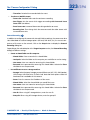
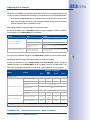
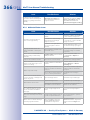
In order to distribute only the Image Control and Event Control sections using the
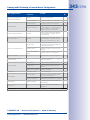
Update Assistant, use the Setup Menu to set the options listed in the table below. This
table uses the hardware properties as criteria for creating different sets of cameras:
Criteria for Creating Sets
Dialog
Settings
Dual
Day/
Night
Hemi1
Mono
Both
Auto
—
—
—
17 lux
—
—
Image Control
Camera selection
Camera Night Switch
Resolution
General Image Settings
Image Quality
As required
As required, depends on frame rate requirements
Display Mode
Sharpness
As required
4
4, 4
1
4
Max. Exposure Time
1/30s
1/60s,
1/30s
1/30s
1/30s
Average Brightness
40%
40%,
20%
40%
40%
Exposure Settings
Hemispheric has additional options
1
© MOBOTIX AG • Security-Vision-Systems • Made in Germany
www.mobotix.com • [email protected]