1
HP/ElectraLink DTS - Toolset On-line User Guide – D-FlowMaster
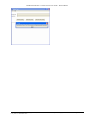
6. Select a file format from the available options.
7. Press enter (↵) or click on ‘Create’.
Note: You may revert header fields to their default values by clicking on the
icon to the right of
the field or the
at the far right of the header data entry form.
Note: Administrators are able to lock header fields in the Header data-entry form, thus
preventing users from selecting any other value than the default value defined in the user’s
preferences. Fields that are locked in this way will be disabled, appear greyed out, cannot be
modified and do not respond to the F1 key.
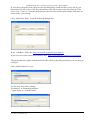
At this point the tool requests the Data Flow structure details from the central server. Depending on
the ‘Flow requirements’ preference, the tool may also check whether the ‘From’ and ‘To’ MPID
and Role combinations are compliant with the Flow requirements defined in the Data Transfer
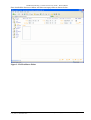
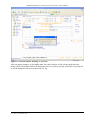
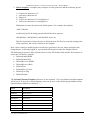
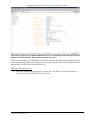
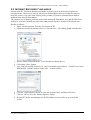
Catalogue (DTC) and ElectraLink Flow Dictionary (EFD). The screen shot below shows a scenario
where the ‘Flow requirements’ preference is set to the default ‘Warn on invalid MPIDs and Roles’
and the user has attempted to create a flow with both invalid sender and receiver MPIDs.
Figure 2-4 D-FlowMaster File Creation
To continue, press enter (↵) or click on OK.
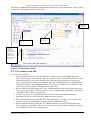
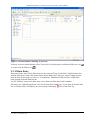
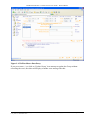
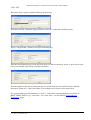
After acknowledging the warning, or if no such warning was given, the editor will display the
header and trailer records of an otherwise empty file in the User File content area of the screen.
The Group data-entry form area displays a form for the first Group expected for this flow type.
11/07/2011
Copyright © 2003, 2004-2010 Hewlett-Packard Development Company, L.P.
User_Guide - D-FlowMaster.docx
Page 8 of 36