1
BusinessObjects Enterprise Repository
Using repository objects in reports
Tip:
•
•
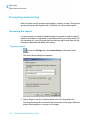
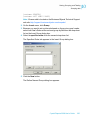
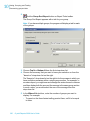
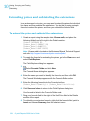
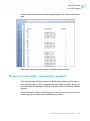
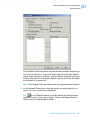
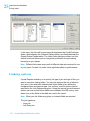
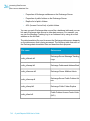
You can also add a custom function to the repository by dragging it
from the Report Custom Functions node—in the Workshop Tree—and
dropping it on a Repository Custom Functions node.
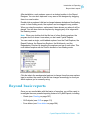
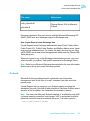
The custom function icon in the Report Custom Functions node
changes to indicate that the custom function exists in the repository.
Note: You must add all custom functions to the Repository Custom Functions
node that is provided with Crystal Reports.
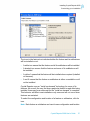
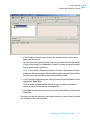
Adding a command
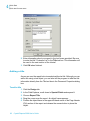
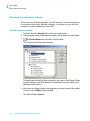
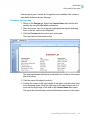
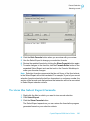
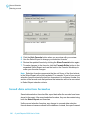
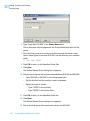
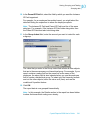
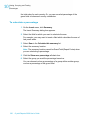
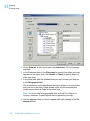
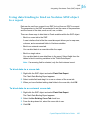
1. In the Selected Tables area of the Database Expert, select the command
you want to add to the repository.
2. Right-click the command and select Add to Repository.
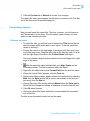
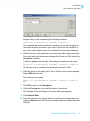
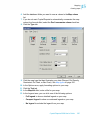
3. In the Add Item dialog box, specify a name and repository location for the
command.
4. In the Location area, select a repository folder, and then click OK.
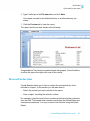
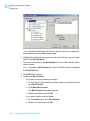
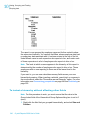
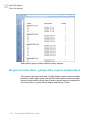
You'll find the command in the BusinessObjects Enterprise Explorer, the
Repository Explorer, the Database Expert, and the Set Datasource
Location dialog box.
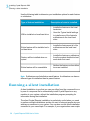
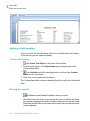
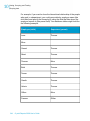
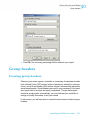
Using repository objects in reports
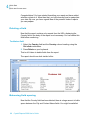
Once you have an object or a collection of objects added to the repository,
you can start using them in your Crystal reports. Each type of repository
object is added through its own user interface. In the case of text objects
and bitmap images, you simply drag them from the Repository Explorer to
a report. Custom functions are selected when you work in the Formula
Workshop, and commands are selected in the BusinessObjects Enterprise
Explorer, the Database Expert, or the Set Datasource Location dialog box.
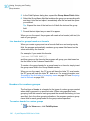
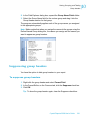
You can select list-of-values objects from within the Create New Parameter
or Edit Parameter dialog boxes.
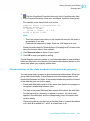
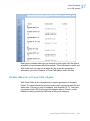
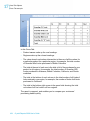
When you add a repository object to a report, it remains connected to the
repository and is in read-only mode. To edit the object, you must disconnect
it from the repository and unlock its formatting.
Crystal Reports 2008 User's Guide
163
7