1
Subreports
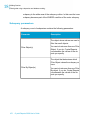
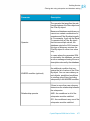
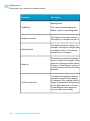
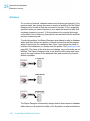
Inserting subreports
For information about creating a custom caption for the Subreport Preview
Tab, see Adding captions to on-demand subreports on page 647.
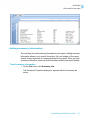
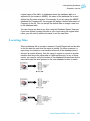
Previewing subreports
There may be times when you want to preview a subreport on its own instead
of previewing it as a part of the main report. For example, you may want to
preview the subreport in order to view and analyze the data for a particular
set of parameter values.
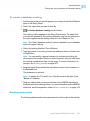
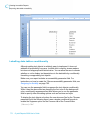
To preview a subreport
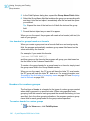
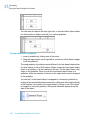
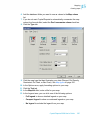
1. Click the subreport's Design tab.
This tab is labeled with the name of your subreport.
2.
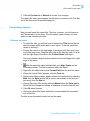
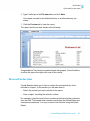
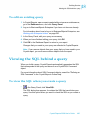
Click Print Preview on the Standard toolbar.
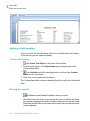
The program displays a preview of the selected subreport.
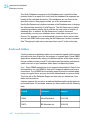
Saving a subreport as a primary report
You may find it advantageous to save a subreport as a primary report for
the sake of distributing the information to a variety of audiences. For example,
the primary report containing the subreport may be relevant for a stockholders
meeting at the end of the fiscal year; however, the data contained in the
subreport may be relevant for everyday use by your managers. In such cases,
it is easy to save a subreport as a primary report.
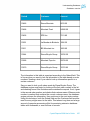
To save a subreport as a primary report
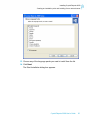
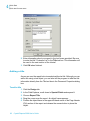
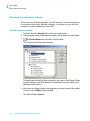
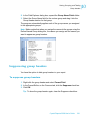
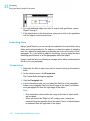
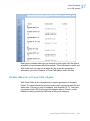
1. In the Design tab, right-click the subreport and click Save Subreport As
from the shortcut menu.
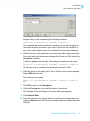
The Save As dialog box appears.
2. Search for the appropriate directory in the Save As dialog box.
3. Type a new name for the subreport.
Crystal Reports 2008 User's Guide
639
24