1
13
Formatting
Working with conditional formatting
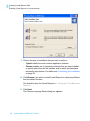
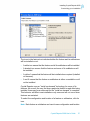
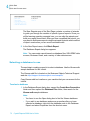
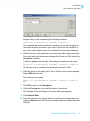
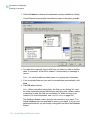
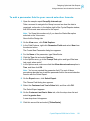
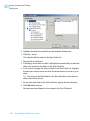
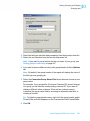
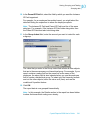
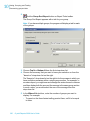
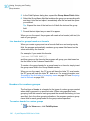
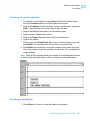
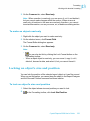
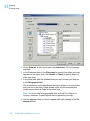
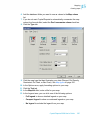
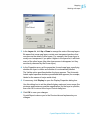
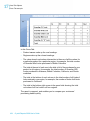
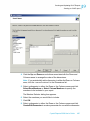
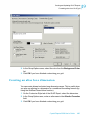
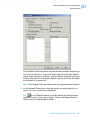
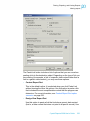
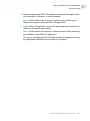
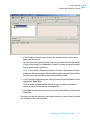
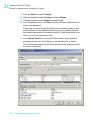
3. In the Item editor area, click the Value of list and select the field that you
want to base your condition on.
The field chosen here is the field upon which your condition is based; this
field need not be the field that is being formatted. To create a condition
based on the values of the field that is being formatted, select "this field"
from the list. To base your condition on a different report field, select it
from the list of available fields.
Note: The "Value of" list displays only those fields that you have added
to the report.
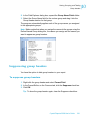
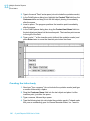
4. Select a comparison from the second list (is equal to, is less than, and
so on).
This comparative statement works as the operator in the conditional
formula created by the expert.
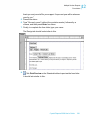
5. Complete the condition by entering the desired value in the box.
Note: If the field selected in the "Value of" list is not numeric, the text box
turns into a list of available values, from which you must select one.
358
Crystal Reports 2008 User's Guide