1
19
Creating and Updating OLAP Reports
Creating an OLAP report
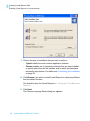
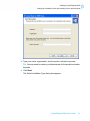
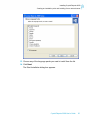
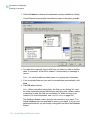
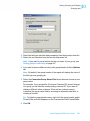
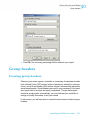
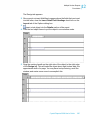
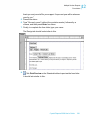
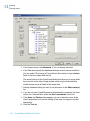
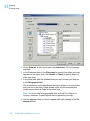
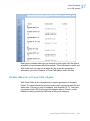
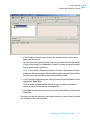
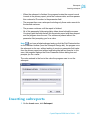
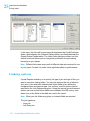
The Create Parameter Field dialog box appears.
9. Select default values, prompting text, and other options, and then click
OK.
Note:
•
•
Once you have created a parameter, access to the Member Selector
dialog box is disabled for the dimension until you delete the parameter.
If you create a row/column parameter, the View Cube command and
the Cube View tab are not available.
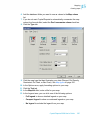
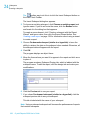
10. If you want to delete a parameter, select the appropriate dimension and
click Delete.
When you click OK in the Delete Link to Parameter Field dialog box, the
program removes the parameter description from the dimension.
11. Click Next.
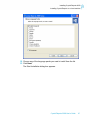
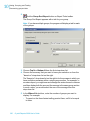
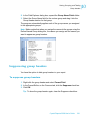
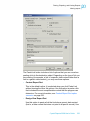
The Slice/Page screen appears.
Setting sliced dimensions and specifying the number
of grids
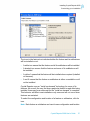
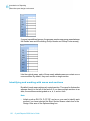
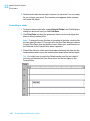
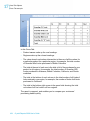
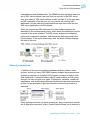
Use this screen to set sliced dimensions and to specify the number of grids
that are required.
The Slice area determines the boundaries that will be placed on your report.
For example, if you have a time dimension that is made up of fiscal quarter
members, you could specify the report return the results for a specific quarter.
Note: If all of your members were used in the Rows/Column tab, nothing
will appear here.
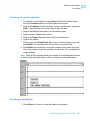
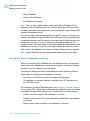
The Page area enables you to determine the number of grids and the subject
of each. For example, if you have a product dimension, you could put this in
the page area and specify two different products. This would result in two
grids with the same rows, columns, and formatting, but each one would be
based on a different product.
488
Crystal Reports 2008 User's Guide