1
BackyardEOS – User's Guide
BackyardEOS Operations
Starting BackyardEOS
To start BackyardEOS:
1.
2.
3.
4.
Make sure BackyardEOS is properly installed (see Installing BackyardEOS section)
Double-click on the BackyardEOS icon.
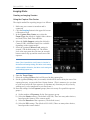
If a camera is detected at start-up, BackyardEOS will automatically connect to it.
If a camera is not detected at start-up, connect the camera and then press the
‘Connect’ button in the upper left corner.
Note: BackyardEOS automatically remembers its screen location and positions itself in
the same location where it was last used.
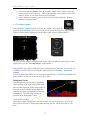
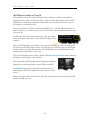
The busy signal on the upper LCD display on your EOS camera is not caused by
BackyardEOS. In fact as soon as you plug the USB cable from the camera to the
computer the busy signal shows up... BackyardEOS does not even have to be on yet. No
worries about losing any images or what not... it's simply Canon's way of saying the
camera is connected to a computer. The camera is not really busy saving or working on
images... when it does you'll see a red light turned on at about the 4 o'clock position on
the rotary dial just right of the camera's ON/OFF switch.
28