1
User’s Guide
add4Q
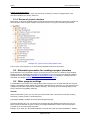
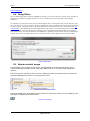
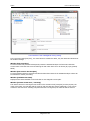
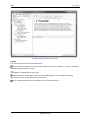
User interface of the add4Q||reviewer in review mode
Changes and comments from a pre-review
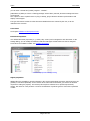
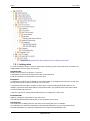
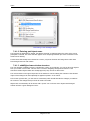
Whenever a pre-review for a specific object exists, the object is shown with a turquoise background in the
tree view.
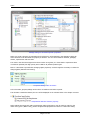
After you select a pre-review from the dropdown box, the changed object contents as well as the
commentary that was entered in the pre-review will be shown on screen in a turquoise border.
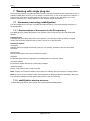
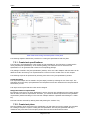
To view the differences between the original object and the object from the pre-review, you can use the
"Mark differences" button. Differences between both objects will be highlighted.
You can synchronize scrolling between both windows to make comparing the contents easier.
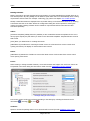
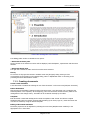
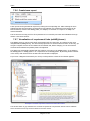
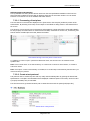
You can apply the contents or commentary from the pre-review to the object by pressing the tick
buttons.
General approach
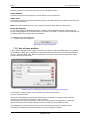
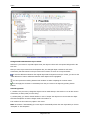
1.) Similar to the pre-review, changed to objects can be made directly in the text box. You can also write a
commentary to clarify what you were doing.
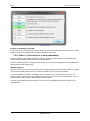
2.) Subsequently, you have to decide whether or not to "Accept" the object in its current state. An object
should be accepted if no further changes need to be made to it.
This needs to be done with every object in the review.
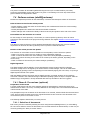
Note: The Feature "Automatically go to next object" automatically selects the next object after you choose
"Accepted" or "Not accepted."
Page 40 of 42