1
150
AShop V User Guide
AutoBill Recurring Bills
When a recurring bill template is set to initiate an AutoBill and a product, which is set to use that billing
template is ordered through the shopping cart or the Sales Office, the Sales Office will subsequently
create new unpaid orders for the product and send invoices on a preset billing cycle. If more than one of
the products in the order is assigned to a billing template, a recurring bill will be created for each of the
products individually.
PCS Compliance
This method does not save any credit card information and it does not automatically debit any credit
card or PayPal. Customers receive invoices and may pay each bill by any option that you offer; online or
offline. A payment link is included in each invoice. It links to the payment page in the shopping cart.
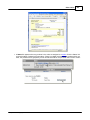
When an AutoBill is paid online through the payment link, payment is applied directly to the unpaid bill
and a confirmation notice is automatically sent. When payment is received offline, for examply by check
or electronic funds transfer, payment may then be applied manually through the Sales Reports for
Unpaid orders.
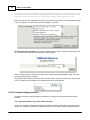
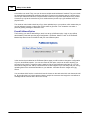
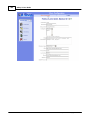
How To Add an AutoBill Billing Template
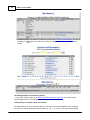
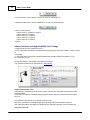
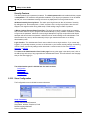
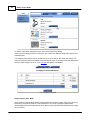
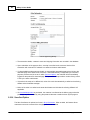
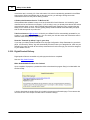
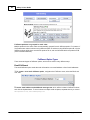
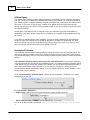
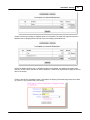
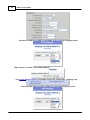
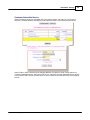
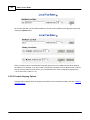
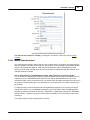
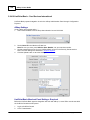
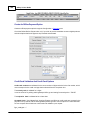
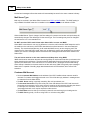
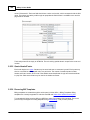
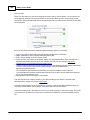
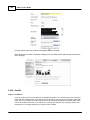
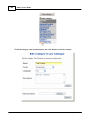
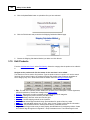
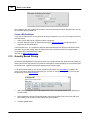
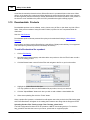
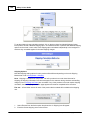
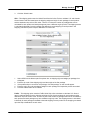
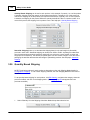
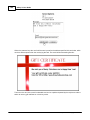
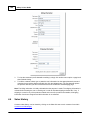
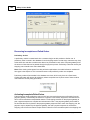
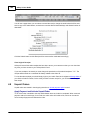
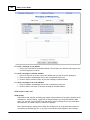
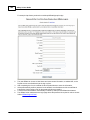
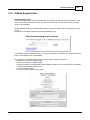
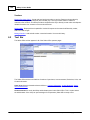
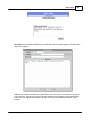
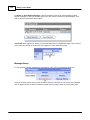
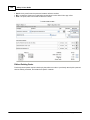
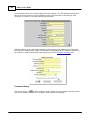
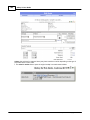
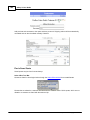
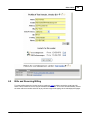
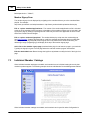
Select AutoBill. Give it a name, which will be for your own internal reference. Click Add.
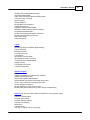
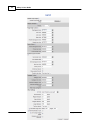
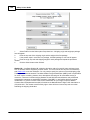
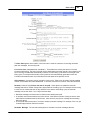
· See Sales Office > Bills and Recurring Billing for a list and description of the AutoBill parameters.
Assign Products To Billing Templates
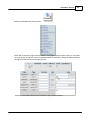
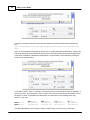
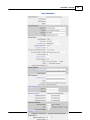
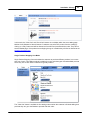
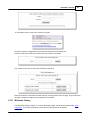
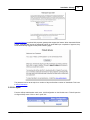
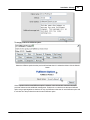
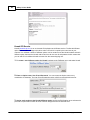
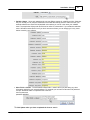
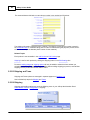
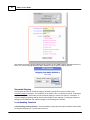
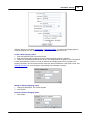
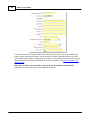
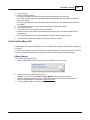
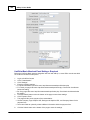
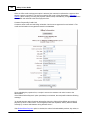
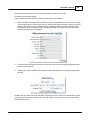
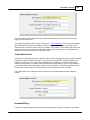
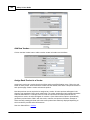
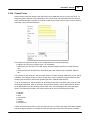
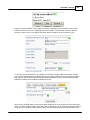
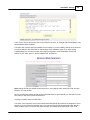
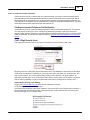
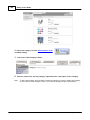
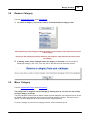
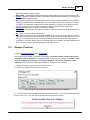
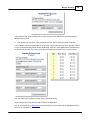
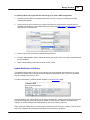
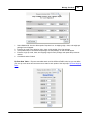
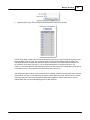
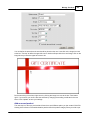
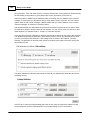
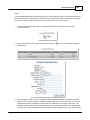
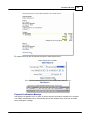
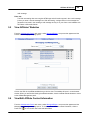
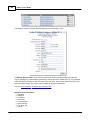
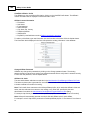
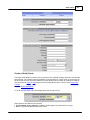
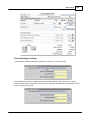
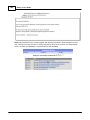
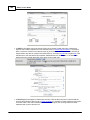
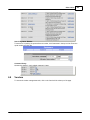
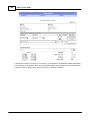
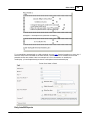
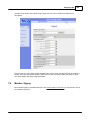
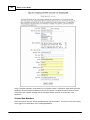
To use a billing template, assign a product to a billing template and set a recurring amount. Do this
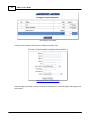
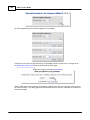
through Edit Catalog. Click on the Edit button for each product. When at least one billing template
exists, there will be a drop-down selector for billing template assignment and a text box to set the
recurring amount. If no recurring price is set the retail price of the product will be used. The amount of
the recurring bill or ARB will be multiplied by the quantity that is ordered.
Manage Unpaid Bills
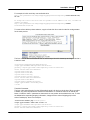
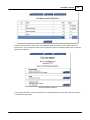
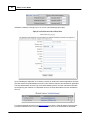
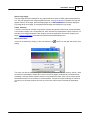
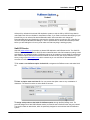
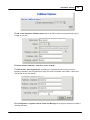
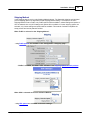
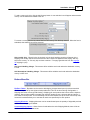
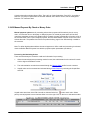
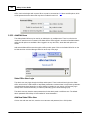
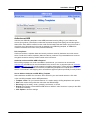
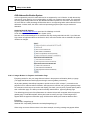
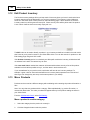
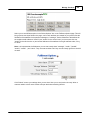
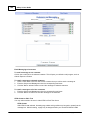
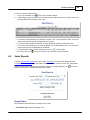
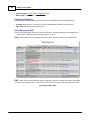
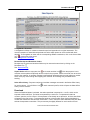
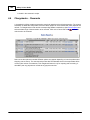
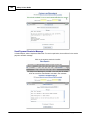
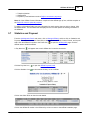
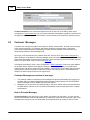
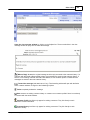
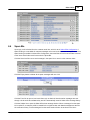
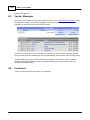
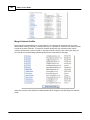
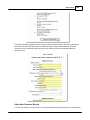
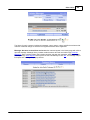
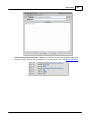
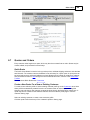
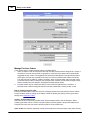
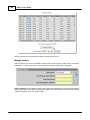
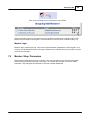
Unpaid Orders are reported in the admin panel under Sales Reports. Select status Unpaid and Edit
mode to manage unpaid orders and to send reminders. Unpaid orders also appear in each related
customer's history through the Sales Office.
AShop Software © Copyright 2002 - 2010