1
Customers & Sales
237
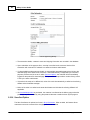
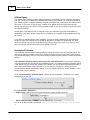
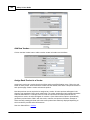
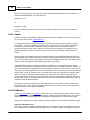
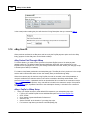
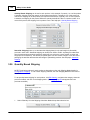
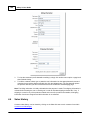
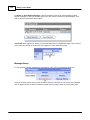
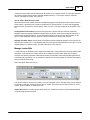
editor. You can then copy the HTML code and paste it into the message box to send newsletters,
advertisements, and other notices to customers or affiliates.
Note: With this setting, carriage returns within the message box do not generate line breaks and
must always be inserted with <br> or <p> tags or the text will all flow together in the resulting email message.
Plain text
The Plain text setting does not recognize HTML tags and will render tag text in the e-mail message
just as you enter it into the message box. With this setting, carriage returns in the message box
generate a line break in the resulting e-mail message as they do in your client e-mail software such
as Eudora or Microsoft Outlook.
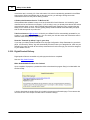
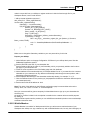
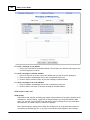
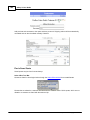
Delete Customer Record
Warning: This will permanently delete the customer record; there is not an undo.
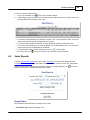
1.
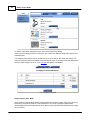
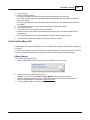
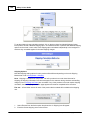
Click the Delete icon, , next to the customer to that is to be deleted.
2.
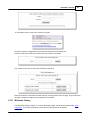
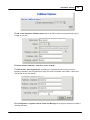
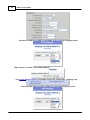
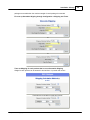
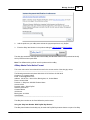
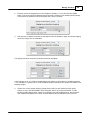
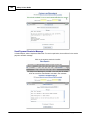
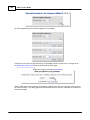
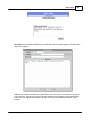
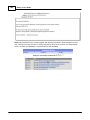
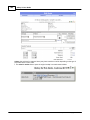
A warning message page will appear to confirm your intention.
3.
Click Yes to delete the customer record or No to cancel and return to the Customers and
Messaging page.
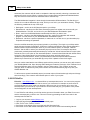
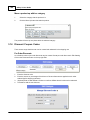
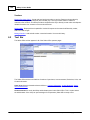
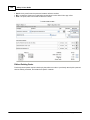
View/Edit Customer Profile
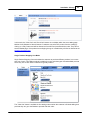
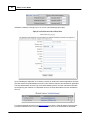
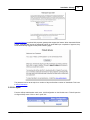
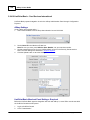
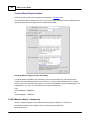
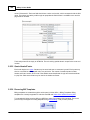
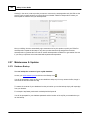
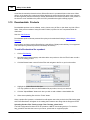
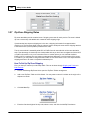
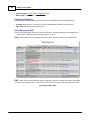
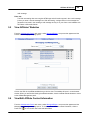
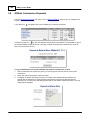
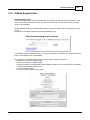
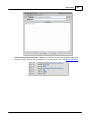
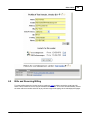
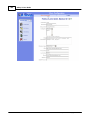
To view or edit a customer's billing and shipping information, click the Profile icon,
ID number link next the customers listing.
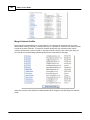
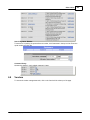
Sales History By Customer
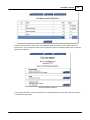
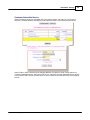
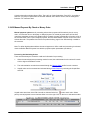
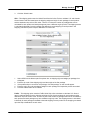
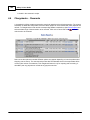
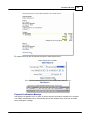
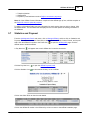
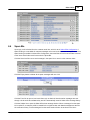
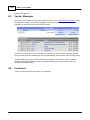
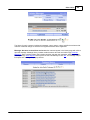
Customer sales history can be viewed by clicking on the Sales icon,
4.3
, or the customer
, next to each customer.
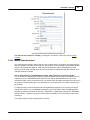
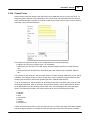
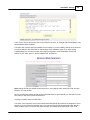
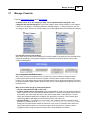
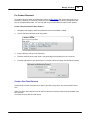
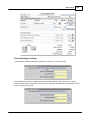
Customer Profile
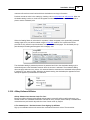
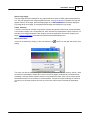
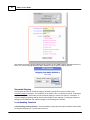
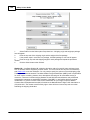
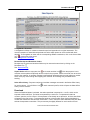
Customer contact information can be accessed by clicking the Profile icon,
the customer listings.
, or ID number link next to
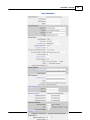
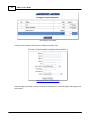
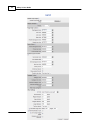
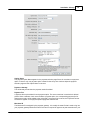
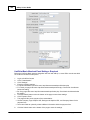
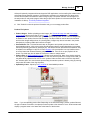
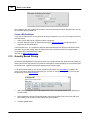
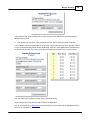
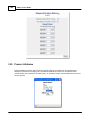
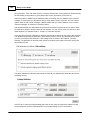
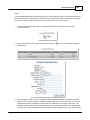
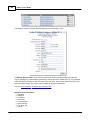
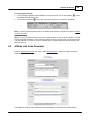
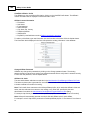
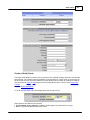
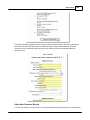
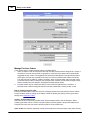
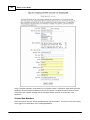
To view or edit a customer's profile:
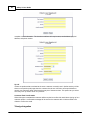
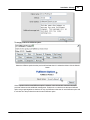
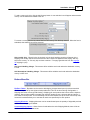
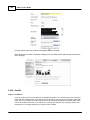
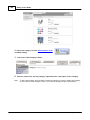
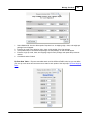
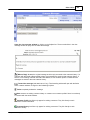
1. Click on the Profile icon or ID number link next to the customer that you wish to view or edit.
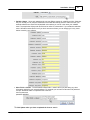
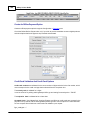
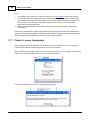
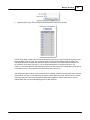
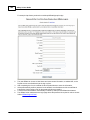
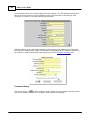
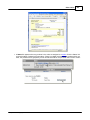
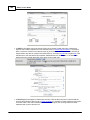
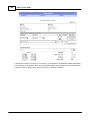
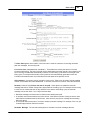
2. The selected customer's profile data will appear with their name and contact information displayed
within text boxes.
AShop Software © Copyright 2002 - 2010