1
Chapter 15: Grouping Units
245
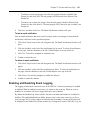
To delete a unit group:
NOTE: Deleting a unit group deletes the group only; the units still exist in the DSView 3 software system. You
cannot delete any system-defined unit groups (global root, personal root and unassigned.)
1.
Click the Units tab.
2.
Click Groups in the top navigation bar. The Unit Groups window will open.
3.
Click the checkbox next to the unit group to be deleted.
4.
Click Delete. A confirmation dialog box will appear.
5.
Confirm or cancel the deletion.
Changing the unit group properties
Access rights indicate which users and user groups may access units in the DSView 3 software
system. Access rights also indicate which actions are allowed. See About Access Rights on page
163. You can assign access rights from a unit group perspective, as described in this section.
Using this method, selected users and members of selected user groups are allowed or
prohibited from initiating certain actions on all units in the unit group.
Access rights for a unit group default to inherit if they are not explicitly granted to a user or
user group. For example, if you create unit group A and subgroup B, by default any access
rights you assign to group A will be propagated to group B.
There are other ways to assign access rights; see How access rights can be assigned on page
165.
To change unit group properties:
1.
Click the Units tab.
2.
Click Groups in the top navigation bar. The Unit Groups window will open.
3.
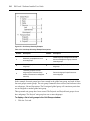
Click on the name of a unit group. The Unit Group Name window will open.
4.
Type a new 1-64 character name in the Group field. The name must be unique within the
parent group. For example, two groups can be named “development” but they cannot both
be members of the unit group “Huntsville.” (This unique name restriction does not apply to
personal unit groups that are owned by different users.)
5.
If you do not want the unit group (or any of its child unit groups) to appear in the side
navigation bar, enable the Do not display this unit group nor any child unit groups as unit
views checkbox.
6.
If you do not want the units in the unit group to belong to any other unit group, select
Exclusive.