1
Printed Documentation
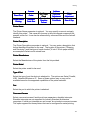
A window that displays one entire record at a time. To open a table in Form
view go to the Database Records Management screen and select the Form view
icon
.
Datasheet View
A window that displays data in a row and column format. In Datasheet view you
can edit fields, add and delete data, and search for data. To open a table in
Datasheet view go to the Database Records Management screen and select the
Datasheet view icon
.
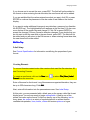
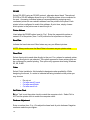
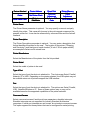
Printing the Database Records
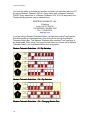
To print the database records, click on the Print All Records icon
or choose
File | Print All Records from the Database Records Management screen.
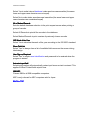
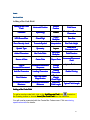
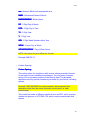
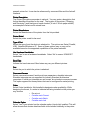
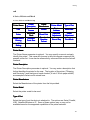
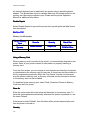
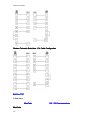
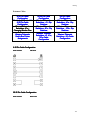
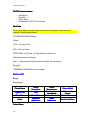
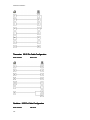
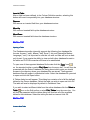
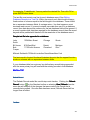
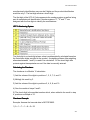
Printing Records
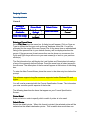
Printer Setup
Left Margin
Destination
Font Setup
Report Title
Where
Top Margin
Include Fields
Printing Records
If you are printing labels with a thermal/thermal transfer printer, you will need an
ink-jet, laser or dot matrix printer to print a database.
Your printer should be turned on, in the ON-LINE/READY mode and loaded with
paper. The database fields will be printed within the width of the paper.
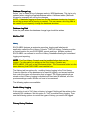
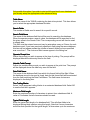
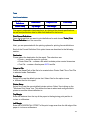
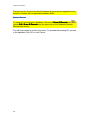
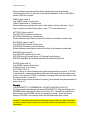
After selecting to print all records, you will be presented with the Printing Options
specification screen. Once you have entered all items correctly, the information
will be sent to the printer or, as an alternative, the database records can also be
printed to a file.
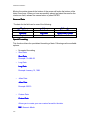
Each of the Database Print option items are described in the following section.
Destination
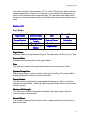
Please select the destination for the report. Select Printer to send the report to
the printer, Printer Data File to create a file which includes printer control
characters, or Text File to create a fixed-space ASCII text file.
Where
304