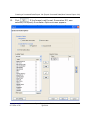
1
Chapter 6, Performing QC
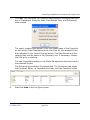
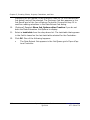
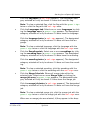
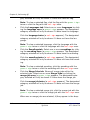
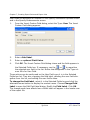
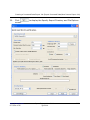
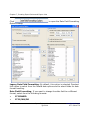
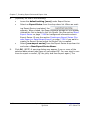
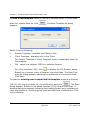
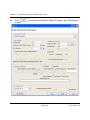
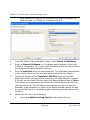
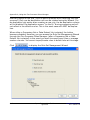
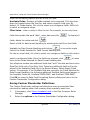
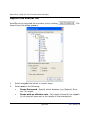
down list of the Image toolbar.
See the section Working with the Image View Area on page 6-43
for additional information.
8.
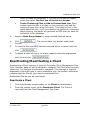
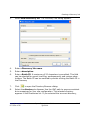
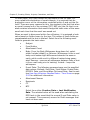
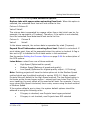
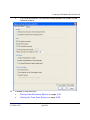
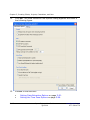
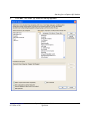
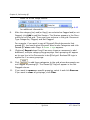
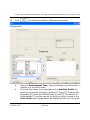
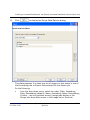
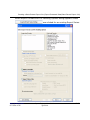
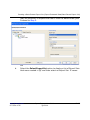
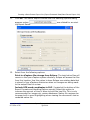
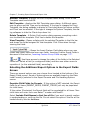
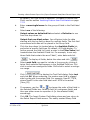
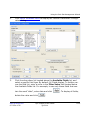
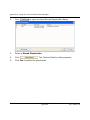
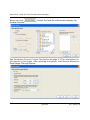
After the category(ies) and/or flag(s) are selected as flagged and/or not
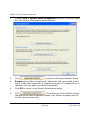
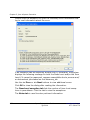
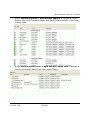
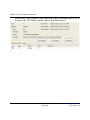
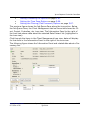
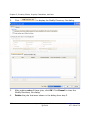
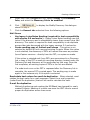
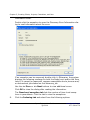
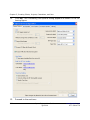
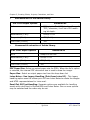
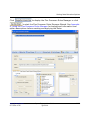
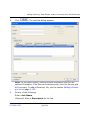
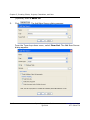
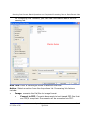
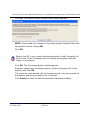
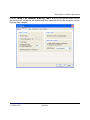
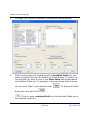
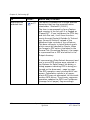
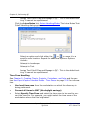
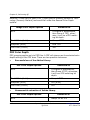
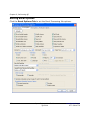
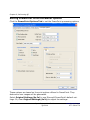
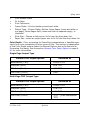
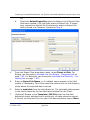
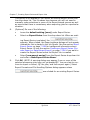
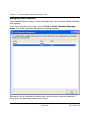
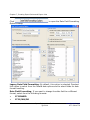
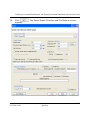
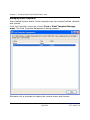
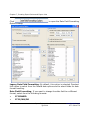
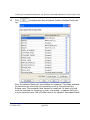
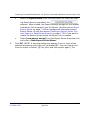
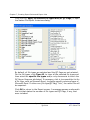
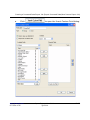
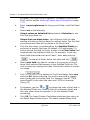
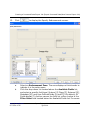
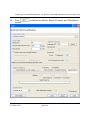
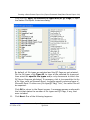
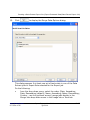
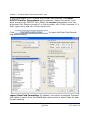
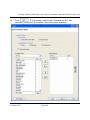
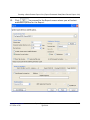
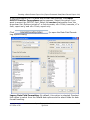
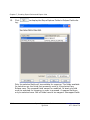
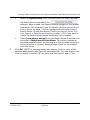
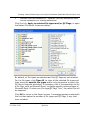
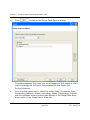
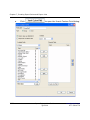
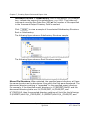
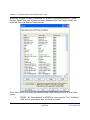
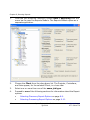
flagged, click Add to add the Session. The Session appears in the Documents to be QCed grid. There are three columns in the grid: Document
Type Categories, Flagged, and Not Flagged.
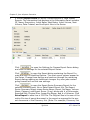
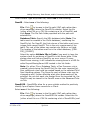
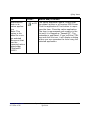
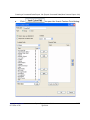
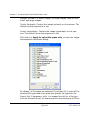
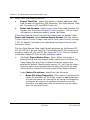
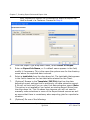
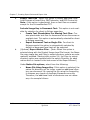
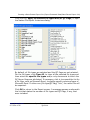
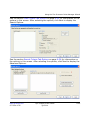
For example, if you want to see all Microsoft Word documents that
passed QC, you would select Microsoft Word under Categories and click
Passed QC once under Flags. A Green + sign appears.
9.
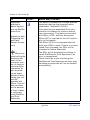
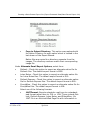
(Optional) Repeat steps 8 and 9 as many times as necessary to add
additional, multiple category/flag groupings. Each grouping will appear
as its own line in the Documents to be QCed grid. Boolean OR logic is
applied for 2 or more groupings.
10.
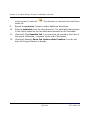
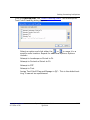
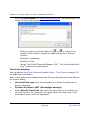
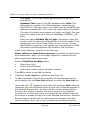
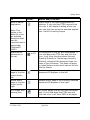
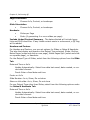
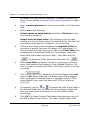
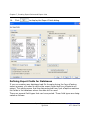
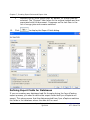
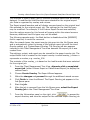
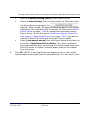
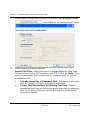
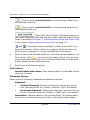
Click
to add those categories to the grid whose documents are
not flagged as passing QC. The Passed QC flag will appear in the Not
Flagged column.
11.
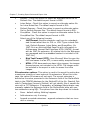
If you want to remove a specific grouping, select it and click Remove.
If you want to clear all groupings, click Clear.
6-12
Ipro eCapture User Guide
Q1 2014
www.iprotech.com
877-324-4776