1
4-10
Maintaining the printer
3
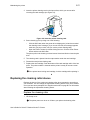
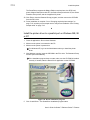
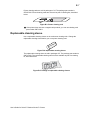
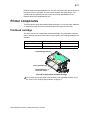
Insert the duplex cleaning card near the bottom of the card cartridge cavity (see
Figure 4-10).
Figure 4-10: Insert the duplex cleaning card
4
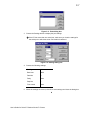
Open the Printer Toolbox if needed.
5
Click the Clean Duplex button in the Clean area.
The printer automatically runs the duplex cleaning process and ejects the card in
the output stacker when it is complete.
6
Remove the used cleaning card and discard it.
7
Replace the card cartridge. Push the bottom of the card cartridge until it clicks into
place.
i If the printer has a locking card cartridge, lock the cartridge after replacing it.
The duplex module is clean and the printer is ready to resume normal operation.
♦
Cleaning tips
Follow these tips to clean your printer effectively and maintain optimum operation.
•
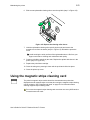
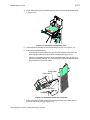
Clean the ribbon tracker using the printer cleaning pen. The ribbon tracker is
located on the swing arm (see Figure 4-11).
Figure 4-11: Clean the ribbon tracker
User’s Guide for Select™ Platinum Series™ Printers