1
MPLAB® IDE User’s Guide
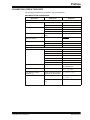
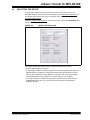
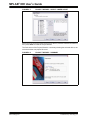
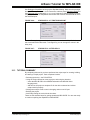
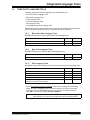
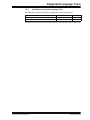
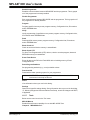
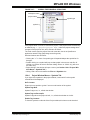
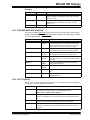
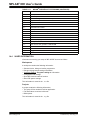
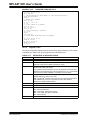
Import/Export Table
Import from or export to a logic data file.
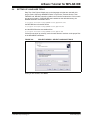
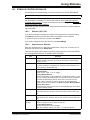
12.18.3 Logic Analyzer FAQ
How do I:
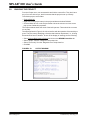
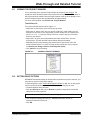
Add a signal to the logic analyzer display?
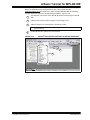
Click Channels and add the signal name, found under “Available Signals”. You may
choose from individual pins or buses. Buses, or groups of pins, can be created by clicking Configure Bus(es). Click OK to see the signal appear on the logic analyzer display
as a channel.
For more information, see:
• Section 13.6 “Configure Channel Dialog”
• Section 13.7 “Configure Bus Dialog”
12.19 RTOS VIEWER WINDOW
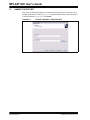
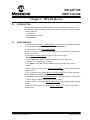
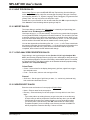
MPLAB IDE provides a window for viewing the RTOS functions of supported RTOSs
(Real-Time Operating Systems). The functions displayed are dependent on the specific
RTOS. See “Readme for MPLAB IDE.txt” for a list of supported RTOSs.
The window is selectable from Tools>RTOS Viewer when (1) the RTOS is installed and
(2) the RTOS is included in the active project. See your RTOS documentation for how
to install the RTOS and what additional files you may need to add to your project.
12.20 SYMBOL BROWSER
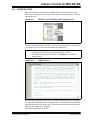
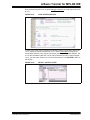
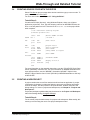
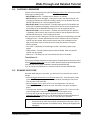
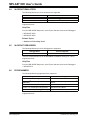
Browse though the symbols of your project in tree format. Select a symbol and right
click on “GoTo Locator” or double click on a symbol to go to that symbol in source code.
Symbols (tags) can be updated on recompile or immediately (see the right click menu).
12.21 CONFIGURATION BITS WINDOW
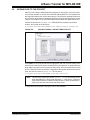
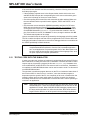
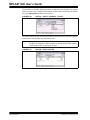
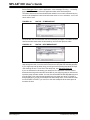
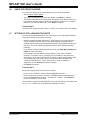
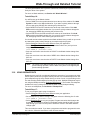
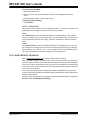
The Configuration Bits window displays information on Configuration bit settings.
MPLAB IDE recognizes Configuration bits set in code as well as in the Configuration
Bits window. Any Configuration bit whose value is not set in code or the window
defaults to ‘1’.
Configuration bit settings made in code are reflected in the window upon loading a
program (i.e., build, import or open a project). Configuration bit settings made in the
window are reflected immediately. MPLAB IDE uses the current values of the window
during debugger execution.
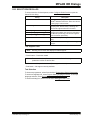
If “Clear program memory upon loading a program” is checked in Configure>Settings,
Program Loading tab, Configuration bits are cleared and then code changes are
loaded upon loading a program. If no Configuration bit settings are specified in code,
the bits are simply cleared.
When you close a workspace, MPLAB IDE saves the latest Configuration bit information in the workspace file. When you open a workspace, MPLAB IDE clears memory,
loads code setups of Configuration bits and then loads the last Configuration Bits
window information saved in the workspace.
DS51519B-page 156
© 2006 Microchip Technology Inc.