1
To add a contact
Phonebook entries can either be stored within the in-built phone memory or
within the SIM card memory. It is possible to change between the two areas
and also to copy entries between them. If necessary, check which memory
area is currently in use and how many free locations remain before entering
a new contact entry - please see “To check memory status” opposite.
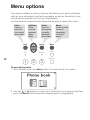
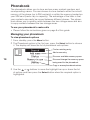
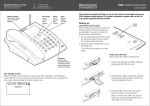
1 View the phonebook options: From standby, press the Menu button and
then press the Select button.
2 Use the
or
buttons to highlight the Add name option and press the
Select button.
3 The display will first prompt you to enter a name for the new contact.
Please follow the guidelines ‘When entering or editing contacts’ shown
below.
4 When the contact name is complete, press the Select button. The display
will now prompt you to enter a phone number for the new contact.
5 Enter the required phone number for your contact and then press the
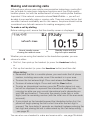
Select button. If successful, the display will show: Saved as the new
contact is added to the Phonebook list held within the current memory
storage area.
16
When entering or editing contacts:
• Use the main numeric keys to enter text. Press a numeric key
repeatedly to produce the appropriate character (characters appear
in the order printed on the key).
• When the required character has been entered, wait for one second
before entering another character that is situated on the same key. A
new character on a different key can be entered immediately.
• To change between upper and lower case characters, press the #
button.
• Remember that this is a mobile phone, you must enter the full phone
number, including area code, even if the contact is in your area.
• To enter a space, press the 0 button.
• To enter an international number, press the button twice (a + symbol will be displayed to represent the international dialling code - you
do not need to enter the usual two zeroes). Then enter the country
code (two or three digits) and the remaining number (with the initial
zero of the area code removed).
• To erase a character: Press and release the Clear button.
• To erase all characters: Press and hold the Clear button.
*