1
153
System Security
Viewing the Audit Log
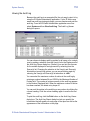
Because the audit log is an encrypted file, the only way to view it is by
using the ID Works Administrator application. If your ID Works user
name has audit log viewing privileges, you can examine and print the
audit log. From the ID Works Administrator application menu bar
select System and then View Audit Log. The Audit Log Viewer
dialog box opens.
You can choose to display audit log entries for all users or for a single
user by making a selection from the User(s) list in the Display area of
the Audit Log Viewer dialog box. Similarly, you can limit the sources
for the entries displayed to a single source by selecting from the
Source(s) list. Changing the selection in the User(s) and Source(s)
lists does not remove log entries; you can see all entries again by
returning the User(s) and Source(s) list selections to <All>.
You can select the maximum number of entries in the audit log by
entering a number between 24 and 10000 in the Maximum Number of
Entries field. The number of entries currently in the audit log appears
in the Number Displayed field. When the maximum number of entries
has been reached, the oldest entry drops off.
You can sort the entries in the audit log on any column by clicking the
column heading. Click the column heading again to reverse the sort
order.
To print the audit log, click the Print button on the Audit Log Viewer
dialog box. The Audit Log Report dialog box lets you specify the
information that will appear on each page of the report as well as the
appearance of the information on the page.
ID Works Standard and Enterprise Version 5 Administrator’s Guide