1
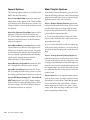
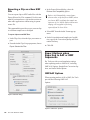
Scrub Trim Tool
• To scrub trim two tracks, drag with the Scrub
Trim tool between two adjacent tracks.
(Pro Tools HD and Pro Tools with Complete
Production Toolkit Only)
• To scrub with finer resolution (without having to
zoom in), press Control (Windows) or Command (Mac) while scrubbing.
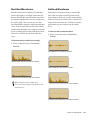
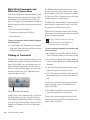
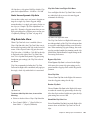
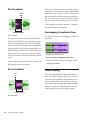
The Scrub Trim tool is a convenient tool for auditioning material (on up to two tracks) to find a trim
point. You can drag in a track to hear the audio information, then trim at a specific location by releasing the mouse button.
This action creates a new clip. Note that the Scrub
Trim tool changes into a “right trim” or “left trim”
shape as it is placed over the right or left side of a
clip. To reverse the direction of the Scrub Trim
tool, press Alt (Windows) or Option (Mac) before
you click the clip.
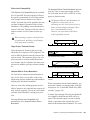
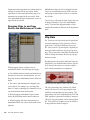
Loop Trim Tool
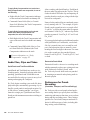
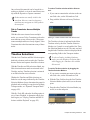
Use the Loop Trim tool to create or trim looped
clips (see “Clip Looping” on page 843).
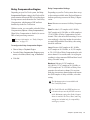
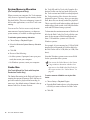
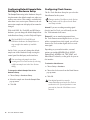
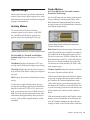
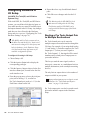
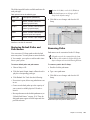
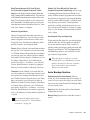
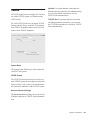
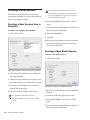
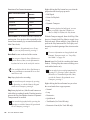
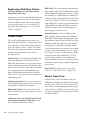
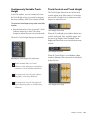
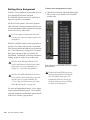
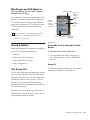
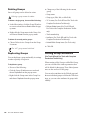
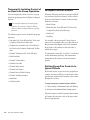
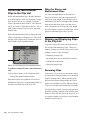
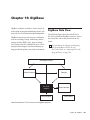
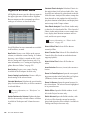
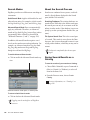
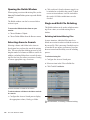
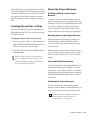
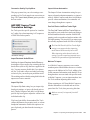
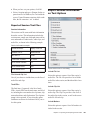
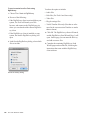
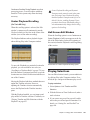
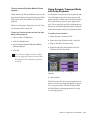
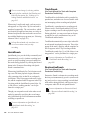
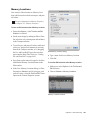
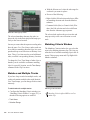
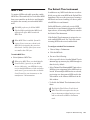
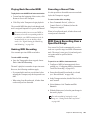
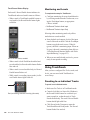
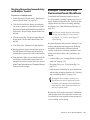
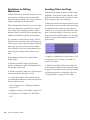
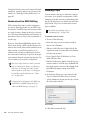
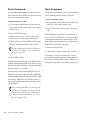
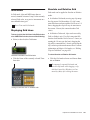
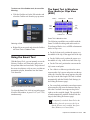
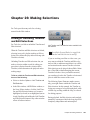
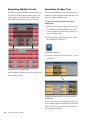
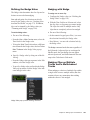
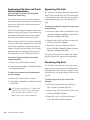
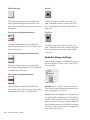
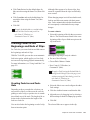
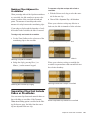
Loop Trim tool
Creating Loops with the Loop
Trim Tool
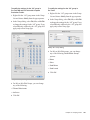
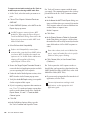
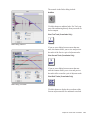
To create loop clips using the Loop Trim tool:
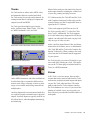
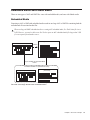
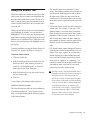
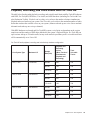
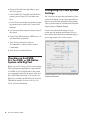
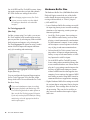
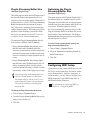
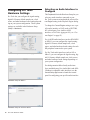
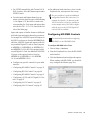
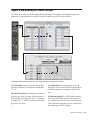
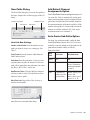
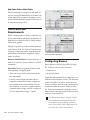
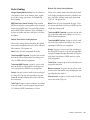
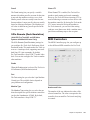
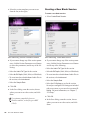
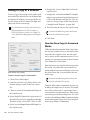
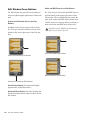
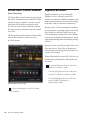
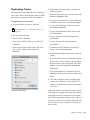
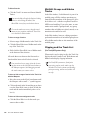
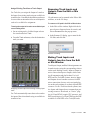
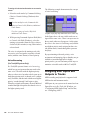
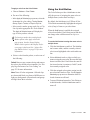
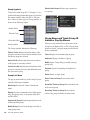
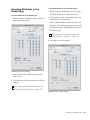
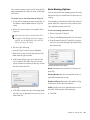
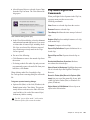
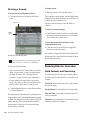
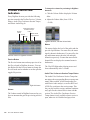
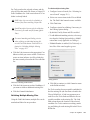
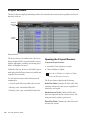
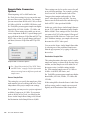
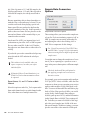
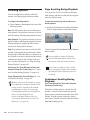
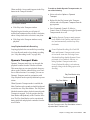
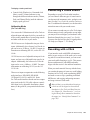
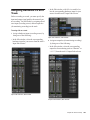
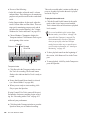
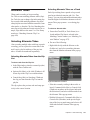
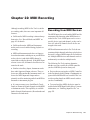
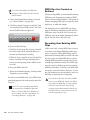
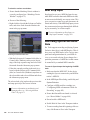
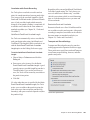
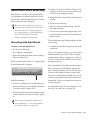
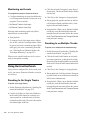
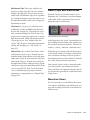
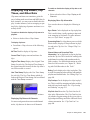
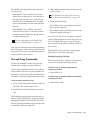
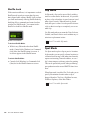
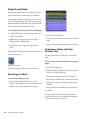
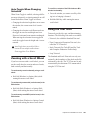
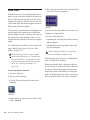
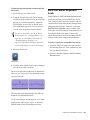
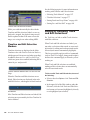
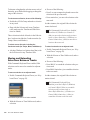
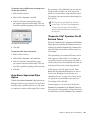
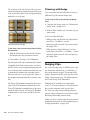
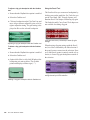
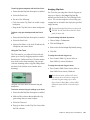
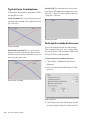
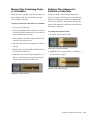
Scrub Trim tool over a clip
Scrub playback speed and direction vary with controller movement. Scrubbed audio is routed
through the track signal path, so you hear any effects in the signal path.
1
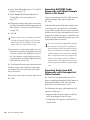
• Click the Trim tool pop-up menu and select
Loop.
• Right-click on any track and select Tools >
Trim Tools > Loop.
2
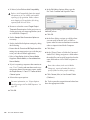
To scrub trim a track:
1
Do one of the following:
• Click the Trim tool pop-up menu and select
Scrub.
Do one of the following:
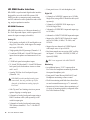
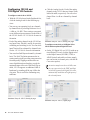
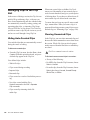
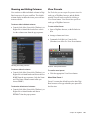
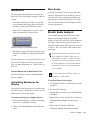
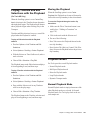
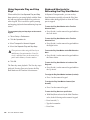
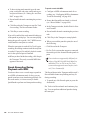
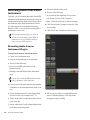
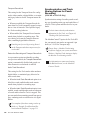
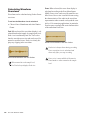
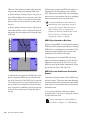
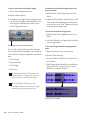
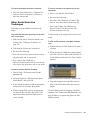
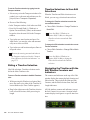
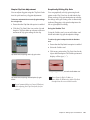
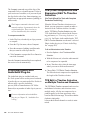
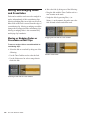
Position the cursor over the top half of an unlooped audio or MIDI clip, or clip group. The
cursor changes to indicate that you can loop
trim the clip. (Positioning the cursor over the
bottom half of the clip results in the Standard
Trim cursor.)
• Right-click on any track and select Tools >
Trim Tools > Scrub.
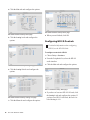
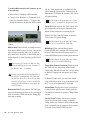
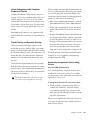
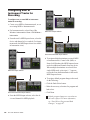
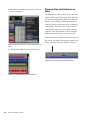
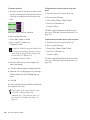
The tool changes to a speaker with a bracket.
2
Drag within a track to the left or right. Audio
from a scrubbed track is routed through the
track signal path, including any DSP (AAX and
TDM) effects. When you locate the trim point,
release the mouse button to trim the clip.
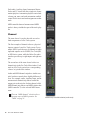
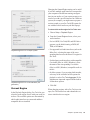
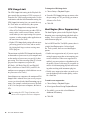
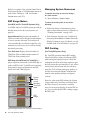
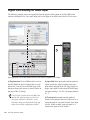
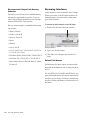
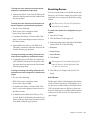
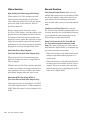
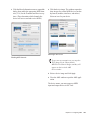
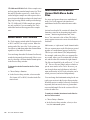
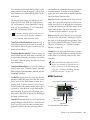
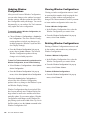
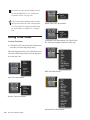
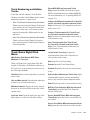
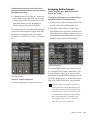
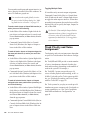
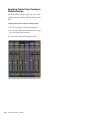
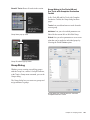
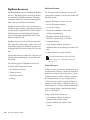
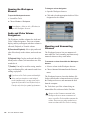
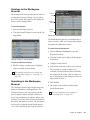
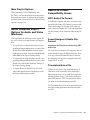
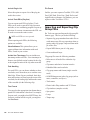
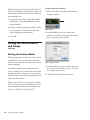
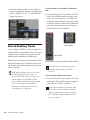
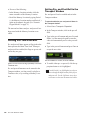
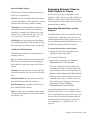
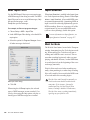
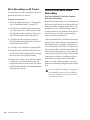
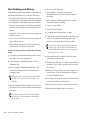
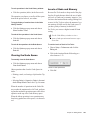
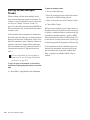
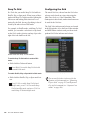
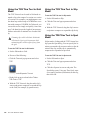
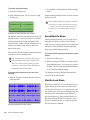
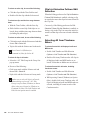
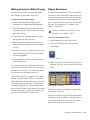
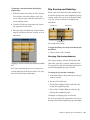
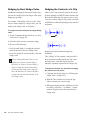
Loop Trim cursor
Chapter 25: Edit Modes and Tools
553