1
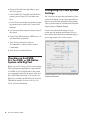
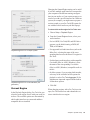
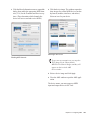
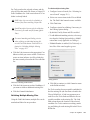
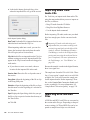
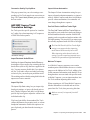
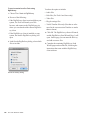
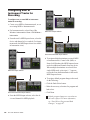
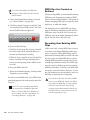
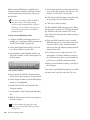
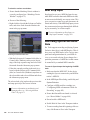
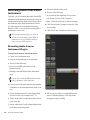
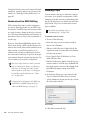
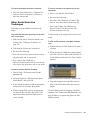
• Advanced Automation features: To manually check for updates: • Punch 1 Launch Pro Tools. • Capture 2 Choose Help > Check For Updates. 3 Do one of the following: • Write on Stop • Write to All • Back and play • Glide Automation • If no updates are available, click OK. • If updates are available, do one of the following: • Copy to Send • Click Details to launch your web browser and see what updates are available for download. • Auto Join • Auto Match • Click Not Now if you do not want to review or download updates until later. • Preview To disable automatic checking for updates: Checking for Software Updates Pro Tools can check for Pro Tools application and plug-in updates, either automatically or manually. An internet connection is required to check for updates. Approximately every two weeks, Pro Tools checks online for any available application and plug-in updates. If updates are available for Pro Tools or any plugins, Pro Tools reports what updates (if any) are available and how important the updates are for your system. You can visit the Avid website to locate, download, and install the appropriate updates for your Pro Tools system. In the Software Update dialog, select the Do Not Check For Updates Automatically option. To enable automatic checking for updates: 1 Choose Help > Check For Updates. 2 In the Software Update dialog, deselect the Do Not Check For Updates Automatically option. Chapter 5: Pro Tools Systems 61