1
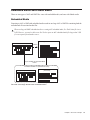
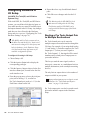
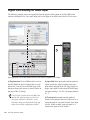
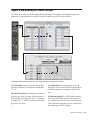
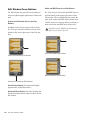
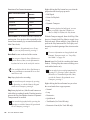
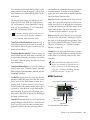
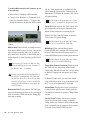
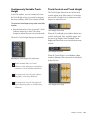
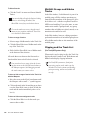
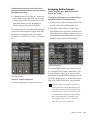
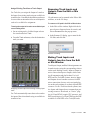
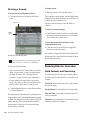
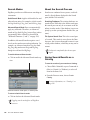
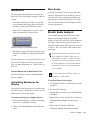
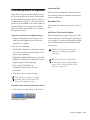
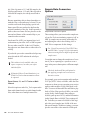
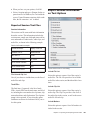
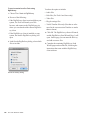
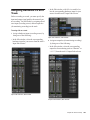
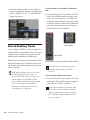
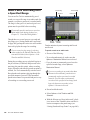
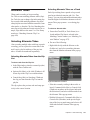
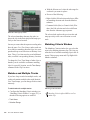
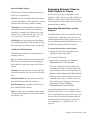
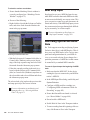
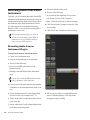
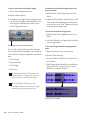
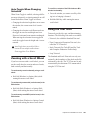
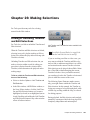
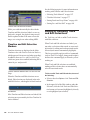
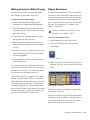
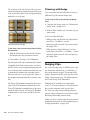
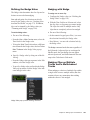
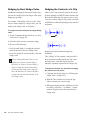
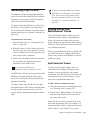
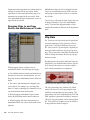
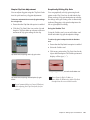
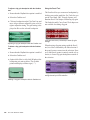
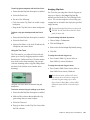
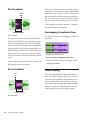
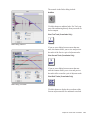
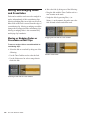
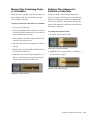
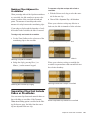
To select an entire clip, do one of the following: Click the clip with the Time Grabber tool. Double-click the clip with the Selector tool. To select two clips and the time range between them: 1 With the Time Grabber, click the first clip. 2 Shift-click the second clip. Both clips are selected, along with the time range between them (including any other clips). Clip List Selection Follows Edit Selection When the Editing preference for Clip List Selection Follows Edit Selection is enabled, selecting a clip in a track also causes the clip to become selected in the Clip List. Conversely, if the Editing preference for Edit Selection Follows Clip List Selection is enabled, selecting a clip in the Clip List causes the initial occurrence of that clip to become selected within the track. To select an entire track, do one of the following: Click in the track with the Selector tool and then choose Edit > Select All. Triple-click with the Selector tool in the track. Press Control+A (Windows) or Command+A (Mac) for Select All. To select all clips in all tracks: 1 Select the “All” Edit Group in the Group List pop-up menu. 2 Do one of the following: • Click in any track with the Selector tool and choose Edit > Select All. Selecting All from Timebase Rulers To select all material in all displayed audio and MIDI tracks: 1 Enable Link Timeline and Edit Selection (Options > Link Timeline and Edit Selection). 2 Double-click in any Timebase ruler. All clips in all displayed audio and MIDI tracks are selected. Tracks that are hidden are not selected. To select all material in all tracks, including Conductor events: 1 Enable Link Timeline and Edit Selection (Options > Link Timeline and Edit Selection). 2 While pressing Control (Windows) or Option (Mac), double-click in any Timebase ruler. All clips in all displayed audio and MIDI tracks are selected, including all events in each of the Conductor tracks. • Triple-click with the Selector tool in any track. Another way to select all clips in all tracks, without having to select the “All” Edit Group, is to press Enter (Windows) or Return (Mac), then press Control+A (Windows) or Command+A (Mac). The Link Timeline and Edit Selection option must be enabled. 568 Pro Tools Reference Guide