1
Viz Engine Administrator’s Guide
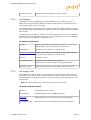
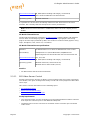
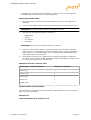
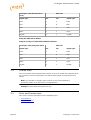
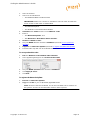
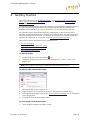
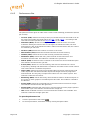
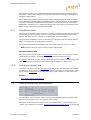
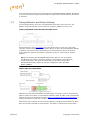
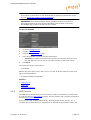
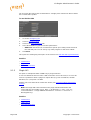
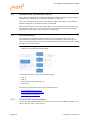
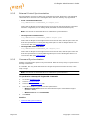
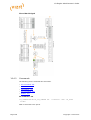
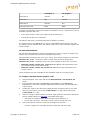
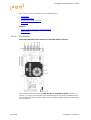
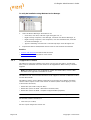
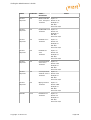
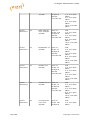
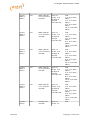
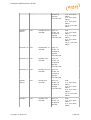
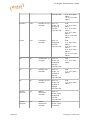
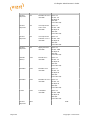
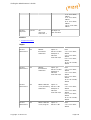
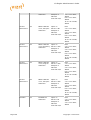
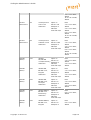
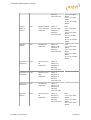
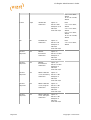
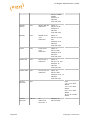
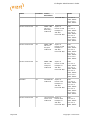
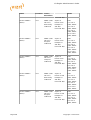
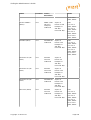
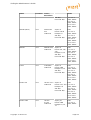
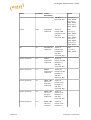
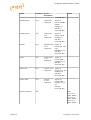
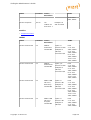
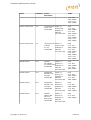
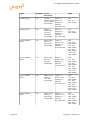
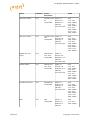
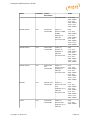
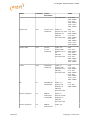
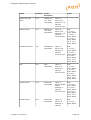
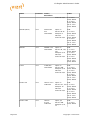
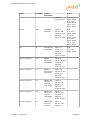
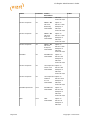
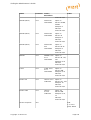
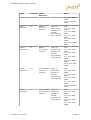
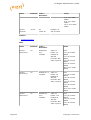
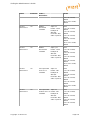
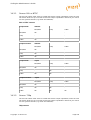
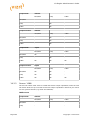
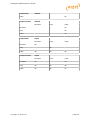
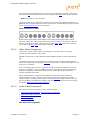
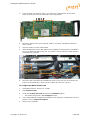
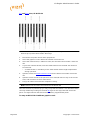
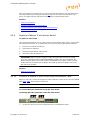
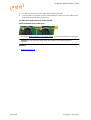
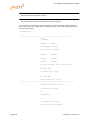
PCI and PCIe slots, HP DL370 G6
IMPORTANT! Before touching any components make sure you use an anti-static
wrist strap to prevent electrostatic discharge.
1.
Disconnect the power and all other peripherals.
2.
Insert the weaker graphics card in PCIe2 slot number 3 from the left.
3.
Insert the stronger graphics card in PCIe2 slot number 8 from the left.
4.
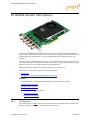
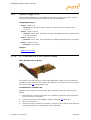
Insert the video board (i.e. Matrox X.mio2) in the PCIe2 slot number 6 from the
left.
5.
If you have a Matrox board, insert the radial-aerator into the PCIe slot number 5
from the left.
• A radial-aerator is mandatory as the video board reaches high temperatures
during operation.
6.
Optional: Insert the Audio-extension Card into the PCIe2 slot number 9 from the
left.
7.
Tidy up all cables and close the computer’s casing.
8.
Connect the computer’s monitor to the graphics card in slot 3 from the left.
9.
Start the machine and in the BIOS (Advanced: Thermal – Full Fan speed) set all
fans to run at full speed.
10. Boot and log on to the machine.
11. Install NVIDIA and Video board drivers.
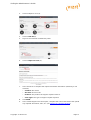
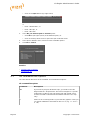
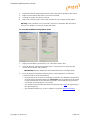
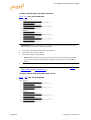
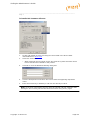
12. Open the NVIDIA Control Panel, and click on System Information in the bottom left
corner and check that both graphics cards are installed and run at PCIe x16 speed.
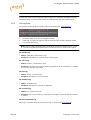
13. If you installed a Matrox board, open Matrox X.info from the system tray and
check that the video board runs at PCIe x8 speed.
Note: Matrox DSX.LE cannot be mounted in the DL370 G6
Copyright © 2014 Vizrt
Page 301