1
Working with Larger Designs
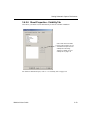
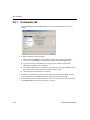
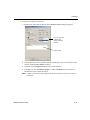
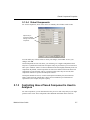
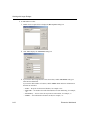
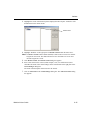
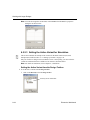
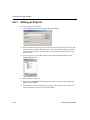
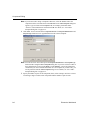
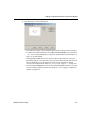
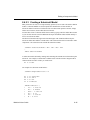
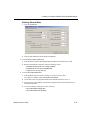
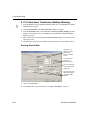
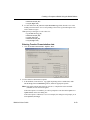
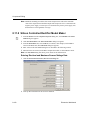
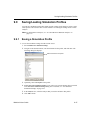
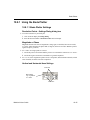
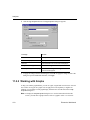
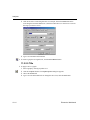
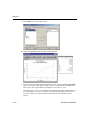
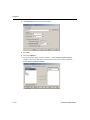
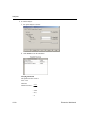
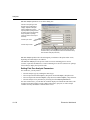
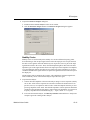
3. Click on Browse, navigate to the folder where you would like to save the hierarchical
block and click Save. You are returned to the Hierarchical Block Properties dialog box.
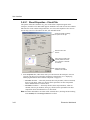
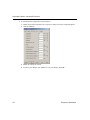
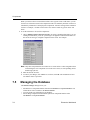
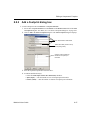
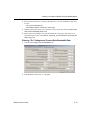
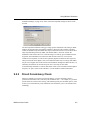
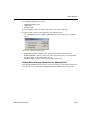
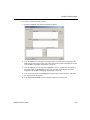
4. Enter the number of pins desired and click OK. A “ghost” image of the new hierarchical
block appears. Click where you want the hierarchical block to appear.
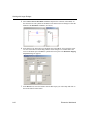
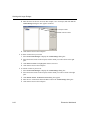
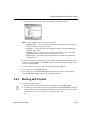
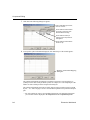
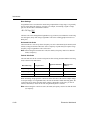
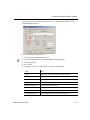
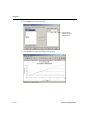
5. Double-click on the new hierarchical block and select Edit HB/SC from the
Hierarchical Block/Subcircuit dialog box that displays. A circuit window that contains only
the entered pins displays.
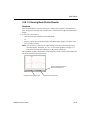
6. Place and wire components as desired in the new hierarchical block.
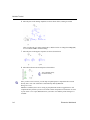
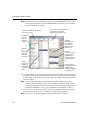
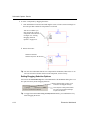
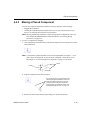
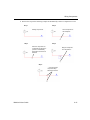
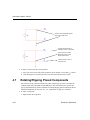
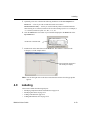
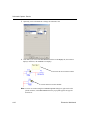
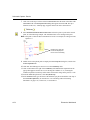
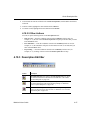
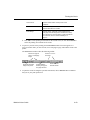
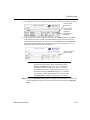
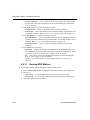
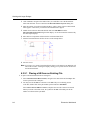
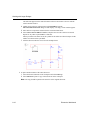
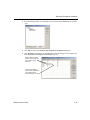
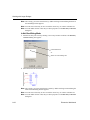
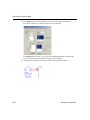
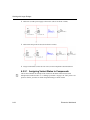
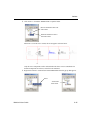
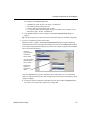
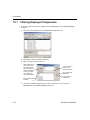
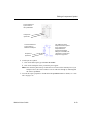
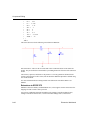
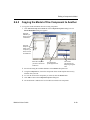
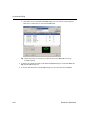
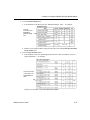
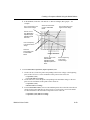
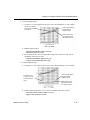
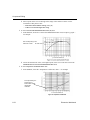
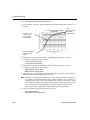
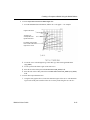
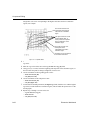
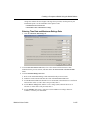
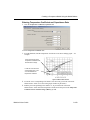
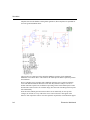
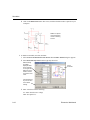
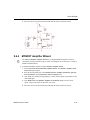
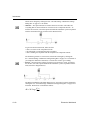
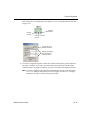
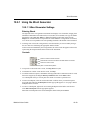
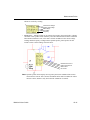
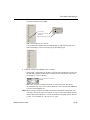
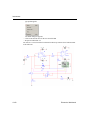
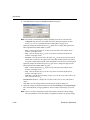
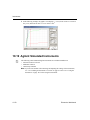
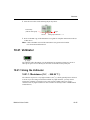
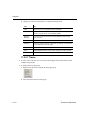
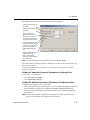
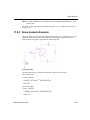
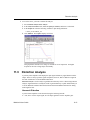
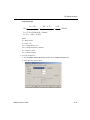
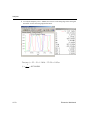
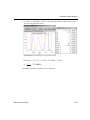
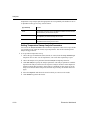
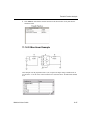
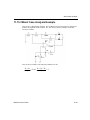
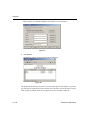
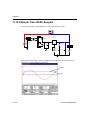
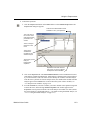
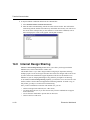
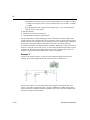
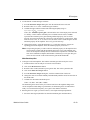
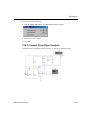
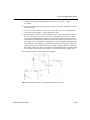
7. Wire the hierarchical block into the circuit as in the example below.
8. Save the circuit.
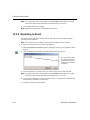
Note If you move or re-name a hierarchical block relative to the main circuit, Multisim will
not be able to find it. A dialog box displays asking you to provide the new location for
the hierarchical block.
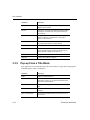
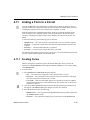
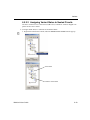
6.2.5.1 Placing a HB from an Existing File
To place a hierarchical block from an existing file:
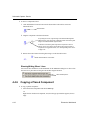
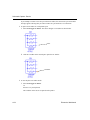
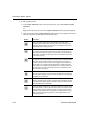
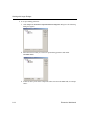
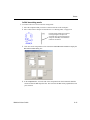
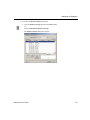
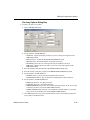
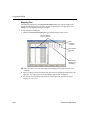
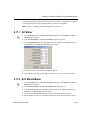
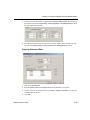
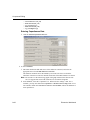
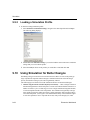
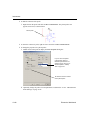
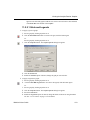
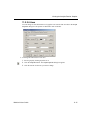
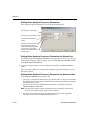
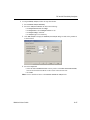
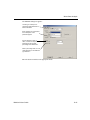
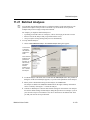
1. Select Place/Hierarchical Block from File, navigate to the desired file and click Open. The
circuit is placed on the workspace.
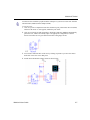
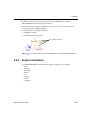
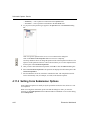
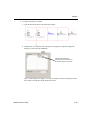
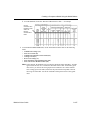
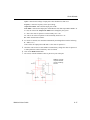
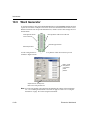
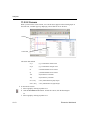
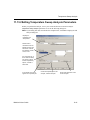
2. You may need to add HB/SC connectors to the HB if they are not already present.
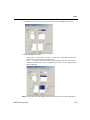
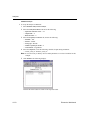
To do this, double-click on the placed HB’s symbol and select Edit HB/SC.
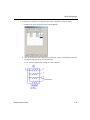
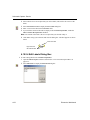
Select Place/Connectors/HB/SC Connector, and place and wire the connector as desired.
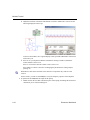
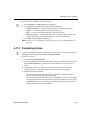
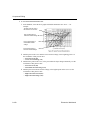
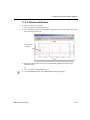
When you return to the main circuit, the symbol for the HB will include pins for the
number of connectors that you added.
6-8
Electronics Workbench