1
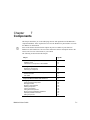
Introduction to the Multisim Instruments
10.1
Subject
Page No.
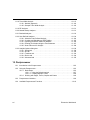
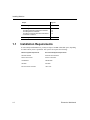
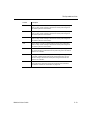
LabVIEW Instruments
System Requirements
Sample LabVIEW Instruments
Creating a LabVIEW Instrument
Building a LabVIEW Instrument
Installing a LabVIEW Instrument
Guidelines for Successfully Creating a LabVIEW
Instrument
10-87
10-88
10-88
10-90
10-92
10-93
10-93
Introduction to the Multisim Instruments
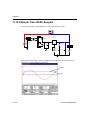
Multisim provides a number of virtual instruments. You use these instruments to measure the
behavior of your circuits. These instruments are set, used and read just like their real-world
equivalents. They look just like the instruments you’ve seen and used in a lab. Using virtual
instruments is the easiest way to examine your circuit’s behavior and show the results of a
simulation. In addition to the standard instruments that come with Multisim, you can create
your own custom instruments using LabVIEW, a graphical development environment for
creating flexible and scalable test, measurement, and control applications.
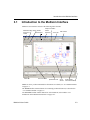
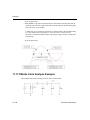
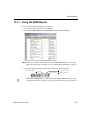
Virtual instruments have two views: the instrument icon you attach to your circuit, and the
instrument face, where you set the instrument’s controls. You can show or hide the face by
double-clicking on the instrument's icon. The instrument faces will always be drawn on top of
the main workspace so that they will not be hidden. You may place the instrument faces
wherever you wish on your desktop. The faces are automatically hidden when you activate a
different view. Upon returning to a view, the instruments are restored to their original
visibility and placement. When you save your circuit, the instrument face locations and hide/
show status are stored with the circuit. As well, any data contained in the instruments is saved,
Multisim 9 User Guide
10-3