1
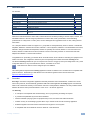
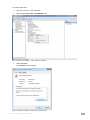
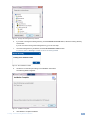
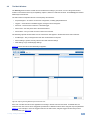
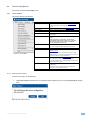
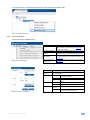
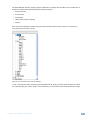
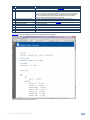
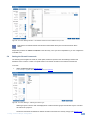
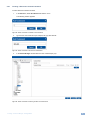
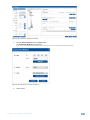
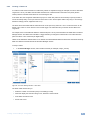
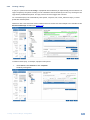
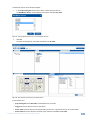
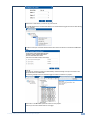
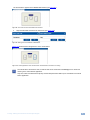
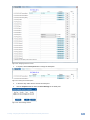
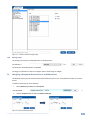
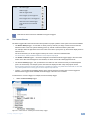
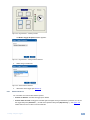
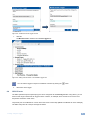
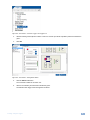
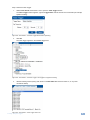
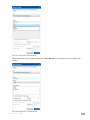
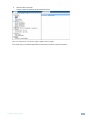
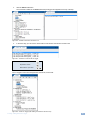
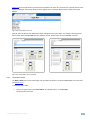
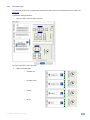
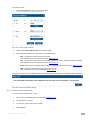
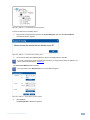
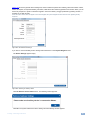
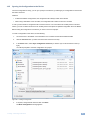
Figure 140: GPI/O Events – Port Manager Setup
Digital output acts in the same way as do relays so it cannot be used as a trigger (see Section 9.3).
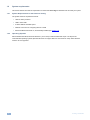
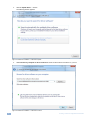
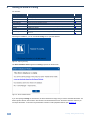
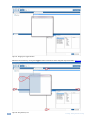
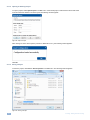
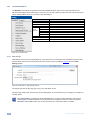
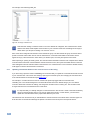
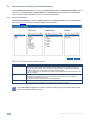
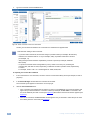
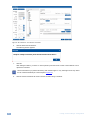
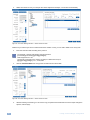
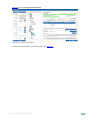
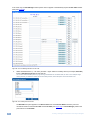
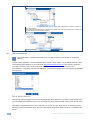
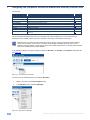
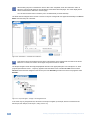
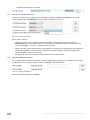
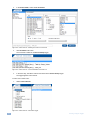
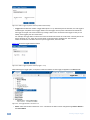
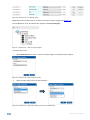
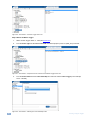
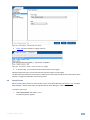
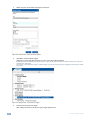
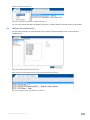
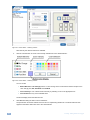
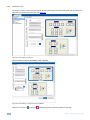
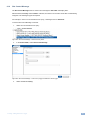
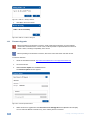
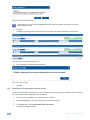
Once the Master RC is set, the GPI/O Events appears in the Project Navigator:
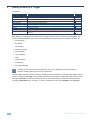
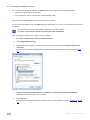
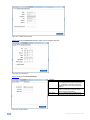
Figure 141: GPI/O Events – GPI/O in Project Navigator
To create a GPI/O event:
1.
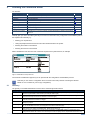
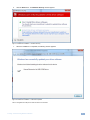
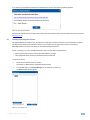
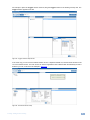
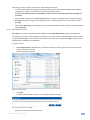
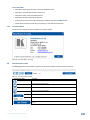
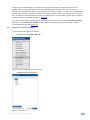
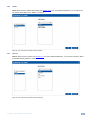
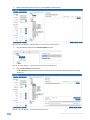
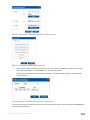
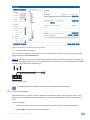
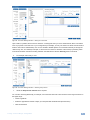
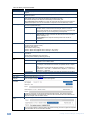
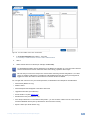
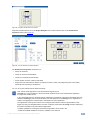
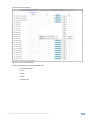
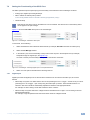
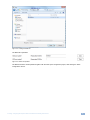
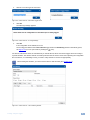
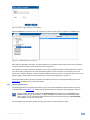
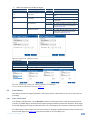
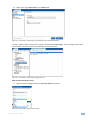
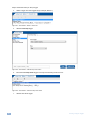
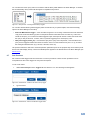
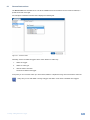
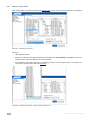
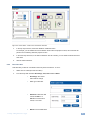
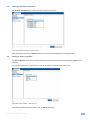
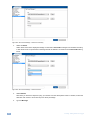
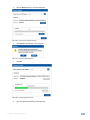
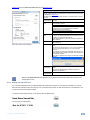
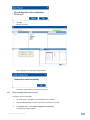
Select GPI/O Events and click + to create a new GPI/O trigger. The following window appears:
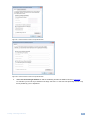
Figure 142: GPI/O Events – GPI/O Trigger Properties
2.
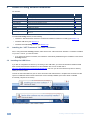
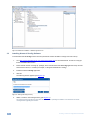
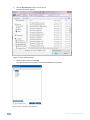
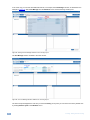
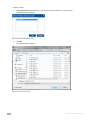
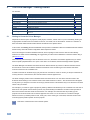
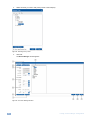
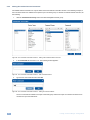
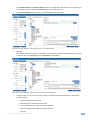
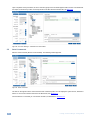
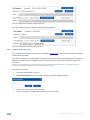
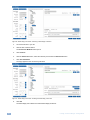
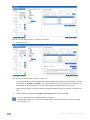
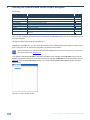
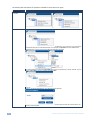
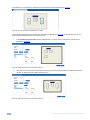
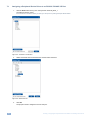
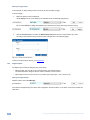
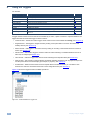
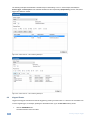
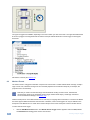
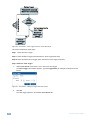
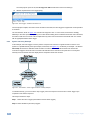
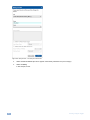
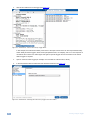
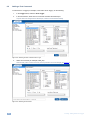
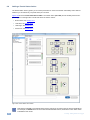
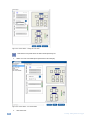
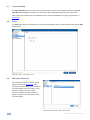
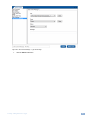
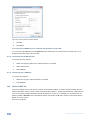
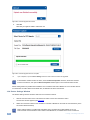
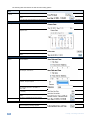
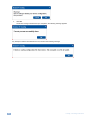
Select the GPI/O relay from the list and its behavior:
Figure 143: GPI/O Events – Digital Input: Selecting the GPI/O Port and Behavior
82
K-Config - Using the Triggers