1
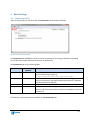
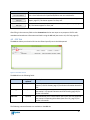
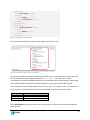
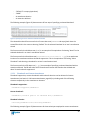
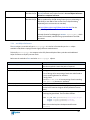
Command Button
Browse…
Function
This button allows you to browse your computer and select the CSV file that
provides the metadata for the source content.
Reload CSV
This button reloads the specified CSV into the EBI. It is useful if you are making
changes to the CSV whilst using the EBI.
Test Import
This button starts a test run of the import process (see section 6.7, Testing Your
Import, page 55). This button appears on every tab.
Start Import
This button starts the import process (see section 6, Running the Import, page
40). This button appears on every tab.
The requirements for the CSV file are provided in section 5, CSV File Format, page 17). Instructions on
how to run the EBI is provided in section 6, Running the Import, page 52).
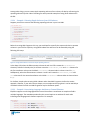
4.3 Options Tab
Further settings for advanced configuration are available on the Options tab. These settings are
referenced in this document as they apply.
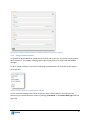
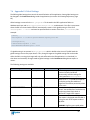
4.4 Log Tab
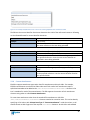
The Log tab has a rolling log of messages that display progress and status when you use the EBI to
import (or export) content. This tab has a Clear button which clear’s the log and Test Import and Start
Import buttons as with the other tabs.
For information about the log see section 6, Running the Import, page 40.
4.5 Toolbar
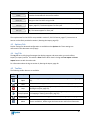
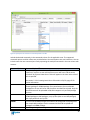
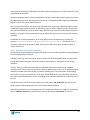
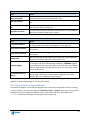
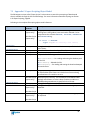
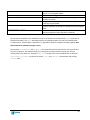
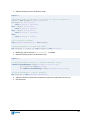
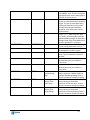
The following toolbar buttons are available:
Toolbar
Button
Description
Function
Open
Loads settings from a settings file (see section 6.11 Saving Your Settings, page
63).
Save
Saves current settings (see section 6.11 Saving Your Settings, page 63).
Stop
Stop processing part way through an upload run (see section 6.2 Stopping or
Pausing the Import, page 53).
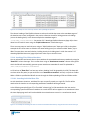
Pauses and unpauses processing part way through an upload run (see section
Pause/Unpause 6.2 Stopping or Pausing the Import, page 53).
Preferences
About
Opens the Preferences dialog (see section 6.12, Setting Preferences, page 63).
Opens the About dialog to see the current version number, what the latest
version available is, where to get the latest version and license information.
16