1
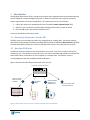
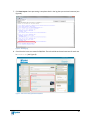
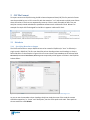
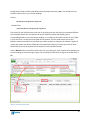
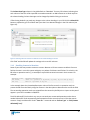
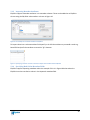
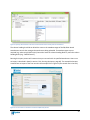
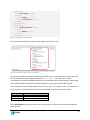
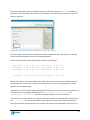
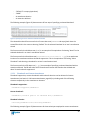
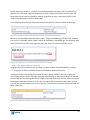
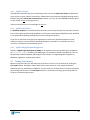
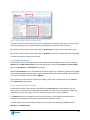
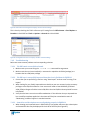
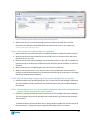
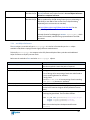
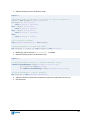
Figure 89. An example CSV with column headings correctly specified to populate the schema of Figure 88
7.1.2.4 The EBI can’t find my attachments
1. Make certain that the column with the attachment paths is correctly set as “Attachment
Locations” for its Column Data Type.
2. If the paths to the attachments in the csv are absolute paths (e.g. c:\my
documents\attachments\FordEscape.jpg) double-check that they are correct.
3. If the paths to the attachments are relative paths make certain they are relative to the folder
your CSV file is in. For example, if an attachment path is specified as
attachments\FordEscape.jpg then the attachments folder must be a subfolder of the
folder the CSV file is in.
4. If you have multiple attachments per item and CSV row make certain that you have specified a
delimiter
7.1.2.5 Attachments aren’t appearing in my items (yet no errors)
1. Ensure that the column in your CSV where you specify the file names has a Column Data Type of
“Attachment Locations”.
7.1.2.6 Attachments are not appearing in the EQUELLA wizard
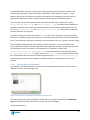
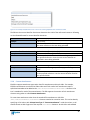
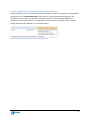
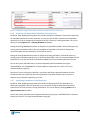
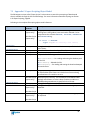
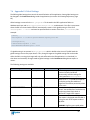
1. If the attachments appear in the item display page but not in the wizard then custom metadata
referencing the attachments is missing. Ensure that the column heading of the Attachment
Locations where the files are specified in the CSV uses an XPath that matches a metadata target
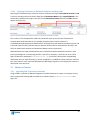
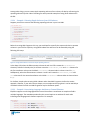
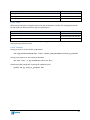
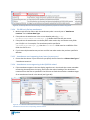
of an Attachments Control in the wizard (see Figure 90).
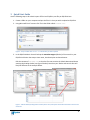
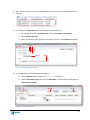
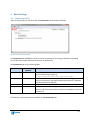
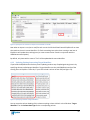
Figure 90. The XPath of an Attachments Locations column or a URLs column should match the metadata target of the
Attachments control in the corresponding collection wizard
74