1
INVENTORY CONTROL
Table of Contents
INVENTORY CONTROL................................................................................... 1
ICINTRO- ..................INVENTORY CONTROL INTRODUCTION ................................................ 5
ITEM AND ITEM BRANCH MAINTENANCE VALIDATION PROGRAMS...................................... 7
PGM- ....................PRODUCT GROUP MAINTENANCE ........................................................ 7
IPL- .......................ITEM PRODUCT LINE MAINTENANCE.................................................... 8
POPF- ...................PURCHASE ORDER PRODUCT FAMILY MAINTENANCE ........................... 9
IAGM- ...................ITEM G/L ACCOUNT GROUP MAINTENANCE ........................................10
ISAC- ....................ITEM SALES ANALYSIS CATEGORY MAINTENANCE..............................11
OVRM- ..................OVERHEAD MATERIAL RATE MAINTENANCE .......................................13
BUYER- .................BUYER MAINTENANCE.......................................................................14
IUFC- ....................ITEM USAGE FREEZE CODE MAINTENANCE .........................................15
IUPM- ...................ITEM USAGE PERIOD MAINTENANCE ..................................................16
IURM- ...................ITEM USAGE RULES MAINTENANCE....................................................18
ITEM MAINTENANCE PROGRAMS.....................................................................................20
IM- ........................ITEM MASTER MAINTENANCE ............................................................20
IPMM- ...................ITEM PRODUCT MASTER MAINTENANCE PROGRAM .............................38
IPMMSC- ..............ITEM PRODUCT MASTER MAINTENANCE STANDARD COMMENTS .........40
IQIC- .....................ITEM QUANTITY INPUT CONTROL .......................................................42
ISPM- ....................ITEM SERIAL/LOT NUMBER PATTERN MAINTENANCE12 ........................45
IUHM- ...................ITEM USAGE HISTORY MAINTENANCE ................................................48
INOTE- ..................ITEM NOTE MAINTENANCE ................................................................49
IPICM-...................ITEM PICTURE MAINTENANCE ............................................................51
RIM- ......................RELATED ITEM MAINTENANCE ...........................................................57
IIM- .......................INTERCHANGEABLE ITEM MAINTENANCE ............................................59
IVCM- ...................ITEM VALID CUSTOMER MAINTENANCE..............................................61
UPCLOAD- ............UPC UPLOAD PROGRAM ....................................................................64
ITEM SUBSTITUTION PROCESSING ...................................................................................65
SELECTING ITEM SUBSTITUTIONS ................................................................................65
AUTOMATIC ITEM SUBSTITUTIONS ..............................................................................65
SUBSTITUTION CODES ................................................................................................66
ISM- ......................ITEM SUBSTITUTION MAINTENANCE...................................................67
BRANCH MAINTENANCE PROGRAMS ...............................................................................69
BXM- ....................BRANCH XREF CONTROL MAINTENANCE ............................................69
ICMB- ...................ITEM/BRANCH COST MAINTENANCE...................................................71
IBMM- ...................ITEM/BRANCH MATRIX MAINTENANCE ...............................................72
IBPL- .....................ITEM/BRANCH PRODUCT LINE MAINTENANCE .....................................73
IBTM- ....................ITEM/BRANCH TRANSFER MAINTENANCE............................................78
IBPOM- .................ITEM/BRANCH PLANNING OVERRIDE MAINTENANCE ............................80
SPECIAL CUSTOMER' S ITEMS CROSS REFERENCE MAINTENANCE ......................................81
CICR- ....................CUSTOMER/ITEM CROSS REFERENCE MAINTENANCE ...........................81
CGVPGM- .............CUSTOMER GROUP VALID PRODUCT GROUP MAINTENANCE ................85
CVIM- ...................CUSTOMER VALID ITEM MAINTENANCE..............................................87
Next Generation®
Inventory Control
CVPGM-................CUSTOMER VALID PRODUCT GROUP MAINTENANCE ...........................89
PRICING OPTIONS AND LEVELS .......................................................................................91
PRICING INTRODUCTION AND OVERVIEW ......................................................................91
PRICING HIERARCHY CHART ........................................................................................94
CPM- ....................CONTRACT PRICING MAINTENANCE ...................................................96
CMT- ....................COLUMN MATRIX TABLE MAINTENANCE........................................... 105
PMT- .....................PRICE MATRIX TABLE MAINTENANCE ............................................... 112
FMT- .....................FAMILY MATRIX TABLE MAINTENANCE............................................. 128
ILP- .......................ITEM LIST PRICE MAINTENANCE....................................................... 132
IFLP- .....................ITEM FUTURE LIST PRICING.............................................................. 138
MFPM- ..................MATRIX FUTURE PRICING MAINTENANCE.......................................... 157
IPBK-.....................ITEM PRICE BOOK ........................................................................... 161
COSTING PROGRAMS ................................................................................................... 166
ICM- .....................ITEM COST MAINTENANCE .............................................................. 166
IFCM- ....................ITEM FUTURE COST MAINTENANCE.................................................. 170
INVENTORY ADJUSTMENT PROGRAMS .......................................................................... 195
ITE- .......................INVENTORY TRANSACTION ENTRY ................................................... 195
ITRM-....................ITEM TRANSACTION ENTRY REASON MAINTENANCE ......................... 200
ITR-.......................INVENTORY TRANSACTION REGISTER .............................................. 201
BRANCH TRANSFER PROCESSING .................................................................................. 203
BRTRN- .................BRANCH TRANSFER PROCEDURES .................................................... 203
GENERAL FILE SET UP FOR BRANCH TRANSFERS ...................................................... 204
MANUAL BRANCH TRANSFERS................................................................................... 223
BRANCH TRANSFER REQUISITION MAINTENANCE (BTRM) TRANSFERS........................... 224
INVENTORY TRANSACTION ENTRY (ITE) TRANSFERS ................................................... 232
AUTOMATED REPLENISHMENT (PRGEN) TRANSFERS .................................................... 239
ORDER ENTRY BRANCH TRANSFERS ........................................................................... 253
ADDITIONAL FILE SET UP FOR TRANSFERS FROM ORDER ENTRY ................................ 253
NON-STOCK- ...........OVERVIEW FOR PROCESSING NON-STOCK ITEMS .............................. 264
NON STOCK ITEMS - BASIC ENTRY ............................................................................. 264
NON STOCK ITEMS - INTERIM LEVEL ........................................................................... 264
NSIM- ...................NON-STOCK ITEM MAINTENANCE TEMPLATE .................................... 265
NON STOCK ITEMS - HIGHEST LEVEL .......................................................................... 267
VENDOR NON-STOCK PROCESSING - INTRODUCTION AND OVERVIEW ........................... 267
VNSITM - .............VENDOR NON-STOCK ITEM TEMPLATE MAINTENANCE PROGRAM ....... 269
VNSIM - ...............VENDOR NON-STOCK ITEM MAINTENANCE PROGRAM ....................... 273
DATA IMPORT FUNCTION: ...................................................................................... 281
GENERATE ITEM FUNCTION: .................................................................................... 282
INVENTORY UPDATE FUNCTION: ............................................................................. 282
VNSIUM - ............VENDOR NON-STOCK ITEM UPC MAINTENANCE PROGRAM ................ 284
PROCESSING VENDOR NON-STOCK ITEMS IN ORDER, QUOTE, AND BILL PROGRAMS. ..... 286
INVENTORY FORMS PROGRAMS .................................................................................... 292
IIF- ........................ITEM INPUT FORMS ......................................................................... 292
ILBL- .....................ITEM LABEL PRINT PROGRAM........................................................... 295
IBLBL- ...................ITEM BRANCH LABEL PRINT PROGRAM ............................................. 296
INVENTORY QUERY PROGRAMS .................................................................................... 297
IQQ-......................INVENTORY QUANTITY INQUIRY ...................................................... 297
Release NGS-6.30
IC- 2
Next Generation®
Inventory Control
ITQ- ......................INVENTORY TRANSACTION INQUIRY ................................................ 300
IHQ- ......................ITEM HISTORY QUERY ..................................................................... 303
IPAI- .....................ITEM PRICE/AVAILABILITY INQUIRY .................................................. 305
ITPA- ....................ITEM TIME-PHASED AVAILABILITY QUERY ......................................... 313
INVENTORY REPORT PROGRAMS ................................................................................... 315
IAR- ......................INVENTORY ANALYSIS REPORT ........................................................ 315
ISS- ......................INVENTORY STOCK STATUS REPORT................................................ 316
IVR- ......................INVENTORY VALUATION REPORT ..................................................... 320
ICRAR- ..................ITEM COST ROLLOVER AUDIT REGISTER ........................................... 324
IMR- ......................ITEM MANAGEMENT REPORTS ......................................................... 326
SLOW MOVING INVENTORY REPORT ........................................................................ 326
CRITICAL INVENTORY REPORT ................................................................................ 326
OVERSTOCK INVENTORY REPORT ............................................................................ 326
BELOW AVAILABLE REPORT .................................................................................... 326
REORDER POINT REPORT ........................................................................................ 326
AVERAGE USAGE REPORT....................................................................................... 326
ISHR- ....................ITEM SALES HISTORY REPORT ......................................................... 331
KITTING MODULE PROCESSING ..................................................................................... 333
KITM-....................KIT
KITM- ................KIT
KITM- ................KIT
KINQ-....................KIT
KITWU- .................KIT
KITCL- ..................KIT
KITICL- .................KIT
MAINTENANCE- ......................................................................... 335
MAINTENANCE- HEADER ............................................................ 336
MAINTENANCE- DETAIL ............................................................. 343
AVAILABILITY INQUIRY .............................................................. 347
WHERE USED ............................................................................ 349
COST LISTING - SINGLE LEVEL .................................................... 351
COST LISTING – INDENTED MULTI-LEVEL ..................................... 353
INVENTORY MONTH-END PROCESSING .......................................................................... 355
ICME-....................ITEM MONTH END PROCESSING ....................................................... 355
Release NGS-6.30
IC- 3
Next Generation®
Inventory Control
Proprietary Notice
This manual contains information w hich is proprietary to Munics Information Systems, Inc. and all rights are reserved. No
part of this manual or its contents may be used or reproduced by any means w ithout the express w ritten permission of
Munics Information Systems, Inc.
Disclaimer of Warranty
The material contained herein is subject to change w ithout notice. Munics Information Systems, Inc. makes no w arranty,
express, implied or by description, regarding the information set forth herein. Munics Information Systems, Inc. does not
guarantee, w arrant or make any representation regarding the use of, or the results of the use of, the programs in terms of
correctness, accuracy, reliability, currency or otherw ise, and the purchaser relies on the programs and the results solely at
his/her ow n risk.
NEXT GENERATION® is a registered trademark of Munics Information Systems, Inc.
Copyright 1987-2006
Munics Information Systems, Inc.
Release NGS-6.30
IC- 4
Next Generation®
ICINTRO-
Inventory Control
INVENTORY CONTROL INTRODUCTION
Introduction
The Inventory Control application covers the preparation of item master information files, daily
operation of the inventory management system and the production of inventory reports. The
Inventory Control application has been designed to simplify the maintenance of inventory and to
produce reports that provide critical management information required for proper control of
inventory.
Overview
Inventory Control consists of the follow ing:
1.
Inventory Master File preparation and maintenance.
2.
Inventory transactions.
3.
Inventory reports.
In order to properly implement the inventory control module, it is important to understand the
options the user has for storing inventory balance information.
There are three levels available for storing balance information:
1.
Item Master Level
Stores the sum of all branches.
2.
Item Branch Level
Stores the branch balances.
3.
Item Location Level
Maintains On Hand Balances only for items using WH, BIN, or
LOT/SERIAL Control.
When adding new items into the system the user must define for each item w hat depth the user
requires to store inventory balances. The system alw ays stores inventory at the item master level
and the item branch level for each item. These are the most commonly used options. The item
location level is only used w hen a user has lot/serial, w arehouse or bin control required w ithin a
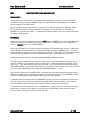
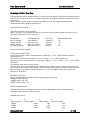
branch location. The follow ing illustrates how inventory is stored:
LEVEL 1
ø
LEVEL 2
ø
LEVEL 3
ø
Release NGS-6.30
ITEM MASTER
ITEM
BRANCH
ITEM
BRANCH
ITEM
LOCATION
RECORDS
ITEM
LOCATION
RECORDS
ITEM
BRANCH
ITEM
LOCATION
RECORDS
IC- 5
Next Generation®
Inventory Control
Levels 1 and 2 are alw ays est ablished for each item automatically. Level 3 is optional depending
on the user' s requirements. Level 2 balances are stored at the branch levels w ith the sum of all
branch activity stored in the item master. Branches must be defined in program BRM.
On hand balances are maintained in the item detail location file w ith the sum of the location records
for an item stored in its respective branch record. This file is most commonly used if the user
requires On Hand control dow n to a w arehouse, bin or lot/serial number level.
If w arehouse control is activated, the user must enter a valid w arehouse number defined in program
WHM. Bin or Lot/Serial Number control allow the user to enter and create location records as
needed. An item can have either lot or serial number control, not both.
It should be clear that On Order, Customer Order, Transfer Orders and Committed balances are not
maintained in the item detail location file but are maintained at the branch and item master levels.
The user has the ability to create literally thousands of branch and/or location records if required.
Once the Item Master is built, the user needs to utilize program IPMB to set up w hich items are
stocked at w hich branches. Also, IPMB defines all the codes that drive the replenishment system.
Key fields to be maintained are the Replenishment Path Code, Auto Reorder Code, Vendor ID, (if
applicable) and Replenishment Branch (if applicable). The item branch record controls all the critical
balances, order timing controls and order quantity controls that automate the replenishment
process. Each item in each branch must be thoroughly review ed to achieve the proper results.
Release NGS-6.30
IC- 6
Next Generation®
Inventory Control
ITEM AND ITEM BRANCH MAINTENANCE VALIDATION PROGRAMS
PGM-
PRODUCT GROUP MAINTENANCE
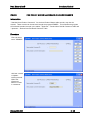
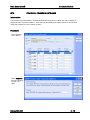
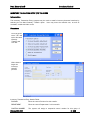
Introduction
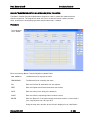
The Product Group Maintenance program is one of the programs on the Item Validation Code Menu
and is used for building or maintaining the Product Group Codes file. Several reports in the system
allow for selection and sorting by product group.
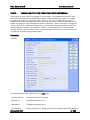
Procedure
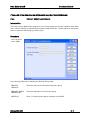
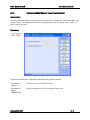
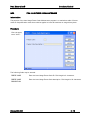
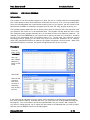
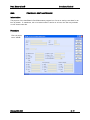
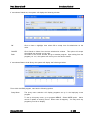
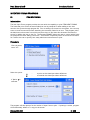
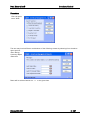
From the menu,
enter " PGM" :
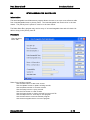
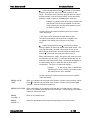
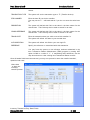
The follow ing fields build or maintain the Product Group codes.
PRODUCT
GROUP ID
Enter the Group ID for this particular product group.
PRODUCT GROUP
DESCRIPTION
Enter the description for the product group.
WEB FLAG
Enter Y to allow product group to display on the WEB.
Release NGS-6.30
IC- 7
Next Generation®
IPL-
Inventory Control
ITEM PRODUCT LINE MAINTENANCE
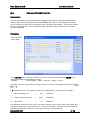
Introduction
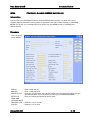
The Item Product Line Maintenance program is used to establish and maintain product lines.
Procedure
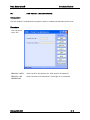
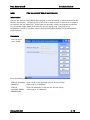
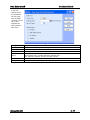
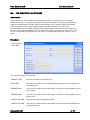
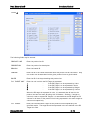
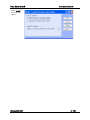
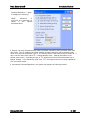
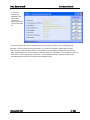
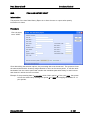
From the menu,
enter " IPL" :
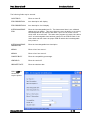
PRODUCT LINE ID
Enter the ID for this product line. Field length is 8 characters.
PRODUCT LINE
DESCRIPTION
Enter the product line description. Field length is 15 characters.
Release NGS-6.30
IC- 8
Next Generation®
POPF-
Inventory Control
PURCHASE ORDER PRODUCT FAMILY MAINTENANCE
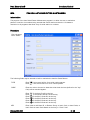
Introduction
The Purchase Order Report Family Maintenance program is to establish and maintain purchase order
product families. The Replenishment Report optionally allow s output to group items by the P. O.
family code for the item.
Procedure
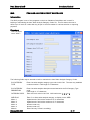
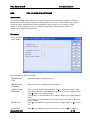
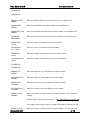
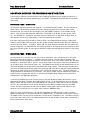
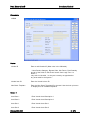
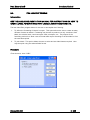
From the menu,
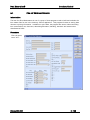
enter " POPF" :
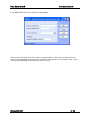
The follow ing fields build or maintain the Purchase Order Product Families:
PO PRODUCT
FAMILY ID
Enter the ID for the PO Product Family.
PO PRODUCT
FAMILY
DESCRIPTION
Enter the description for the PO Product Family Code.
Release NGS-6.30
IC- 9
Next Generation®
IAGM-
Inventory Control
ITEM G/L ACCOUNT GROUP MAINTENANCE
Introduction
The Item G/L Account Group Maintenance program is used for building or maintaining the Item G/L
Account Group Codes. The primary use of this file is to allow the user to define a set of codes to
be entered in the item master file. These codes are optionally used by the programs to interface
into the General Ledger based on the Item G/L Account Group Code. User may set up
GLPAR/Detail records to use these codes to direct general ledger postings into specified general
ledger accounts.
Procedure
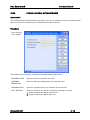
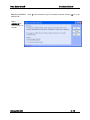
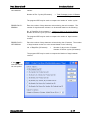
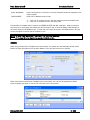
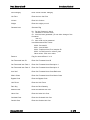
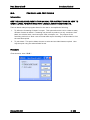
From the menu,
enter " IAGM" :
Enter the follow ing fields:
ITEM G/L ACCOUNT
GROUP ID
Enter the ID for this particular Item G/L Account Group.
Field length is 8 characters.
ITEM G/L
ACCOUNT GROUP
DESCRIPTION
Enter the description for the Item G/L Account Group.
Field length is 15 characters.
Release NGS-6.30
IC- 10
Next Generation®
ISAC-
Inventory Control
ITEM SALES ANALYSIS CATEGORY MAINTENANCE
Introduction
The ISAC program is one of the programs on the Item Validation Code Menu and is used for
building or maintaining the Item Sales Analysis Category Codes file. This file allow s the user to
define up to 4 levels of codes that may be put in the item master for various selection or reporting
purposes.
Procedure
From the menu,
enter " ISAC" :
The follow ing fields may be entered to build or maintain the Item Sales Analysis Category Codes:
S/A CATEGORY
TYPE
Enter the sales analysis category type code in this field. The user may establish
codes as needed. Field length is 8 characters.
S/A CATEGORY
DESCRIPTION
Enter the sales analysis description associated w ith the S/A Category Type
code.
Field length is 15 characters.
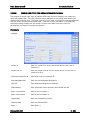
Enter the level code in this field. Valid entries are 1, 2, 3 or 4.
CATEGORY LEVEL
WEB FLAG
Memo 1
Memo 2
Memo 3
Memo 4
Memo 5
Memo6
Release NGS-6.30
Enter Y to allow sales analysis category to
Alpha/numeric field w ith a maximum of 30
Alpha/numeric field w ith a maximum of 30
Alpha/numeric field w ith a maximum of 10
Numeric field only
Numeric field only
Date field only format is mm/dd/yy
display on the WEB.
characters
characters
characters
IC- 11
Next Generation®
Memo 7
Release NGS-6.30
Inventory Control
Date field only format is mm/dd/yy
IC- 12
Next Generation®
OVRM-
Inventory Control
OVERHEAD MATERIAL RATE MAINTENANCE
Introduction
The Overhead Material Rate Maintenance program is one of the programs on the Item Validation Code
Menu and is used for maintaining the Overhead Material Rate codes file.
Procedure
From the menu,
enter " OVRM" :
These fields may be entered to maintain the Overhead Material Rate codes.
OVERHEAD CODE
Enter the code for overhead in this field.
OVERHEAD
DESCRIPTION
Enter the description designated by the Overhead code.
OVERHEAD RATE
Enter the overhead rate for the overhead code in this field.
CALC. METHOD
Enter the method to be utilized in calculating overhead for an item.
1 - Apply overhead rate against material cost.
2 - Apply overhead rate against labor cost.
Release NGS-6.30
IC- 13
Next Generation®
BUYER-
Inventory Control
BUYER MAINTENANCE
Introduction
The purpose of the Buyer Maintenance program is to establish and maintain a database of
buyers.
Procedure
From the menu,
enter " BUYER" :
The follow ing fields may be entered:
BUYER ID
Enter the ID associated w ith this buyer.
Field length is 2 characters.
BUYER NAME
Enter the Name of the Buyer.
Field length is 20 characters.
Release NGS-6.30
IC- 14
Next Generation®
IUFC-
Inventory Control
ITEM USAGE FREEZE CODE MAINTENANCE
Introduction
The purpose of the Item Usage Freeze Code Maintenance program is to maintain a table of freeze
codes or disqualification codes that could be applied to items at branches on usage history data.
Procedure
From the menu,
enter " IUFC" :
The follow ing fields may be entered:
FREEZE CODE
Enter the Item Usage Freeze Code ID. Field length is 2 characters.
FREEZE CODE
DESCRIPTION
Enter the Item Usage Freeze Code description. Field length is 20 characters.
Release NGS-6.30
IC- 15
Next Generation®
IUPM-
Inventory Control
ITEM USAGE PERIOD MAINTENANCE
Introduction
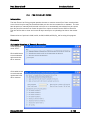
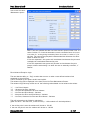
The Inventory Usage Period Maintenance program serves the purpose of defining the periods to be
used for accumulation of inventory usage history. While most organizations are likely to follow
standard periods of calendar months, this function w ill provide the flexibility for users to define
their ow n periods. Up to 99 periods may be entered for 1 year.
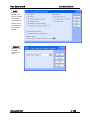
Procedure
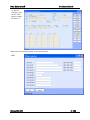
From the menu,
enter " IUPM" :
Release NGS-6.30
IC- 16
Next Generation®
Inventory Control
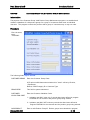
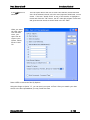
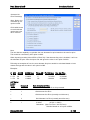
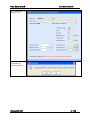
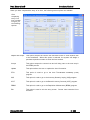
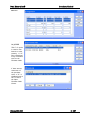
If the user
selects Add: it
w ill determine
the first year
that an IUPM
record is not set
up for and
populate the
year field w ith
that value.
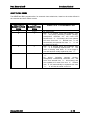
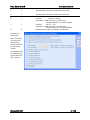
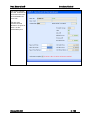
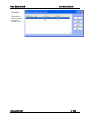
Ending Date:
No. of Years
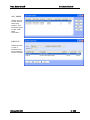
Period Type:
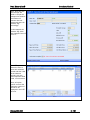
Monthly
445 Week
Period
Bi-Weekly
Weekly
Release NGS-6.30
Enter the ending date of the 1 st period in the year
Enter the number of years to set up.
This type w ill create 12 periods per year
The 4-4-5 calendar divides a year into 4 quarters.
Each quarter has 13 w eeks w hich are grouped into
tw o 4-w eeks " months" and one 5-w eek " month" .
This type w ill create 26 periods per year.
This type w ill create 52 periods per year.
IC- 17
Next Generation®
IURM-
Inventory Control
ITEM USAGE RULES MAINTENANCE
Introduction
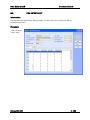
The Inventory Usage Rules Maintenance program serves as the maintenance program for Inventory
Usage Rules for the different transaction types applicable to the user. The records in this program
control the effect that different inventory transaction types w ill have on the inventory usage
statistics. When program GIU is run, it reads this rules table to determine the impact of a
transaction on usage and sales history.
Procedure
From the menu,
enter " IURM" :
Enter the follow ing selection criteria:
TRANSACTION
TYPE
Enter the inventory transaction type.
TRANSACTION
TYPE DESC.
Enter the inventory transaction type description.
COMPUTATION
RULE CODE
Enter I if this transaction type increases, or D if it decreases usage or sales.
Leave this field blank if this transaction type has no effect on usage or sales.
Enter X to have the follow ing happen:
if the quantity on the transaction is a negative value it w ill increase Usage or
Sales.
if the quantity on the transaction is a positive value it w ill have no affect on
Usage or Sales.
Enter Y if this transaction type has an effect on usage history, or N if it does
not.
USAGE FLAG
SALES FLAG
Release NGS-6.30
Enter Y if this transaction type has an effect on sales, or N if it does not.
IC- 18
Next Generation®
BRANCH TRANSFER
INDICATOR
Inventory Control
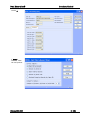
Enter Y if this transaction type is considered a branch transfer, N if it is not.
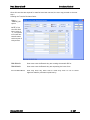
Select
GENERATE to
create usage rule
records:
Release NGS-6.30
IC- 19
Next Generation®
Inventory Control
ITEM MAINTENANCE PROGRAMS
IM-
ITEM MASTER MAINTENANCE
Introduction
The Item Master Maintenance program is one of a group of programs used to build and maintain all
item masters in the system. Data such as descriptions, cross reference, units of measure,
conversion factors, item depth control, and w eight, as w ell as several other informational fields is
entered using this program. Every item record is required to have a unique ID and may not contain
a space ( ) or an asterisk (* ). It should not begin w ith a period (.). In the ADD mode, a user may
use the drop dow n w indow to search and display a list of existing items.
When in ADD mode of IM, the user w ill optionally be chained into programs ILP and ICM. Using the
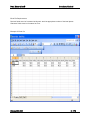
View option, an option to output to Excel format has been added for IM, ILP and ICM. These
programs w ill be detailed in other sections of the inventory operator guide.
Menu Functions:
ADD -
The ADD option is used to enter a new record. Enter " A" and the program w ill
place the user into add mode.
UPDATE -
The UPDATE option is used to change an existing record(s). When this option is
chosen, the user is required to define w hich record(s) are to be selected for
update. The user must enter the appropriate data by w hich to search the file and
then click the OK button to allow the program to search the file for any record(s)
meeting the entered search criteria. If the user desires to update all the records in
the file, simply click the OK button immediately upon entering the screen in
update mode.
REMOVE -
The REMOVE option is used to delete an existing record(s). When this option is
chosen, the user is required to define w hich record(s) are to be selected for
remove. The user must enter the appropriate data by w hich to search the file and
then click the OK button to allow the program to search the file for any record(s)
meeting the entered search criteria. Prompts at the bottom of the screen w ill
guide the user w ith w hat to enter in order to properly remove a record(s) from the
file.
NOTE: The system w ill perform a variety of verifications before a record is
deleted. A list of these verifications is provided under the PURGE option help.
QUERY -
The QUERY option allow s the user to display an existing record on the screen
w ith the ability to scroll forw ards and backw ards from record to record w hen
more than one record is selected. When this option is chosen, the user is required
to define w hich record(s) are to be selected for query. The user must enter the
appropriate data by w hich to search the file and then click the OK button to allow
the program to search the file for any record(s) meeting the entered search
criteria.
LIST
The LIST option allow s the user to enter their selection criteria and then view all
the selected records, w ith the most important fields listed, on one screen. If the
user " double clicks" on any of the records, or highlight s a record and clicks the
Release NGS-6.30
IC- 20
Next Generation®
Inventory Control
" OK" button, the IM main edit program is executed and gives the user access to
all the fields in the IM table.
DUPLICATE -
DUPLICATE option allow s the user to duplicate an entire item to another item.
When using this option, t he user should note ACF option inv078 w ill control the
method to set the fields w hen creating the Item Branch record for the item being
duplicated. Please refer to comments in the ACF option for further explanation.
COUNT -
The COUNT option allow s the user to count the number of records based on the
users entered search criteria. The user should enter ' C' in the menu to enter this
option. Then enter the search criteria or click the OK button for all records to be
counted. The number of records counted w ill display on the bottom of the
screen.
VIEW -
The VIEW option allow s the user to display information on particular record(s) to
the screen, printer or hold file. When this option is chosen, the user is required to
define w hich record(s) are to be selected for view . The user must enter the
appropriate data by w hich to search the file and then click the OK button to allow
the program to search the file for any record(s) meeting the entered search
criteria.
After selecting the appropriate record(s), the user w ill have an option to view the
records on the screen, printer, or hold file. Enter " S" for screen, " P" for printer,
" X" for Excel dow nload or " H" for hold file depending on the desired destination
of the view .
DEFAULT (Z) -
The DEFAULT (Z) option allow s the user to sw itch editing modes from adding and
maintaining REGULAR master records to adding and maintaining DEFAULT
records. DEFAULT records are templates that can be maintained so that values
that are preset in the default records are automatically imported to the
corresponding master record on an addition. Multiple DEFAULT records may be
set up and maintained.
The user may use this mode to add remove or update the DEFAULT records in
certain Master Edit Programs, such as cm, ccm, pcm, pm, pmt, glc, fmt, im,
vixm, and vm. Default records are used to " PRESET" values in chosen fields,
such as Branch ID, Product Group, Account Group, etc. Once a default record is
set up, then they can be accessed by all users w hen the users are adding
" REGULAR" records to the master tables. To setup or maintain a default record,
select the DEFAULT (Z) option or enter a " Z" from the keyboard. The user w ill be
asked the question, " Okay to sw itch to Default Mode?" Answ er Yes and you w ill
be sw itched to the Default record maintenance section. When finished making
changes to the default records, select the DEFAULT (Z) option once again, and
you w ill return to the regular or normal maintenance mode.
PURGE -
The PURGE option is used to mass delete a group of existing records.
When this option is chosen, the user is required to define w hich record(s) are to
be selected for removal. The user must enter the appropriate data by w hich to
search the file and then press the OK button to allow the program to search the
file for any record(s) meeting the entered search criteria.
The user w ill be prompted to enter cutoff dates for the item creation date, last
activity date, last sales date, last receipt date, last P.O. date and last adjustment
Release NGS-6.30
IC- 21
Next Generation®
Inventory Control
date.
The system w ill optionally display the number of records w hich w ill be considered
for deletion based on the criteria entered.
Prompts in the purge w indow w ill guide the user w ith w hat to enter in order to
properly purge records from the file.
User may optionally set up menu security on the purge option.
The follow ing is the procedure for Mass Purging records:
- In the IM program, enter the (M)ore option.
- Enter the (P)urge Option.
- Enter item master selection criteria for those items you desire to purge. For
example, a specific product group.
- Override default cut-off dates if desired. The default values of these cut-off
dates are determined by various acf options. (See below for a list of the acf
options)
- Accept Dates.
- System w ill verify items to be considered for deletion based on date criteria
entered; the system w ill not incorporate the deletion verifications yet.
- The system w ill display the number of items to be considered for deletion.
- The user can accept the count of items considered for deletion.
- The system w ill perform the normal deletion verifications and purge those items
that pass the verifications. (See below for the list of verifications the program
w ill perform).
- The system w ill display the number of items actually deleted.
The system determines the number of items that w ill be considered for deletion
based on the follow ing fields. The system w ill consider the item if:
- It falls w ithin the selection criteria entered.
- The Create Date in the Item Planning Table record for the item is less than or
equal to the create date entered. (Table name: itemplan; Field name:
datecreate_ipm).
- There are no Item Branch Table records for the item w here the Last Activity
Date in the Item Branch record is greater than the last activity date entered.
(Table name: itembrch; Field name: lastact_date_ibr).
- There are no Item Branch Table records for the item w here the Last Sales Date
in the Item Branch record is greater than the last sales date entered. (Table
name: itembrch; Field name: last_sls_dte_ibr).
The above gives you the items w hich w ill be " considered" for deletion. These
items w ill not necessarily be deleted. Additional checks are performed prior to
actually deleting the items. These additional checks are the same verifications
that occur prior to items being deleted through the (R)emove menu option in IM.
When deleting an item through the Item Maintenance program, the system w ill
perform the follow ing verifications on the item prior to allow ing the deletion.
Defined in parentheses are t he applicable program name and table name for the
transactions.
- No inventory transaction records may exist in the Item Register Table. (ITR Release NGS-6.30
IC- 22
Next Generation®
Inventory Control
itreg)
- The item must not be a kit header item. (KITM - kith)
- The item must not be a kit component item. (KITM - kitd)
- The item must not exist on any orders. Note that this could also be orders in
process (Transaction Type FF) or aborted (transaction type XX). (ORDER - orddet)
- The item must not exist on any invoice not processed by the invoice register
(INVR- invdet)
- The item must not exist on any shipment confirmation transaction. (SHIP shipd)
- The item must not exist on any open purchase order w ith a quantity > 0. (POE
- podet)
- The item must not exist in the inventory t ransaction in-process file as a nonupdated transaction. (ITE - it_hold)
- The item must not exist in the Sales Analysis Warehouse/Lot/Bin/Serial file. In
this case, the system w ill provide a w arning but w ill allow the deletion. (saship)
- The item must not exist in the Item Cost Rollover Table. (IFCM - icrar)
- The item must not exist in the Item Future Cost Table. (IFCM - itfutcst)
- The item must not be a bill of material header item. (BOMM - bomhdr)
- The item must not be a bill of material component item. (BOMM - bomdet)
- The item must not have interchangeable items defined. (IIM - cixref)
- The item must not be defined as a customer valid item. (CVIM - cixref)
- The item must not be defined w ith related items. (RIM - cixref)
- The item must not be defined w ith valid customers. (IVCM - cixref)
- The item must not be defined as a non-stock template item. (NSIM - cixref)
- The item must not be defined as a substitute item for another item. (IM - item)
- The item must have zero quantities in the follow ing fields in all item branch
records for the item:
Quantity on hand (unless item status is " 3" )
Quantity on purchase order
Quantity in transit
Quantity on direct ship purchase order
Quantity on direct shipment sales order
Quantity on future orders (itembrch)
- The item must have zero quantities in the follow ing fields:
Quantity on hand (unless item status is " 3" )
Quantity on purchase order
Quantity in transit
Quantity on direct ship purchase order
Quantity on direct shipment sales order
Quantity on future orders (Future use fields: quantity mrb, consigned, floor
stock, w ip) (itemplan)
ACF Options - inv069* - Default Purge Days.
OPTION DESCRIPTION
-------- ------------------------------
VALUE
-----
inv069
IM/PURGE - Default Purge Days
30 for Create Date
inv069a IM/PURGE - Default Purge Days
60 for Last Activity Date
inv069b IM/PURGE - Default Purge Days
90 for Last Sale Date
inv069c IM/PURGE - Display Number of
Y
Records Considered for Purge
inv069d IM/PURGE - Default Purge Days
90 for Last Receipt Date
inv069e IM/PURGE - Default Purge Days
90 for Last P.O. Date
Release NGS-6.30
IC- 23
Next Generation®
inv069f
Date
Release NGS-6.30
Inventory Control
IM/PURGE - Default Purge Days
90 for Last Adjustment
IC- 24
Next Generation®
Inventory Control
Procedure
From the menu,
enter " IM" :
Release NGS-6.30
IC- 25
Next Generation®
Inventory Control
Screen 2:
Release NGS-6.30
IC- 26
Next Generation®
Inventory Control
Screen 3:
Release NGS-6.30
IC- 27
Next Generation®
Inventory Control
Screen 4:
The follow ing fields may be entered:
ITEM NUMBER
The unique item ID assigned to this record. The item ID may not contain a
space ( ) or an asterisk (* ). It should not begin w ith a period (.). Every item
record is required to have a unique ID. When in ADD mode, user may use the
drop dow n w indow to search and display a list of existing items.
DESCRIPTION
This field stores the primary item description.
Field length is 30 characters.
DESCRIPTION 2
This field stores a secondary description for this item.
Field length is 30 characters.
ITEM XREF
This field stores a cross reference for this item. This field is useful w hen an
item has an item number w hich differs from a catalog number that refers to the
same item. The user may find this item by either item id or cross reference. It
may be looked at as an alternate w ay to locate this item ID.
Field length is 25 characters.
FUTURE USE
UNIT OF MEASURE
This field stores the primary unit of measure literal description for this item.
Example: Enter LB to indicate pounds as the primary unit of measure.
Release NGS-6.30
IC- 28
Next Generation®
ALTERNATE U/M
Inventory Control
This field stores an alternate unit of measure literal description for this item.
Example: If this w ere an item w here the primary unit of measure w as LB, then
the alternate could be OZ. This indicates pounds and ounces are the
primary and alternate units of measure.
Example: A primary unit of measure of FT (feet) w here the alternate unit of
measure might be IN (inches).
FUTURE USE
TAXABLE CODE
This field stores a code to indicate w hether the item is taxable or not. Enter Y
to indicate item is taxable, or N to indicate item is not taxable.
BACKORDER CODE
This field w ill store the Backorder Code that is used by the Order, Bill and POE
programs w hich indicates w hether or not backorders are allow ed for this item.
Field w orks in conjunction w ith customer backorder code. The ORDER and BILL
programs utilize this field to ascertain w hether or not backorders are allow ed.
When used in the POE program, this field w ill ascertain w hether or not
backorders are allow ed.
The valid codes are:
Y - Allow backorders for this item in the Order, Bill or POE program.
N - DO NOT allow backorders for this item in the Order, Bill or POE program.
A - Allow backorders for this item in the Order and Bill programs.
DO NOT allow backorders for this item in the POE program.
B - Allow backorders for this item in the POE program. DO NOT allow
backorders for this item in the Order and Bill programs.
FUTURE USE
PRIORITY RULE
This order/invoice detail field may be set based on item information or can be
used in conjunction w ith the customer priority rules code present in the header
record of an order or invoice. This field assists in controlling w hether or not
orders or line items can be shipped w hen running the ORDERS AVAILABLE TO
SHIP output (OATS). The OATS program utilizes the follow ing order header and
order detail codes to determine if a line can be reported for shipping.
The follow ing is a table of how these codes w ork w ithin the OATS program:
CUSTOMER
RULES CODE
NULL,0
1
2
3
3
NULL,0,1,2,3
Release NGS-6.30
ITEM DETAIL
RULES CODE
NULL,0,1
NULL,0,1
NULL,0,1
NULL,0
1
2
SHIPMENT RULES
Ship
Ship
Ship
Ship
Ship
Ship
w hat can be shipped on any line.
ONLY if ALL lines can completely ship.
any lines that can completely ship.
w hat can be shipped (Partial ship).
any lines that can completely ship.
ONLY line items that can completely ship.
IC- 29
Next Generation®
Inventory Control
ITEM STATUS
Valid entries for the Item Status Code are:
1 - normal item
2 - item to be used on inventory reports, but not sales reports
3 - item to be used w ith sales analysis, but not on inventory reports
4 - item not to be used on either inventory reports or sales reports
ITEM TYPE CODE
Assign type codes to identify items by a specific type.
COMMENTS
This field indicates w hether comments that pertain to this item are to be
maintained. To add and maintain item comments enter Y, if not enter N.
ALT/S TK CONV
This field stores the conversion factor to convert the primary unit of measure
into the alternate unit of measure. It is important to establish this field correctly
w hen item is originally added because all history and inventory information
stores data using this factor. No change is allow ed in this field once item is
added.
If the primary unit of measure w ere " LB" and the alternate w as " OZ" the user
w ould enter 16.00000 as the conversion factor. If the primary unit of measure
w ere " FT" and the alternate w as " EA" the user w ould enter 12.00000 as the
conversion factor. The value of this field should be greater than or equal to 1.
Acf option inv073 w ill allow a user to validate the Alt/Stk Conversion Factor
against the unit of measure and alternate unit of measure fields.
FUTURE USE
PRODUCT GROUP
This field stores the product group code for this item. Define the product group
codes through program PGM.
PO PRODUCT LINE
Enter the product line. Define product lines in program IPL.
PO PRODUCT
FAMILY
GL ACCT GRP
Enter the PO Product Family Code. Define product families in program POPF.
WEB ACTIVE
Item Master Web Active Flag
This field stores a code to indicate w hether the item is available to be sold on
the WEB.
Enter " Y" to indicate item is Active on the WEB.
Enter " N" to indicate item is Not Active on the WEB.
ITEM TAX CLASS
Enter the item tax class.
FUTURE USE
FUTURE USE
WEIGHT
This field stores the stocking w eight for this item.
VOLUME
This field stores the stocking volume for this item.
COMMODITY
CODE
Release NGS-6.30
This field stores the Item Account Group Code w hich is optionally used for G/L
Posting.
This field stores a commodity code that the user may assign to this item.
IC- 30
Next Generation®
Inventory Control
BRANCH CONTROL
This field indicates that inventory control on this item w ill be maintained at the
branch level. This flag may only be a Y.
WAREHOUSE
If this part is stored in multiple w arehouse locations enter Y. If this part w ill not
be stored in multiple w arehouse enter N.
BIN CONTROL
If this part is stored in multiple bin locations enter Y. If this part w ill not be
stored in multiple bins enter N.
LOT/SERIAL NO.
If there is lot control active on this item enter L.
If there is serial number control active on this item enter S.
If either lot or serial number is active enter N.
QUANTITY
ITEM MEMO
Enter the Quantity Control flag:
1 - Quantity is OUTPUT in the Primary Unit of Measure w ithout Decimals.
2 - Quantity is OUTPUT in the Alternate Unit of Measure w ithout Decimals.
3 - Quantity is OUTPUT in both Primary and Alternate Units of Measure
separated by a colon.
Example:
25:4 cases:pieces feet:inches etc.
If the field is coded blank or null , no second serial # exists
If the field is coded O (alpha) scan serial #2 for outbound transactions only.
Utilize the memo fields as needed to store information relating to this item.
ITEM S/A
CATEGORIES 1-4
Various category codes may be assigned to an item. These codes may be
maintained through program ISAC.
PACK QTY
This field stores the quantity per pack for this item.
PACK TYPE
This field stores a description of the type of package this item is kept in.
OE LN CTRL
Enter the Item Master Order Entry / Billing Line Item Controls Field. This field is
made up of 6 characters. The default value of this field is " 000000" . Currently
the follow ing features may be activated through use of this field.
SERIAL 2
If the 1st position of this field is 1, then the ORDER and BILL programs w ill flag
order detail lines w here a user defined margin is not met.
First ORDER/BILL w ill see if the field called " OE MARGIN% " is not zero in the
item master. This indicates that the percentage is stored in the item and this is
the value that w ill be used to determine minimum margin.
If the item OE Margin % is found to be zero, then a global ACF option called
" oe012" allow s the user to define the margin minimum value rate. Any detail
lines entered in ORDER or BILL program falling below that minimum margin level
w ill prompt and advise the user of the margin exception.
NOTE: User has an option to use a different COST than the detail line item cost
to calculate margin violations. Review the settings in acf options
oe009/oe009a/oe009b for the cost that may be used.
ACF option oe104 w ill control the transaction types in the order and bill
programs that w ill be omitted from the margin check capabilities described
above.
Release NGS-6.30
IC- 31
Next Generation®
OE DEL %
Inventory Control
This field stores the percent of completion for an item. This field is utilized in
determining w hether or not a backorder should be w ritten if the item quantity
shipped is XX.XXX percent complete. All other backorder codes must be in
affect as w ell as this percentage w hich usually w ill default to 100.00 percent.
FUTURE USE
FUTURE USE
LENGTH
The item length. This is an informational field only.
LEGTH UM
The unit of measure for length. This is an informational field only.
WIDTH
The item w idth. This is an informational field only.
WIDTH UM
The unit of measure for length. This is an informational field only.
THICK
The item thickness. This is an informational field only.
THICK UM
The unit of measure for thickness. This is an informational field only.
FUTURE USE
OBSOLETE
Enter the obsolete code.
INSPECT
Enter the Item Master Inspection Indicator. Enter Y if inspection is required for
this item or N if inspection is not required.
DRAWING
REFERENCE
DRAWING SIZE
This field stores the draw ing reference number assigned to this item.
FUTURE USE
FUTURE USE
OE MARGIN %
This field stores the draw ing size for this item.
The ORDER/BILL programs offer a feature w hich checks to see if a minimum
margin is met w hen items are entered. Items falling below the minimum margin
w ill be flagged.
In order to activate this edit check, the OE LINE CONTROL flag must be
activated, by item. The first position of this field controls this feature.
ITEM REVISION
This field stores the active item revision level.
RTG REV
This field stores the active routing revision level for this item.
LOW LVL
This field is system maintained.
SCRAP %
This field stores the scrap % for this item.
ITM SRC
Enter the Item Master Item Source Code. Enter P if this is a purchased item, or
M if this is a " make" item.
IMC CODE
Enter the Item Movement Class Code for this item and branch. Program IMC
can be used to compute the IMC Code of items.
FUTURE USE
Release NGS-6.30
IC- 32
Next Generation®
FUTURE USE
PO DELETE
PERCENTAGE
Inventory Control
Enter the Purchase Order Entry Delete percentage. This field stores the percent
of completion for an item. This field is utilized in determining w hether or not a
backorder should be w ritten if the item quantity received is XX.XXX percent
complete. All other backorder codes must be in affect as w ell as this
percentage w hich usually w ill default to 100.00 percent.
LIST PRICE
This field stores the list price for this item.
ALT UNIT LIST
This field stores an alternate list price for this item. This field is utilized to store
a list price for the alternate unit of measure for this item. It need only be utilized
if the alternate price is not the result of the list price divided by the alternate
conversion factor.
ALT UNIT SURCH
This field stores an alternate unit surcharge to add to the alternate list price to
arrive at the final alternate list price.
PRICE MATRIX
CODE
This field stores the item matrix class. The item matrix class is used in
conjunction w ith the customer matrix class to find the correct pricing record in
the price matrix file. The price matrix program can be accessed through
program PMT. The user may establish various pricing routines based on the
item or group of items combined w ith the customer or group of customers.
AUTO SUBST. CD
Enter the Substitution code. The ORDER and BILL programs allow for automatic
item substitution based on codes defined in the customer and item master
records. (Refer to the online help for further information.)
AUTO SUBST. ITEM
This field stores the substitute item id for this item. It is used in conjunction
w ith the item substitution code field.
FUTURE USE
COMMISSION
CODE
Commission Codes are utilized to determine the proper method of calculating
commission for that transaction. Refer to the Appendix at the end of the Order
Management section for further information.
COMMISSION RATE
Enter the Item Master Commission percentage.
DISCOUNT CODE
The order entry/invoice system calculates discounts based on a combination of
" discount codes" stored in the customer master as w ell as codes stored in the
item master. Refer to the Appendix at the end of the Order Management
section for further information.
DISCOUNT RATE
Enter the Item Master Discount percentage.
DISCOUNT TABLE
Enter the Discount Table ID assigned to this item. The user may define discount
codes in program DTM.
INSURANCE CODE
The system allow s for calculating an " insurance amount" automatically w hen
using the ORDER or BILL programs. Customer and Item Insurance Codes control
w hich method is utilized. Refer to the Appendix at the end of the Order
Management section for further information.
Release NGS-6.30
IC- 33
Next Generation®
Inventory Control
INSURANCE RATE
Enter the Item Master Insurance percentage.
HANDLING CODE
The programs ORDER and BILL have several methods of automatically
calculating a " handling charge" . Customer and Item fields control the usage of
the feature. Refer to the Appendix at the end of the Order Management section.
HANDLING RATE
Enter the Item Master Handling percentage.
HANDLING TABLE
Enter a valid Item Master Handling Table. The user may define handling table
records in program HTM.
ADVERTISING
ALLOWANCE CODE
The ORDER and BILL programs allow the user to calculate an " advertising
allow ance" amount. Refer to the Appendix at the end of the Order Management
section for further information.
ADVERTISING
ALLOWANCE RATE
REBATE CODE
Enter the Item Master Advertising percentage.
REBATE RATE
FUTURE USE
FUTURE USE
FAMILY PRICE
CODE
Rebate codes are required in order to properly calculate rebate amounts on the
transaction. Refer to the Appendix at the end of the Order Management section
for further information.
Enter the Item Master Rebate percentage.
Enter the Item Family code associated w ith this item. Programs ORDER and
BILL allow the user to employ pricing to items based on a " family" of items,
rather than a single item.
Program FMT allow s the user to maintain FAMILY MATRIX TABLES w here the
user may assign Customer and Item Family codes to records w hich define
" family" pricing for that combination.
Family pricing is active in program ORDER w hen user is in ADD mode or in
program BILL w hen user is entering a one step invoice, w here no sales order
w as involved.
As each detail line is entered, normal line item pricing w ill take place. Family
pricing w ill take place w hen the user proceeds to the SUMMARY screen at
w hich time all lines meeting family pricing criteria w ill be re-priced. If a detail
line w ere priced by " contract" pricing, then this line w ill be ignored for family
pricing. If a detail line w ere priced " manually" , then family pricing w ould not reprice this line. How ever, this lines quantity w ill be included w ith other lines of
same family in order to ascertain a family price for other line items in the family.
PRICE MEMO 1
FUTURE USE
SORT GROUP
Release NGS-6.30
This field may be utilized to store information as the user requires.
Enter a line item group code used to bring similar line items together in
ORDER/BILL based on a group code. When adding detail lines to an
order/invoice, the user typically may VIEW the details in line number sequence.
With this field, user may resort the details by the item line group code.
ACF option " ar053" offers an option to display line details by the Item Line
group code w hen doing a VIEW or MARGIN view of the details on the
IC- 34
Next Generation®
Inventory Control
order/invoice.
The user may also opt to modify output print programs to sort by this item line
group code, if desired.
REPRICE CODE
Enter the Re-price Code. Valid entries are:
NULL - No re-pricing of transaction
1 - Re-pricing the transaction
Programs Order and Bill utilize this code to determine if the transaction should
be re-priced. Certain transactions w ill allow for re-pricing based on this code in
conjunction w ith the item re-price code on each line item. Both the customer reprice code and the line item re-price code must be set in order for the
transaction to be re-priced.
FO - Future Order Releasing may reprice the order
SO - Standing Order Releasing may reprice the order
OR - Normal Order may be repriced w hen billed
SI - Standing Invoice Release Option in BILL program may reprice
FUTURE USE
SUGGESTED
RETAIL
This field stores the suggested retail price for this item.
PRICING UM
Enter a 2 character pricing unit of measure description.
If the user has a " LOT" price for this item for sale, enter a price unit of
measure of L to indicate LOT price. In this example, the selling price is the
total lot price for this sale regardless of the quantity entered or price
conversion factors.
PRICE UM CONV
The price conversion factor is utilized w hen the user needs to price an item in
a different unit of measure than it is stocked.
Example: An item may be stocked by the " EA" but priced per hundred.
In this example the Stock U/M w ould be EA and the Price U/M could
be C w ith the pricing conversion factor set to .01000
QUANTITY ORDERED
STOCK U/M
PRICE U/M
PRICE CONVERSION
SELLING PRICE
EXTENSION
FUTURE USE
FUTURE USE
LAST COST
(MATERIAL,
LABOR,
OVERHEAD,
OUTSIDE)
AVERAGE COST
Release NGS-6.30
=
=
=
=
=
=
2500
EA
C
.01000
20.00000
500.00
Enter the Last Costs for material, labor, overhead and outside.
Enter the Average Costs for material, labor, overhead and outside.
IC- 35
Next Generation®
Inventory Control
(MATERIAL,
LABOR,
OVERHEAD,
OUTSIDE)
STANDARD COST
(MATERIAL, LABOR,
OVERHEAD,
OUTSIDE)
INCREMENTAL
(MATERIAL
LABOR,
OVERHEAD,
OUTSIDE)
Enter the Standard Costs for material, labor, overhead and outside.
Enter the Incremental Costs for material, labor, overhead and outside.
OVERHEAD CODES
Enter the Item Master Overhead Codes. The user may maintain overhead
codes through program OVRM.
COST MEMO 1
Enter Item Master Cost Memo Field 1.
Mass Purge Screen
The Mass purge option provides a method to purge multiple items at a time based on a combination
of the Date Created, Last Activity Date, Last Sale Date, Last Receipt Date, Last P.O. Date, and
Last Adjustment Date. (Refer to ACF option inv069* )
Release NGS-6.30
IC- 36
Next Generation®
Inventory Control
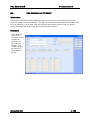
When you select
the View option
from the main
menu, your
report can be
output to the
Screen, Printer,
Excel or Hold
file.
Release NGS-6.30
IC- 37
Next Generation®
IPMM-
Inventory Control
ITEM PRODUCT MASTER MAINTENANCE PROGRAM
Introduction
The purpose of the Item Product Master Maintenance program is to allow for the entry of additional
information about a product outside of the Item Master Record Table (IM). Records that are
entered are created and maintained in the table called “ itemprod” . This table is a more of a
generic table that can be used to further define attributes about a certain product. There is a
corresponding item product comment table “ iprodcomt” that allow for the entry of comments that
can also be maintained w ithin IPMM program.
In addition, “ Standard Item Product Comments” for the Item Product Master table records, may
also be created. These codes w ould be utilized to populate values into fields 5 through 22.
These records can be entered through the program IPMMSC. This maintenance program w ill
maintain standard records in the tables “ ipmhcomt” - Product/Item Std Hdr Comment Table and
“ ipmscomt – Product/Item Std Detail Comment Table.
Procedure
From the menu,
enter " IPMM" :
The follow ing fields may be entered to build or maintain the Item Product Master table
Product Name
Material Content
Size
Color
Prod CI
Prod CI
Release NGS-6.30
Enter a Product Name
Enter the Material Content
Enter the size.
Enter the color.
Enter a valid Product Care Instruction 1 Code (codes may be defined through
program “ IPMMSC”
Enter a valid Product Care Instruction 2 Code (codes may be defined through
IC- 38
Next Generation®
Prod CI
Prod LC
Prod LC
Prod LC
Prod LC
Other 01
Other 02
Other 03
Other 04
Other 05
Other 06
Other 07
Other 08
Other 09
Other 10
Memo 01
Memo 02
Memo 03
Memo 04
Memo 05
Memo 06
Memo 07
Memo 08
Memo 09
Memo 10
Source Item ID
Release NGS-6.30
Inventory Control
program “ IPMMSC”
Enter a valid Product Care Instruction 3 Code (codes may be defined through
program “ IPMMSC”
Enter a valid
“ IPMMSC”
Enter a valid
“ IPMMSC”
Enter a valid
“ IPMMSC”
Enter a valid
“ IPMMSC”
Product Label 1 Code (codes may be defined through program
Product Label 2 Code (codes may be defined through program
Product Label 3 Code (codes may be defined through program
Product Label 4 Code (codes may be defined through program
Enter a valid Other 1 Product Code (codes may be defined through program
“ IPMMSC”
Enter a valid Other 2 Product Code (codes may be defined through program
“ IPMMSC”
Enter a valid Other 3 Product Code (codes may be defined through program
“ IPMMSC”
Enter a valid Other 4 Product Code (codes may be defined through program
“ IPMMSC”
Enter a valid Other 5 Product Code (codes may be defined through program
“ IPMMSC”
Enter a valid Other 6 Product Code (codes may be defined through program
“ IPMMSC”
Enter a valid Other 7 Product Code (codes may be defined through program
“ IPMMSC”
Enter a valid Other 8 Product Code (codes may be defined through program
“ IPMMSC”
Enter a valid Other 9 Product Code (codes may be defined through program
“ IPMMSC”
Enter a valid Other 10 Product Code (codes may be defined through program
“ IPMMSC”
Free Form Memo (Alphanumeric)
Free Form Memo (Alphanumeric)
Free Form Memo (Alphanumeric)
Free Form Memo (Date)
Free Form Memo (Date)
Free Form Memo (Numeric)
Free Form Memo (Numeric)
Free Form Memo (Alphanumeric)
Free Form Memo (Alphanumeric)
Free Form Memo (Alphanumeric)
Enter the Source Item if this item is being made from another inventoried item.
This is information only and can be used by custom programs w hich are designed
for you. For example, if this is a screening process w here a name or number is
being entered onto some piece of apparel and you are making that item out of
something else you stock, you w ould enter the item id of the material that is
going to be used to create this item. A custom report could be created to include
this information.
IC- 39
Next Generation®
IPMMSC-
Inventory Control
ITEM PRODUCT MASTER MAINTENANCE STANDARD COMMENTS
Introduction
“ Standard Item Product Comments” for the Item Product Master table records, may also be
created. These records can be entered through the program IPMMSC. This maintenance program
w ill maintain standard records in the tables “ ipmhcomt” - Product/Item Std Hdr Comment Table and
“ ipmscomt – Product/Item Std Detail Comment Table.
Procedure
From the menu,
enter " IPMMSC" :
Add new records
or Update
existing records.
Select the
Comments
Button to enter
in comments.
Release NGS-6.30
IC- 40
Next Generation®
Inventory Control
Add new
comments or
update existing
comment
records.
Release NGS-6.30
IC- 41
Next Generation®
IQIC-
Inventory Control
ITEM QUANTITY INPUT CONTROL
Introduction
The Item Quantity Input Control program is designed to allow the user extended capabilities on
quantity input w hen entering data in programs ORDER, BILL and ITE. Items may have multiple
units of measure by w hich the item quantity may be entered w hen ordering. This feature extends
the normal quantity entry. The conversion factors required for these multiple units of measure
must be established.
Procedure
From the menu,
enter " IQIC" :
If the UPDATE mode is selected, enter Item ID, Xref or Product Group and press ENTER so the
system may search for the desired record(s).
PROMPT:
Enter (U)pdate, (N)ext, (P)revious, (H)elp or (E)xit
The system w ill now bring user into the Qty. Input Control field. Valid entries for this field are 0, 1,
2, 3 or 4.
If 0 is selected, w hich is the typical method for entering quantity, enter quantity as follow s:
1.
Whole stocking units
[
50]
Example A
2.
Stocking and partial units
[
50:3]
Example B
3.
Partial units
[
:3]
Example C
The alternate conversion factor for the item must be properly set to define how many partial units
of quantity belong to a w hole stocking unit. The above example A indicates 50 cases ordered, B
indicates 50 cases and 3 pieces of a case and C indicates 3 pieces ordered.
Release NGS-6.30
IC- 42
Next Generation®
Inventory Control
If the Quantity Input Control field is set to 1, the user has the ability to enter quantities in a
secondary unit of measure and have it calculate a primary stocking unit quantity. A rounding factor
of .49999 may be utilized to force rounding any partial quantity up to the next highest quantity. If
a rounding factor of 0.00000 is used, the rounding routine w ill calculate partial quantities up or
dow n to the nearest w hole quantity. It is important to establish the correct conversion factor from
the secondary unit of measure to the primary unit of measure.
Option 2 is similar to the algorithm used for code 4 w ith the major difference being that the sales
order program w ill extend the quantity times the price using the U/M 2 quantity. This option offers
the ability for the user to enter the primary unit of measure as w ell as the secondary unit of
measure w ith no required relationship betw een the 2 quantities. This basically allow s for quantities
to be input w ith no fixed factor relating one quantity w ith another. Its best suited for situations
w here orders are taken for an item in a quantity U/M, the quantity is picked and w eighed w hich
produces a w eight quantity U/M at w hich the customer is billed. Both quantities can be show n on
forms print programs tailored for that user.
If 3 is selected, quantity input logic w ill w ork the same as quantity input option 1, but the user w ill
alw ays be prompted for the secondary units of measure first.
If the Quantity Input Control Codes is set to 4, enter the primary unit of measure as w ell as the
secondary unit of measure w ith no required relationship betw een the tw o quantities. This allow for
quantities to be input w ith no fixed factor relating one quantity w ith another. It is best suited for
situations w here orders are taken for an item in a quantity unit of measure. The quantity is picked
and w eighed w hich produces a w eight quantity unit of measure at w hich the customer is billed.
Both quantities can be show n on the forms print programs tailored to that user.
ACF option oe112 w ill allow a user to control w hether or not to recalculate the order quantity/sell
quantity w hen a change is made in the ORDER, QUOTE or BILL programs to the UM2 quantity.
Quantity Input Control Code 5 is used for items that are inventoried and sold by the case, box
piece OR each, but priced by the pound (LB). For example, an item is inventoried in boxes w ith the
average w eight of a box being 15.25 LBS. When the user updates the IQIC for a code 5, the
items unit w eight in the item master w ill be updated w ith the result of the calculation.
For a more detailed explanation of quantity input control field, please refer to the on-line help w here
several examples are defined.
If the VIEW mode is selected, enter Item ID, Xref, or Product Group and press Enter so the system
may search for the desired record(s).
Release NGS-6.30
IC- 43
Next Generation®
Inventory Control
Enter the sort
criteria:
Make your selection and press RETURN.
Release NGS-6.30
IC- 44
Next Generation®
ISPM-
Inventory Control
ITEM SERIAL/LOT NUMBER PATTERN MAINTENANCE12
Introduction
The purpose of the Item Serial Pattern Maintenance program is to allow the user to maintain a
pattern for serial or lot numbers being entered that w ould read more than the 12 character
restriction in all programs that allow entry of serial and/or lot numbers.
Procedure
From the menu,
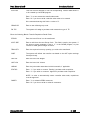
enter " ISPM" :
The follow ing fields may be entered to build or maintain the Item/Lot Serial Pattern:
TYPE
Enter " S" if this record w ill be for a serial number pattern.
Enter " L" if this record w ill be for a lot number pattern.
CODE
Enter the code to be used to determine w hat level the item (defined in the " key"
field) w ill be matched against.
Enter
Enter
Enter
Enter
Enter
Enter
KEY
Release NGS-6.30
" I"
" P"
" I1"
" I2"
" I3"
" I4"
if
if
if
if
if
if
the Item ID w ill be the key.
the Product Group w ill be the key.
the ISAC1 Code w ill be the key.
the ISAC2 Code w ill be the key.
the ISAC3 Code w ill be the key.
the ISAC4 Code w ill be the key.
Enter either a valid Item ID, or Product Group, or Isac1 Code, or Isac2 Code, or
Isac3 Code or Isac4 Code based on the entry in " Code" field.
IC- 45
Next Generation®
PATTERN
Inventory Control
Enter the pattern of the serial number for this key. This number is used for items
set up w ith " L" or " S" lot/serial control in the item master field 38. These types of
items record serial/lot numbers for both inbound and outbound transactions. The
follow ing control keys are to be used in determining this pattern:
Enter
Enter
Enter
Enter
Enter
Enter
" ?" to match any character or number
" #" to match any number betw een 0 and 9
" @" to match any character
" ~ " to drop that character/number w hen w riting the serial number
Letter " A-Z" to match the specified letter
Number " 1-9" to match the specified number
The field length for serial pattern matching is 40 characters. How ever, the
MAXIMUM number of characters that can be w riten to the serial number field is
12. The hierarchy to find serial number patterns is:
1) Item ID
2) ISAC1
3) ISAC2
4) ISAC3
5) ISAC4
6) Product Group
SERIAL SIZE
Enter the total number of characters in the serial pattern recorded.
PATTERN 2
Enter the pattern of the 2nd serial number for this key. This number is used for
items set up w ith " L" or " S" Lot/Serial Control in the item master field 38 AND
w ith " O" Serial 2 Control in the item master field 40. These types of items record
lot/serial numbers for both inbound and outbound transactions, and an additional
serial number on outbound transactions. The follow ing control keys are to be used
in determining this pattern:
Enter
Enter
Enter
Enter
Enter
Enter
" ?" to match any character or number
" #" to match any number betw een 0 and 9
" @" to match any character
" ~ " to drop that character/number w hen w riting the serial number
Letter " A-Z" to match the specified letter
Number " 1-9" to match the specified number
The field length for serial pattern matching is 40 characters. How ever, the
MAXIMUM number of characters that can be w riten to the serial number field is
12. The hierarchy to find serial number patterns is:
1) Item ID
2) ISAC1
3) ISAC2
4) ISAC3
5) ISAC4
6) Product Group
SCAN/LOT SIZE
If utilizing this record for Lot control:
This field w ill contain the number of units in a lot.
If utilizing this record for 1D Scanning:
Release NGS-6.30
IC- 46
Next Generation®
Inventory Control
The value in this field w ould be zero.
If utilizing this record for 2D Scanning:
This field w ill a multiple of the serial size based on the number of units in the
" master" carton.
(For example: The serial size is 25. There are 5 units in a master carton.
The value in this field w ould be 125.)
Release NGS-6.30
IC- 47
Next Generation®
IUHM-
Inventory Control
ITEM USAGE HISTORY MAINTENANCE
Introduction
The purpose of the Item Usage History Maintenance program is to allow user the ability to insert
override usage history data w hich w ill replace actual usage data w hen various compute programs
are run.
Procedure
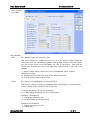
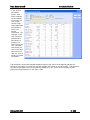
From the menu,
enter " IUHM" :
To override usage history select the (U)pdate option at the bottom of the screen. Then w hile
scrolling through the usage periods, user may press (O)ptions w indow w hich offers user options to
maintain usage history, query into overrides of the history or peg back to source of the usage.
Release NGS-6.30
IC- 48
Next Generation®
INOTE-
Inventory Control
ITEM NOTE MAINTENANCE
Introduction
The purpose of the Item Note Maintenance program is to maintain any special notations regarding
items. These notes w ill display according to the program they are defined for.
Procedure
From the menu,
enter " INOTE" :
The follow ing fields may be entered:
ITEM ID
Enter the item ID. The search can also be done by item descriptions or item
cross reference or by ' ALL' .
PROGRAM NAME
Enter the program name that this note should appear. Only certain programs
w ill display the notes entered here.
If this is an item note entered in INOTE program these notes can display in
programs: ORDER, BILL, QUOTE, IM, ILP, ICM, IQQ, IPAI, ITPA, POE, IPMB,
ICUT, REQM ' ALL'
PAGE SEQUENCE
Enter the page sequence. Enter 1,2,3,4,5,6 or 7.
If multiple notes exist user may define from 1 to 7 the sequence of the notes to
display.
TRANSACTION
TYPE
Enter Transaction Type or ' ALL' .
User may have notes only display in certain transaction types.
Release NGS-6.30
Example: In ORDER or BILL program user may w ant the note to display
w henever a CM transaction is performed.
IC- 49
Next Generation®
RING MENU
Inventory Control
Enter Ring Option letter or ' ALL' .
User may have notes only display in certain ring menu types.
TITLE
Example: In ORDER or BILL program user may w ant the note to display
w henever ADD mode is performed, but not UPDATE.
Enter the title line for the notes. Field length is 20 characters.
NOTE 1-5
1 thru 5: Enter the note descriptions. Field lengths are 25 characters.
BEGIN DATE
Enter the beginning date for note to display.
END DATE
Enter the ending date for note to display. The default value for this field is
maintained in ACF option " sys004" .
PURGE DATE
Enter the value for purging, Y or N.
When mass remove is performed only notes coded for purging w ill be removed.
Release NGS-6.30
IC- 50
Next Generation®
IPICM-
Inventory Control
ITEM PICTURE MAINTENANCE
Introduction
The Item Picture Maintenance program is used to maintain images for an item in the WINGS version
of the Next Generation™Softw are. These images can be displayed in various programs throughout
the system such as, IM, IPAI, ORDER, etc. In addition to maintaining images for the WINGS
version, this program is also used to maintain items and images that you sell on the WEB if you are
properly licensed for those products. ACF option sys016 determines w hat method to use in
locating the directory w here the images are stored. The WINGS product uses the same logic as the
WEB products in determining w here and how to display these images.
From the
menu, enter
" IPICM" , or
use the
program " IM"
and click on
the " Maintain
Images"
button, or
use the
" B2BM"
program
using option
3.
Release NGS-6.30
IC- 51
Next Generation®
Inventory Control
Menu options:
This is used to Update fields in a record.
This is used to query items.
You can select groups of items by using the product group, ISAC codes, item ID
or the Description 1 fields. You can utilize the Next Generation " w ildcard" and
" from / thru" features. The " Allow ed on Web" field must have a value of ' Y'
(item allow ed to be sold on the Web) or ' N' (item not allow ed to be sold on the
Web). The program actually updates the active_item field in the item table. A
selection w indow w ill open to allow you to enter your criteria.
This is used to List all the records in a list format (one line per record) if multiple
programs w ere chosen.
This is used to product a report of all the items selected. The output can be
directed to the screen, printer or hold file.
This function is used to import items f rom a spreadsheet.
This is used to access the help files.
This is used to execute (or run) another program w ithout exiting the current
program.
This is used to Exit the program.
Release NGS-6.30
IC- 52
Next Generation®
Inventory Control
IPICM Update mode.
Functions Available:
This is used to Update fields in a record.
This w ill set the parameters in all the fields to the defaults for an item. It w ill
set the Allow ed Flag to " Y" , set the image to the item id w ith a " .gif"
extension, set the thumbnail file name to the item id attaching a " _t" to the
file name w ith a " .gif" extension and se the image locations to w here the acf
options are pointing. A w arning message w ill appear before function is
performed.
This w ill set the Allow ed Flag to " N" , then clear the image file, the thumbnail
file and the image location paths. A w arning message w ill appear before
function is performed.
Release NGS-6.30
IC- 53
Next Generation®
Inventory Control
This is used to access the next record if multiple records w ere chosen.
This is used to access the previous record if multiple records w ere chosen.
This is used to List all the records in a list format (one line per record) if
multiple programs w ere chosen.
This is used to access the help files.
This is used to execute (or run) another program w ithout exiting the current
program.
This is used to Exit the program.
Field Descriptions:
Item ID
This table is used to control w hat items can be purchased via the B2B w ebsite.
This field contains the Next Generation Item ID from the ITEM table.
Prod Grp
See Mass Update below .
Allow ed
This Flag is used in the B2B and Sales Direct -Link Modules and determines w hether
or not an item is allow ed to be sold on the w eb. (The WEBSHOP program accesses
this field).
Allow ed:
Enter ' Y' if item may be sold on the WEB.
Enter ' N' if item may not be sold on the WEB.
Image
Enter the image file for this item. This is t he " BIG" picture to be displayed on the
B2B w ebsite for this item. If blank, the program searches for the item ID .gif 1 st ,
then .jpeg or .jpg next. Images MUST BE LOADED in the
/usr/HTTPServer/htdocs/ company/images directory.
Thumbnail
Enter the thumbnail file for this item. The " small" picture to be displayed on the
B2B w ebsite for this item. If blank, the program searches for the itemID_t .gif 1 st ,
then .jpeg or .jpg
Spec File
Enter the Spec. html or .html file for this item. These are the technical specs for
this item. Specs MUST BE LOADED in the /usr/HTTPServer/htdocs/ company/specs
directory.
JavaScript
Allow s the user to w rite a java script that can altar the w ay that quantities and
comments are entered using the brow ser WEBSHOP program.
NOTE: The java script can contain any valid java script commands you desire.
When the java script is finished executing, it w ill only pass along the comment field
and the quantity field back to the order. The w ay it w orks is to create a java script
and give it a tw o character filename (first character must be alpha), w ith the
Release NGS-6.30
IC- 54
Next Generation®
Block Qty
Input
Inventory Control
extension of " js" . This filename must be located in the directory.
/usr/HTTPServer/htdocs/munics/js (w here /munics is your company name) on your
w ebserver. In the B2BM program under the item option, you w ould enter the
filename of the java script you created (filename only, no extension, it assumes
" .js" as the extension). When the user selects items, the WEBSHOP program reads
the item file and if it detects a java script, it w ill display the quantity to order for
these items, it does not display the quantity box, it just displays the quantity field.
To order, the user must click on the quantity field. At this point, another w indow
w ill open and the java script w ill appear underneath the comments box. An example
is you may have some items that the quantity ordered is a function of other values.
You may w ant to create a script to calculate the quantity ordered from other values
and prevent the person ordering from changing these calculated quantities. You
could for instance w rite a java script that displays radio buttons for a color like red,
black, w hite, etc., or a size and then have the java script automatically enter a
message into the comments box w ithout the user having to type something in, so
the person filling the order know s exactly w hat to send.
Block Qty Input:
Enter ' Y' if order quantity field w ill be blocked on the WEB.
Enter ' N' if order quantity field w ill be available on the WEB.
Images can be uploaded from your PC or PC Netw ork directly to the " images directory" on your
WEBSEVER. The images directory path is defined in ACF options sys017, sys018 and sys019. To
upload an image, click on the " From PC" button (for either the image or the thumbnail) and choose
the directory and image file you w ant to upload. The user also has an option to associate images
that are already uploaded to the WEBSEVER images directory by clicking on the ( ) drop dow n
w indow located next to the Image or Thumbnail entry box and selecting the desire image.
Click the From
PC button to
upload new
Images. Click
to
the button
manage images
that have been
already
uploaded.
When maintaining the images for displaying items on the WEB, this program defines w hich items
you w ill allow or disallow your users to purchase. For each item, you may also define the filename
of the images (large size and thumbnail) and any html page you w ish to display, such as
specifications sheets. (See w eb b2b manual for more detail).
This program may be executed on demand by entering " IPICM" , or by calling up the program " IM"
and clicking on the " Maintain Images" button, or through the " B2BM" program using option 3.
Release NGS-6.30
IC- 55
Next Generation®
Inventory Control
To upload an
image from your
PC, click on the
" From PC"
button. The " My
Documents"
directory w ill
appear. Choose
the directory that
has the image
you w ant to
upload and
double click the
file or click on
the " Open"
button.
The image w ill
be displayed and
all the proper
fields w ill
automatically be
filled in. Click on
the OK button to
accept or Cancel
to abort.
If an image w ith
the same name
exists, you can
choose to
Overw rite, Reenter, or Use the
existing image or
Cancel.
Release NGS-6.30
IC- 56
Next Generation®
RIM-
Inventory Control
RELATED ITEM MAINTENANCE
Introduction
The purpose of the Related Item Maintenance program is to allow the user to define an Item ID and
attach to it Related Item ID' s. If the primary item is entered in the sales order program, upon
completion a w indow w ill open displaying the related item list to offer related items for sales. RIM
acts as a sales stimulator for your order entry operator to push sales of items that typically w ork in
conjunction w ith another product. For example, a customer orders paint. A w indow can open that
contains items such as brushes, paint trays, paint trimmers, etc. along w ith a message that the
operator can read to the customer about the items.
Procedure
From the menu,
enter " RIM" :
Select from the Menu options:
Use the Add button to add a new record.
Use the Update button to update existing records.
Use the Remove button to remove records.
Use the Query button to query records.
Use the View button to view records.
Use the Duplicate button to duplicate a record.
Use the Import button to Import records from an excel file.
Use the Help button to view help on this program
Use the Run button to execute another program.
Use the Exit Program button to exit the program.
Release NGS-6.30
IC- 57
Next Generation®
Inventory Control
The follow ing fields may be entered:
OUR ITEM ID
Enter the Item ID for the Primary Item.
ITEM DESCRIPTION
This field w ill contain the Item Description 1 defined in the Item Master for
the primary item.
ITEM DESCRIPTION 2
This field w ill contain the Item Description 2 defined in the Item Master for
the primary item.
RELATED ITEM ID
Enter the Item ID for the Related Item.
RELATED ITEM DESC.
This field w ill contain the Item Description 1 defined in the Item Master for
the related item.
RELATED ITEM DESC. 2
This field w ill contain the Item Description 2 defined in the Item Master for
the related item.
PROMPT MSG LINE 1, 2
Enter Prompt Message Information. Field lengths are 30 characters.
Prompt Message Lines 1 and 2 w ill display in the related items w indow that
opens up during related item entry in the order entry or billing programs.
For each related item, the user may insert text to guide the operator in w hat
to say w hen offering items for sale.
MEMO 1, 2
INFORMATION
Release NGS-6.30
Enter Memo Information. Field lengths are 20 characters.
IC- 58
Next Generation®
IIM-
Inventory Control
INTERCHANGEABLE ITEM MAINTENANCE
Introduction
The Interchangeable Item Maintenance program allow s the user to set up a cross reference table
from interchangeable items to primary items. The interchangeable item need not be in the item
master. The primary item it points to must be in the item master.
The Sales Order Entry program may receive entry of an interchangeable item and w ill check this
table to bring in the primary item ID.
Procedure
From the menu,
enter " IIM" :
Select from the Menu options:
Use the Add button to add a new record.
Use the Update button to update existing records.
Use the Remove button to remove records.
Use the Query button to query records.
Use the View button to view records.
Use the Import button to Import records from an excel file.
Use the Help button to view help on this program
Use the Run button to execute another program.
Use the Exit Program button to exit the program.
Release NGS-6.30
IC- 59
Next Generation®
Inventory Control
The follow ing fields may be entered:
OUR ITEM ID
Enter our item ID.
ITEM DESCRIPTION
Item description w ill display.
ITEM DESCRIPTION 2
Item description 2 w ill display.
INTERCHANGEABLE
ITEM
Enter the interchangeable item ID. The data entered here is not validated
against the item master. This entry allow s the user the ability to set up any
interchangeable ID user requires and have it point to the correct item ID
w hich must be a valid item. The sales order program w ill check this table to
see if an interchangeable item has been entered in the ITEM ID field of the
order detail and then insert t he proper ITEM ID w hich this interchangeable
item points to.
INTERCHANGEABLE
DESCRIPTION
Enter the interchangeable item description.
MEMO 1
Enter a free form memo 1.
MEMO 2
Enter a free form memo 2.
COMPATIBILITY
Enter the compatibility percent age.
VENDOR ID
Enter the vendor ID.
OBSOLETE DATE
Enter the obsolete date.
Select VIEW to
choose the
output options:
Release NGS-6.30
IC- 60
Next Generation®
IVCM-
Inventory Control
ITEM VALID CUSTOMER MAINTENANCE
Introduction
This program allow s the user to define a list of customers for a specific item.
The ORDER and BILL program w ill validate every detail line against each record set up in this
program to check if the customer is allow ed or not allow ed to purchase the item entered. The
system w ill also compare records in the CVIM follow ed by CVPGM and then lastly in IVCM. If a
CVIM records excludes an item for a customer and IVCM includes a record, the CVIM w ill override.
Valid Menu Options for IVCM:
ADD UPDATE REMOVE DUP QUERY VIEW HELP INPUT_FORMS EXIT
The follow ing fields may be entered:
OUR ITEM ID
Enter a Valid Item ID.
OUR ITEM DESC
Use Item description 1 as search criteria to find an Item record.
OUR ITEM DESC 2
Use Item description 2 as search criteria to find an Item record.
OUR ITEM XREF
Use Item cross reference as search criteria to find an Item record.
ITEM VALIDATION
CODE
Enter the validation code for this record.
1 - Indicates customer CAN order only if records have been defined in
Release NGS-6.30
IC- 61
Next Generation®
Inventory Control
program IVCM for the item and customer being sold to.
2 - Indicates customer CANNOT order any records that have been
defined in program IVCM for the item and customer being sold to.
3 - Indicates customer CANNOT order this item if it is outside of the
date ranges specified.
CUSTOMER ID
Enter a valid Customer Code.
CUSTOMER NAME
Use the customer' s name as search criteria to find a valid customer record.
CUSTOMER XREF
Use the customer' s cross-reference as search criteria to find a valid
Customer record.
MEMO 1
Enter Memo 1 information. Field length is 20 characters.
This field w ill display in IVCM only.
MEMO 2
Enter Memo 2 information. Field length is 20 characters.
This field w ill display in IVCM only.
MEMO 3
Enter Memo 3 information. This is a numeric field.
This field w ill display in IVCM only.
MEMO 4
Enter Memo 4 information. This is a numeric field.
This field w ill display in IVCM only.
START DATE
Enter the Start Date for this record. Format is mm/dd/yyyy.
END DATE
Enter the End Date for this record. Format is mm/dd/yyyy.
In the ADD mode, the user must first select an Item Master code then choose a validation code.
After entering a valid Customer Master code the user is prompted for optional Memo fields. The
program w ill prompt a Correct (Y/N) flag. The user must answ er (Y)es to save the record. If they
answ er (N)o, they w ill be re-prompted for a Customer code.
After the record is added, the program w ill re-prompt for an additional Customer Master code (the
previous Customer code is already a saved record). This allow s different entry of many customers
for a single Item code. If the user does not w ant to add additional Customer codes or w ants to add
a different Item code, press < OK> and you w ill be prompted for an Item Master code. Press
< OK> again and the cursor w ill return to the Menu.
In the UPDATE mode, the user can enter selection criteria on every field. Press Enter to find the
record to be updated. The user can only update the Item Validation Code, Customer Master Code
and each Memo Information field. The Item Code cannot be changed.
Release NGS-6.30
IC- 62
Next Generation®
Inventory Control
In the DUPLICATE mode, the follow ing screen appears.
Enter the From Our Item ID for the records to be Duplicated to. Enter From Customer ID if you
w ish to limit duplicate process to specific customer or leave blank for all customers. Enter To Our
Item ID. Enter PROCEED to duplicate records or E for exit.
Release NGS-6.30
IC- 63
Next Generation®
UPCLOAD-
Inventory Control
UPC UPLOAD PROGRAM
Introduction
The purpose of the UPC upload program is to allow the user to initially build the interchangeable
item cross reference table w hich associates a barcode w ith an item id in your item master table.
Once the interchangeable item cross reference table is built on your system, the UPC codes in that
table become available for scanning in programs such as order, bill, ship, physical inventory, etc.
The upcload program allow s the user to quickly enter (scan) a product' s UPC code and then enter
your systems' item id that it is to be associated w ith. The program w ill also allow the user t o enter
unit quantities w hen multiple barcodes refer to the same item but w ith different quantities. For
example; if the item DEERPARK in your system can be sold by the each or by 8 packs, it w ould be
set up in the Item Master w ith a conversion factor of 8. In this case, you w ould set up tw o
interchange records pointing to the same item id but w ith different quantities. So for instance,
w hen UPC code 082657500608 is scanned, the system recognizes it as one 8-pack. When UPC
code 082657500601 is scanned, t he system recognizes the item as one (1) each.
Procedure
From the
menu, enter
" UPCLOAD"
User can
Add, Update,
Remove or
Query a UPC
Code.
Add mode.
Scan the bar
code and
then enter
the item id. (
Quantities
may be input
as w ell).
If bar codes can be obtained from your vendor, as an alternative to building the interchangeable
item cross reference table by scanning each item, you may import an excel spreadsheet using the
IIM program. You w ould need to get the excel spreadsheet from your vendor, add a column for
your item id, change the first row to reflect the field names in the IIM table that you w ish to import
and then use the IMPORT function in the IIM program.
Release NGS-6.30
IC- 64
Next Generation®
Inventory Control
ITEM SUBSTITUTION PROCESSING
SELECTING ITEM SUBSTITUTIONS
Item Substitution logic exists and is handled by entering items in the Item Substitution Maintenance
Program (ISM) and then setting up ACF options oe056 and oe056a. When this option is used, as
line items are entered during order entry, a w indow w ith recommended items w ill appear, thereby
prompting personnel to access and choose substitute products if the quantity available to sell for
the primary product is less than or equal to zero. The list can contain multiple substitutions for an
item (i.e. multiple ISM records can be set up for an item).
Demand (for reordering purposes) for items ordered stays w ith the original item. In the Detail Line
Item record for the order being entered, the substituted item replaces the original item entered and
the original item entered is saved in another separate field. Note: Forms may need customization
depending on how you w ish to show this on Sales Orders, Quotes, Invoices, etc.
Option oe56 controls the transaction types that the ' Substitute Item' w indow w ill display in the
Order/Quote/Bill/Ship programs. Option 0e56a controls under w hat condition the ' Substitute Item'
w indow w ill display w hen entering detail line items in the Order/Quote/Bill/Ship programs.
Valid Entries Are 0, 1:
0 - Display substitute item w indow ONLY if the available to sell quantity for the item is < = 0
1 - Alw ays display substitute item w indow
AUTOMATIC ITEM SUBSTITUTIONS
Automatic Item substitution can be maintained through the Item List Price (ILP) or Item Master (IM)
programs. This feature is useful w hen a product is discontinued. The automatic item substitution
logic w orks off of a matrix based on the ' Auto Substitution Field' (Field 90) from the Customer
Master File and the ' Auto Substitution Cd Field' , (Field 112) in the Item Master File. The
Substituted item id is entered in the ' Auto Subst. Itm. Field' , (Field 113) in the Item Master File.
Based on how the matrix codes are set for a customer and item, this feature w ill alw ays substitute
the primary product w ith the substitute product (i.e. no w indow w ill be displayed and the user w ill
not have an optional list from w hich to choose).
Demand (for reordering purposes) for items ordered stays w ith the original item. In the Detail Line
Item record for the order being entered, the substituted item replaces the original item entered and
the original item entered is saved in another separate field. Note: Forms may need customization
depending on how you w ish to show this on Sales Orders, Quotes, Invoices, etc.
Release NGS-6.30
IC- 65
Next Generation®
Inventory Control
SUBSTITUTION CODES
The ORDER and BILL programs allow for automatic item substitution, based on the codes defined in
the customer and item master records.
CUSTOMER
SUBSTITUTION
CODE
ITEM
SUBSTITUTION
CODE
RESULTS IN THIS CALCULATION
1
2
1 or 2
1
2
2
2
3
No substitution.
Item ` A' is entered, w hich has substitute item
` X.'
All pricing (excluding contract pricing),
descriptions, discounts, etc., w ill come from
entered item ` A.' All inventory and cost updates
w ill come from item ` X.' Entered item ` A' w ill
automatically be replaced w ith item ` X.' ` A' w ill
be saved on the line.
Item ` A' is entered w hich has substitute item
` X.' ` A' is completely replaced w ith ` X.' This
code is normally used w hen ` A' is no longer in
use and has been totally replaced by item ` X.'
Item ` A' is entered w hich has substitute item
` X.'
All
pricing
(including
contract
pricing),
descriptions, commissions, discounts, etc., w ill
come from entered item ` A.' All inventory and
cost updates w ill come from item ` X.' Entered
item ` A' w ill automatically be replaced w ith item
` X.' ` A' w ill also be saved on the line.
Release NGS-6.30
IC- 66
Next Generation®
ISM-
Inventory Control
ITEM SUBSTITUTION MAINTENANCE
Introduction
The purpose of the Item Substitution Maintenance program is to allow the user to maintain
substitute item data. Item Substitution logic exists and is handled by ent ering items in the Item
Substitution Maintenance Program (ISM) and then setting up ACF options oe056 and oe056a.
When this option is used, as line items are entered during order entry, a w indow w ith
recommended items w ill appear, thereby prompting personnel to access and choose substitute
products if the quantity available to sell for the primary product is less than or equal to zero. The
list can contain multiple substitutions for an item (i.e. multiple ISM records can be set up for an
item).
Procedure
From the menu,
enter " ISM" :
The follow ing fields may be entered:
PRIMARY ITEM
Enter the Item ID for the Primary Item.
ITEM XREF
This field w ill contain the Item Cross Reference defined in the Item Master for
the primary item.
DESCRIPTION 1
This field w ill contain the Item Description 1 defined in the Item Master for the
primary item.
DESCRIPTION 2
This field w ill contain the Item Description 2 defined in the Item Master for the
primary item.
SUBSTITUTE ITEM
Enter the Item ID for the Substit ute Item.
SUBSTITUTE XREF
This field w ill contain the Item Cross Reference defined in the Item Master for
the substitute item.
Release NGS-6.30
IC- 67
Next Generation®
Inventory Control
SUBSTITUTE
DESCRIPTION 1
This field w ill contain the Item Description 1 defined in the Item Master for the
substitute item.
SUBSTITUTE
DESCRIPTION 2
This field w ill contain the Item Description 2 defined in the Item Master for the
substitute item.
SORT BY CODE
Enter the Item Substitution or use the drop dow n w indow .
Enter " 1" to sort
Enter " 2" to sort
Enter " 3" to sort
(Item
in order of Low est to Highest Quantity Available.
in order of Highest to Low est Quantity Available.
in order of Highest to Low est Gross Profit Dollars.
List Price – Item Cost)
OBSOLETE DATE
Enter the date this substitution w ill become obsolete.
SUBST. MEMO 1
Enter Substitute Memo 1 Information. Field length is 25 characters.
SUBST. MEMO 2
Enter Substitute Memo 2 Information. Field length is 25 characters.
SUBST. MEMO 3
Enter Substitute Memo 3 Information. Field length is 25 characters.
SUBST. MEMO 4
Enter Substitute Memo 4 Information. Field length is 25 characters.
Release NGS-6.30
IC- 68
Next Generation®
Inventory Control
BRANCH MAINTENANCE PROGRAMS
BXM-
BRANCH XREF CONTROL MAINTENANCE
Introduction
The Branch XRef Control Maintenance program can be accessed by programs to determine
associated branches. The program has been set up to be a generic control table that programs can
access w here Branch ID controls the program.
Example: IQQ displays branches in sequence. With this control file, IQQ reads the UIM record for
the user w hich tells the program w hat Branch to use. Then the program reads the BXM control
record to find out in w hat order and w hat branches should be displayed w hen in the Query mode.
By typing “ ALL” in the Branch field of this record the record w ill affect all branches that DO NOT
have an individual record established. In the example below , Branch 3 w ould be displayed on w ay
and all other branches w ould be displayed another w ay.
Procedure
From the menu,
enter " BXM" :
Release NGS-6.30
IC- 69
Next Generation®
Inventory Control
From the menu,
enter " BXM" :
By typing
“ ALL” in the
Branch field,
this record w ill
affect all
branches that
DO NOT have
an individual
record
established.
The follow ing fields may be entered:
BRANCH
Enter the control branch for this record.
OPTION
Enter the option flag. The option flag can be considered as a second part
of the key to this record, branch being the first part.
This field stores a variety of inputs depending on the program that accesses
it. An example entry here could be IQQ. IQQ has been programmed to
check for records in this table to control branches that display w hen
running IQQ.
PROGRAM
Enter the program name. Enter the program name that w ill be run from
menu. This is w hat is typed from menu and allow s for aliases to be set up.
Example: IQQ
DESC 1 OR 2
Enter description 1 and 2. These are optional.
VALUE 1-5
Enter values (1-5). This value stores a parameter that w ill be used to drive
other programs.
Example: IQQ w ould expect to find branch ID' s separated by a comma.
Example: [1,5
]
User w ould see only branch 1 and 5 in IQQ Query
mode.
Example: [1,5,* ]
User w ould see branch 1, 5 and ALL other in IQQ
Query mode.
Release NGS-6.30
IC- 70
Next Generation®
ICMB-
Inventory Control
ITEM/BRANCH COST MAINTENANCE
Introduction
The purpose of the Item/Branch Cost Maintenance program is to focus on storing costs data for an
item by branch. If w arehouse, bin or lot/serial number is active on an item, the user may maintain
or view these costs also.
Procedure
From the menu,
enter " ICMB" :
Release NGS-6.30
IC- 71
Next Generation®
IBMM-
Inventory Control
ITEM/BRANCH MATRIX MAINTENANCE
Introduction
The Item/Branch Matrix Maintenance program serves the purpose of maintaining a matrix of the
relationship betw een tw o branches and the rules w hich govern branch transfers betw een the
specified branches.
Procedure
From the menu,
enter " IBMM" :
The follow ing fields may be entered:
PRIMARY BRANCH
Enter the Primary Branch. The primary branch is the branch w hich w ill receive
a transfer.
TRANSFER BRANCH
Enter the Transfer Branch. The transfer branch is the branch w hich w ill
transfer merchandise to the primary branch.
ALLOW TRANSFER
INDICATOR
Enter the Allow Transfer Indicator:
1 - Transfer betw een the transfer branch and the primary branch is allow ed.
2 - Transfer betw een the transfer branch and the primary branch is not
allow ed.
ALLOW TRANSFER
LIMIT INDICATOR
Enter the Transfer
0 - Transfer Up to
1 - Transfer Up to
2 - Transfer Up to
3 - Transfer Up to
4 - Transfer Up to
Release NGS-6.30
Quantity Limit Indicator.
Surplus Level.
Available Quantity.
Line Point.
Order Point.
Safety Allow ance Quantity.
IC- 72
Next Generation®
IBPL-
Inventory Control
ITEM/BRANCH PRODUCT LINE MAINTENANCE
Introduction
The purpose of the Item/Branch Product Line Maintenance program is to define product line
information for a particular branch. This file controls line buying targets and review cycle
processing.
Procedure
From the menu,
enter " IBPL" :
Release NGS-6.30
IC- 73
Next Generation®
Inventory Control
Screen 2:
The follow ing fields may be entered:
PRODUCT LINE
Enter the product line ID.
DESCRIPTION
Enter the product line description.
BRANCH
Enter the branch ID.
VENDOR
Enter the ID of the vendor associated w ith this product line at this branch. Only
one vendor can be associated w ith a given product line at a given branch.
BUYER
Enter the ID of the buyer handling this product line.
P.O. TARGET UNIT
Enter the unit in w hich the PO Target is expressed.
1
if the PO Target is to
2
if the PO Target is to
3
if the PO Target is to
4
if the PO Target is to
be
be
be
be
expressed
expressed
expressed
expressed
by Value
in Units
by Weight
by Volume
When the PO target is expressed in units, it is assumed that all items in the
product line have the same Stocking Unit of Measure. Similarly, if w eight or
volume is used to express PO Targets, it is assumed that the PO Weight or PO
Volume for all items of the product line is being expressed in the same w eight or
volume unit respectively.
P.O. TARGET
Release NGS-6.30
Enter the Purchase Order Target for this product line as stipulated by the
specified vendor. The target should be expressed in the unit defined in the PO
Target Unit field.
IC- 74
Next Generation®
Inventory Control
FUTURE USE
FUTURE USE
SEASONAL
INDICATOR
Enter the Seasonal Indicator.
Y
if this is a seasonal product line. Seasonal
Product Lines require information regarding the Start and End of the
season as w ell as the Start and End of Purchasing for the season.
N
if the Product Line is not seasonal.
REVIEW
CYCLES/YEAR
Enter the number of Review Cycles for the year for the product line. Program
' ICRC' may be used to compute this.
The number of Review Cycles for a product line is derived by the follow ing
formula.
Rev. Cycles per Year
=
Total Annual Purchases for the Prod. Line
PO Target
FUTURE USE
FUTURE USE
REVIEW CYCLE
(DAYS)
The review cycle, in days, for this product line.
ANNUAL P.O.
VALUE
Enter the Annual Value of Purchases made of all items forming part of this
product line. If sufficient purchase history has been built, the program ICPH
may be used to compute the annual value of purchases for a product line.
ANNUAL P.O.
UNITS
Enter the Annual Purchase Quantity in Units made of all items forming part of
this product line. If sufficient purchase history has been built, the program ICPH
may be used to compute the annual purchase quantity for a product line.
ANNUAL P.O.
WEIGHT
Enter the Weight of Annual Purchases made of all items forming part of this
product line. If sufficient purchase history has been built, the program ICPH
may be used to compute the annual purchase w eight for a product line.
ANNUAL P.O.
VOLUME
Enter the Volume of Annual Purchases made of all items forming part of this
product line. If sufficient purchase history has been built, the program ICPH
may be used to compute the annual purchase volume for a product line.
LAST REVIEW DATE
Enter the date of Last Review of this product line. This date w ill be updated
automatically w henever a product line is review ed and a Line Buy is
recommended by the PRGEN program.
NEXT REVIEW
DATE
Enter the date w hen the Next Review is due on this product line. This date w ill
be set up automatically w henever a product line is review ed and a line buy is
recommended by the PRGEN program. The date w ill be set to the date resulting
from moving forw ard from the date of last review by the number of days
betw een review s.
Release NGS-6.30
IC- 75
Next Generation®
Inventory Control
FUTURE USE
FUTURE USE
SEASON START
PERIOD
Enter the Starting Period of the active season for the product line.
SEASON END
PERIOD
Enter the End Period of the active season for the product line.
PURCHASE START
PERIOD
Enter the Purchase Start Period for the active season for the product line.
PURCHASE
END PERIOD
Enter the Purchase End Period for the active season for the product line.
SEASON P.O.
VALUE
Enter the value of purchases for the active season.
OFF-SEASON
P.O. VALUE
Enter the value of purchases f or the off-season.
SEASON P.O.
UNITS
Enter the quantity of purchases in units for active season.
OFF-SEASON P.O.
UNITS
Enter the quantity of purchase in units for the off -season.
FUTURE USE
FUTURE USE
SEASON P.O.
WEIGHT
Enter the w eight of t he purchases for the active season.
OFF-SEASON P.O.
WEIGHT
Enter the w eight of the purchases for the off -season.
SEASON P.O.
VOLUME
Enter the volume of the purchases for the active season.
OFF-SEASON P.O.
VOLUME
Enter the volume of the purchases for the off-season.
REVIEW CYCLE SEASON
Enter the number of review cycles for the active season The formula is a
follow s:
Number of Rev. Cycles (Active season) = Total Purchases in Active Season
PO Target
The program ICRC may be used to compute the Number of Review Cycles.
REVIEW CYCLE Release NGS-6.30
Enter the number of review cycles for the off -season. The formula is as
IC- 76
Next Generation®
OFF-SEASON
Inventory Control
follow s:
Number of Rev. Cycles (Off -season)
= Total Purchases in the off -Season
PO Target
The program ICRC may be used to compute the number of review cycles.
REVIEW DAYS SEASON
Enter the number of days betw een review s during the active season. The
number of days betw een review s is to be entered based on the follow ing:
No. of Days/Rev (Active season) = Number of days in the Active season
Number of Review cycles (Active season)
The program ICRC may be used to compute the number of days betw een
review s.
REVIEW DAYS OFF-SEASON
Enter the number of days betw een review s during the off -season. The number
of days betw een review s is to be entered based on the follow ing:
No. of Days/Rev (Off-season)
=
Number of days in the off -season
Number of Review cycles (Off -season)
The program ICRC may be used to compute the Number of days betw een
review s.
If the VIEW is
selected choose
the sort option:
Release NGS-6.30
IC- 77
Next Generation®
IBTM-
Inventory Control
ITEM/BRANCH TRANSFER MAINTENANCE
Introduction
The purpose of the Item/Branch Transfer Maintenance program is to allow the user to display intransit records for branch transfers. User may flag zero balance in-transit records to be removed
using this program to clear in-transit records.
Procedure
From the menu,
enter " IBTM" :
Select REMOVE
and the follow ing
w indow w ill
open:
Release NGS-6.30
IC- 78
Next Generation®
Inventory Control
If the VIEW
option is
selected choose
the sort and
output options:
Release NGS-6.30
IC- 79
Next Generation®
IBPOM-
Inventory Control
ITEM/BRANCH PLANNING OVERRIDE MAINTENANCE
Introduction
The purpose of the Item/Branch Planning Override Maintenance program is to allow the user to
maintain separate seasonal inventory levels for seasonal items w ith multiple seasons. A MISCRON
IBPOM may be set up to automatically move values from the IBPOM record to the IPMB (item
/branch record)
Procedure
From the menu,
enter " IBPOM" :
ITEM ID
BRANCH
MONTH & DAY
EFFECTIVE
FROM AND
THROUGH DATE
PROCESS TYPE
STATUS
Release NGS-6.30
Enter a valid item id.
Enter a valid branch id.
Enter the month and the day that the values in this file should be moved into the
Item Branch table. (this is controlled by setting up the IBPOM MISCRON)
Enter the starting and ending effective dates
Defaults to N for normal.
Defaults to O for open.
IC- 80
Next Generation®
Inventory Control
SPECIAL CUSTOMER' S ITEMS CROSS REFERENCE MAINTENANCE
CICR-
CUSTOMER/ITEM CROSS REFERENCE MAINTENANCE
Introduction
The purpose of the Customer/Item Cross Reference Maintenance program is to allow the user to
define records w hich define a customer, the customer' s part number and the corresponding Item ID
to w hich the customer' s part number refers. Programs ORDER and BILL allow the user to enter the
customer' s part number in order to find our item ID.
Procedure
From the menu,
enter " CICR" :
Select from the Menu options:
Use the Add button to add a new record.
Use the Update button to update existing records.
Use the Remove button to remove records.
Use the Duplicate button to duplicate a record.
Use the Query button to query records.
Use the View button to view records.
Use the Import button to Import records from an excel file.
Use the Help button to view help on this program
Use the Run button to execute another program.
Use the Exit Program button to exit the program.
Release NGS-6.30
IC- 81
Next Generation®
Inventory Control
The follow ing fields may be entered:
CUSTOMER ID,
NAME, XREF
The user may ascertain the correct customer through any of these fields.
CUSTOMERS
ITEM ID
Enter the customers item ID.
CUSTOMERS
DESCRIPTION
Enter the customer' s description for the item ID.
OUR ITEM ID,
DESCRIPTION,
XREF
The user may ascertain our item ID through any of these fields.
MEMO 1
Enter any miscellaneous information.
Release NGS-6.30
IC- 82
Next Generation®
Inventory Control
Select VIEW to
choose the sort
option:
Select
DUPLICATE to
duplicate one
Customers part
and item number
to another
customer.
Enter the
customer id,
name or xref to
duplicate from
and the hit esc
Select D to
duplicate.
Enter the
Customer ID to
duplicate to.
Release NGS-6.30
IC- 83
Next Generation®
Release NGS-6.30
Inventory Control
IC- 84
Next Generation®
CGVPGM-
Inventory Control
CUSTOMER GROUP VALID PRODUCT GROUP MAINTENANCE
Introduction
The purpose of the Customer Group Valid Product Group Maintenance program is to establish and
maintain a database of valid product groups for a group of customers rather than an individual
customer. This program controls the products that a group of customers may or may not order.
Procedure
From the menu,
enter
" CGVPGM" :
The follow ing fields may be entered:
CUSTOMER GROUP
Enter the Customer Group Class.
ACF option oe048 determines w hether this " class" w ill be by Division,
Department,
Branch, CSAC/Category D or Customer Type.
GROUP DESC.
This field is system maintained.
CUSTOMER
VALIDATION CODE
Enter the Customer Validation Code:
1 – Indicates user MAY order only if records have been defined in program
CGVPGM for the customer and product group being ordered
2 – Indicates user MAY NOT order any records that have been defined in
Program CGVPGM for the customer and the product group being ordered.
OUR PRODUCT
Release NGS-6.30
Enter a valid Product Group ID. Product groups are maintained in program
IC- 85
Next Generation®
GROUP
Inventory Control
PGM.
OUR PRODUCT
GROUP DESC.
This field is system maintained.
MEMO 1
Enter Memo 1 information. Field length is 20 characters.
MEMO 2
Enter Memo 2 information. Field length is 20 characters.
MEMO 3
Enter Memo 3 information. This is a decimal field.
MEMO 4
Enter Memo 4 information. This is a decimal field.
Release NGS-6.30
IC- 86
Next Generation®
CVIM-
Inventory Control
CUSTOMER VALID ITEM MAINTENANCE
Introduction
The purpose of the Customer Valid Item Maintenance program is to establish and maintain a
database of valid items for each customer. The file can contain a list of items the customer can or
cannot order. This file w orks in conjunction w ith the Valid Item Check field in the Customer
Master.
The Sales Order Entry program w ill validate against any records set up in this table to see if
customer is allow ed or not allow ed to purchase these items.
Procedure
From the menu,
enter " CVIM" :
Select from the Menu options:
Use the Add button to add a new record.
Use the Update button to update existing records.
Use the Remove button to remove records.
Use the Duplicate record to duplicate a record.
Use the Query button to query records.
Use the View button to view records.
Use the Help button to view help on this program
Use the Run button to execute another program.
Use the Exit Program button to exit the program.
When duplicating from one customer to another, w ildcards for the items may be used. If a
< RETURN> or " * " is used in the From our item ID field, then all items w ill be duplicated.
Release NGS-6.30
IC- 87
Next Generation®
Inventory Control
The follow ing fields may be entered:
CUSTOMER ID
Enter the Customer ID. This table allow s the user the ability to define a list of
items for a customer. In the customer master, user can set the valid items flag
to indicate w hether these are items customer may or may not order.
The Sales Order Entry program w ill validate against any records set up in this
table to see if customer is allow ed or not allow ed to purchase these items.
CUSTOMER NAME
Enter the customer name.
CUSTOMER XREF
Enter the customer cross reference.
CUSTOMER VALID
ITEM CODE
The Customer Valid Item code w ill automatically display from the Customer
Master Valid Item field. This field controls w hether these items can or cannot
be ordered.
OUR ITEM ID
Enter our item ID.
OUR ITEM DESC
Enter our item description.
OUR ITEM DESC 2
Enter our item description 2.
OUR ITEM XREF
Enter our item cross reference.
MEMO 1
INFORMATION
Enter a free form memo 1.
MEMO 2
INFORMATION
Enter a free form memo 2.
Select VIEW to
choose the sort
and output
options:
Release NGS-6.30
IC- 88
Next Generation®
CVPGM-
Inventory Control
CUSTOMER VALID PRODUCT GROUP MAINTENANCE
Introduction
The purpose of the Customer Valid Product Group Maintenance program is to establish and
maintain a database of valid product groups for each customer. The table has a flag that controls
w hether these product groups are for items user may or may not order.
The Sales Order Entry program w ill validate against any records set up in this table to see if
customer is allow ed or not allow ed to purchase these it ems.
Procedure
From the menu,
enter " CVPGM" :
The follow ing fields may be entered:
CUSTOMER ID
Enter the Customer ID. This table allow s the user the ability to define a list of
valid product groups for a customer. The Sales Order Entry program w ill
validate against any records set up in this table to see if customer is allow ed or
not allow ed to purchase items w ith these product groups.
CUSTOMER NAME
Enter the customer name.
CUSTOMER XREF
Enter the customer cross reference.
CUSTOMER
VALIDATION CODE
Enter the Customer Validation Code.
1
- Indicates user may order only if records have been defined in program
CVPGM for the customer and product group being ordered.
2
- Indicates user may NOT order any records that have been defined in
program CVPGM for the customer and product group being ordered.
Release NGS-6.30
IC- 89
Next Generation®
Inventory Control
OUR PRODUCT
GROUP
Enter our product group. Product Groups are entered in program PGM.
OUR PRODUCT
GROUP DESC.
Enter our product group description.
MEMO 1-2
INFORMATION
Enter free form message 1 and 2. (character)
MEMO 3-4
INFORMATION
Enter message 3 and 4. (decimal)
Release NGS-6.30
IC- 90
Next Generation®
Inventory Control
PRICING OPTIONS AND LEVELS
PRICING INTRODUCTION AND OVERVIEW
There are many different methods of obtaining prices for a customer in the Next Generation
System. Pricing features include:
•
•
•
•
•
•
•
•
•
matrix pricing based on cost plus a dollar ($) or percentage (% ) amount ,
list price pricing
list price less a dollar ($) or percentage (% ) amount,
quantity break pricing,
customer and/or item percentage discounting w ith simple or chain discounts,
contract pricing,
promotional pricing
family pricing
manual override pricing
The highest level of pricing available is Contract Pricing (CPM). CPM is utilized w hen your company
determines a specific price for a specific item for a customer. The contract may " expire" w hen a
date is reached or w hen a preset contract quantity is exhausted. Contracts may also contain a
specific cost.
The next level of pricing is Column Matrix Table (CMT) and w orks in conjunction w ith maxtrix
pricing (PMT) as described below . This type of pricing w ill allow you to drive a customer to
different pricing schemes based on certain criteria. For example, a product may have ' A' , ' B' , ' C'
or ' D' prices. In the Customer master, a customer may have code ' A' in the price matrix field
designating that he receives column ' A' prices. How ever, using CMT, you can give a customer
different prices based on the products being purchased. For example, if the customer buys a
certain type of product, he is to receive ' B' pricing instead of ' A' .
The CMT table can also be used to override the discount, commission, advertising allow ance,
handling, insurance and rebate instructions normally set up on the item (IM) and customer sold to
(CM) or ship to (STM) master records.
The next level of pricing available is matrix pricing (PMT). More specifically, the matrix w ill
calculate a price based on the customer matrix class (CM, 51) and item matrix class (ILP, 111).
The pricing may be an actual dollar value or may be based on a percentage factor stored in the
table being applied to the list price, the last cost, average cost or standard cost of the item.
In addition, the matrix file w ill contain any quantity break levels that result in different prices. The
pricing associated w ith the quantity breaks of a record may be either a dollar value or a percentage
factor.
Further more, promotion pricing may be setup in the price matrix table. Promotion pricing applies
from a starting promotion date through an ending promotion date and may be based on an actual
dollar value or a percentage factor stored in the table and applied to the list price, last cost,
average cost or standard cost.
The price matrix program can also be used to override the handling, insurance, and commission rate
and the Handling Table ID.
Release NGS-6.30
IC- 91
Next Generation®
Inventory Control
Another feature of the PMT program is that it can be used to locate the low est sell price from a
group PMT records that may be valid fro a particular customer.
Family Matrix Pricing is also available to allow the user to establish automatic pricing for items
based on the summation of several line items belonging to the same family. This may be useful
w hen price breaks are offered to a customer if a certain ordering level is achieved. Family pricing
allow s the user to offer price breaks by summing up w hat w as sold for all the items belonging to a
specific item family. If a certain user defined criteria is met, the customer w ould be entitled to this
special pricing.
The list is stored in field 108 in the Item Master Table (IM). This price is the last price the system
w ill use if no other price option has been set up.
Order discount inst ructions are maintained on the Item (IM) and on the customer sold to (CM) and
ship to (STM) master records.
Item Master field associated w ith discounts • Discount code, rate or table id #117
Customer Sold To master field associated w ith discounts • Discount code, rate or table id, #68
Ship To master fields associated w ith discounts (optional) • Discount code #19,
• Rate #20, or
• Table id #21.
The Item Future List Pricing (IFLP) program permits the user to create a control file of item records
w here a new future list price may be stored and rolled over into the item master file on demand.
The user has the option to manually build records in this file or to automatically move data from the
current item list price file into the item future list price file. The user w ill be able to view and
correct all input errors prior to uploading the data to the master file.
The Matrix Future Price Maintenance (MFPM) allow s the user to gather price matrix records (PMT)
to a control file, make changes to these PMT records and at a future date, roll these changes over
and replace the current PMT records w ith a the new ly updated changes.
The Item Future Cost Maintenance (IFCM) is similar to the Item Future Price Maintenance program
(IFLP) except it w orks on the cost records w hich are for cost plus pricing w hen using the cost as
the base for their pricing system.
The Item Price Book program (IPBK) can be used to print pricing data based on different selection
criteria. This can be done by customer, by price matrix codes, by item, etc. Also, options are
available as to w hat information the customer w ants on the report. For example, should list price
be show n or should costs be printed. It uses all of the standard pricing algorithms currently used
by the system.
Rounding Selling Prices in five cent or tw enty-five cent increments.
The capability of rounding selling prices to the nearest nickel or quarter is provided by using acf
option ar050b; this w orks in conjunction w ith options ar050 and ar050a. Prices can be rounded to
a nickel, quarter, etc. This affects programs; ORDER/ QUOTE/ SHIP/ BILL/ IPAI/IPBK/ WEBORDER/
WEBSHOP/WEBIPAI/PMT/ ROE.
Release NGS-6.30
IC- 92
Next Generation®
Inventory Control
This w ill affect pricing calculated based on list price, price matrix or column pricing. Note that
contract prices and manual prices w ill not be affected by this. Alternate prices w ill not be rounded
up since the selling price has already been rounded up. Family prices w ill not be rounded up since
the selling price may have already been rounded up.
Rounding w ill not occur on Customer discounts (can be used as prices on IPBK) or any other
calculations (Insurance, Handling, Rebates, ETC)
Release NGS-6.30
IC- 93
Next Generation®
Inventory Control
PRICING HIERARCHY CHART
Highest to
Low est Level
How the program finds the correct
price
How this is accomplished
Contract
Pricing
The Quote, Order, Ship and Bill
programs w ill check to see if a valid
contract exists for a particular
customer and item. The date of the
order must fall w ithin the contract
effective and expiration dates and
the quantity must not cause the
optional maximum quantity of the
contract to be exceeded. If a record
is found, the contract price w ill be
the selling price. If none is found, it
goes to the next step.
This is accomplished by entering
records in the Contract Price
Maintenance Program (CPM). This type
of pricing allow s the user to define the
selling price for a specific customer for
a specific item during a specified time
frame up to an optional maximum
quantity.
Column Matrix
Pricing
The Quote, Order, Ship and Bill
programs w ill check to see if a CMT
record exists for a particular
customer match class and item
match class. The customer match
class may be a customer id,
customer type, customer matrix
class or customer sales analysis
category D code, depending on how
the CMT is coded. The item match
class may be an item id, item matrix
class, product group or item sales
analysis category 4 field, depending
on how the CMT is coded. The item
match class is defined by ACF
option oe047. The customer match
class is defined by ACF option
oe047a. If a match is found, the
transaction' s Customer Matrix Class
for this item is overridden by the
class from this record. Whether a
record is found or not, the system
then proceeds w ith the next step.
This is accomplished by entering
records in the Column Matrix Table
Maintenance Program (CMT). The CMT
program w orks in conjunction w ith the
PMT. This table gives the user the
ability to choose from multiple prices
for different product mixes e.g. if an
item has 3 different prices defined as
price matrix 1, 2 and 3. A particular
customer may alw ays get price level 1.
But, for a certain product group, he
should get price level 2. The CMT
table is used to accomplish this. The
column pricing logic takes place before
the standard Price Matrix logic. In
order to utilize Column Matrix Pricing
rules, a user must have Price Matrix
Table records set up on their system.
The CMT
program is a
preprocessing
step that takes
place prior to
the PMT
pricing logic in
the system. It
ONLY
substitutes the
customer
matrix class
field in the
item detail
record for any
matching
combination
that is met in
the table.
ALL SYSTEM
PRICING IS
STILL
PERFORMED
BASED ON
THE PMT
HIERARCHY.
Price Matrix
Pricing
The Quote, Order, Ship and Bill
programs w ill check to see if a PMT
record exists. The hierarchy of
checking is as follow s:
1. exact match on customer id
Release NGS-6.30
This is accomplished by entering
records in the Price Matrix Table
Maintenance Program (PMT). There are
several pricing methods w hich may be
activated w ithin the price matrix table.
IC- 94
Next Generation®
and item id
2. match on exact customer id
and item matrix class
3. match on exact customer id
and an item matrix class of
" ALL"
4. match on customer matrix
class and exact item id
5. match on customer matrix
class and item matrix class
6. match on customer matrix
class and item matrix class
of " ALL"
7. match on customer matrix
class of " ALL" and item
matrix class of " ALL"
If no match is found, it goes to the
next step.
Inventory Control
Price Matrix routines offer the end user
comprehensive and flexible techniques
to arrive at selling prices for specific
customers or customer classes, items
or item classes. The program provides
up to 8 levels of quantity breaks.
Special promotional pricing can also be
set using the Price Matrix table for the
customers and items based on a
promotion start and end date.
The customer matrix class for a
customer is defined in the Customer
Maintenance program (CM). The item
matrix class for an item can be
maintained in the Item Maintenance
and Item List Price Maintenance
programs (IM, ILP).
Family Pricing
The Order and Bill programs w ill
check to see if Family Pricing applies
w hen an order or stand-alone
invoice (w ithout an order) is being
initially added. After the detail lines
are entered and the user proceeds to
the summary screen, the system w ill
verify if any FMT records exist for
the customer family code (or " ALL" )
and item family code. If family
codes exist, the system w ill
recalculate the price of any
applicable items w ith quantity
breaks based on the " total" quantity
ordered for all items in a family.
Detail lines w hich used contract
pricing w ill be completely ignored.
Manually priced lines w ill be ignored
but the quantity on these lines w ill
be included w hen calculating the
total quantity ordered for the item
family.
Family pricing is defined by entering
records in the Family Pricing Matrix
program (FMT). There are several
pricing methods w hich may be
activated w ithin the price mat rix table.
The program provides up to 8 levels of
quantity breaks.
List Price
If no matching pricing records are
found in any of the special tables
above, the Quote, Order, Ship and
Bill programs w ill use the List Prices
located in the Item Master File as
the selling price.
List Prices are entered into the Item
Master file through the program IM or
the program ILP.
Manual Price
Override
If a manual price is entered by the
user, this price is w hat the Quote,
Order, Ship and Bill programs w ill
use as the selling price. This w ill
Release NGS-6.30
This is accomplished by overriding the
selling price field directly in the Quote,
Order, Ship or Bill Programs.
IC- 95
Next Generation®
Inventory Control
override the price calculated by the
system based on the pricing
hierarchy.
CPM-
CONTRACT PRICING MAINTENANCE
Introduction
The Contract Price Maintenance Program allow s the user to define the selling price for a specific
customer for a specific item during a specified time frame. A contract number is assigned to each
customer/item contract price record combination.
When pricing is calculated in the ORDER and BILL programs, it w ill check to see if there is a
contract record in effect for the customer and item being entered. If yes, the contract record w ill
control the method for calculating the selling price. If there is no contract record found, the
program w ill read the price matrix file next to see if any matrix record pricing condition w ill be used
for the customer and item being entered. If no matrix record is found, the program w ill utilize the
list price in the item file.
The system' s hierarchy for item sell price in the ORDER and BILL program, highest to low est:
User manual override, Contract Pricing (CPM), Matrix Pricing (PMT) and List price (IM).
Procedure
Release NGS-6.30
IC- 96
Next Generation®
Inventory Control
From the
menu, enter
" CPM" :
Release NGS-6.30
IC- 97
Next Generation®
Inventory Control
Use the MENU OPTIONS buttons to perform one of the follow ing functions:
ADD
To ADD new records.
UPDATE
To UPDATE existing records.
REMOVE
To REMOVE an entire existing record.
QUERY
To QUERY existing records.
DUPLICATE
To DUPLICATE existing records to new records.
User has an option to duplicate from another Order OR from Invoice History.
VIEW
To VIEW existing records.
DUPLICATE
MASS
REMOVE
MASS
The " Duplicate_Mass" feature of this program provides the ability to duplicate
an item(s) or a customer(s) from one contract to another.
The " Remove_Mass" feature of this program provides the ability to remove all
items from all contracts OR all customers w ho have contracts or all/selected
contract ID' s.
CONTRACT
DUP
HELP
The " Contract_Dup" feature of this program provides the ability to duplicate an
entire contract for the same customer.
To display this help screen.
RUN
To call up other programs outside of order entry w ithout affecting the current
order.
To exit the program
EXIT
PROGRAM
Release NGS-6.30
IC- 98
Next Generation®
Inventory Control
The follow ing fields may be entered:
ITEM ID
Enter the item ID or use the drop dow n w indow to search for an item
record.
CUSTOMER ID
Enter the customer ID or use the drop dow n w indow to search for a
customer record.
CONTRACT ID
Enter a contract ID reference number. This is a required field. It is a user
defined reference number to identify this contract record. This field cannot
contain spaces.
PRICE METHOD
Enter 1 to indicate the contract price specified is the selling price.
CONTRACT PRICE
Enter the contract price. This w ill be the item sell price in ORDER or BILL.
CONTRACT ALT.
PRICE
Enter the alternate U/M contract price. This w ill be the alternate unit of
measure' s sell price in ORDER or BILL. It need only be utilized if the
alternate price is not the result of the list price divided by the alternate
conversion factor.
EFFECTIVE DATE
Enter the effective start date for this contract record.
EXPIRATION DATE
Enter the expiration date for this contract record.
An automatic purge of expired records is available through program
" miscron" .
In miscron, program name is " cpm" , parameter 1 is " PURGE" . ACF option
ar148 determines the number of days to keep expired records on file.
CONTRACT
QUANTITY
Enter the maximum quantity permitted under this contract. Once the
contract quantity is reached the contract is considered completed and no
longer in effect.
ORDERED TO DATE
ORDER and BILL programs w ill update the quantity ordered under this
contract.
REMAINING
QUANTITY
This is a system maintained field. It the Contract Quantity minus the
Ordered To Date Quantity.
CUSTOMER ITEM
NUMBER
Enter customer' s item ID for our item. This field is optional.
used for printing on Sales Order and Pick Ticket forms.
COMMENTS
Enter Y if comments are required for this contract, otherw ise enter N.
SALES AGENT 1
Input at this field is available in the " VIEW" option. This w ill enable a user
to view (print) contracts by selected sales agent 1 ID' s
.
Input at this field is available in the " VIEW" option. This w ill enable a user
to view (print) contracts by selected sales agent 2 ID' s
.
NULL
= Not applicable
1
= Contract Cost is applicable. User w ill be prompted for 2 nd
screen w here they may enter cost, item rebate and customer
IC- 99
SALES AGENT 2
CONTRACT COST
METHOD
Release NGS-6.30
It may be
Next Generation®
Inventory Control
2
rebate information. Costs and rebates entered in this record w ill
override the same fields normally brought into sales orders from
the item and customer tables.
= Same as 1, except cost fields ARE NOT used from this
record. Costs w ill come from the normal branch.
If the
Contract Cost
Method is 1
or 2 the
follow ing
screen w ill
appear:
If the VIEW
option is
selected, the
follow ing output
options are
available:
Release NGS-6.30
IC- 100
Next Generation®
Inventory Control
Duplicate Contract Pricing records
If D is
entered from
the Menu, the
CPM prompts
for the user
to search for
a record to be
duplicated:
Enter search criteria to select the record you w ish to duplicate. Select ' D' to
access the Duplicate Options screen.
Select 1 to
duplicate to
other items or 2
to duplicate to
other customers:
Release NGS-6.30
IC- 101
Next Generation®
Inventory Control
Select 1 to
duplicate this
record to
other item
IDs:
This criteria w ill duplicate the selected record for all Item records that match the entered pattern.
(Example: All items w ith " TAPE CARTRIDGE" in the Description field w ill be duplicated to Customer
ID, 02468.)
Select 2 to
duplicate this
record to
other
Customer
IDs:
This criteria w ill duplicate the selected record for all customer records that match the entered
pattern. (Example: All customers w ith " DIST" in the Customer Type field w ill be duplicated to Item
ID, TAPE-125.)
Note: To duplicate the selected item to ' ALL' existing customers, enter " * " at the Customer ID field
and select OK.
Release NGS-6.30
IC- 102
Next Generation®
Inventory Control
The " Dup_Mass" feature of this program provides the ability to duplicate an item(s) or a
customer(s) from one contract to another. The features available are:
Dup-Mass
Option allow
the user to
duplicate
items and or
customers.
1.
Duplicate a specific item to additional customers.
2.
Duplicate a group of items to either all contracts OR to a new contract ID.
3.
Duplicate a specific customer contract to another customer.
4.
Add additional items to a specific contract.
Window s to choose additional customer(s) w ill display t o help the user choose the customer(s) or
groups of customers involved.
Window s to choose additional item(s) w ill display to help the user choose the item(s) or groups of
items involved.
Release NGS-6.30
IC- 103
Next Generation®
Inventory Control
The " Remove_Mass" feature of this program provides the ability to remove all items from all
contracts OR all customers w ho have contracts or all/selected contract ID' s.
REMOVEMASS option
allow s for
Mass
Removal of
records.
NOTE:
THIS IS AN EXTREMELY POWERFUL FEATURE. CARE SHOULD BE EXERCISED
WHEN USING THIS FUNCTION SO VALID CONTRACTS ARE NOT INADVERTENTLY
REMOVED FROM THE SYSTEM.
The " Contract_Dup" feature of this program provides the ability to duplicate an entire contract for
the same customer.
The
Contract_Dup
option allow s
for one
contract to
be duplicated
to another for
the same
customer.
Release NGS-6.30
IC- 104
Next Generation®
CMT-
Inventory Control
COLUMN MATRIX TABLE MAINTENANCE
Introduction
The CMT program is a preprocessing step that takes place prior to the PMT pricing logic in the
system. It ONLY substitutes the customer matrix class field in the item detail record for any
matching combination that is met in the table.
ALL SYSTEM PRICING IS STILL PERFORMED BASED ON THE PMT HIERARCHY.
The column matrix table maintenance (CMT) program is designed to provide an additional method
of pricing the orders/invoices. The CMT program gives the user the ability to choose from multiple
PMT records w hen the end user may have multiple prices for multiple products. The column pricing
logic takes place before the standard Price Matrix logic. In order to utilize Column Matrix Pricing
rules, a user must have Price Matrix Table records set up on their system.
There are tw o levels of maintaining column matrix records:
1. by Customer/Shipto
2. by Customer Match Class
When using option 2, the user w ill be able to add records by one of the follow ing Customer Match
Class methods (determined by acf option oe047a):
a) By Sold to/Ship to
b) By Customer Type Code
c) By Customer Matrix Code
d) By CSACD Code
Once a user has selected the level as described above, they must then select the Item Match Class
the column matrix record is being added for. The Item Match Class w ill be based on one of the
follow ing methods (determined by acf option oe047):
a) By Item ID
b) By Item Price Matrix Code
c) By Product Group
d) By ISAC4 Code
e) By all of the above in the order of Item ID, then Item Price Matrix Code, then Product
Group, then ISAC4 Code.
There are tw o acf options that are used in conjunction w ith entering records in the CMT program:
oe047
CMT/ORDER/BILL/IPBK/IPAI-Code for Item Match Class Method
This option is used in the Column Matrix Table Maintenance (CMT) program to define w hat
Item Match Class w indow w ill be used w hen adding records.
This option is used by the Order, Ship and Bill programs to determine w hat the column
matrix table should match w hen calculating sell price. It is also used w hen calculating the
sell price for a customer in the Price Book (IPBK) and Item Price/Availability Inquiry (IPAI)
programs.
0
1
2
3
4
-
NO column matrix table in use
Item Match Class entry must be
Item Match Class entry must be
Item Match Class entry must be
Item Match Class entry must be
Release NGS-6.30
valid
valid
valid
valid
Item ID
Item Price Matrix Code
Product Group
S/A Category 4 (ISAC4)
IC- 105
Next Generation®
Inventory Control
9 - Item Match Class entry must be valid Item ID, Item Price Matrix Code, Product Group or
S/A
Category 4 Code w hen adding records in CMT.
The order, ship, bill, ipbk and ipai programs w ill search, in the sequence listed above,
until a
match is found
This option may be used in conjunction w it h acf option oe047a.
oe047a
CMT/ORDER/BILL/IPBK/IPAI-Code for Customer Match Class Method
This option is used in the Column Matrix Table Maintenance (CMT) program to define w hat
selection w ill be available at the ' Option' field w hen adding records.
This option is used by the Order, Ship and Bill programs to determine w hat the column
matrix table should match w hen calculating sell price. It is also used w hen calculating the
sell price for a customer in the Price Book (IPBK) and Item Price/Availability Inquiry (IPAI)
programs.
0 - Customer Match Class is Sold to/Ship to only.
1 - Customer Match Class is Sold to/Ship to if OPTION field is set to 1.Customer/Ship to.
Customer Match Class is Customer Type Code if OPTION field is set to 2.Customer
Type.
2 - Customer Match Class is Sold to/Ship to if OPTION field is set to 1.Customer/Ship to.
Customer Match Class is Customer Matrix Code if OPTION field is set to 2.Customer
Price
Matrix.
3 - Customer Match Class is Sold to/Ship to if OPTION field is set to 1.Customer/Ship to.
Customer Match Class is Sales Analysis Code D if OPTION field is set to 2.Customer
S/A
Cat. D.
For example, the XYZ company sells w idgets, gadgets and gizmos. XYZ has multiple price levels
for each of these products. Depending upon the customer sold or customer match class, any of the
three products can be sold at any of the different price levels. The CMT program handles this logic
for the user.
Procedure
Release NGS-6.30
IC- 106
Next Generation®
Inventory Control
From the menu,
enter " CMT" .
The first key for accessing the Column Matrix Table is the value in the ' Option' field of the record.
This ' Option' field may be designated as either the Customer Sold to/Ship to ID or one of the
Customer Match Classes (Customer Type, Customer Price Matrix, Customer S/A Category D). The
available Customer Match Class option for the program is determined by the value in acf option
oe047a.
Once the determination of the main option has been made, the user may enter the corresponding
Customer ID.
If entering a column matrix record by Option Value of 1.Customer/Ship to ID, the user must enter
the follow ing fields:
Cust ID
(Sold To)
Enter a valid Customer ID or use the drop dow n selection w indow to search for a Customer
ID.
An entry of ALL may be made in this field if this record may be used for ALL customers.
Ship To
ID
Enter a valid Ship To ID for the selected customer or use the drop dow n selection w indow
to search for a Customer Ship To ID.
An entry of ALL may be made in this field signifying this record may be used for ALL shipto' s for the selected customer.
Note: If an entry of ALL has been made in the Cust ID field, the system w ill automatically
set this field to a value of ALL.
Release NGS-6.30
IC- 107
Next Generation®
Inventory Control
If entering a column matrix record by Option Value of 2.[value of acf option oe047a] signifying
entry w ill be based on a Customer Match Selection and acf option oe047a is set to a value of ' 1' ,
the Customer Match Selection w ill be by 2.Customer Type, the user must enter the follow ing field:
Cust ID
(Sold To)
Enter a valid Customer Type Code or use the drop dow n selection w indow to search for a
valid CTC Code.
Ship To
ID
The system w ill set the Ship To ID field to a value of _CTYPE_
If entering a column matrix record by Option Value of 2.[value of acf option oe047a] signifying
entry w ill be based on a Customer Match Selection and acf option oe047a is set to a value of ' 2' ,
the Customer Match Selection w ill be by 2.Customer Price Matrix, the user must enter the
follow ing field:
Cust ID
(Sold To)
Enter a valid Customer Matrix Class Code or use the drop dow n selection w indow to search
for a valid PMT/Cust Class Code.
Ship To
ID
The system w ill set the Ship To ID field to a value of _CMATRIX_
If entering a column matrix record by Option Value of 2.[value of acf option oe047a] signifying
entry w ill be based on a Customer Match Selection and acf option oe047a is set to a value of ' 3' ,
the Customer Match Selection w ill be by 2.Customer S/A Cat. D, the user must enter the follow ing
field:
Cust ID
(Sold To)
Enter a valid Customer Sales Analysis Category D Code or use the drop dow n selection
w indow to search for a valid CSAC/D Code.
Ship To
ID
The system w ill set the Ship To ID field to a value of _CSACD_
The main keys for accessing the Column Matrix Table are the Cust omer Sold To ID, the Customer
Ship To ID and the Item Match Class. The Item Match Class may be either the Item ID, the Item
Price Matrix code, the Product Group code or the Item Sales Analysis category #4 code. ACF
option oe047 determines w hich of the Item Match classes are used to perform the search. ( Note:
You must have MT records set up on the system in order to take advantage of this feature.)
After entering the ' Customer' selection process, the user must enter the Item Match Class for the
CMT record. This Item Match Class is determined by the value in acf option oe047.
oe047 value = 1
[Item ID]
Enter a valid Item ID or use the drop dow n button for an Item selection w indow .
oe047 value = 2
[Item Price
Matrix]
oe047 value = 3
[Product Group]
Enter a valid Item Price Matrix Code or use the drop dow n button for an Item Matrix
Class selection w indow .
oe047 value = 4
Release NGS-6.30
Enter a valid Item Sales Analysis Category 4 (ISAC/4) Code or use the drop dow n
IC- 108
Enter a valid Product Group Code or use the drop dow n button for a Product Group
selection w indow .
Next Generation®
Inventory Control
[S/A Category 4]
button for an Item S/A Category 4 selection w indow .
oe047 value = 9
[Any of the
above]
Enter a valid Item ID, Item Price Matrix Class, Product Group Code or S/A Category
4 Code or use the drop dow n button for a Code selection w indow .
Select Item ID to open the Item ID selection w indow .
Select Item Price Matrix Code to open the Item Matrix Class selection w indow .
Select Product Group to open the Product Group selection w indow .
Select Item S/A Category 4 to open the Item S/A Category selection w indow .
The system uses an hierarchy to determine the proper sell price for an item as follow s:
1. Manual entry by user
2. Contract Price (CPM)
3. Column Price (CMT)
Sell price w ill be based on the Customer Matrix Override code designated in CMT in the
follow ing order:
a) Sold To ID/Ship To ID based on Item Match Class in acf option oe047
b) Sold To ID/Ship To ' ALL' based on Item Mat ch Class in acf option oe047
c) Sold To ' ALL/Ship To ' ALL based on Item Match Class in acf option oe047
d) Customer Match Class found in acf option oe047a based on Item Match Class in acf
oe047.
4. Price Matrix (PMT)
5. List Price
6. Family Price (FMT)
The ORDER / BILL program w ill search the CMT table in the follow ing sequence.
1.
2.
3.
4.
Customer
Customer
Customer
Customer
Sold
Sold
Sold
Sold
To
To
To
To
ID,
ID,
ID,
ID,
Customer
Customer
Customer
Customer
Ship
Ship
Ship
Ship
To
To
To
To
ID
ID
ID
ID
and
and
and
and
Item ID/
Price Matrix ID.
Product Group ID.
ISAC 4 ID.
When a match is found the system w ill then choose the appropriate item master matrix code and
place it into either the Order detail record or the Invoice detail records prior to the system
calculating the selling price. This feature allow s the user to maintain a higher level price matrix to
control selling prices. After this code substitution the system w ill then perform all the standard
price calculations for the combination of customer and item.
The follow ing fields may be accessed:
CUST SOLD TO
Enter a valid Customer Sold-To ID.
CUST SHIP TO
Enter a valid Customer Ship-To ID or " ALL" for all ship-to id' s.
ITEM MATCH CLASS
Enter a valid Item Match Class Code.
Acf option oe047 determines w hether this code w ill be a valid Item ID, Item
Price Matrix Code, Product Group ID or ISAC 4 ID.
CUST MATRIX
OVERRIDE
Enter the new Customer Matrix Code that that w ill be used by the Order and
Bill programs to calculate the selling price for the transaction. The value of
this entry w ill be used by the system to replace the Customer Matrix value
that w ould come from the Customer Master file. This new value is then used
w ith the value of the Item Matrix to search for the correct PMT (Price Matrix
IC- 109
Release NGS-6.30
Next Generation®
Inventory Control
Table) record.
ADV ALLOW CODE
Enter the Advertising Code to be used w ith this transaction. The value entered
here w ill override the corresponding value from the Customer Master file used
for this Order / Invoice.
ADV ALLOW RATE
Enter the Advertising Allow ance Rate to be used w ith this transaction. The
value entered here w ill override the corresponding value from the Customer
Master file used for this Order / Invoice.
COMMISSION CODE
Enter the Commission Code to be used w ith this transaction. The value
entered here w ill override the corresponding value from the Customer Master
file used for this Order / Invoice.
COMMISSION RATE
Enter the Commission Rate to be used w ith this transaction. The value entered
here w ill override the corresponding value from the Customer Master file used
for this Order / Invoice.
DISCOUNT CODE
Enter the Discount Code to be used w ith this transaction. The value entered
here w ill override the corresponding value from the Customer Master file used
for this Order / Invoice.
DISCOUNT RATE
Enter the Discount Rate to be used w ith this transaction. The value entered
here w ill override the corresponding value from the Customer Master file used
for the Order / Invoice.
DISCOUNT TABLE
Enter the Discount Table Code to be used w ith this transaction. The value
entered here w ill override the corresponding value from the Customer Master
file used for this Order / Invoice.
HANDLING CODE
Enter the Handling Code to be used w ith this transaction. The value entered
here w ill override the corresponding value from the Customer Master file used
for this Order / Invoice.
HANDLING RATE
Enter the Handling Rate to be used w ith this transaction. The value entered
here w ill override the corresponding value from t he Customer Master file used
for this Order / Invoice.
HANDLING TABLE
Enter the Handling Table Code to be used w ith this transaction. The value
entered here w ill override the corresponding value from the Customer Master
file used for this Order / Invoice.
INSURANCE CODE
Enter the Insurance Code to be used w ith this transaction. The value entered
here w ill override the corresponding value from the Customer Master file used
for this Order / Invoice.
INSURANCE RATE
Enter the Insurance Rate to be used w it h this transaction. The value entered
here w ill override the corresponding value from the Customer Master file used
for this Order / Invoice.
REBATE CODE
Enter the Rebate Code to be used w ith this transaction. The value entered
here w ill override the corresponding value from the Customer Master file used
for this Order / Invoice.
Release NGS-6.30
IC- 110
Next Generation®
Inventory Control
REBATE RATE
Enter the Rebate Rate to be used w ith this transaction. The value entered here
w ill override the corresponding value from the Customer Master file used for
this Order / Invoice.
MEMO 1
Enter Memo 1 information for this record. Field length is 20 characters.
MEMO 2
Enter Memo 2 information for this record. Field length is 20 characters.
MEMO 3
Enter Memo 3 information for this record. Field length is 10 charact ers.
MEMO 4
Enter Memo 4 information for this record. This is a numeric field only.
MEMO 5
Enter Memo 5 information for this record. This is a numeric field only.
START DATE
Enter the Start Date for this record.
END DATE
Enter the End Date for this record.
Release NGS-6.30
IC- 111
Next Generation®
PMT-
Inventory Control
PRICE MATRIX TABLE MAINTENANCE
Introduction
The Price Matrix Table Maintenance program permits the user to maintain the Price Matrix Table.
There are several pricing methods w hich may be activated w ithin the price matrix table. The
ORDER and BILL programs optionally utilize this file to arrive at a selling price for items entered.
Price Matrix routines offer the end user comprehensive and flexible techniques to arrive at selling
prices for specific customers or customer classes, items or item classes.
Procedure
From the menu,
enter " PMT" :
Release NGS-6.30
IC- 112
Next Generation®
Inventory Control
Screen 2 of
" PMT" .
The tw o main keys to accessing the price matrix table are the Item Matrix Class and the Customer
Matrix Class. The user has the option to access matrix records based on fields in the matrix or
item files. A w indow w ill open asking w hich technique user desires to utilize w hen selecting
records in the matrix table.
The Item Matrix Class field can be utilized to store either an It em Class Code defined by user or a
specific Item ID. The Customer Matrix Class field can store either a Customer Class Code defined
by user or a specific Customer ID.
The Item Master file has a field called Price Matrix Code. This field can be maintained in the ILP
program. The Customer Master file has a field called Price Matrix w hich can be maintained in
program CM. These fields are automatically draw n in w hen programs ORDER and BILL are utilized.
The matrix lookup routine may be accessed automatically 8 w ays using the follow ing priority
scheme for finding the correct matrix record. Each of the 8 schemes offers another possible w ay
by changing the " keys" for lookup to perform the match to find the correct matrix record. The
follow ing describes the variables keys and the sequence in w hich they are utilized:
1.
CUSTOMER ID and ITEM ID
In this method, a perfect match on both Customer ID and Item ID are used to perform the matrix
lookup.
2.
CUSTOMER ID and ITEM MATRIX CLASS
In this method, t he Customer ID and Item Matrix Class are used to perform the matrix lookup.
3.
CUSTOMER ID and ITEM MATRIX CLASS = " ALL"
In this method, the Customer ID and Item Matrix Class = " ALL" is used to perform the matrix
Release NGS-6.30
IC- 113
Next Generation®
Inventory Control
lookup.
4.
ITEM ID and CUSTOMER MATRIX CLASS
In this method, the Item ID and the Customer Matrix Class are used to perform the matrix
lookup.
5.
ITEM ID and CUSTOMER MATRIX CLASS = " ALL"
In this method, the Item ID and Customer Matrix Class = " ALL" is used to perform the matrix
lookup.
6.
ITEM MATRIX CLASS and CUSTOMER MATRIX CLASS
In this method, a perfect match on both fields is attempted w hen doing the matrix lookup.
7.
ITEM MATRIX CLASS = " ALL" and CUSTOMER MATRIX CLASS
In this method, program w ill take the CUSTOMER MATRIX CLASS present and automatically set
the ITEM MATRIX CLASS = " ALL" to try to find a valid matrix record.
8.
ITEM MATRIX CLASS and CUSTOMER MATRIX CLASS = " ALL"
In this method, program w ill take the ITEM MATRIX CLASS present and automatically set the
CUSTOMER MATRIX CLASS = " ALL" to try to find a valid matrix record.
Sequence 1 is attempted first, if no matrix record is found then sequence 2 is tried, if no record is
found then 3 is tried, etc.
Once the appropriate matrix record is found, the program w ill check the pricing usage code to
determine w hat to utilize to calculate the correct price. The pricing usage codes are defined below .
The follow ing fields may be accessed:
ITEM MATRIX CODE Enter the Item Matrix Class Code. The code may be up to 18 characters. When
not in ADD mode, user w ill be permitted to search for matrix records based on
either matrix file data or fields from the item master file. A w indow w ill display
user search options.
CUSTOMER
MATRIX CLASS
Enter the Customer Matrix Class Code. The code may be up to 10 characters.
DESCRIPTION
Enter a brief description for this table entry.
PRICING USAGE
CODE
Enter the matrix pricing usage code. The system offers several pricing usage
codes that can be utilized to arrive at a selling price. The follow ing codes and
routines may be utilized by user:
Code 1
The selling price in the matrix file w ill be the selling price
on the order/invoice. If quantity breaks are in the matrix and the quantity
being ordered/shipped qualifies for quantity break discounts, then the value
($ or % ) w ill be utilized to arrive at a selling price.
Release NGS-6.30
Code 2
The list price from the line item shall have the price
adj.% applied against the list price to arrive at a selling price. The user should
enter 10.00000 to reduce the list price by 10% . The user should enter 10.00000 to increase the price by 10% . Quantity break logic w ill be utilized
if entered and quantity qualifies for quantity break discounts.
IC- 114
Next Generation®
Inventory Control
Code 3
The list price from the line item shall be adjusted + or by the value in the price adj. amount field. The user should enter 10.00000
to increase list price by 10.00. The user should enter -10.00000 to reduce
the price by 10.00. Quantity break logic w ill be utilized if entered and
quantity qualifies for quantity break discounts.
Code 4
The total unit cost for this line item w ill be increased by
the price adj. % amount. To have selling price be 25% over unit cost, the
user w ould enter 25.00000 in the price adj. % . The total unit cost is
determined by the users normal costing method in use. This cost is obtained
directly from the proper Item Branch record. Quantity break logic w ill be
utilized if entered and quantity qualifies for quantity break discounts.
Code 5
The total last cost for this line item w ill be increased by
the price adj. % amount. To have selling price be 25% over last cost, the
user w ould enter 25.00000 in the price adj. % . The last cost is derived
from the item master record. Quantity break logic w ill be utilized if entered
and quantity qualifies for quantity break discounts.
Code 6
The total average cost for this line item w ill be increased
by the price adj. % amount. To have selling price be 25% over average
cost, the user w ould enter 25.00000 in the price adj. % . The average cost
is derived from the item master record. Quantity break logic w ill be utilized
if entered and quantity qualifies for quantity break discounts.
Code 7
The higher of the total average cost or the total last cost
for this line item w ill be increased by t he price adj. % amount. To have
selling price be 25% over the higher of the total average cost or the total
last cost, the user w ould enter 25.00000 in the price adj. % . The cost is
derived from the item master record. Quantity break logic w ill be utilized if
entered and quantity qualifies for quantity break discounts.
Code 8
The selling price in the matrix file w ill be the selling price
on the order/invoice. If quantity breaks are in the matrix and the quantity
being ordered/shipped qualifies for quantity break discounts, then the value
($ or % ) w ill be utilized to arrive at a selling price. If the quantity
ordered/shipped exceeds the last quantity break level that is defined then an
additional option can be triggered under this code. This option off ers an
additional feature w hich provides for defining a price for quantities w hich
exceed the last quantity break quantity/price. The user may enter a quantity
in memo price 1. The user may enter a price in memo price 2.
Example; If price memo 1 w ere 25.0000 and price memo 2 w ere
10.00000 this w ould indicate to increase the last quantity break price
by 10.0000 for every quantity of 25.0000 ordered over the last
quantity break quantity. This code w as designed to w ork w ith LOT
pricing w here the selling price calculated here w ill also be the
extension. Enter an " L" in Pricing U/M field to activate Lot pricing.
Release NGS-6.30
Code 9
This method code is reserved for future use.
Code 10
The total unit cost for this line item w ill be increased by
IC- 115
Next Generation®
Inventory Control
the price adj. amount. To have selling price be 25.00 over unit cost, the
user w ould enter 25.00000 in the price adj. amt. The total unit cost is
determined by the users normal costing method in use. This cost is obtained
directly from the proper Item Branch record. Quantity break logic w ill be
utilized if entered and quantity qualifies for quantity break discounts.
Code 11
The total last cost for this line item w ill be increased by
the price adj. amount. To have selling price be 25.00 over last cost, the
user w ould enter 25.00000 in the price adj. amt. The last cost is derived
from the item master record. Quantity break logic w ill be utilized if entered
and quantity qualifies for quantity break discounts.
Code 12
The total average cost for this line item w ill be increased
by the price adj. amount. To have selling price be 25.00 over average cost,
the user w ould enter 25.00000 in the price adj. amt. The average cost is
derived from the item master record. Quantity break logic w ill be utilized if
entered and quantity qualif ies for quantity break discounts.
Code 13
The higher of the total average cost or the total last cost
for this line item w ill be increased by the price adj. amount. To have selling
price be 25.00 over the higher of the total average cost or the total last
cost, the user w ould enter 25.00000 in the price adj. amt. The cost is
derived from the item master record. Quantity break logic w ill be utilized if
entered and quantity qualifies for quantity break discounts.
Code 14
This method code is reserved for future use.
Code 15
The total standard cost for this line item w ill be increased
by the price adj. % amount. To have selling price be 25% over standard
cost, the user w ould enter 25.00000 in the price adj. % . The standard cost
is derived from the item master record. Quantity break logic w ill be utilized
if entered and quantity qualifies for quantity break discounts.
Code 16
The total standard cost for this line item w ill be increased
by the price adj. amount. To have selling price be 25.00 over standard cost,
the user w ould enter 25.00000 in the price adj. amt. The standard cost is
derived from the item master record. Quantity break logic w ill be utilized if
entered and quantity qualifies for quantity break discounts.
Code 17
The total standard cost for this line item w ill be increased
by the price adj. % amount. To have selling price be 25% over standard
cost, the user w ould enter 25.00000 in the price adj. % . The standard cost
is derived from the item master record. Quantity break logic w ill be utilized
if entered and quantity qualifies for quantity break discounts.
This number w ill then be divided by the price conversion factor to
arrive at a selling price. The price conversion factor w ill be derived
from the matrix file if NOT zero, otherw ise it w ill come from item
master. The same price conversion factor w ill also be multiplied
against the extension.
Code 18
Release NGS-6.30
The total standard cost for this line item w ill be increased
IC- 116
Next Generation®
Inventory Control
by the price adj. amount. To have selling price be 25.00 over standard cost,
the user w ould enter 25.00000 in the price adj. amt. The standard cost is
derived from the item master record. Quantity break logic w ill be utilized if
entered and quantity qualifies for quantity break discounts. This number w ill
then be divided by the price conversion factor to arrive at a selling price. The
price conversion factor w ill be derived from the matrix file if NOT zero,
otherw ise it w ill come from item master. The same price conversion factor
w ill also be multiplied against the extension.
Code 19
The price memo 1 in item master for this line item w ill be
increased by the price adj. % amount. To have selling price be 25% over
price memo 1, the user w ould enter 25.00000 in the price adj. % . The price
memo 1 is derived from the item mast er record. Quantity break logic w ill be
utilized if entered and quantity qualifies for quantity break discounts.
Code 20
The price memo 1 in item master for this line item w ill be
increased by the price adj. amount. To have selling price be 25.00 over
price memo 1, the user w ould enter 25.00000 in the price adj. amt. The
price memo 1 is derived from the item master record. Quantity break logic
w ill be utilized if entered and quantity qualifies for quantity break discounts.
Code 21
The total last cost for this line item w ill be increased by
the price adj. % amount. To have selling price be 25% over last cost, the
user w ould enter 25.00000 in the price adj. % . The last cost is derived
from the item master record. Quantity break logic w ill be utilized if entered
and quantity qualifies for quantity break discounts. This number w ill then be
divided by the price conversion factor to arrive at a selling price. The price
conversion factor w ill be derived from the matrix file if NOT zero, otherw ise
it w ill come from item master. The same price conversion factor w ill also be
multiplied against the extension.
Code 22
The total last cost for this line item w ill be increased by
the price adj. amount. To have selling price be 25.00 over last cost, the
user w ould enter 25.00000 in the price adj. amt. The last cost is derived
from the item master record. Quantity break logic w ill be utilized if entered
and quantity qualifies for quantity break discounts.
This number w ill then be divided by the price conversion factor to arrive at a
selling price. The price conversion factor w ill be derived from the matrix file
if NOT zero, otherw ise it w ill come from item master. The same price
conversion factor w ill also be multiplied against the extension.
Code 23
The list price for this line item w ill be increased by the
price adj. % amount. To have selling price be 25% over list price, the user
w ould enter 25.00000 in the price adj. % . The list price is derived from the
item master record. Quantity break logic w ill be utilized if entered and
quantity qualifies for quantity break discounts. This number w ill then be
divided by the price conversion factor to arrive at a selling price. The price
conversion factor w ill be derived from the matrix file if NOT zero, otherw ise
it w ill come from item master. The same price conversion factor w ill also be
multiplied against the extension.
Release NGS-6.30
Code 24
The list price for this line item w ill be increased by the
price adj. amount.
IC- 117
Next Generation®
Inventory Control
To have selling price be 25.00 over list price, the user w ould enter
25.00000
in
the price adj. amt. The list price is derived from the item master record.
Quantity
break logic w ill be utilized if entered and quantity qualifies for quantity break
discounts. This number w ill then be divided by The price conversion factor
to arrive at a selling price. The price conversion factor w ill be derived from
the matrix file if NOT zero, otherw ise it w ill come from item master. The
same price conversion factor w ill also be multiplied against the extension.
Code 25
The price memo 1 for this line item w ill be increased by
the price adj. % amount. To have selling price be 25% over price memo 1,
the user w ould enter 25.00000 in the price adj. % . The price memo 1 is
derived from the item master record. Quantity break logic w ill be utilized if
entered and quantity qualifies for quantity break discounts. This number w ill
then be divided by the price conversion factor to arrive at a selling price.
The price conversion factor w ill be derived from the matrix file if NOT zero,
otherw ise it w ill come from item master. The same price conversion factor
w ill also be multiplied against the extension.
Code 26
The price memo1 for this line item w ill be increased by
the price adj. amt. To have selling price be 25.00 over price memo 1, the
user w ould enter 25.00000 in the price adj. amt. The price memo 1 is
derived from the item master record. Quantity break logic w ill be utilized if
entered and qty qualifies for quantity break discounts. This number w ill then
be divided by the price conversion factor to arrive at a selling price. The
price conversion factor w ill be derived from the matrix file if NOT zero,
otherw ise it w ill come from item master. The same price conversion factor
w ill also be multiplied against the extension.
Code 27
The total branch cost for this line item w ill be increased
by the price adj. % amount. To have selling price be 25% over branch cost,
the user w ould enter 25.00000 in the price adj. % . The branch cost is
derived from the item branch master record. Quantity break logic w ill be
utilized if entered and quantity qualifies for quantity break discounts. This
number w ill then be divided by the price conversion factor to arrive at a
selling price. The price conversion factor w ill be derived from the matrix file
if NOT zero, otherw ise it w ill come from item master. The same price
conversion factor w ill also be multiplied against the extension.
Code 28
The total branch cost for this line item w ill be increased
by the price adj. amount. To have selling price be 25.00 over branch cost,
the user w ould enter 25.00000 in the price adj. amt. The branch cost is
derived from the item branch master record. Quantity break logic w ill be
utilized if entered and quantity qualifies for quantity break discounts. This
number w ill then be divided by the price conversion factor to arrive at a
selling price. The price conversion factor w ill be derived from the matrix file
if NOT zero, otherw ise it w ill come from item master. The same price
conversion factor w ill also be multiplied against the extension.
Release NGS-6.30
Code 29
This option is used to calculate a sell price based on a
desired Gross Profit % . The total standard cost for this line item w ill be
divided by (100.00 - the price adj % amount). To have gross profit of 25%
IC- 118
Next Generation®
Inventory Control
over standard cost, the user w ould enter 25.00000 in the price adj. % . The
standard cost is derived from the item master record. Quantity break logic
w ill be utilized if entered and quantity qualifies for quantity break discounts.
This number w ill then be divided by the price conversion factor to arrive at a
selling price. The price conversion factor w ill be derived from the matrix file
if NOT zero, otherw ise it w ill come from item master. The same price
conversion factor w ill also be multiplied against the extension.
Code 30
This option is used to calculate a sell price based on a
desired Gross Profit % The total average cost for this line item w ill be
divided by (100.00 - the price adj % amount). To have gross profit of 25%
over standard cost, the user w ould enter 25.00000 in the price adj. % . The
standard cost is derived from the item master record. Quantity break logic
w ill be utilized if entered and quantit y qualifies for quantity break discounts.
This number w ill then be divided by the price conversion factor to arrive at a
selling price. The price conversion factor w ill be derived from the matrix file
if NOT zero, otherw ise it w ill come from item master. The same price
conversion factor w ill also be multiplied against the extension.
Code 31
This option is used to calculate a sell price based on a
desired Gross Profit % The total last cost for this line item w ill be divided by
(100.00 - the price adj % amount). To have gross profit of 25% over
standard cost, the user w ould enter 25.00000 in the price adj. % . The
standard cost is derived from the item master record. Quantity break logic
w ill be utilized if entered and quantity qualifies for quantity break discounts.
This number w ill then be divided by the price conversion factor to arrive at a
selling price. The price conversion factor w ill be derived from the matrix file
if NOT zero, otherw ise it w ill come from item master. The same price
conversion factor w ill also be multiplied against the extension.
Code 32
This option is used to calculate a sell price based on a
desired Gross Profit % The total branch cost for this line item w ill be divided
by (100.00 - the price adj % amount). To have gross profit of 25% over
standard cost, the user w ould enter 25.00000 in the price adj. % . The
standard cost is derived from the item master record. Quantity break logic
w ill be utilized if entered and quantity qualifies for quantity break discounts.
This number w ill then be divided by the price conversion factor to arrive at a
selling price. The price conversion factor w ill be derived from the matrix file
if NOT zero, otherw ise it w ill come from item master. The same price
conversion factor w ill also be multiplied against the extension.
Code 33
This option is used to calculate a sell price based on a
desired Gross Profit % The total price memo 1 for this line item w ill be
divided by (100.00 - the price adj % amount). To have gross profit of 25%
over standard cost, the user w ould enter 25.00000 in the price adj. % . The
standard cost is derived from the item master record. Quantity break logic
w ill be utilized if entered and quantity qualifies for quantity break discounts.
This number w ill then be divided by the price conversion factor to arrive at a
selling price. The price conversion factor w ill be derived from the matrix file
if NOT zero, otherw ise it w ill come from item master. The same price
conversion factor w ill also be multiplied against the extension.
Release NGS-6.30
Code 34
This option is used to calculate a sell price based on the
standard cost, price adjustment amount and price adjustment % amount.
The total standard cost w ill be increased by the price ajd. amount. To have
IC- 119
Next Generation®
Inventory Control
the selling price be 25.00 over the standard cost, the user w ould enter
25.00000 in the price adj. amount. The standard cost is derived from the
item master record. This number w ill then be increased by the number
multiplied by the price adj. % amt. To have the selling price be 10% over
the number, the user w ould enter 10.00000 in the price adjustment % .
Quantity break logic w ill be utilized if entered and quantity qualifies
for quantity break discounts. The quantity break w ill determine the
price adjustment % (not the price adj. amount). This number w ill then
be divided by the price conversion factor to arrive at a selling price.
The price conversion factor w ill be derived from the matrix file if NOT
zero, otherw ise it w ill come from item master. The same price
conversion factor w ill also be multiplied against the extension.
SELLING PRICE
Enter the dollar value for the selling price.
ALT. SELL PRICE
Enter the dollar value for the alternate unit list price.
PRICE ADJ. $ AMT
Enter the dollar value for the price adjustment.
PRICE ADJ. % AMT
Enter the value for the price adjustment.
PRICING U/M
Enter a 2 character pricing unit of measure description.
w ould indicate LOT pricing is applicable.
PRICING U/M
CONV.
The price conversion factor is utilized w hen user w ishes to price an item in a
different unit of measure than it is stocked. For example, an item may be
stocked by the " EA" but priced per hundred.
In the example listed below , the stock U/M w ould be " EA" and the price U/M
could be " C" w ith the pricing conversion factor set to .010000.
Quantity Ordered
Stock U/M
Price U/M
Price Conversion
Selling Price
Extension
=
=
=
=
=
=
If " L" is entered, it
2500
EA
C
.01000
20.00000
500.00
If the price conversion factor is not to be utilized in pricing logic, enter 0.
PROMO USAGE
CODE
The follow ing codes describe the several methods offered for promotional
pricing. In order for promotional pricing to be active, the user must have a
promotional start and end date. A promotional usage code must be present to
instruct the program on how promotional pricing is to function. The promotional
price routine can establish a specific promotional price or be utilized to add an
additional amount/percent to the normal matrix price.
PROMOTIONAL
USAGE CODE
---------------------1
Release NGS-6.30
CALCULATION WILL PERFORM AS FOLLOWS
---------------------------------------------------------------The promotional rate field stores a dollar value.
This rate w ill be the selling price.
IC- 120
Next Generation®
Release NGS-6.30
Inventory Control
2
The promotional rate field stores a percentage.
The LIST PRICE from the line item shall have the
promotional rate percent applied against the LIST PRICE.
Rate of 10.00 w ill reduce the LIST by 10 percent.
Rate of -10.00 w ill increase the LIST by 10 per cent.
3
The promotional rate field stores a dollar amount.
the LIST PRICE from the line item shall have the
promotional rate amount applied against the LIST PRICE.
Rate of 10.00 w ill increase the LIST by 10.00.
Rate of -10.00 w ill reduce the LIST by 10.00.
4
The promotional rate field stores a percent.
The total cost w ill be increased by the rate.
The cost w ill be derived from the Item Branch file.
5
The promotional rate field stores a percent.
The total last cost w ill be increased by the rate.
The cost w ill be derived from the item master file.
6
The promotional rate stores a percent.
The total average cost w ill be increased by the rate.
The cost w ill be derived from the item master file.
7
The promotional rate stores a percent.
The higher of either the last cost or the average cost w ill
be increased by the rate.
The cost w ill be derived from the item master file.
8
The promotional rate stores a dollar value.
Calculate the normal matrix price. Then take matrix price
and reduce it by the promotional dollar amount. A dollar
value of $10.00 w ill reduce the price by $10.00. A dollar
value of -$10.00 w ill increase the price by $10.00.
9
The promotional rate stores a percent.
Calculate the normal matrix price. Then take matrix price
and apply the rate against it. A rate of 10.00 w ill reduce
the price by 10.00 percent. A rate of -10.00 w ill
increase the matrix price by 10.00 percent.
10
The promotional rate field stores a Dollar amount.
The total cost w ill be increased by the rate.
The cost w ill be derived from the Item Branch file.
11
The promotional rate field stores a Dollar amount.
The total last cost w ill be increased by the rate.
The cost w ill be derived from the item master file.
12
The promotional rate stores a Dollar amount.
The total average cost w ill be increased by the rate.
The cost w ill be derived from the item master file.
13
The promotional rate stores a Dollar amount.
IC- 121
Next Generation®
Inventory Control
The higher of either the last cost or the average cost
w ill be increased by the rate.
The cost w ill be derived from the item master file.
14
The selling price in the matrix file w ill be the selling price
on the order/invoice. If quantity breaks are in the matrix
and the quantity being ordered/shipped qualifies for
quantity break discounts, then the value ($ or % )w ill be
utilized to arrive at a selling price. The Line Item
Discount Code w ill then be changed to a " 4" and the
promo rate w ill be put in the Line Item Discount Rate
field. The Discount w ill then be calculated as a per unit
flat rate off amount.
15
The promotional rate field stores a percent .
The total standard cost w ill be increased by the rate.
The cost w ill be derived from the item master file.
16
The promotional rate field st ores a Dollar amount.
The total standard cost w ill be increased by the rate.
The cost w ill be derived from the item master file.
PROMO START
DATE
Enter the promotion starting date.
PROMO END DATE
Enter the promotion ending date.
PROMO RATE
Enter the value for the promotional rate.
MEMO PRICE 1
This field is used in conjunction w ith acf option OE075
Detail Handling Rate
This field is used in conjunction w ith acf option OE074
Detail Insurance Rate
Enter the quantity break option. Valid codes are:
Enter " 1" – The Values in the Qty Break Fields are by Price UOM.
MEMO PRICE 2
QTY. BREAK
VALUE
QTY BREAK VALUE
Enter the quantity break value code. Valid codes are:
$ – for dollar values
% – for percentage values
LEVELS 1-8
QUANTITY BREAK
VALUES
Enter levels 1 through 8 quantity break values.
MEMO FIELDS
3,4,6,7
Memo 1
Enter memo fields 3,4,6,7.
Release NGS-6.30
Enter Memo 1 associated w ith this Price Matrix Record
Field is Alpha/Numeric. Field length is 10 characters.
This field may be used in conjunction w ith ACF option oe102. This option
defines w hether the detail Handling Table ID w ill be selected from the Price
Matrix Table
rather than the Item Master Table.
IC- 122
Next Generation®
Memo 2
Inventory Control
See Section on Comparative Pricing below .
This field is used in conjunction w ith ACF option oe103. This option defines
w hether or not the ' low est price comparison' w ill be utilized w hen determining a
sell price for an item. This ACF option must be set to a value of ' 1' to utilize
this feature.
Memo 5
Enter Memo 5 associated w ith this Price Matrix Record Field is Decimal. Field
w ill accept up to 11 numbers before the decimal, a decimal point, 2 numbers
after the decimal. (i.e. 12345678901.01)
This field may be used in conjunction w ith ACF option oe101. This option
defines w hether the detail Commission Rate w ill be selected from the Price
Matrix Table rather than the Item Master Table.
Comparative Pricing Selection Option
This option w ill enable the system to find the low est sell price for an item .
This is accomplished by providing the user the ability to specify w hich PMT records the system
should read next, and then performing a price comparison to determine and use the low est price
available
In order for the system to perform this check for the low est sale price, ACF option oe103 must be
set to a value of ' 1' .
When a user has PMT records set up there is a standard hierarchy that is follow ed w hen selecting a
particular PMT record to be used.
It searches the PMT table in follow ing sequence:
1.
2.
3.
4.
5.
6.
7.
8.
CUSTOMER ID and ITEM ID CUSTOMER ID and ITEM MATRIX CLASS CUSTOMER ID and ITEM MATRIX CLASS = " ALL" ITEM ID and CUSTOMER MATRIX CLASS –
ITEM ID and CUSTOMER MATRIX CLASS = " ALL" ITEM MATRIX CLASS and CUSTOMER MATRIX CLASS ITEM MATRIX CLASS = " ALL" and CUSTOMER MATRIX CLASS ITEM MATRIX CLASS and CUSTOMER MATRIX CLASS = " ALL" -
Once a match is found it w ill not search any further and use the price from that record..
The low est price may not alw ays be found on the first matched record, there may be a low er price
further dow n in the search sequence.
Suppose the PMT is set up as follow s:
Item Matrix
Customer Matrix Price
Class
Class
item 123
cust 1234
.22
item 123
ALL
.25
ALL
ALL
.30
Release NGS-6.30
Quantity
Quantity
Price
10
12
.20
.25
IC- 123
Next Generation®
Inventory Control
If customer 1234 orders 5 pieces of item 123 it w ill locate a match on customer and item id
(search sequence # 1) w ith a price of .22 cents
If the same customer ordered 15 pieces of the same item it w ould still use the .22 cents figure,
being that once a match is found in search sequence it w ill stop and not look any further.
The low est price is found in the second PMT record w hich w ould be found on
search sequence # 5 (item matrix class and customer matrix class ALL)
If the user w ishes to utilize the low est price comparison:
The user may code the memo2 field (field 29 on the 2 nd screen ) in the PMT record w ith the search
sequence it looks at next to compare prices and determine the low est one.
Example:
Item Matrix
Class
item 123
item123
ALL
Customer
Matrix Class
cust 1234
ALL
ALL
Price
Quantity
Quantity
Price
.22
.25
.30
10
12
.20
.25
Memo2
5,7
Using the same example w e used previously:
If customer 1234 orders 15 pieces of item 123
It w ill find it' s first match on sequence #1 w hich w ould have a sell price of .22
It w ill now look at sequence #5 w hich w ould have a sell price of .20
Then it w ill look at sequence #7 w hich w ould have a sell price of .25
The system compares all three prices selected and w ill use the low est one
w hich w ould be search sequence # 5 w ith a sell price of .20.
Important note: the sequence to search must be set up on the first level occurrence of a PMT
record (in field 29 memo2) in order for it to search the subsequent levels listed in field 29.
Example
If you have the Price Matrix Table set up as follow s.
Customer 1234 orders 15 pieces of item 123
It w ill match on the first record, being there is nothing coded in the Memo2 field
on this PMT record, It w ill not search any further in the table and use the first
Matrix record it matches on.
Item Matrix
Class
item 123
item123
ALL
Customer
Matrix Class
cust 1234
ALL
ALL
Price
Quantity
Quantity
Price
Memo2
.22
.25
.30
10
12
.20
.25
7
If the DUPLICATE mode is selected, the user is able to duplicate an entire customer or item class to
another customer or item class. Prompts w ill guide the user through the DUPLICATE mode.
Release NGS-6.30
IC- 124
Next Generation®
Inventory Control
Duplicate
Option:
Duplicate Option
Selection
Window :
Duplicate Option
Confirmation
Window :
Duplicate Option
Results Window :
Release NGS-6.30
IC- 125
Next Generation®
Inventory Control
If the VIEW
mode is
selected, choose
the sort and
output options:
Release NGS-6.30
IC- 126
Next Generation®
Inventory Control
If the
MASS_REM
option is
selected.
The user can
select
to remove
records
by either the
customer or
item
matrix code.
Mass Remove
Option.
Selection
Screen:
Confirmation
Window :
Release NGS-6.30
IC- 127
Next Generation®
FMT-
Inventory Control
FAMILY MATRIX TABLE MAINTENANCE
Introduction
The purpose of the Family Matrix Table Maintenance program is to allow the user to establish
automatic pricing in programs ORDER and BILL for items based on the summation of several line
items belonging to the same family.
Many times price breaks are offered to a customer if a certain ordering level is achieved. Family
pricing allow s the user to offer price breaks by summing up w hat w as sold for all the items
belonging to a specific item family. If a certain user defined criteria is met, the customer w ould be
entitled to ' family pricing' .
Procedure
Family pricing is only activated w hen user is in ADD mode of ORDER entry or in program BILL w hen
doing a one step invoice w here no sales order w as entered. Family pricing w ill not take place if
user is in UPDATE mode of an existing ORDER.
Data must be present in the Customer Family Code field of the Order/Invoice records. These fields
w ill be utilized to access records in this file w hen building line items in ORDER or BILL. This is the
normal method for access to the family matrix price routines. These codes may be entered into the
Customer and Item Master records and automatically brought into the Order or Invoice files.
A secondary access method to the matrix is also available as described below :
The user may also establish pricing for Item Families for ALL customers w ithout having to set up
customer classes if ALL customers receive the same price. When prompted for Customer Family,
enter " ALL." The family matrix pricing routing w ill first try to find a match on ITEM FAMILY and
CUSTOMER FAMILY to accomplish family pricing. If no perfect match is found, it w ill try a second
time to find the ITEM FAMILY plus w here the CUSTOMER FAMILY = " ALL."
When entering detail lines in ORDER or BILL, the detail lines w ill have their normal pricing routines
exclusive of family pricing. Family pricing w ill occur w hen the user goes to the SUMMARY screen,
at w hich time all detail lines applicable for family pricing w ill be repriced.
If a detail line entered w as priced using CONTRACT pricing, the price w ill remain the contract price.
This line w ill be totally ignored in any family pricing algorithms and the quantity on the contract
price line detail w ill not be included w ith other line items for family price discounting.
If a detail line entered w as priced by the user MANUALLY, family pricing w ill not override the user
entered price. How ever, the quantity on that line w ill be included w ith other lines of the same
family in order to ascertain the correct family discount.
Release NGS-6.30
IC- 128
Next Generation®
Inventory Control
From the menu,
enter " FMT" :
ITEM FAMILY CODE Enter the item family code assigned to this record. This code may be up to 8
characters.
CUSTOMER
FAMILY CODE
Enter the customer family code assigned to this record. This code may be up
to 10 characters.
FAMILY PRICE
METHOD
Enter the Family Pricing Method code. The system offers several pricing usage
codes that can be utilized to arrive at a selling price. The follow ing information
describes each code and w hat routine w ill be utilized under that code to
calculate price.
FAMILY PRICE
METHOD CODE
FAMILY PRICING ROUTINE
1
Family Pricing Method Code 1 indicates that Family
Pricing is based on achieving certain break levels. In this
option, the break value w ill replace the selling price for items
qualifying for this family price.
2
Family Pricing Method Code 2 indicates that Family
Pricing is based on achieving certain break levels. In this
option, the break value is applied as a percent or a dollar
value on or off.
Example: If break value is a percent and the user
w ants to allow a 10% discount off the selling
price, enter 10.00000. To increase the price by
10% , enter -10.00000.
Release NGS-6.30
IC- 129
Next Generation®
Inventory Control
3
Family Pricing Method Code 3 is utilized to accumulate
quantity from the line items into a total quantity for the
family. This option then points the program back to normal
pricing routines, such as the price matrix, w here the family
quantity is used to assist in establishing the extension.
Example: If quantity break pricing w ere utilized, the
user w ould arrive at the price based on the total
family quantity but the actual line quantity w ould
be used to extend the line.
Contract pricing or manual override w ould not be reprice
under this option.
If the value field is defined as a dollar amount then
the value stored w hich can be positive or negative w ill
be added to the selling price to arrive at the family
price.
4
Family Pricing Method Code 4 indicates that Family
Pricing is based on achieving certain dollar break levels. This
code indicates that the Break Value Levels in use are for
Whole Dollar values ONLY and w ill default the Break Value
code to 2. The break rate under this method is a % .
When summarizing by family, this option w ill utilize the total
net extension for the family. If sufficient dollars are met as
defined by the family matrix table, the rate w ill be applied to
the items selling price on each line and the lines w ill be
recalculated. The rate % is applied as follow s.
Example:
If the rate % w ere 10.00000 and
the selling price w as 1.00000, the family routine
w ill make the new price .900000.
Contract pricing or manual override w ould not be repriced
under this option.
BREAK VALUE
CODE
Enter 1 to indicate that the break value levels in use are storing quantity values.
Enter 2 to indicate that the break value levels in use are storing w hole dollar
amounts. Used in family price method 4.
BREAK RATE CODE
Enter a dollar sign ($) to indicate the break rate is a dollar amount, a percent
sign (% ) to indicate the break rate is a percentage. Certain family price method
codes w ill utilize this value.
BREAK
VALUES 1-8
Enter up to 8 break levels.
BREAK
RATES 1-8
Enter the appropriate break rate(s) corresponding to the break level(s).
Release NGS-6.30
IC- 130
Next Generation®
Inventory Control
Select VIEW to
enter the sort
option:
Release NGS-6.30
IC- 131
Next Generation®
ILP-
Inventory Control
ITEM LIST PRICE MAINTENANCE
Introduction
The Item List Price Maint enance is one of a group of three programs used to build and maintain the
item master files for use in the Inventory Control application. This program focuses on storing data
relevant to pricing information. In addition to price data, the program also st ores codes controlling
item commissions, tax, discounts, advertising allow ance, handling, insurance and several other
miscellaneous fields.
Procedure
From the menu,
enter " ILP" :
Release NGS-6.30
IC- 132
Next Generation®
If the LIST option is
selected :
Inventory Control
The LIST option allow s the user to enter their selection criteria and then
view all the selected records, w ith the most important fields listed, on one
screen. If the user " double clicks" on any of the records, or highlights a
record and clicks the " OK" button, the ILP main edit program is executed
and gives the user access to all the fields in the ILP table.
When you select
the View option
from the main
menu, your
report can be
output to the
Screen, Printer,
Excel or Hold
file.
Select VIEW to choose the Sort By Options:
Using the Output to Option " X" , you can send your report to Excel. After you transfer your data
across to the Excel spreadsheet you may format the data.
Release NGS-6.30
IC- 133
Next Generation®
Inventory Control
The follow ing fields may be entered:
ITEM NUMBER
Search for items based on the item ID.
Enter the date to search on, then press Enter.
DESCRIPTION
Search for items based on description.
Enter the data to search on, then press Enter.
XREF
Search for items based on cross reference.
Enter the data to search on, then press Enter.
Product Group
Search for items based on Product Group
Enter the data to search on, then press Enter
Search for items based on the item sales analysis
Enter the data to search on, then press Enter
Search for items based on the item sales analysis
Enter the data to search on, then press Enter
Search for items based on the item sales analysis
Enter the data to search on, then press Enter
Search for items based on the item sales analysis
Enter the data to search on, then press Enter
This field stores the list price of this item.
ISAC 1
ISAC 2
ISAC 3
ISAC 4
LIST PRICE
category 1 code
cat egory 2 code
category 3 code
category 4 code
ALTERNATE
UNIT LIST
This field stores an alternate list price for this item. This field is utilized to
store a list price for the alternate unit of measure for this item. It need only
be utilized if the alternate price is not the result of the list price divided by
the alternate conversion factor.
ALTERNATE UNIT
SURCHARGE
This field stores an alternate unit surcharge to add to the alternate list price
to arrive at the final alternate list price.
PRICE MATRIX
CODE
This field stores the item matrix class. The item matrix class is used in
conjunction w ith the customer matrix class to find the correct pricing record
in the price matrix file. The price matrix program can be accessed through
program PMT. The user may establish various pricing routines based on the
item or group of items combined w ith the customer or group of customers.
AUTO SUBSTITUTION CODE
The ORDER and BILL programs allow for automatic item substitution
based on the codes defined in the customer and item master records. Refer
to the Substitute Codes Table in the Appendix follow ing the Order
Management section for Substitute Code definitions.
AUTO SUBSTITUTE
ITEM
This field stores the substitute item id for this item. It is used in conjunction
w ith the item substitution code field. When updating this field w ith a item
that is already a substitute item, you have the option of updating all the
other records w ith the change.
COMMISSION
CODE
Commission codes are used to determine proper method of calculating
commission. Refer to the Commission Codes Table in the Appendix
follow ing the Order Management section for Commission Code definitions.
COMMISSION
Release NGS-6.30
Certain commission routines w ill utilize this rate to calculate commissions.
IC- 134
Next Generation®
Inventory Control
RATE
FUTURE USE
ITEM DISCOUNT
CODE
The order entry/invoice system calculates discounts based on a combination
of discount codes stored in the customer master, as w ell as codes stored in
the item master. Refer to the Item Discount Codes Table in the Appendix
follow ing the Order Management section for Item Discount Code definitions.
DISCOUNT RATE
Certain discount routines w ill utilize this rate to calculate discounts.
DISCOUNT TABLE
Certain discount routines w ill utilize this table to calculate discounts.
INSURANCE CODE
The system allow s for calculating an insurance amount automatically w hen
using the ORDER or BILL programs. Customer and Item Insurance Codes
control w hich method is used. Refer to the Insurance Codes Table in the
Appendix follow ing the Order Management section for Insurance Code
definitions.
INSURANCE RATE
Enter insurance rate.
FUTURE USE
HANDLING
CHARGE CODE
The programs ORDER and BILL have several methods of automatically
calculating a handling charge. Customer and Item fields control the usage
of the feature. Refer to the Handling Charge Codes Table in the Appendix
follow ing the Order Management section for Handling Charge Code
definitions.
HANDLING
CHARGE RATE
Enter a handling charge rate.
HANDLING
CHARGE TABLE
Enter the handling charge table maintained through the HTM program.
ADVERTISING
The ORDER and BILL programs allow the user to calculate an advertising
ALLOWANCE CODE allow ance amount. Refer to the Advertising Allow ance Codes Table in the
Appendix follow ing the Order Management section for Advertising
Allow ance Code definitions.
ADVERTISING
ALLOWANCE RATE
Enter advertising allow ance rate.
FUTURE USE
REBATE CODE
Rebate codes are required in order to properly calculate rebate amounts on
the transaction. Refer to the Rebate Codes Table in the Appendix of the
Order Management section.
REBATE RATE
Enter the rebate rate.
FUTURE USE
Release NGS-6.30
IC- 135
Next Generation®
FAMILY PRICE
CODE
Inventory Control
Enter the item master family code associated w ith this item. Programs
ORDER and BILL allow the user to employ pricing to items based on a
" family" of items, rather than a single item.
Program FMT allow s the user to maintain FAMILY MATRIX TABLES w here
Customer and Item Family codes may be assigned to records w hich define
" FAMILY" pricing for that combination.
Family pricing is active in program ORDER w hen user is in ADD mode or in
program BILL w hen user is entering a one step invoice, w here no sales order
w as involved. As each detail line is entered, normal line item pricing w ill
take place. Family pricing w ill take place w hen the user proceeds to the
SUMMARY screen at w hich time all lines meeting family pricing criteria w ill
be repriced. If a detail line w ere priced by " CONTRACT" pricing, then this
line w ill be ignored for family pricing. If a detail line w ere priced
" MANUALLY" , then family pricing w ould not reprice this line. How ever, this
lines quantity w ill be included w ith other lines of same family in order to
ascertain a family price for other line items in the family.
PRICE MEMO 1
The user may enter a price memo field for miscellaneous use.
SORT GROUP
The user may enter a line item group code used to bring similar line items
together in ORDER/BILL based on a group code. When adding detail lines to
an order/invoice, the user may generally VIEW the details in line number
sequence. With this field, user may resort the details by the item line group
code.
ACF option " ar053" offers an option to display line details by the Item Line
group code w hen doing a VIEW or MARGIN view of the details on the
order/invoice.
The user may also opt to modify output print programs to sort by this item
line group code, if desired.
REPRICE CODE
Enter the reprice code. Valid entries are:
NULL
No repricing of transaction
1
Repricing the transaction
Programs Order and Bill utilize this code to determine if the transaction
should be repriced. Certain transactions w ill allow for repricing based on
this code in conjunction w ith the item reprice code on each line item. Both
the customer reprice code and the line item reprice code must be set in
order for the transaction to be repriced.
FO
SO
order
OR
SI
program
-
Future Order Releasing may reprice the order
Standing Order Releasing may reprice the
-
Normal Order may be repriced w hen billed
Standing Invoice Release Option in BILL
may reprice
SUGGESTED
RETAIL
Release NGS-6.30
This field stores the suggested retail price for the item.
IC- 136
Next Generation®
PRICING UM
Inventory Control
Enter the pricing unit of measure. This may be a 2 character pricing unit of
measure description.
If there is a LOT price for this item for sale, enter a price unit of measure of
L to indicate LOT price. In this example, the selling price is the total lot
price for this sale regardless of the quantity entered or price conversion
factors.
PRICE UM
CONVERSION
Enter the price conversion factor. The price conversion factor is utilized
w hen an item is to be priced in a different unit of measure than it is
stocked.
Example: An item may be stocked by the EA but priced per hundred.
In this example the Stock U/M w ould be EA and the Price U/M could be C
w ith the pricing conversion factor set to .01000
QUANTITY ORDERED = 2500
STOCK U/M
= EA
PRICE U/M
= C
PRICE CONVERSION =
.01000
SELLING PRICE= 20.00000
EXTENSION
= 500.00
Release NGS-6.30
IC- 137
Next Generation®
Inventory Control
IFLP-
ITEM FUTURE LIST PRICING
Introduction
The Item Future List Pricing program permits the user to create a control file of item records w here
a new future list price may be stored and rolled over into the item master file on demand. The user
has the option to manually build records in this file or to automatically move data from the current
item list price file into the item future list price file or import records from an ASCII or Excel file.
The user w ill be able to view and correct all input errors prior to uploading the data to the master
file.
Please review acf options inv080,inv081,inv082,inv088,ar050a,iflp_ before using this program.
Procedure
Automatic Selection of Records Processing:
From the menu,
enter " IFLP" :
Click radial button
to mark selected
option and click
OK to execute.
Click radial button
to mark selected
options and click
OK to execute
Release NGS-6.30
IC- 138
Next Generation®
Inventory Control
Alternate List
Price Processing:
Note: Option 4 is
controlled by acf
option inv080.
Click radial button
to mark selected
options and click
OK to execute.
Note:
The user has the capability to calculate the new alternate list price based on the new list price.
This w ould be controlled by ACF option inv080.
When importing records (either ASCII or Excel file) if the alternate list price is included, it w ill use
the alternate list price from the import file and ignore the value in acf option Iinv080.
Follow ing are examples of how the new alternate list prices w ould be calculated based on Item
master settings and the value in acf option inv080.
Examples:
#
1
2
3
U/M
PK
EA
EA
Alt U/M
EA
EA
EA
ACF Option
Inv080
Value
0
Alt/Stk Conv
6.00000
1.00000
1.00000
Example #
1,2,3
Pricing UM
PK
C
EA
Prc UM Conv New List Price
1.00000
25.00000
0.01000
25.00000
1.00000
25.00000
New Alternate List Price
Alternate List Prices w ill not be processed.
1
1
Old Alternate List Price
1
2
Old Alternate List Price (normally w ould be zero)
1
3
Old Alternate List Price (normally w ould be zero)
2
1
4.16667
(25.00 / 6.0000)
Calculation: (New List Price / Alt Stk Conv)
Rounded based on acf option ar050a.
Release NGS-6.30
IC- 139
Next Generation®
Inventory Control
2
2
Old Alternate List Price (normally w ould be zero)
2
3
Old Alternate List Price (normally w ould be zero)
3
1
3
2
3
3
4.16667
(25.00 / 6.0000)
Calculation: (New List Price / Alt Stk Conv)
Rounded based on acf option ar050a
0.25000
(25.00 * .01)
Calculation: (New List Price * Prc UM Conv)
Rounded based on acf option ar050a
Old Alternate List Price (normally w ould be zero)
Price Memo 1
Processing.
Note: The ability
to process the
Price Memo 1
field is controlled
by ACF option
inv088.
Click radial button
to mark selected
options and click
OK to execute.
Release NGS-6.30
IC- 140
Next Generation®
Inventory Control
Enter the
selection criteria:
Note: Prime
Vendor
When a value is entered in this field the system w ill only select Item Master
records w here at least one of the corresponding Item Branch records exist and the
Primary Vendor in at least one of the branch records matches the value entered. If
there is no match the input record w ill not be loaded.
The program w ill prompt for a control number. This control number permits the user the option of
grouping price changes into different controls, such as different product groupings or of putting all
changes under one control. To begin updating the control file, enter PROCEED.
Release NGS-6.30
IC- 141
Next Generation®
Inventory Control
Upon
completion, exit
the program or
go directly into
Item Future List
Price
Maintenance.
Release NGS-6.30
IC- 142
Next Generation®
Inventory Control
Formatting of ASCII / Excel Files:
The upload ASCII option allow s the user to utilize an external ASCII or Excel file and upload that file
into the item future list price file. The Input file definition and ASCII and Excel file requirements are
listed below .
Note: The user is responsible for providing an ASCII or Excel file using the follow ing field
definitions and rules regarding the ASCII file.
Input ASCII File Definition
The follow ing fields may be imported.
(Note if the user is only loading the new list price t hen the only fields required on the input file is
the item identifier and the new list price)
Field Header
item_id_itfptmp
nlistprc_itfptmp
naltlist_itfptmp
npr1memo_itfptmp
Field Description
Item Identifier.
New List Price
New Alt List Price
New Price Memo 1
Field Type
Character
Decimal
Decimal
Decimal
Maximum Field Size
30
10
10
10
Input ASCII File Requirements
File must be in ASCII format
All records must have each field delineated by a pipe sign (< 174> ASCII Character w hich is
represented as | ).
All records must be terminated w ith a < Line > < Feed> (< 10> ASCII Characters)
ASCII file must be terminated w ith a < Carriage> < Return> < Line> < Feed> (< 13> < 10> ASCII
Characters.
All character fields must be left justified.
Decimal fields must be in decimal format:" -XXXXXX.XX" . Signed numeric fields must contain the
sign in front of t he number. Decimal point must be included and contain at least one digit to the left
and tw o digits to the right of the decimal point (.i.e. –323.25) Blanks before any numbers are
assumed to be positive.
Example of ASCII file.
item_id_itfptmp| nlistprc_itf ptmp| naltlist_itfptmp| npr1memo_itfptmp
ITEMA| 25.00| 3.00| 2.00
ITEMB| 50.00| 1.00| 2.00
ITEMC| 75.00| 25.00| 1.00
Excel File Requirements
Decimal fields must be formatted as Numeric and the appropriate number of decimal places.
Character fields must be formatted as Text.
Example of Excel file
A
item_id_itfptmp
ITEMA
ITEMB
ITEMC
Release NGS-6.30
B
nlistprc_itfptmp
25.00
50.00
75.00
C
naltlist_itfptmp
3.00
1.00
25.00
D
npr1memo_itfptmp
2.00
2.00
1.00
IC- 143
Next Generation®
Inventory Control
Upload ASCII / Excel Records Processing:
Upload ASCII /
Excel File option:
.
Upload ASCII /
Excel File option:
.
Release NGS-6.30
IC- 144
Next Generation®
From PC
From Main
System
Prime Vendor
Match Upload
Item to Field
Options
Inventory Control
If the user is loading an Excel file click on the lookup button in the “ From PC”
section and select the excel sheet to be loaded.
If the user is loading an ASCII file enter the directory path and the file name in
the “ From Main System” section
To restrict the items that w ill be uploaded from the sheet to a specific Vendor:
When a value is entered in this field the system w ill only select Item Mast er
records w here at least one of the corresponding Item Branch records exist and
the Primary Vendor in at least one of the branch records matches the value
entered. If there is no match the input record w ill not be loaded.
Example: If a vendor item id is stored in one of the item master fields for
example
Item cross reference (w here different Vendors use the same id to reference
different items) The system w ill limit the selection to items w here there is at lest
one item branch record for the Vendor selection criteria entered.
Enter the appropriate field # that item_id_itfptmp of the ASCII / Excel file should
be matched to.e.g. If the value in item_id_itfptmp of the ASCII / Excel file
represents the item cross reference, enter a 2 in the ' Match Upload Item to
Field"
Note: If Match option 10 is chosen The user w ill be required to enter a valid
Vendor ID
The program w ill prompt for a control number. This control number permits the user the option of
grouping price changes into different controls, such as different product groupings or of putting all
changes under one control. To begin updating the control file, enter PROCEED.
The system w ill
display the
follow ing w indow
indicating the
number of
records
successfully
loaded and the
number of
records that
failed.
Release NGS-6.30
IC- 145
Next Generation®
Inventory Control
The user has the
ability to print an
exception report
of the
transactions that
did not load from
the input file.
Select P for
Printer or H for
Hold file.
Upon completion,
exit the program
or go directly into
Item Future List
Price
Maintenance.
The maintenance program allow s the user to Add, Update, Remove or View records in the file. The
New List Rollover option allow s the user to select records in a control number and proceed to
rollover the new list price into the item master list price. Upon completion of the rollover, the user
w ill have the option to purge the control records used to create the new list price.
Release NGS-6.30
IC- 146
Next Generation®
Inventory Control
Item Future List Price
Maintenance option:
Note: If the user updates the New List Price and acf option inv080 is set to a
value of either 2 or 3 and the alternate to stock conversion factor is not set
to a value of 1 or the pricing conversion factor is not set to a value of 1 for
the item. The user w ill be prompted to Recalculate New Alternate List Price
based on New List Price.
If the user responds Y the system w ill recalculate the alternate list price and
re-display the recalculated alternate list price.
If the user responds N the system w ill proceed to the alternate list price
prompt w ithout recalculating it to allow the user to manually override it, if
desired.
Price Variance Exception Logic:
The user has the ability to “ flag” records that are over or under a user defined variance limit
compared to the old prices.
This is controlled by acf options inv081 and inv082.
The variance flag w ill be displayed in the Item Future List Price Maintenance Screen.
The variance flag field may contain one of the follow ing values based on the variance that exists:
“
“
“
“
“
“
L”
A”
B”
1”
2”
3”
- List Price Variance
- Alternate List Price Variance
- List Price and Alternate List Price Variance
- List Price and Price Memo 1 Variance
- Alternate List Price and Price Memo 1 Variance
- List Price, Alternate List Price and Price Memo 1 Variance
This w ill be based on the follow ing calculation:
((New List Price – Old List Price ) / Old List Price) * 100 rounded to 5 decimal positions.
If the old list price is zero the variance w ill be set to 100.00
If the new list price is zero the variance w ill be set to -100.00
Release NGS-6.30
IC- 147
Next Generation®
Inventory Control
If acf option inv081 is set to zero, the over limit check w ill not occur.
If acf option inv082 is set to zero, the under limit check w ill not occur.
Examples:
#
1
Old List Price
$20.00
2
3
4
5
6
$50.00
$20.00
$20.00
$0.00
$1.00
New List Price
$24.00
$45.00
$100.00
$5.00
$1.00
$0.00
Variance $
$4.00
$-5.00
$80.00
$-15.00
$1.00
$-1.00
Variance %
+ 20.00%
-10.00%
+ 400.00%
-75.00%
+ 100.00%
-100.00%
If ACF option inv081 is set to 40.00, any items w ith a variance % over 40.00% w ill be flagged.
In the above examples item # 3 and item #5 w ould be flagged. If ACF option inv081 is set to 19.9
Instead, item # 1 w ould also be flagged.
If ACF option inv082 is set to -10.00, any items w ith a variance % under -10.00% w ill be flagged.
In the above examples, items #4 and #6 w ould be flagged. If ACF option inv082 is set to -9.90,
then item #2 w ould also be flagged.
Note: this logic w ill be used to set the variance exception flag w hen importing records, generating
records, adding records, or updating records.
Example of Update:
Release NGS-6.30
IC- 148
Next Generation®
Inventory Control
User updates new list
price to 17.00
User responds Yes to
recalculate the
alternate list price
Release NGS-6.30
IC- 149
Next Generation®
Inventory Control
The system updates
the new alternate list
price and leaves user
at the alternate list
price field..
The user may
override the new
alternate list price or
leave it at the
recalculated price
Release NGS-6.30
IC- 150
Next Generation®
Inventory Control
Note: Once the user
tabs through the
fields to accept the
changes the variance
calculation w ill
evaluate the new
values and reset the
variance flag
accordingly.
In this example the
variance flag value
has changed from a B
to an A.
The LIST option
allow s the user to
enter their selection
criteria and then view
all the selected
records, w ith the
most important fields
listed, on one screen.
Note: acf option
sys032 controls the
maximum number of
records to be
displayed in the LIST
function.
Release NGS-6.30
IC- 151
Next Generation®
Inventory Control
If the user highlights
a record and clicks on
“ update one”
button, the IFLP
Maintenance Program
is executed and gives
the user access to
fields in the IFLP
table.
If the user clicks on
the “ update list”
button this w ill
display all the
selected records on
one screen and
allow s the user
maintain all records
on one screen.
Release NGS-6.30
IC- 152
Next Generation®
Inventory Control
The Print option
allow s the user to get
a hard copy of the
selected records.
The Excel option
allow s the user to
export the selected
records to an excel
file.
Release NGS-6.30
IC- 153
Next Generation®
Inventory Control
New List Rollover
This option w ill be
used to update the
new prices in a given
control to the item
master file.
The user w ill be
prompted to enter a
control #
If any of the items in
the control are over
or under the variance
limits defined in acf
options inv081 and
inv082 the follow ing
Warning w indow w ill
display. Click No to
return and update
items in the
Maintenance section
or Click Yes to
rollover all items in
the control.
Release NGS-6.30
IC- 154
Next Generation®
Inventory Control
The user w ill has the
option to update the
Suggested retail price
in the item master file
Enter Y to update or
N not to update the
suggested retail
price.
Then type “ proceed”
to process the
control.
Upon completion of
the rollover the user
w ill have the option
to purge the control
records used to
create the new list
price.
Click Yes to purge
the records or No to
keep the records in
this control.
If VIEW is
selected, enter
the sort options:
Release NGS-6.30
IC- 155
Next Generation®
Release NGS-6.30
Inventory Control
IC- 156
Next Generation®
MFPM-
Inventory Control
MATRIX FUTURE PRICING MAINTENANCE
Introduction
The purpose of this program is to allow the user to manually or automatically create future matrix
price records by a user defined control batch, w hich can be rolled into the standard matrix file on
demand by the user.
The user may prepare for matrix price changes that are know n in advance by building these records
to be rolled over into the normal matrix file maintained in program PMT.
Multiple price schedules can be maintained through the use of a user assigned control number. A
major advantage of assigning a control number to a batch of these future matrix price records is
that the user can automatically temporarily create a frozen batch of future price matrix records from
the normal matrix price file. Then create another batch of future matrix records, w hich might be a
special set of prices off ered for a certain period of time. At the appropriate time, the user rolls the
special prices into the matrix file in order to kick off the special offering. When the time expires on
the special offering, the user simply copies the original frozen batch of prices back into the matrix
file, w hich w ill make the special offering obsolete.
Procedure
From the menu,
enter " MFPM" :
If Option 1 is
selected:
Release NGS-6.30
IC- 157
Next Generation®
Inventory Control
If option 1 for
Matrix selection
is chosen:
The user w ill be given the opportunity to search the matrix file to establish the records to be moved
to the future matrix file. Enter the desired field(s) on w hich to search, then press Enter.
Next, the system w ill prompt for a control number to be assigned to this batch of records.
Enter PROCEED
to begin creating
the future matrix
file.
Release NGS-6.30
IC- 158
Next Generation®
Inventory Control
If (M)atrix Future
Price
Maintenance
Program or
option 2 from
the primary
screen are
selected:
Release NGS-6.30
IC- 159
Next Generation®
Inventory Control
Screen 2 of
" MFPM" .
The user w ill be brought directly into matrix future price maintenance, w hereby the user may
manually ADD, UPDATE or REMOVE records.
Select CALC_
OPTIONS to
automatically
apply either a
percent (% ) or
dollar ($) value
to the old matrix
selling price to
arrive at a new
future matrix
price:
A menu option called NEW_MATRIX_ROLLOVER can be run on demand to roll matrix future price
records into the matrix file.
Release NGS-6.30
IC- 160
Next Generation®
IPBK-
Inventory Control
ITEM PRICE BOOK
Introduction
The Item Price Book program allow s the user to create their ow n price book. The user has the
ability to create their ow n Price Book based upon both customer and item selections. The user may
choose w hich prices they w ish to see in the Price Book. When using the View menu option, the
output can be directed to the Screen, a Printer, a Hold File or to an Excel file. As a separate menu
option, there is also the ability to output the price book to an ASCII File.
Procedure
From the menu,
enter " IPBK" :
Click on the
View Option:
The Customer
Selection w ill be
selected by
default. Click on
the check box to
use the matrix
selection:
Enter your
selection
Criteria:
Release NGS-6.30
IC- 161
Next Generation®
Inventory Control
Enter the item
selection:
Select the
pricing
parameters that
are required:
Release NGS-6.30
IC- 162
Next Generation®
Inventory Control
Enter sort
option:
Enter the price
book titles and
date of price
book
Select report
output option:
Release NGS-6.30
IC- 163
Next Generation®
Inventory Control
When using the Output ASCII menu option, the selection criteria is the same as using the View
option, but a different w indow w ill appear to determine w here the output w ill be w ritten to.
Output ASCII file
The follow ing is a list of the field numbers in the ASCII File, the f ield description and the field size
(or type, if applicable).
Output ASCII File Layout:
01
02
03
04
05
06
07
08
09
10
11
12
13
14
15
16
17
18
19
20
21
22
23
24
25
26
27
28
29
Customer ID
Customer Name
Customer Matrix ID
Customer Type
Cust SA Category A
Cust SA Category B
Cust SA Category C
Cust SA Category D
Item ID
Item Description 1
Item Description 2
Item Cross-reference
Product Group
Item Matrix Code
List Price
Alternate List Price
Price 1 Memo
Price Conversion Factor
Item Last Cost
Item Average Cost
Item Standard Cost
Branch Cost
Pricing UM
Stocking UM
Alternate Stock UM
Selling Price
Alternate Selling Price
Sell Price Qty Break 1
Sell Price Qty Brk Price 1
Release NGS-6.30
10
27
10
5
8
8
8
8
18
30
30
25
8
10
DEC
DEC
DEC
DEC
DEC
DEC
DEC
DEC
2
2
2
DEC
DEC
DEC
DEC
IC- 164
Next Generation®
30
31
32
33
34
35
36
37
38
38
40
41
42
43
44
45
46
47
48
49
50
51
52
53
54
55
56
57
58
59
60
61
62
63
64
65
66
67
Sell Price Qty Break 2
Sell Price Qty Brk Price 2
Sell Price Qty Break 3
Sell Price Qty Brk Price 3
Sell Price Qty Break 4
Sell Price Qty Brk Price 4
Sell Price Qty Break 5
Sell Price Qty Brk Price 5
Sell Price Qty Break 6
Sell Price Qty Brk Price 6
Sell Price Qty Break 7
Sell Price Qty Brk Price 7
Sell Price Qty Break 8
Sell Price Qty Brk Price 8
Promotion Start Date
Promotion End Date
Promotion Sell Price
Promotion Alt Sell Price
Prm Price Qty Brk Price 1
Prm Price Qty Brk Price 2
Prm Price Qty Brk Price 3
Prm Price Qty Brk Price 4
Prm Price Qty Brk Price 5
Prm Price Qty Brk Price 6
Prm Price Qty Brk Price 7
Prm Price Qty Brk Price 8
Contract Price
Alternate Contract Price
Contract Quantity
Remaining Quantity
Effective Date
Expiration Date
Family Price Indicator
Gross Margin %
Customer Discount &
Suggested Retail Price
Price Matrix Code
Promotion Matrix Code
Release NGS-6.30
Inventory Control
DEC
DEC
DEC
DEC
DEC
DEC
DEC
DEC
DEC
DEC
DEC
DEC
DEC
DEC
10
10
DEC
DEC
DEC
DEC
DEC
DEC
DEC
DEC
DEC
DEC
DEC
DEC
DEC
DEC
10
10
2
DEC
DEC
DEC
2
2
IC- 165
Next Generation®
Inventory Control
COSTING PROGRAMS
ICM-
ITEM COST MAINTENANCE
Introduction
The Item Cost Maintenance is one of three programs used to build and maintain the item master
files for use in the Inventory Control application. This program focuses on storing cost data for an
item. Last and average costs are automatically updated w henever a receipt is entered. The user
may opt to maintain cost data at the branch level for each item. This feature allow s the user to
establish different costs at each branch. It is important to note that programs ORDER and BILL
utilize the cost from the branch record for an item depending on the branch utilized in the ORDER or
BILL transaction. The cost in the item master is the last cost and average cost of all branch
activity. The user needs to maintain the branch level costs for an item if the ORDER and BILL
programs are to arrive at the correct cost for an item. If w arehouse, bin or lot/serial number is
active on an item, the user may maintain or view these costs also. User has the option to open
branch or item location cost w indow s once an item has been selected.
Procedure
From the menu,
enter " ICM" :
Release NGS-6.30
IC- 166
Next Generation®
Inventory Control
Select VIEW to choose the Sort By Options:
Using the Output to Option " X" , you can send your report to Excel. After you transfer your data
across to the Excel spreadsheet you may format the data.
When you select
the View option
from the main
menu, your
report can be
output to the
Screen, Printer,
Excel or Hold
file.
Release NGS-6.30
IC- 167
Next Generation®
Inventory Control
The follow ing fields may be entered:
ITEM NUMBER
Search for items based on the item ID.
Enter the data to search on, then press Enter.
DESCRIPTION
Search for items based on description.
Enter the data to search on, then press Enter.
XREF
Search for items based on cross reference.
Enter the data to search on, then press Enter.
Product Group
LAST COST MATERIAL
Search for items based on Product Group
Enter the data to search on, then press Enter
Search for items based on the item sales analysis
Enter the data to search on, then press Enter
Search for items based on the item sales analysis
Enter the data to search on, then press Enter
Search for items based on the item sales analysis
Enter the data to search on, then press Enter
Search for items based on the item sales analysis
Enter the data to search on, then press Enter
The last material cost.
LAST COST LABOR
The last labor cost.
LAST COST OVERHEAD
The last overhead cost.
LAST COST OUTSIDE
The last outside processing cost.
LAST COST TOTAL
The system w ill calculate the total last cost.
AVG. COST MATERIAL
The average material cost.
AVG. COST LABOR
The average labor cost.
AVG. COST OVERHEAD
The average overhead cost.
AVG. COST OUTSIDE
The average outside processing cost.
AVG. COST TOTAL
The system w ill calculate the average total cost.
STD. COST MATERIAL
The standard material cost.
STD. COST LABOR
The standard labor cost.
STD. COST OVERHEAD
The standard overhead cost.
STD. COST OUTSIDE
The standard outside processing cost.
STD. COST TOTAL
The system w ill calculate the standard cost total.
INC. MATERIAL
The incremental material cost for this item.
ISAC 1
ISAC 2
ISAC 3
ISAC 4
Release NGS-6.30
category 1 code
category 2 code
category 3 code
category 4 code
IC- 168
Next Generation®
Inventory Control
INC. LABOR
The incremental labor cost for this item.
INC. OVERHEAD
The incremental overhead cost for this item.
INC. OUTSIDE
The incremental outside processing cost for this item.
INC. TOTAL
The system w ill calculate the incremental total cost.
OVERHEAD CODES
The user may enter up to three valid overhead codes assigned to this item.
Overhead codes are maintained through program OVRM.
COST MEMO 1
The user may enter a free form cost memo field for miscellaneous use.
If the LIST option is
selected :
The LIST option allow s the user to enter their selection criteria and then
view all the selected records, w ith the most important fields listed, on one
screen. If the user " double clicks" on any of the records, or highlights a
record and clicks the " OK" button, the ICM main edit program is executed
and gives the user access to all the fields in the ICM table.
If the VIEW
option is
selected, the
follow ing s
screen w ill
appear:
Release NGS-6.30
IC- 169
Next Generation®
IFCM-
Inventory Control
ITEM FUTURE COST MAINTENANCE
Introduction
The Item Future Cost program permits the user to create a control file of item records w here a new
future cost may be stored and rolled over into the item master file and/or item branch file on
demand. The user has the option to manually build records in this file or to automatically move
data from the current item file into the item future cost file or import records from an ASCII or
Excel file. If Inventory to G/L is active, this program is used to update the inventory cost elements,
as w ell as the subsequent general ledger postings. Not e, general ledger postings w ill only be
created w hen choosing an option to update branch costs If Inventory to G/L is inactive, this
program w ill update the inventory cost elements only.
Please review acf options
inv085,inv087,inv089,inv090,inv091,inv092,inv093,inv094,inv064,sys032 before using this
program.
Procedure
From the menu,
enter " IFCM" :
If the user selects the first option, a new screen w ill display several options w hich are available in
determining the technique for automatically creating item future cost records based on the old cost
for the item.
Release NGS-6.30
IC- 170
Next Generation®
Inventory Control
Automatic
Selection
options:
Enter the desired option to automatically calculate new cost records in the item future cost file. If
the percentage method is utilized and the user w ants to increase new cost by 10.00% , enter
110.00000. If the fixed amount option is utilized, simply enter the amount to be added to the old
cost in order to arrive at a new cost.
If the user has selected the Options to Calculate NEW Cost based on old cost by using either option
2 (Apply a percent times old cost to calc new cost) or option 3 (Apply a fixed amt to old cost to
calc new cost), the follow ing entry w indow w ill open for user to have the option to adjust all cost
fields:
Release NGS-6.30
IC- 171
Next Generation®
Inventory Control
The system w ill automatically default ALL costing fields to the value entered. Should a user w ish
to change ONLY material cost by the entered value, the Labor, Overhead and Outside cost fields
must manually be set to zero (0).
Next, enter the Rounding Options. Several options are displayed that w ill allow the user to select
the desired method for rounding the result of the calculated new cost. It w ill automatically default
to ` No Rounding.'
Next, the system w ill prompt for the Item Master Cost Method Selection. The program w ill
automatically default this field to the user' s inventory costing method in use based on acf option
inv003. This field may be overridden. If a user has multiple branches and w ishes to update the
branch costs, this selection should be based on Option 4 (Item Branch Cost). Note, the item
branch cost is the cost used for billing, inventory adjustments, etc.
Enter the
selection criteria:
Note: Prime Vendor selection field:
To restrict the items that w ill be selected to a specific Vendor:
When a value is entered in this field the system w ill only select Item Master records w here at least
one of the corresponding Item Branch records exist and the Primary Vendor in at least one of the
branch records matches the value entered. If there is no match t he item w ill not be selected..
The system w ill include an item even if the user selects the cost from the branch table and that
branch record does not have a vendor matching the selection criteria but another branch does.
Release NGS-6.30
IC- 172
Next Generation®
Inventory Control
The program w ill prompt for a control number. This control number permits the user the option of
grouping cost changes into different controls, or of putting all changes under one control. User
should note, how ever, the ENTIRE CONTROL must be selected w hen executing a
new _cost_rollover.
Release NGS-6.30
IC- 173
Next Generation®
Inventory Control
Once records for
a control have
been selected,
the user may
exit the program
or go directly
into Item Future
Cost
Maintenance:
Release NGS-6.30
IC- 174
Next Generation®
Inventory Control
Formatting of ASCII / Excel Files:
The upload ASCII / Excel option allow s the user to utilize an external ASCII or Excel file and upload
that file into the item future cost file. The Input file definition and ASCII and Excel file requirements
are listed below .
Note: The user is responsible for providing an ASCII or Excel file using the follow ing field
definitions and rules regarding the ASCII file.
Input ASCII File Definition
The follow ing fields may be imported.
(Note if the user is only loading the new material cost then the only fields required on the input file
is
the item identifier and the new material cost)
Field Header
item_id_itfptmp
nmatcst_ifcsttmp
nlabcst_ifcsttmp
novhdcst_ifcsttmp
noutcst_ifcsttmp
nincmat_ifcsttmp
ninclab_ifcsttmp
noincvhd_ifcsttmp
nincout_ifcsttmp
Field Description
Field Type
Item Identifier.
Character
New Material Cost
Decimal
New Labor Cost
Decimal
New Overhead Cost
Decimal
New Outside Cost
Decimal
New Incremental Material Decimal
New Incremental Labor
Decimal
New Incremental Overhead Decimal
New Incremental Outside
Decimal
Maximum Field Size
30
10
10
10
10
10
10
10
10
Input ASCII File Requirements
File must be in ASCII format
All records must have each field delineated by a pipe sign (< 174> ASCII Character w hich is
represented as | ).
All records must be terminated w ith a < Line > < Feed> (< 10> ASCII Characters)
ASCII file must be terminated w ith a < Carriage> < Return> < Line> < Feed> (< 13> < 10> ASCII
Characters.
All character fields must be left justified.
Decimal fields must be in decimal format:" -XXXXXX.XX" . Signed numeric fields must contain the
sign in front of the number. Decimal point must be included and contain at least one digit to the left
and tw o digits to the right of the decimal point (.i.e. –323.25) Blanks before any numbers are
assumed to be positive.
Example of ASCII file.
item_id_ifcsttmp|nmatcst_ifcsttmp|nlabcst_ifcsttmp|novhdcst_ifcsttmp|noutcst_i
fcsttmp|nincmat_ifcsttmp|ninclab_ifcsttmp|noinvcvhd_ifcsttmp|nincout_ifcsttmp
ITEMA|600.00|500.00|400.00|300.00|200.00|100.00|90.00|80.00|
ITEMB|900.00|800.00|700.00|600.00|500.00|400.00|30.00|20.00|
Release NGS-6.30
IC- 175
Next Generation®
Inventory Control
Excel File Requirements
Decimal fields must be formatted as Numeric and the appropriate number of decimal places.
Character fields must be formatted as Text.
Example of Excel file
Release NGS-6.30
IC- 176
Next Generation®
Release NGS-6.30
Inventory Control
IC- 177
Next Generation®
Inventory Control
Uploading from
an ASCII or Excel
file
From the menu,
enter " IFCM" :
Select option #
2.
Selection
options:
Click radial
button to mark
selected options
and click OK to
execute.
Imported Cost
Unit of Measure
Options
Calculated New
Cost Rounding
Option
acf option inv089 controls the imported unit of measure calculation set note below
Item Cost
The program w ill automatically default this field to the user' s inventory costing
Release NGS-6.30
acf option inv090 controls the default new cost rounding method w hen the
imported costs are converted from the pricing to the stocking unit of measure
based in the pricing unit of measure conversion factor. (see acf option inv089 for
the defined calculation methods.
IC- 178
Next Generation®
Method Selection
Options
Inventory Control
method in use based on acf option inv003. This field may be overridden. If a user
has multiple
branches and w ishes to update the branch costs, this selection should be based on
Option 4 (Item Branch Cost). Note, the item branch cost is the cost used for
billing, inventory adjustments, etc.
Note: Imported Cost Unit of Measure Options:
Acf option inv089 defines w hether the cost imported from an ASCII or Excel file is in the Pricing
unit of measure rather than the stocking unit of measure.
Costs in the system are stored in the stocking unit of measure . This option allow s the user to
import a spreadsheet from a vendor w here the vendor is providing the costs in the pricing unit of
measure. The system w ill convert the costs from the spreadsheet to the stocking unit of measure.
Examples :
Example # 1
Item Master field settings for item id ABC100:
IM Field #
6
7
21
135
136
Field Description
U/M:
ALT/UM:
ALT/STK CONV:
PRICING UM:
PRC UM CONV:
Field Contents
EA
EA
1
C
.01
Sample of Excel sheet being imported:
item_id_itfptm
p
ABC100
nmatcst_ifcsttmp
15.00
If the cost w ill be converted from the pricing unit of measure to the stocking unit of measure, the
system w ill set the new material unit cost to .15000 (price per EA) since the assumption is that
since the pricing is per hundred the costing w ould be per hundred as w ell.
Example # 2
Item Master field settings for item id XYZ100:
IM Field #
6
7
21
135
136
Field Description
U/M:
ALT/UM:
ALT/STK CONV:
PRICING UM:
PRC UM CONV:
Field Contents
PK
EA
6
PK
1
Sample of Excel sheet being imported:
item_id_itfptm
p
nmatcst_ifcsttmp
Release NGS-6.30
IC- 179
Next Generation®
XYZ100
Inventory Control
15.00
If the cost w ill be converted from the pricing unit of measure to the stocking unit of measure, the
system w ill leave the new material cost as 15.00 (Cost per pack)
Selection
options:
Click radial
button to mark
selected options
and click OK to
execute.
From PC
If the user is loading an Excel file click on the lookup button in the “ From PC”
section and select the excel sheet to be loaded.
From Main
System
If the user is loading an ASCII file enter the directory path and the file name in the
“ From Main System” section
Prime Vendor
To restrict the items that w ill be uploaded from the sheet to a specific Vendor:
Release NGS-6.30
IC- 180
Next Generation®
Inventory Control
When a value is entered in this field the system w ill only select Item Master
records w here at least one of the corresponding Item Branch records exist and the
Primary Vendor in at least one of the branch records matches the value entered. If
there is no match the input record w ill not be loaded.
Example: If a vendor item id is stored in one of the item master fields for example
Item cross reference (w here different Vendors use the same id to reference
different items) The system w ill limit the selection to items w here there is at lest
one item branch record for the Vendor selection criteria entered.
Note: the system w ill include an item even if the user selects the cost from the
branch table and that branch record does not have a vendor matching the selection
criteria but another branch does.
Match Upload
Item to Field
Options:
Enter the appropriate field # that item_id_ifcsttmp of the ASCII / Excel file should
be matched to.e.g. If the value in item_id_ifcsttmp of the ASCII / Excel file
represents the item cross reference, enter a 2 in the ' Match Upload Item to Field"
Note: If Match option 10 is chosen The user w ill be required to enter a valid Vendor
ID
Control #
the program w ill prompt for a control number. This control number permits the
user the option of grouping cost changes into different controls, such as different
product groupings or of putting all changes under one control.
Division ID
Enter the Division ID
Department ID
Enter the Department ID
Enter “ proceed” to process control
The system w ill
display the
follow ing
w indow
indicating the
number of
records
successfully
loaded and the
number of
records that
failed.
Release NGS-6.30
IC- 181
Next Generation®
Inventory Control
Press ok to print
the exception
report
Upon
completion, exit
the program or
go directly into
Item Future Cost
Maintenance.
User may add, update or remove items that w ere selected for the control entered.
Release NGS-6.30
IC- 182
Next Generation®
Inventory Control
If (I)tem Future
Cost
Maintenance
Screen is
selected:
Price Variance Exception Logic:
The user has the ability to “ flag” records that are over or under a user defined variance limit
compared to the old costs.
This is controlled by acf options inv086 and inv087.
The variance flag w ill be displayed in the Item Future Cost Maintenance Screen.
This w ill be based on the follow ing calculation:
((New Cost – Old Cost ) / Old Cost) * 100 rounded to 5 decimal positions.
If
If
If
If
the old cost is zero the variance w ill be set to 100.00
the new cost is zero the variance w ill be set to -100.00
acf option inv086 is set to zero, the over limit check w ill not occur.
acf option inv087 is set to zero, the under limit check w ill not occur.
Examples:
#
1
Old Cost
$20.00
2
3
4
5
6
$50.00
$20.00
$20.00
$0.00
$1.00
New Cost
$24.00
$45.00
$100.00
$5.00
$1.00
$0.00
Variance $
$4.00
$-5.00
$80.00
$-15.00
$1.00
$-1.00
Variance %
+ 20.00%
-10.00%
+ 400.00%
-75.00%
+ 100.00%
-100.00%
If ACF option inv086 is set to 40.00, any items w ith a variance % over 40.00% w ill be flagged.
In the above examples item # 3 and item #5 w ould be flagged. If ACF option inv086 is set to 19.9
Instead, item # 1 w ould also be flagged.
Release NGS-6.30
IC- 183
Next Generation®
Inventory Control
If ACF option inv087 is set to -10.00, any items w ith a variance % under -10.00% w ill be flagged.
In the above examples, items #4 and #6 w ould be flagged. If ACF option inv087 is set to -9.90,
then item #2 w ould also be flagged.
Note: this logic w ill be used to set the variance exception flag w hen importing records, generating
records, adding records, or updating records.
The LIST option
allow s the user to
enter their selection
criteria and then view
all the selected
records, w ith the
most important fields
listed, on one screen.
Note: acf option
sys032 controls the
maximum number of
records to be
displayed in the LIST
function.
If the user highlights
a record and clicks on
“ update one”
button, the IFCM
Maintenance Program
is executed and gives
the user access to
fields in the IFCM
table.
Release NGS-6.30
IC- 184
Next Generation®
Inventory Control
If the user clicks on
the “ update list”
button this w ill
display all the
selected records on
one screen and
allow s the user
maintain all records
on one screen.
The Print option
allow s the user to get
a hard copy of the
selected records.
Release NGS-6.30
IC- 185
Next Generation®
Inventory Control
The Excel option
allow s the user to
export the selected
records to an excel
file.
The NEW_COST_ROLLOVER option allow s the user to rollover the new cost into the item master
and/or item branch costs. If Inventory to G/L Interface is active, and the user has selected an
option to roll costs into Item Branch Records, the New _Cost_Rollover function w ill update the
Branch Costs and if applicable, w ill also create a posting to the general ledger for the control. It is
recommended to not be accessing any programs utilizing the item file w hen this rollover is in
process.
Upon completion of the rollover, the user may use the Inventory Cost Rollover Audit Register
(ICRAR) program to reprint an Item Future Cost Maintenance Control. This register w ill provide the
user w ith an audit trail of the changes that w ere made.
Release NGS-6.30
IC- 186
Next Generation®
Inventory Control
Select
NEW_COST_
ROLLOVER to
rollover the costs
from the future
cost file to the
item master
and/or branch
file(s):
If the user selects a Rollover Options 1,2, or 3 the follow ing entry w indow w ill be displayed:
Release NGS-6.30
IC- 187
Next Generation®
Inventory Control
The follow ing conditions should be noted:
1) User does not have the ability to roll only specific items from a control. ALL items on a
control must be processed. Should a user w ish to process only selected items, they must
remove the items they do not w ish to process on this control prior to running the
New _Cost_Rollover option.
2) If acf option inv001 (Inventory to G/L Interface is Active) is set to a value of ' Y' , the user
must Print the Cost Rollover Register prior to selecting the Update Option.
The system w ill display the follow ing upon selecting the (P)rint option:
Ouput to (S)creen, (P)rinter, (H)old File or (E)xit
User must print to either the Printer or Hold File in order to be able to Update a control.
3) If acf option inv002 (Inventory to G/L Interface is Active) is set to a value of ' N' , the print
option is optional. Further, the user w ill be prompted to Purge records.
4) Acf option inv091 controls w hether a control batch may be rolled over more than once.
If any of the items in
the control are over
or under the variance
limits defined in acf
options inv086 and
inv087 the follow ing
Warning w indow w ill
display. Click No to
return and update
items in the
Maintenance section
or Click Yes to
rollover all items in
the control.
To proceed w ith
rollover select print
Cost Rollover
Register
Release NGS-6.30
IC- 188
Next Generation®
Inventory Control
Output must be sent
to the printer or hold
file in order to
proceed w ith the
update.
Select Update Costs
to Item File to
proceed w ith the
update
The system w ill
display the follow ing
upon selecting the
update option
If the user responds
N to this prompt
miscron
ICRAR PURGE w ill
read the value in acf
option inv092 to
determine w hen to
purge the records.
Release NGS-6.30
IC- 189
Next Generation®
Inventory Control
If rollover option # 4
is selected the user
must enter a single
valid Vendor ID
The follow ing screen
w ill be displayed.
The user w ill be
prompted to enter a
control # to be rolled
over.
Release NGS-6.30
IC- 190
Next Generation®
Inventory Control
The w arning screen
w ill be displayed if
there are any items
that are under or over
the variance defined
in acf options inv086
and inv087
Click Y to continue or
N to exit
The number of VIXM
records that w ill be
updated w ill be
displayed
Type “ proceed” to
continue w ith the
update.
Release NGS-6.30
IC- 191
Next Generation®
Inventory Control
Select VIEW to
choose the sort
and output
options:
Release NGS-6.30
IC- 192
Next Generation®
Inventory Control
If INC_COST_
DEVELOP is
selected:
The INC_COST_DEVELOP option brings the user into a routine that assists in developing
incremental costs for an item w hich can be added to the other costs for that item to arrive at a
total cost.
Example:
The calculation of a material or labor overhead. This program allow s the user to automat ically
calculate overhead costs based on overhead codes user may maintain in program OVRM. The
user w ould insert the appropriate overhead codes into the item file using program ICM or IM if
adding new items. This routine w ould then calculate a overhead f or all items coded w ith
overhead codes in the item file.
The user may opt to manually insert incremental costs into the future cost file. Once incremental
costs are in place, there are several options w hich w ill move the incremental costs up into the
normal cost values for that item. Those costs may then be rolled into the item master and/or item
branch records.
Release NGS-6.30
IC- 193
Next Generation®
Inventory Control
If Calculate
Material/Labor
Overhead is
selected:
Select the
SET_COSTS
option:
The SET_COSTS option allow s the user to set any one of the new item future cost values to an
amount entered by the user. This routine may be used to zero out costs or set fixed cost amounts
on the items selected.
Release NGS-6.30
IC- 194
Next Generation®
Inventory Control
INVENTORY ADJUSTMENT PROGRAMS
ITE-
INVENTORY TRANSACTION ENTRY
Introduction
The Inventory Transaction Entry program is used to make On Hand Quantity Adjustments, In-transit
Quantity Adjustments, On Hand Quantity Replacements or Branch Transfers to inventory. Each
time user enters program, the system assigns a control number to that group of entries. Make all
the necessary entries and proceed to the EXIT and PROCESS menu option. From this option, a
w indow w ill be displayed w hich permits the user to update the entries made in this control. User
may either proceed w ith updating the control, return to the menu to ADD or UPDATE entries, or
EXIT the program w hich w ill delete the entire control w ithout performing any updates. The
program can be set up to optionally check for valid reason codes in the reference field portion of
the program. User may establish codes for Inventory Adjustments. ACF option inv068 control this
option. The user may view and update the individual cost elements by pressing the TAB key during
this process. This feature is control by ACF option inv012. User has the option to prompt for the
item account group during the entry of inventory adjustments by setting ACF option inv070.
Procedure
From the menu,
enter " ITE" :
Enter the inventory
On Hand Quantity
Adjustment
In-transit
Quantity
Adjustment
On Hand Quantity
Replacement
On Hand Quantity
Transfer
Recover
Release NGS-6.30
balance that is to be maintained.
to adjust the on hand balance (increase or decrease) based on quantity entered
to adjust the in-transit balance
to replace the on hand balance w ith quantity entered
to transfer inventory from one branch to another branch. ( A Warning Message
w ill occur if the branch transfer quantity exceeds the on hand quantity or the
available quantity at the branch)
to rebuild a batch of transactions
IC- 195
Next Generation®
Transactions
Exit Program
Inventory Control
Exits the program
On Hand
Quantity
Adjustment
If option 1 is
selected the
follow ing
w indow w ill
open:
In-transit
Quantity
Adjustment
If option 2 is
selected the
follow ing
w indow w ill
open:
Release NGS-6.30
IC- 196
Next Generation®
Inventory Control
On Hand
Quantity
Replacement
If option 3 is
selected the
follow ing
w indow w ill
open:
On Hand
Quantity
Transfer
If option 4 is
selected the
follow ing
w indow
w ill open:
ACF option
inv084 w ill
control w hether
or not last cost
is updated for
on-hand
quantity
transfers if
inventory
costing method
is average or
standard cost.
In all of the options, the user has ability to open up a display w indow to view the
item cost breakout. The user can update the follow ing costs f ields in that w indow :
Release NGS-6.30
IC- 197
Next Generation®
Inventory Control
Material ,Labor, Overhead and Outside. Click on the lookup button a the cost field.
If the
EXIT_AND_
PROCESS
option is
selected, the
follow ing
w indow w ill
open:
If the user enters option - Continue w ith the Inventory Transact ion Processing , the program w ill
proceed to update the data entered in this control.
This selection is required in order to update the data entered in this control.
A w arning
w indow w ill
open:
The user w ill be asked the question: Should the Inventory Transaction Register (ITR) be run now
(Y/N) ?
Note: If Inventory to GL interface is not active based on acf option inv001 then acf option inv099
w ill control w hether to prompt the user to run the ITR program.
Release NGS-6.30
IC- 198
Next Generation®
Inventory Control
If the user enters
Y, the follow ing
screen w ill open:
If option- Exit w ithout Processing is selected the follow ing w indow w ill open:
Release NGS-6.30
IC- 199
Next Generation®
ITRM-
Inventory Control
ITEM TRANSACTION ENTRY REASON MAINTENANCE
Introduction
The purpose of the Item Transaction Entry Reason Maintenance program is to maintain a table of
transaction entry reason codes that could be applied to an inventory transaction that is being done
in the ITE program.
Procedure
From the
menu enter
" ITRM" :
The follow ing fields may be entered:
REFERENCE/
REASON CODE
Enter the Reference/Reason Code.
Field length is 10 characters.
TRANSACTION TYPE
Enter the Transaction Type. Allow able codes are:
IA - Inventory Adjustment
IR - Inventory Replacement
TA - Intransit Adjustment
TI - Branch Transfer
ALL – All Transactions
Enter the Reference/Reason Code Description.
Field length is 30 characters.
Enter Memo 1 information. Field length is 30 characters.
Enter Memo 2 information. Field length is 10 characters.
Enter Memo 3 information. This is a decimal field.
Enter Memo 4 information. This is a decimal field.
Enter Memo 5 information. This is a date field. Format is mm/dd/yyyy.
REFERENCE/REASON
CODE DESCRIPTION
MEMO 1
MEMO 2
MEMO 3
MEMO 4
MEMO 5
Release NGS-6.30
IC- 200
Next Generation®
ITR-
Inventory Control
INVENTORY TRANSACTION REGISTER
Introduction
The Inventory Transaction Register program controls the printing or screen view ing of inventory
transactions entered through the ITE program. This provides the user w ith an audit register of all
data processed and optionally allow s integration for records into the General Ledger.
Procedure
From the menu,
enter " ITR" :
If you entered a
P to the Output
Option, this
w indow w ill
open - Enter
Printer ID:
Release NGS-6.30
IC- 201
Next Generation®
Inventory Control
Has the
Inventory
Transaction
Register printed
correctly? (Y/N)
Clear the
Inventory
Transaction
Register file? If
the user again
enters Y, G/L is
optionally
updated, and the
file register is
purged.
If output is directed to printer:
The w indow , Enter Printer ID, w ill appear, follow ed by the question:
Has the Inventory Transaction Register printed correctly?
If user enters YES: then another w indow w ill appear w ith the question:
Clear the Inventory Transaction Register file?
If the user again enters YES, G/L is optionally updated, and the file register is purged.
If the answ er to any of the above questions is negative, the system w ill return to the menu.
Release NGS-6.30
IC- 202
Next Generation®
Inventory Control
BRANCH TRANSFER PROCESSING
BRTRN-
BRANCH TRANSFER PROCEDURES
Introduction
Within the Next Generation package Branch Transfers can be performed in different w ays.
1: They can be done by using the automatic replenishment programs (PRGEN, POGEN).
2: They can be done by creating manual transfer orders in programs POE (PO entry) and ORDER
(sales order entry).
3: They can also be done through order entry by using the standard Branch query screen or the
standard Purchase query screen.
4: They can be done as on demand transfers through the Branch Transfer Requisition
Maintenance
(BTRM) program.
5: They can be done as on demand transfers through the Inventory Transaction Entry (ITE)
program, using the On Hand Quantity Transfer option.
You w ill have to decide if you are running your branches as profit centers. This decision w ill
impact the set-up, and method, of transferring inventory.
If you run your branches as profit centers, each branch w ill maintain gross profits. If this is the
case, then you w ill need to transfer inventory under a method that creates a transfer sales order
w ith a sell price greater than zero and a material cost. The material cost on the transfer sales
order, should be the same as the cost on the transfer purchase order. Methods 1 through 4 w ill
w ork for this type of transfer. With this method, Inventory, Cost of Goods Sold, Sales and
Accounts Receivable postings w ould post the same as to any other customer. The only difference
is you may w ant to set up some type of inter-company sales/cost of goods sold posting accounts.
If your branches are not run as profit centers, then you can typically use any of the methods of
transferring inventory listed above. Typically, if using a method that creates a transfer sales
order/transfer purchase order, the sell price on the transfer sales order w ould be $0. This w ould
cause no general ledger posting to occur for accounts receivable or sales. The material cost on
both transactions should be the same. General ledger postings should be set up to post the cost of
goods portion of the transaction to inventory in-transit accounts as described below . It is
important that the total item cost on the transfer sales order and the purchase cost on the transfer
PO are the same. If they are different, this w ill cause amounts to be left in the inventory in-transit
accounts.
User should also note that the purchase order program does not allow entry of labor, overhead or
outside costs. User has an option to roll all these costs up to ' material cost' on a branch transfer
PO. How ever, if you need to maintain these costs on the item in the ' transfer to' branch, you w ill
need to use the ITE branch transfer procedures.
Typically, a receipt of goods, w hether via a branch transfer receipt or a regular stock receipt, w ill
update the ' last cost' in the item cost maintenance program. For users w hose inventory is valued
on either an average or standard costing met hod, ACF option inv084 w ill control w hether or not the
system w ill maintain the last cost for branch transfer receipts of goods. This ACF option w ill be
utilized by both the Purchase Order Receipt (POR) program and the Inventory Transaction Entry
(ITE) program w hen processing branch transfer transactions.
Release NGS-6.30
IC- 203
Next Generation®
Inventory Control
GENERAL FILE SET UP FOR BRANCH TRANSFERS
Before doing any of these types of Branch Transfers all items that are being replenished from
another branch must be set up correctly. You w ill need to set up records in program Item Branch
Matrix Maintenance (IBMM). This program w ill maintain records for each Branch that you are
allow ing to do transfers. In these records you w ill assign a method on w hat quantity you w ill allow
to be transferred and from w hich Branch.
From the menu,
enter " IBMM" :
The items must also be set up correctly in the program Item Branch Planning Details Maintenance
(IPMB).
Release NGS-6.30
IC- 204
Next Generation®
Inventory Control
From the menu,
enter " IPMB" :
Window 1:
The follow ing fields must be set up correctly on Screen 1 of IPMB for the branch(es) that w ould be
replenished from another branch:
REPLEN PATH
The Replenishment Path indicates the normal, authorized route to replenish an
item.
0 – Items w hich do not have a clearly defined route.
1 – Items replenished by purchase from an external vendor.
2 – Items replenished from another branch.
In order for the system to automatically set the transaction type of ' TP' on a
purchase requisition created from an order, this field must be set to a value of 2
and the Prime Vendor field must be blank.
AUTO REORDER
CODE
The Auto Reorder Code defines the criteria for deciding w hether an Item is to be
considered for computation of the Controls such as Average Usage, Order
Quantity, Lead Time, etc. by the Automated Replenishment System.
0 - This Item WILL NOT be considered for automated Replenishment. In addition
to
this, the Item WILL NOT be considered for any of the functions w hich compute
Inventory Management Controls such as Average Usage, Lead Time, Order
Quantity etc.
1 - This Item WILL be considered for automated Replenishment and for
computation of
the various Inventory Management Controls.
NOTE: Replenishment path code must NOT be zero.
Release NGS-6.30
IC- 205
Next Generation®
Inventory Control
2 - This Item WILL be considered for automated Replenishment. How ever, the
Item
WILL NOT be considered for any of the functions w hich compute Inventory
Management Controls, such as Average Usage, Lead Time, Order Quantity etc.
NOTE: Replenishment path code must NOT be zero.
This field may be set to a value of 1 or 2.
REPLEN BRANCH
This field stores the Replenishing Branch for this Item for this branch.
When the Replenishment Path for an Item is ' 2' , w hich indicates the item is
normally replenished by transfers from another branch, this field stores the ID of
the Branch w hich is the normal, authorized branch to replenish this item for the
current branch.
TRANSFERS
ALLOWED
The entry in this field defines w hether a transfer is allow ed from this Branch for
this Item.
1 – Transfer is allow ed from this Branch for this Item
2 – Transfer is not allow ed from this Branch for this Item
This field must be set to a value of 1.
From the menu,
enter " IPMB" :
Window 2:
The follow ing fields must be set w ith a value greater than zero (0) on Screen 2 of IPMB for the
branch(es) that w ould be replenished from another branch:
Release NGS-6.30
IC- 206
Next Generation®
MINIUMUM LEVEL
Inventory Control
This field stores the Minimum Level for this Item and Branch.
The Minimum Level is the ordering control for items w hich are replenished
through Branch Transfers.
For new Items, it is recommended that the Minimum Level be fixed manually by
the user. After sufficient Usage History has been built, the Minimum Level can be
computed by the program ' CMIN' .
MAXIMUM LEVEL
This field stores the Maximum Level for this Item and Branch.
The Maximum level is an ordering control for items w hich are replenished through
Branch Transfers.
For new items, it is recommended that the Maximum Level be fixed manually by
the user. After sufficient history is built on usage pattern for the item, t he
Maximum Level can be computed by the program ' CMAX' .
SURPLUS LEVEL
This field stores the Surplus Level for this Item and Branch.
The Surplus Level defines the point above w hich stock held at a branch is
considered to be surplus.
The program ICSL may be used to compute the Surplus Level for an item.
From the menu,
enter " IPMB" :
Window 3:
Release NGS-6.30
IC- 207
Next Generation®
Inventory Control
From the menu,
enter " IPMB" :
Window 4:
You w ill also need to create records for each branch(es) in both the Customer Master (CM) and
Vendor Master (VM) files. These records must be the Customer and Vendor ID' S you w ould use
w hen creating the Transfer orders. The ID' s set up are then put into the Branch Maintenance
(BRM) program.
Release NGS-6.30
IC- 208
Next Generation®
Inventory Control
From the menu,
enter " CM" :
From the menu,
enter " VM" :
Our suggestion is to use a ZZ… or ZZZ… designation as the beginning of the customer and vendor
ID w hen setting them up. This w ill allow you to run APTB or ARTB reports w ith a designation of
< ZZ (or < ZZZ) to omit the branch transfer customers/vendors from these reports.
The ID' s set up in the Vendor Master and the Customer Master must be added to the appropriate
Branch Master record.
Release NGS-6.30
IC- 209
Next Generation®
Inventory Control
From the menu,
enter " BRM" :
Each branch record must have a unique Branch Cust ID and Branch Vend ID.
When doing Branch Transfers the system w ill automatically price the transfer sales orders based
upon the list price for each item being transferred. If your branches are set up as profit centers the
g/l should already be set up, as these transactions w ould post the same w ay invoices and purchase
orders currently post. How ever, if your branches are not separate profit centers then you w ill need
to setup a price matrix in Price Matrix Table Maintenance (PMT) for those branch(es). You w ould
set up the matrix so that the sell price w ould be at zero dollars. The costs on these orders are
controlled by a series of ACF options. The shipping branch w ill reduce their inventory value and the
receiving branch inventory value w ill be increased based upon the settings in these ACF options.
Release NGS-6.30
IC- 210
Next Generation®
Inventory Control
From the menu,
enter " PMT" :
ACF OPTIONS
ar091
Bill – Update Transfer PO' s Item Unit Cost
This option determines w hether the PO cost on a PO branch transfer should be
recalculated w hen the corresponding transfer order is billed, based on either the TOTAL
unit cost on the invoice or the MATERIAL unit cost on the invoice. Note that the
invoice must be billed prior to the purchase order being received for the cost to be
updated.
Y - Update Transfer PO Unit Cost From Invoice Total(Material, Labor, Outside,
Overhead) Unit Cost.
M - Update Transfer PO Unit Cost from Invoice Material Unit Cost.
N - Do NOT Update Transfer PO Unit Cost .
inv012
ITE - Option to Prompt/Display Cost During ITE Entry
This option is used in the Inventory Transaction Entry (ITE) program to control w hether
or not to display and/or prompt for cost during entry.
1 - Display and prompt for cost in ITE program.
2 - Do NOT display and prompt for cost in ITE program.
ITE/Option 1 and Option 3:
1 - Display and prompt for cost
2 - Do NOT display and prompt for cost
ITE/Option 2 and Option 4:
1 - Display and prompt for cost
2 - Display cost
Release NGS-6.30
IC- 211
Next Generation®
inv012a
Inventory Control
ITE - Transfer From Branch Unit Cost Default
This option is used in the Inventory Transaction Entry (ITE) program (Option 4 only) to
determine w hat cost to use in the Transfer From Branch portion of the entry.
L - Use Item Master Last Cost
(IM/ICM)
A - Use Item Master Average Cost (IM/ICM)
S - Use Item Master Standard Cost (IM/ICM)
X - Use (From) Branch Cost
(IM/ICMB)
N - Use No Cost On Record
inv012b
ITE - Transfer To Branch Unit Cost Default
This option is used in the Inventory Transaction Entry (ITE) program (Option 4 only) to
determine w hat cost to use in the Transfer To Branch portion of the entry.
L - Use Item Master Last Cost
(IM/ICM)
A - Use Item Master Average Cost (IM/ICM)
S - Use Item Master Standard Cost (IM/ICM)
B - Use (To) Branch Cost
(IM/ICMB)
X - Use (From) Branch Cost
(IM/ICMB)
N - Use No Cost On Record
inv012c
ITE - Transfer Customer ID
This option w ill maintain the Customer ID to use for branch transfers w hen these
transactions are done in ITE. This ID w ill update to the cust_vend_itemtran field. This
may be used to select ITQ records and to display records in ICUT.
inv012d
ITE/TRANSFER-Option To Provide Insufficient Quantity Warning
This option is used to determine the action to take on transfers entered through
ITE/Option 4 w hen there are insufficient quantities in the transfer from branch.
NULL - No w arning w ill be provided. The system WILL proceed w ith the transaction.
0 - No w arning w ill be provided. The system WILL proceed w ith the transaction.
1 - Warning w ill be provided if the quantity to be transferred exceeds the current item
branch on hand quantity OR if the item branch record does not exist. The system
WILL allow user to proceed w ith the transaction.
2 - Warning w ill be provided if the quantity t o be transferred exceeds the current item
branch on hand quantity OR if the item branch record does not exist. The system
WILL NOT allow user to proceed w ith the transaction.
3 - Warning w ill be provided if the quantity to be transferred exceeds the current item
branch available quantity (based on ACF option ' inv010' ) OR if the item branch
record does not exist. The system WILL allow user to proceed w ith the
transaction.
4 - Warning w ill be provided if the quantity to be transferred exceeds the current item
branch available quantity (based on ACF option ' inv010' ) OR if the item branch
record does not exist. The system WILL NOT allow user to proceed w ith the
transaction.
When the option is set to 1, 2, 3, or 4, the system w ill also w arn the operator if the
transaction quantity exceeds the location quantity for items w ith w arehouse, bin, lot or
serial control but w ill not prevent the entry.
Release NGS-6.30
IC- 212
Next Generation®
inv050
Inventory Control
In Transit File in Use for Branch Transfer Transactions
This option controls w hether or not In Transit detail records w ill be w ritten by BILL or
POR w hen ' transfer' transactions are updated.
Y - Write transfer transactions to In-Transit File
N - Do NOT w rite transfer transactions to In-Transit File
nexttp
POE - Next Transfer Purchase Order # (For Branch Transfers)
This option contains the next sequential Transfer Purchase Order number for POE/TP
(Branch Transfer) transactions.
oe061
Default Transaction Type for Branch Transfer Requisitions
0 - TP
1 - TS
po030
POE - Transfer PO # Assignment Method
This option indicates to the Purchase Order Entry (POE) program how to assign PO
numbers for Transfer Purchase Orders (TP).
1 - Assign next purchase order number as recorded ACF option ' nextpo' .
2 - Assign next purchase order number as recorded in ACF option ' nextpo' . Prefix this
number w ith value found in ACF option ' po031' .
po031
POE/TP - Transfer Purchase Order # Prefix Character
This option stores a 1 character prefix that can be inserted in front of the Purchase
Order number to arrive at a unique order number for transfer purchase orders.
The prefix of ' T' is suggested.
po032
REQM - Default Value for Auto Create Sales Order on Transfers
This option stores the default value in REQM w hich controls w hether or not a sales
order w ill be created on a branch transfer requisition. User may override this value at
the time of entry.
Y - Auto create sales orders on branch transfers
N - Do NOT auto create sales orders on branch transfers
po033
POGEN - Transfer Order Unit Cost/Sell Price Default Option
POGEN can optionally create PO' s and Sales Orders for branch transfers. This option
controls method to derive the selling price on the sales order.
1 - PO system w ill calculate PO Cost as it normally w ould. Sales Order w ill calculate
sell price as it normally w ould.
2 - PO system w ill calculate PO COST and pass that to the SELL PRICE on the sales
order.
po036
POE/TP - Unit Cost Default Option for Branch Transfers
This option contains the default cost to be used w hen adding a PO branch transfer
Release NGS-6.30
IC- 213
Next Generation®
Inventory Control
detail line.
L - Use Item Master LAST material cost
A - Use Item Master AVERAGE material cost
S - Use Item Master STANDARD material cost
B - Use (Transfer To) BRANCH material cost
X - Use (Transfer From) BRANCH material cost
N - No Automatic Cost to be brought into detail
NOTE: If the Item entered has a Vendor/Item Xref record, then that cost w ill override
this default opt ion.
po037
POR - PO Transfer Receipt Cost Update Flag
This option defines w hether the cost should be recalculated and updated w hen a branch
transfer PO receipt is entered.
Y - System w ill recalculate and override PO unit/extended cost at the time the Transfer
PO is received.
N - System w ill NOT recalculate and override PO unit/extended cost at the time the
Transfer PO is received.
Note: This option w orks in conjunction w ith ACF option ' po036' and w ill set unit cost
based on the value found in this option.
po042
BTRM-Multiple User Validation Option for Create_PO Function
This option w ill define w hat key fields w ill control multiple users in the Create_PO
function of the Branch Transfer Requisition Maintenance (BTRM) program.
1 - Use the Requisition Branch and From Branch fields in the BTRM program to validate
if multiple user' s are trying to create purchase orders for the same branch. Using this
option ' buyer' may create purchase orders for other ' buyers' requisitions.
2 - Use a w indow entry of Requisition Branch, From Branch and Buyer ID to validate if
multiple user' s are trying to create purchase orders for the same branch.
po043
POR - Update Item Last Receipt Date/Quantity for Branch Transfers
This option controls w hether or not the last receipt date and quantity fields in the
' itembrch' table are updated for Branch Transfer transaction types ' TR/TX/TM' .
Y - Update the ' lst_rct_dte_ibr' and the ' lst_rct_qty_ibr' fields w ith Branch Transfer
receipt information.
N - Do NOT update the above fields w ith Branch Transfer receipt information.
po047
POR - Option to Update Item Costs for Branch Transfer
This option cont rols w hether or not Costs w ill be updated as a result of Branch Transfer
Receipts (transaction types TR/TX/TM) being completed.
Y - Update costs based on branch transfer receipts
N - Do NOT update costs based on branch transfer receipts
NOTE: This option MUST be set to a value of ' Y' if ACF option ' inv001' is Y.
Release NGS-6.30
IC- 214
Next Generation®
Inventory Control
This option can only be set to ' N' if ACF option ' inv001' is N. If user sets
inv001 to ' N' , programs POR, ITR, ICRAR and seq. 19 & 34 of INVR, w ill be
DEACTIVATED
from posting to the General Ledger.
po057
POR - Transfer PO to Check Billed Quantity
This option contains the setting as to w hether or not a validation is done at the time a
POR branch transfer receipt is being entered that the corresponding transfer sales order
has been billed. If user is receiving material at the same cost as the invoice, this option
should be set to a value of 2.
0 - No check to be performed.
1 - Do a check & issue a w arning as follow :
" The corresponding sales order has not been billed, Continue (Y/N)"
" There is no corresponding sales orders for this line. Continue (Y/N)"
2 - Do a check & issue an error as follow s:
" The corresponding sales order has not been billed. You may not receive this line.
Contact your system administrator. Press ' C' to continue."
po060
BTRM/REQM-Transfer Requisition Division/Department Default Value Method
This option w ill define the method that the Division and Department w ill be assigned
w hen adding transfer purchase requisitions (R2).
0 - Set requisition division and department based on the values in the Vendor Master
Table for the Vendor.
1 - Set requisition division and department based on the users (UIM) record. If the field
is not valued in the users record, it w ill be based on the values in the Vendor Master
Table for the vendor.
po061
Transfer Sales Order – Control Setting of Division and Department
This option defines the method to use in the setting of the division and department in
the transfer sales order generated.
0 - Allow Order Entry logic to define the division and department in the same manner if
the transaction w as entered directly through ORDER
1 - Alw ays set the division and department to the division and department defined for
the customer.
2 - Alw ays set the division and department to the division and department defined for
the user.
po062
POGEN - Transfer Sales Order Selling Branch Default Method
This option defines the method to use in the setting of the selling branch in the transfer
sales order generated.
0 - Allow Order Entry logic to define the selling branch in the same manner that is used
w hen the transaction is entered directly through ORDER.
1 - Alw ays set the selling branch to the branch defined for the customer.
2 - Alw ays set the selling branch to the branch defined for t he user.
3 - Alw ays set the selling branch to the purchase order branch.
Release NGS-6.30
IC- 215
Next Generation®
po064
Inventory Control
POE/Transfer PO – Restrict Update, Remove & Close
This option defines w hether the PO Entry program w ill allow the user to update
purchase order detail fields, remove a purchase order detail record or close a purchase
order detail record for transfer purchase orders w here a corresponding sales order
exists.
0 - Allow the user to update, remove and close transfer purchase order detail records
w here a corresponding sales order exists.
1 - Prevent the user from removing or closing transfer purchase order detail records
w here a corresponding sales order exists. Also prevent the user from updating the
purchase order quantity, cost, cost conversion factor or po quantity to stock conversion
factor w here a corresponding sales order exists.
If your branches are set up as profit centers your General Ledger is already set up to handle branch
transfers.
If your branches are not separate profit centers you w ill need to make the follow ing changes to
your General Ledger. You w ill need to create a GL account to track the in-transit inventory. This
account should be an asset account. This account w ill be posted to instead of the follow ing:
Cost of Good Sold from the invoice register.
Uninvoiced PO Receipts from the purchase receipt register.
Inventory Adjustment from the inventory transaction register.
If you are creating transfer purchase orders and corresponding transfer sales orders, you w ill need
to do the follow ing in GLPAR:
1: In the GLPAR program select GL Control Parameters Maintenance option. Update the INVR
program (seq 19). Set flag to a " Y" in field Tran Type in Use.
GLPAR – G/L CONTROL PARAMATERS MAINTENANCE –INVR/SEQUENCE 19
Release NGS-6.30
IC- 216
Next Generation®
Inventory Control
GLPAR
G/L Control
Parameters
Maintenance:
Release NGS-6.30
IC- 217
Next Generation®
Inventory Control
2: In the GLPAR program select GL Control Parameters Maintenance option. Update the POR
program (seq 37). Set flag to a " Y" in field Tran Type in Use.
GLPAR – G/L CONTROL PARAMATERS MAINTENANCE – POR/SEQUENCE 37
GLPAR
G/L Control
Parameters
Maintenance:
Release NGS-6.30
IC- 218
Next Generation®
Inventory Control
3: In the GLPAR program select Detail G/L Posting Account Maintenance option and add records for
both the INVR/Sequence 19 and POR/Sequence 37 programs for all the branches that you are
allow ing to do Branch Transfers. There are three transaction types in program POR (TR / TX / TM)
and tw o transaction types in program INVR (TI / TC). When adding these records, make sure that
you enter the new Inventory In-transit GL account as the General Ledger Posting Account.
GLPAR – DETAIL G/L POSTING ACCOUNT MAINTENANCE – INVR/SEQUENCE 19
Add 1 record
for each
transaction
type as follow s:
" TI"
" TC"
Please note that if you have multiple parameter fields set to a value of ' Y' , a record for each
variable for each transaction type must be added.
Release NGS-6.30
IC- 219
Next Generation®
Inventory Control
GLPAR – DETAIL G/L POSTING ACCOUNT MAINTENANCE – POR/SEQUENCE 37
Add 1 record for
each transaction
type as follow s:
" TR"
" TX"
" TM"
Please note that if you have multiple parameter fields set to a value of ' Y' , a record for each
variable for each transaction type must be added.
Release NGS-6.30
IC- 220
Next Generation®
Inventory Control
If you are creating branch transfers from the inventory transaction entry (ITE) program, you w ill
need to do the follow ing in GLPAR:
1: In the GLPAR program select G/L Posting Parameters Maintenance option. Update the ITR
program (seq 39). Set flag to a " Y" in field Tran Type in Use.
GLPAR – G/L POSTING PARAMETERS MAINTENANCE – ITR/SEQUENCE 39
GLPAR
G/L Control
Parameters
Maintenance:
Release NGS-6.30
IC- 221
Next Generation®
Inventory Control
2: In the GLPAR program select Detail G/L Posting Account Maintenance option and add records for
the ITR/Sequence 39 program for all the branches that you are allow ing to do Branch Transfers.
There are tw o transaction types in program ITR (TR / TI ). When adding these records make sure
that you enter the new Inventory In-transit GL account as the General Ledger Posting Account.
GLPAR – DETAIL G/L POSTING ACCOUNT MAINTENANCE – ITR/SEQUENCE 39
Add 1 record
for each
transaction
type as follow s:
" TR"
" TI"
Please note that if you have multiple fields set to a value of ' Y' , a record for each variable for each
transaction type must be added.
Release NGS-6.30
IC- 222
Next Generation®
Inventory Control
MANUAL BRANCH TRANSFERS
In this procedure the user w ill have to manually enter all the sales orders and purchase orders
required to perform a Branch Transfer.
Procedure
1: The Branch that is shipping the item creates a sales order in the ORDER program w ith a
Transaction Type of TO (Transfer Order). The Customer ID w ill be the corresponding one that
represents the Branch that is receiving the item. Once the order is entered the system commits
the inventory and show s the quantity and order as a Transfer Sales in program Inventory
Quantity Inquiry (IQQ).
2: The Branch that is receiving the item creates a purchase order in the Purchase Order Entry
(POE) program w ith a transaction type of TP (Transfer PO). The Vendor ID w ill be the
corresponding one that represents the Branch that is shipping the item. Once created, IQQ w ill
show the quantity and PO # in the PO Transfer field.
3: The Branch shipping the item can either do the SHIP function or go directly to the BILL
program. The SHIP program has no effect on moving inventory. The BILL program w ill close the
sales order, reduce the On-Hand Balance and move the inventory from the Transfer Sales
Account to the In-transit Account in IQQ. The General Ledger gets updated by the INVR
program. Based on setup of GLPAR as described above, at this point, there w ill be a debit to
the Inventory In-transit account.
4: The Branch doing the receiving w ill use the POR program to receive in the item.
The POR function, once completed, w ill reduce the In-transit quantity on the shipping Branch. It
w ill also reduce the Open PO transfer quantity and add the quantity received to the On-Hand
Balance of the receiving Branch. The General Ledger gets updated w hen you update the POR
control number w hen exiting the POR program. Based on setup of GLPAR as described above,
at this point, the system w ill post a credit to the Inventory In-transit account. The balance in
that account after these tw o steps (3 & 4) should be zero. If it is not, then the t otal material
costs on the invoice and purchase receipt record w ere not the same.
Release NGS-6.30
IC- 223
Next Generation®
Inventory Control
BRANCH TRANSFER REQUISITION MAINTENANCE (BTRM) TRANSFERS
The Branch Transfer Requisition Maintenance program is used to created and maintain branch
transfer requisitions. The program w ill allow the user to create the branch transfer purchase
order, as w ell as the accompanying branch transfer sales order, if desired.
Procedure
From the menu
enter ' BTRM' :
Enter the follow ing Branch Transfer Requisition Header Fields:
REQ. BRANCH
The Branch ID that requires the items.
FRM BRANCH
The Branch ID that is sending the items.
DIV
Enter the Division ID associated w ith this transfer.
DEPT
Enter the Department ID associated w ith this transfer.
DATE
Enter the date you are doing the transaction.
WANT
Enter the date the requesting branch needs the items.
BUYER
Enter the Buyer ID of the person doing the branch transfer or leave blank if
your company does not use buyer ID' s.
Using the drop dow n w indow at this field w ill display a list of valid Buyers.
Release NGS-6.30
IC- 224
Next Generation®
AUTO SO
Inventory Control
This field controls w hether or not the corresponding Transfer Sales Order is
to be created by the BTRM program.
Enter ' Y' to auto create the transfer sales order.
Enter ' N' if you do not w ish a transfer sales order to be created.
We recommend setting this field to a value of Y.
GROUP CD
Enter a user defined group code.
PO TYP
The system w ill assign a purchase order transaction type of TP.
Enter the follow ing Branch Transfer Requisition Detail Fields:
ITEM ID
Enter the Item ID that is to be transferred.
ACCT GRP
Enter a valid Item Account Group Code. This field is used by the system, if
the account group parameter is set to ' Y' in the GLPAR program, to post
records to detail general ledger accounts.
TRAN QTY
Enter the required inventory quantity you w ish to be transferred.
COST
The system w ill default the transfer cost based on the ACF option settings
listed previously.
UNIT WT
Enter the Item Unit Weight.
UNIT VOL
Enter the Item Unit Volume.
JOB NO
Enter the job number associated w ith this transfer, if applicable.
STATUS
Enter ' 1' if you w ish to create a ' Pending' purchase order requisition.
Enter ' 2' if you w ish to create an ' Approved' purchase order requisition.
NOTE: In order to automatically create a transfer sales order, requisitions
must be approved.
CMNTS
Release NGS-6.30
Enter ' Y' to maintain BTRM comments.
Enter ' N' if you do not w ish to maintain comments.
IC- 225
Next Generation®
Inventory Control
When you have completed the entry of an item, the follow ing screen options are available:
After
completing
entry of an
item, w indow
w ill give you
the follow ing
options:
Repeat and Accept
This option accepts the current item and allow s user to enter another item
to be transferred. When this option is selected, the system w ill assign a
purchase requisition number to each line item entered.
Accept
This option accepts the current item and w ill bring user to the next step in
the BTRM process.
Update
This option allow s the user to update the item information.
ITPA
This option is used to go to the Item Time-Phased Availability (ITPA)
program.
IQQ
This option is used to go to the Inventory Quantity Inquiry (IQQ) program.
ICUT
This option is used to go to the Branch Inventory Controls (ICUT) program.
REQM
This option is used to go t o the Requisition Maintenance (REQM) program.
Exit
This option is used to exit the entry screen. Current item entered w ill not
be saved.
Release NGS-6.30
IC- 226
Next Generation®
Inventory Control
Once all items that are required for transfer have been entered, the user may proceed to the next
step—
Creating the Transfer Purchase Order:
Select
' CREATE_PO'
option:
NOTE: If the
Auto SO field
has a value of
' Y' , the system
w ill create the
transfer sales
order as part of
this process:
REQ BRANCH
User must enter the Branch they are creating the transfer PO for.
FRM BRANCH
User must enter the Branch they are requesting the items from.
ALL OTHER FIELDS
User may enter any other field or fields they w ish to use to select
approved transfer purchase requisitions by.
Release NGS-6.30
IC- 227
Next Generation®
Inventory Control
Once the purchase requisitions are displayed in the w indow the user must select the requisitions
they w ish to create a transfer PO for:
Select/None
This option is used to select or unselect the requisition.
All Select
This option is used to select ALL requisitions displayed.
Update
This option is used to update both requisition header and detail fields.
Process
This option is used to process the selected requisitions.
Comments
This option is used to maintain comments.
Once all selections have been made, the use must process the selected requisitions.
The system w ill prompt user as follow s:
Release NGS-6.30
IC- 228
Next Generation®
Inventory Control
The system w ill then take the user to a Purchase/Transfer Order Generation w indow :
Branch Grouping
Option:
Enter ' 1' to generate separate Purchase Orders for items required for each
branch.
Enter ' 2' to generate a single purchase order for a vendor by grouping
together items in all branches.
Typically, for a BTRM process, this option w ould be a value of 1.
Product Line
Grouping Option:
Enter ' 1' to generate separate Purchase Orders for items required for each
product line.
Enter ' 2' to generate a single purchase order for a vendor by grouping
together items across product lines.
Typically, for a BTRM process, this option w ould be a value of 2.
PO Date
Enter the date you w ish to create the transfer PO for.
Print PO Report
After Process
Enter ' Y' to print a PO report immediately after generating the Purchase
Orders.
Enter ' N' not to print a PO report immediately after generating the Purchase
Orders.
The Report may be printed subsequently by choosing the corresponding menu
option.
Release NGS-6.30
IC- 229
Next Generation®
Inventory Control
Page Break After
Each P.O.
Enter ' Y' to page break on the PO Report after each Purchase Order prints.
Enter ' N' if you do not w ish to page break.
Starting Transfer
Order No.
The system w ill assign a starting PO number for the selected requisitions. If
ACF option po031 has a value, this value w ill proceed the number from ACF
option nexttp.
System w ill then prompt for report output selection as follow s:
Select desired report output.
Upon completion of the transfer purchase order (and transfer sales order), the system w ill display
the follow ing w indow :
Release NGS-6.30
IC- 230
Next Generation®
Inventory Control
Click OK. You have now successfully created a branch transfer purchase order and transfer sales
order. The system w ill set the Customer PO Number field on the transfer sales order to the value
of the corresponding transfer PO number.
The follow ing is an example of the PO Report that is generated:
Release NGS-6.30
IC- 231
Next Generation®
Inventory Control
INVENTORY TRANSACTION ENTRY (ITE) TRANSFERS
Introduction
The Inventory Transaction Entry program may be used to transfer inventory betw een branches by
selecting the On Hand Quantity Transfer option. User may enter the material cost, as w ell as
overhead, outside and labor costs.
Procedure
From the menu,
enter " ITE" and
select On Hand
Quantity
Transfer and
click OK:
Select Add to
begin the
inventory
transfer
process:
Inventory Transaction Entry Header Fields:
DIVISION
Enter the control Division for this transfer.
DEPARTMENT
CONTROL NUMBER
Release NGS-6.30
Enter the control Department for this transf er.
The system w ill assign a sequential control number for this group of
IC- 232
Next Generation®
Inventory Control
entries.
TRANSACTION TYPE
The system w ill set the transaction type to ' TI' (Transfer Invoice).
ITEM NUMBER
Enter the Item ID you w ish to transfer.
You may use the ' * ' w ild-card search if you do not enter the entire Item
ID.
DESCRIPTION
The system w ill default this field to the value in the item master for the
entered item. This field may also be used to search for an item.
CROSS REFERENCE
The system w ill default this field to the value in the item master for the
entered item. This field may also be used to search for an item.
TRANS DATE
Enter the transaction date you w ish to record this transfer for.
The system w ill default this date to your terminal date.
AUTHORIZATION
The system w ill default this field to your user login ID.
REFERENCE
Specify the reference no. associated w ith this transaction.
You may force the system to use reference numbers maintained in the
Item Transaction Reason Maintenance (ITRM) program by setting ACF
option inv068 to a value of ' Y' . If maintaining valid references, use the
drop dow n button to view existing Item Transaction Reason records.
Once all header fields have been entered, you may now proceed to enter the transfer branches' ,
quantities and costs.
Select Add
to begin the
inventory
transfer process:
Inventory Transaction Entry Detail Fields:
Release NGS-6.30
IC- 233
Next Generation®
Inventory Control
FROM BRANCH
Enter the branch ID you are transferring inventory from.
ADJ QUANTITY
Enter the inventory quantity you are transferring as a negative number.
The on-hand quantity for the from branch w ill display on the bottom of the
screen.
MAT COST
The material unit cost w ill display on the screen
At the MAT COST field, you may use the lookup button to maintain
material, labor, overhead or outside costs for the item. The follow ing
w indow w ill open:
If you do not w ish to allow an update to the costs, set ACF option inv012
to a value of ' 1' . ACF option inv012a controls the transfer from branch
unit cost.
DEPARTMENT
Enter the department you w ish to post the shipping branch inventory to.
ITEM ACCT GRP
This w ill default to the item account group code in the item master record.
TO BRANCH
Enter the branch ID you are transferring inventory to.
ADJ QTY
The system w ill set this field to the same value as the from branch.
MAT COST
The material unit cost w ill display on the screen.
At the MAT COST field, you may use the lookup button to maintain
material, labor, overhead or outside costs for the item as described above.
If you do not w ish to allow an update to the costs, set ACF option inv012
to a value of ' 1' . ACF option inv012b controls the transfer to branch unit
cost.
DEPARTMENT
Enter the department you w ish to post the receiving branch inventory to.
If you are posting records to an inventory in-transit general ledger account, costs in the from and to
branch should be the same. This w ill allow this account to be at a zero balance w hen the
transaction is complete.
Release NGS-6.30
IC- 234
Next Generation®
Inventory Control
When all items have been entered that you w ish to transfer, click exit / accept. Then click cancel.
The follow ing w indow w ill be displayed:
Select
Exit_and_ Process
to continue w ith
inventory transfer:
The system w ill display the follow ing w indow :
To
continue
w ith transfer
Click on ' Continue w ith the Inventory Transaction Updating bullet. Once this is
highlighted, click OK.
This option w ill continue w ith the inventory transfer. On-hand quantity in the
from branch w ill be reduced. On-hand quantity in the receiving branch w ill be
increased.
This entry w ill further prompt the user to run the Inventory Transaction
Register. This register is the program that w ill complete the general ledger
entry. At this point the Inventory Update has already been completed.
If you click
Cancel Button
show n above
Release NGS-6.30
If you click the cancel button show n above, the system w ill display the
follow ing w indow :
IC- 235
Next Generation®
Inventory Control
If you select the No Button, the system w ill take you back into the control.
This option w ill allow you to enter additional items to be transferred using the
existing control or you can update previously entered records.
If you select the Yes Button, the system w ill exit. It w ill delete the entire
control w ithout performing any updates.
Exit w ithout
processing'
This option w ill EXIT the program. If this option is chosen, the system w ill
delete the entire control w ithout performing any updates
If you choose to continue w ith the inventory transfer, the follow ing w indow w ill display:
Enter ' Y' to run
the Inventory
Transaction
Register (ITR)
and click OK:
Note: If Inventory to GL interface is not active based on acf option inv001 then acf option inv099
w ill control w hether to prompt the user to run the ITR program.
Upon selecting ' Y' to run the inventory transaction register, the follow ing w indow w ill be
displayed:'
Release NGS-6.30
IC- 236
Next Generation®
Inventory Control
Enter desired
selections and
click OK to
continue w ith
ITR updating:
The system w ill default the values in the Control Date, Control No., Division and Department fields.
User must enter the follow ing field values:
Enter the amount of lines
betw een details:
Enter the number of blank lines to leave betw een detail lines.
A value of 0 through 9 may be entered.
Page Break on new Control:
The system w ill default this value to NOT page break on each
control.. Since you are processing this report from the ITE
program, only a single control w ill be displayed.
Output Register to:
Select ' S' to output report to the screen.
Select ' P' to output report to the printer.
(When this option is selected, user w ill be prompted for a Printer
ID)
Select ' H' to output report to the Hold File.
(When this option is selected, system w ill display PHS report
name)
NOTE: In order to be able to update the report, you must print to
a printer or the hold file.
Once printing is complete, you w ill be prompt ed as follow s:
Release NGS-6.30
IC- 237
Next Generation®
Inventory Control
Click YES to
complete the
inventory
transfer:
You must Click Yes in order to post the register to the general ledger. Once the register is posted,
the inventory transfer process is complete.
Release NGS-6.30
IC- 238
Next Generation®
Inventory Control
AUTOMATED REPLENISHMENT (PRGEN) TRANSFERS
In this procedure the system w ill automatically create a branch transfer purchase requisition for
all items that are required to bring the stock level up to the maximum level and to fill demand.
Demand Items are items that are on open sales orders w here there is insufficient stock to fill
the order. The program used to create these Branch Transfer Requisitions for the receiving
branch is Generate Purchase Requisitions (PRGEN). This option should be used w hen
replenishing one branch' s stock from another branch based upon the receiving branch' s min
and max and surplus levels. In order for this procedure to w ork correctly, ACF options inv054
and inv055 must set up. The setting up of these options w ill determine how much stock you
w ill allow to be transferred from one branch to another. The choices are yours to make.
File Set Up
The follow ing ACF options need to be set up prior to completing branch transfers from the
automated replenishment programs:
inv054
PRGEN/APR-Method to Determine Branches to Check for Surplus Stock
This option controls the method used to determine w hich branches to check for surplus
stock in
the PRGEN and APR replenishment programs.
1 - Select all branches regardless of IBMM setup.
2 - Check the ' allow transfer indicator' maintained in the IBMM program.
Replenishment programs w ill check ONLY branches that are set to ' allow transfer' in
this program.
inv055
PRGEN/APR - Minimum Surplus % to Recommend a Branch Transfer
This option contains a minimum surplus percent (% ) below w hich no transfer w ill be
suggested. PRGEN and APR programs w ill look at Branch Surplus Inventory to decide if a
Branch Transfer should be initiated.
For Example: A branch has a required quantity= 100
When assessing other branches surplus quantity, that branch must have AT
LEAST ' xx.xx% ' of 100 in surplus to initiate the transfer, w here ' xx.xx' is user
defined value in this ACF option.
Procedure
GENERATING BRANCH TRANSFER REQUISITIONS
To being the process the user w ould first have to generate branch transfer purchase
requisitions.
From the menu, enter ' PRGEN' to go to the purchase requisition program. There are 6 w indow s
that you w ill have to select options on.
Release NGS-6.30
IC- 239
Next Generation®
Inventory Control
PRGEN Window 1:
On the 1 st w indow , select Branch Transfer Requisitions Only. Auto-create sales order for all
transfer requisitions should be checked. Click OK button to proceed to next w indow .
PRGEN
Window 2:
On the 2nd w indow , enter your selection criteria for the item(s) you w ish to transfer. You w ill
need to enter a Branch ID or an asterisk (* ) for all Branches. You must then select the
processing option. Enter 1 to create supplementary requisitions for item(s) selected – both
Release NGS-6.30
IC- 240
Next Generation®
Inventory Control
demand and replenishment. If this option is chosen the system w ill create new requisitions for
the items. All requisitions previously created w ill remain as they are.
Enter 2 to delete previously created requisitions for ONLY items selected – both demand and
replenishment. If this option is chosen the system w ill create new requisitions, for selected
items ONLY, for the entire quantity required (quantity on old requisitions + quantity calculated
in this process). All requisitions previously created w ill be deleted.
Click OK button to proceed to next w indow .
PRGEN
Window 3:
On the 3rd w indow , enter the processing option you w ish to use in calculating the buy
quantity.
Enter 1 to create requisitions for Demand Action Items Only. These are items that are on open
sales orders w here there is insuf ficient stock to fill the items.
Enter 2 to create requisitions for both Demand Items and Stock Replenishment Items. A
selection of 2 w ill force you to enter a Branch ID or an asterisk (* ) for all Branches.
Click OK button to proceed to next w indow .
Release NGS-6.30
IC- 241
Next Generation®
Inventory Control
PRGEN
Window 4:
On the 4 th w indow you can change the maximum time fence for both non-seasonal and
seasonal items. These ' fences' are the number of periods to use in determining the transfer
quantity for the recommended item calculation.
Outer Fence: Enter the Number of Periods to be used to arrive at an Outer Fence for Order
Quantity for Non-seasonal Items. The Number of Periods entered w ill be multiplied by the Average
Usage per Period to arrive at an Outer Fence Quantity for each Item. When the computed Order
Quantity for the Item exceeds the Outer Fence Quantity, the Order Quantity w ill be restricted to the
value of the Outer Fence Quantity.
You w ill have to decide w hether or not to include the current period usage in the calculation.
In most cases, you should take the default settings on this screen. Click OK button to proceed
to next w indow .
PRGEN
Window 5:
On the 5 th w indow , enter the Branch Transfer Requisition Report print option.
Enter ' Y' to print Replenishment Action Reports for Items replenished through Branch Transfers.
Enter ' D' to print this report w ith default values of report options.
Release NGS-6.30
IC- 242
Next Generation®
Inventory Control
Enter ' N' to not print report on Branch Transfer items now . The report may be printed at any later
point in time using the RRAR program.
Click OK button to proceed to next w indow .
PRGEN
Window 6:
On the 6 th w indow , click to check information you w ish to print on the report. Click to mark
desired sort option. Click OK button to proceed to next w indow .
PRGEN
Window 7:
On the 7 th w indow , select the report output option. The system w ill then proceed to next
w indow .
Release NGS-6.30
IC- 243
Next Generation®
Inventory Control
PRGEN
Window 8:
On the 8 th w indow , the system w ill process items selected and create branch transfer purchase
requisitions for all the items that w ill need to be transferred. Click OK button to complete
process.
If you need to modify a requisition, you w ould do so using the UPDATE option in the Purchase
Requisition Maintenance (REQM) program.
APPROVING BRANCH TRANSFER REQUISITIONS
All branch transfer purchase requisitions must be approved before they can be converted into
branch transfer purchase orders
From the menu, enter ' APR' to go to the Approve Purchase Order Requisitions program.
Release NGS-6.30
IC- 244
Next Generation®
Inventory Control
APR Window 1:
Click Branch
Transfer
Requisitions
Only.
Select Processing Option:
Approve all Pending Requisitions Automatically. The system w ill automatically change Status of all
Pending Branch Transfer Requisitions from ' 1' (Pending) to ' 2' (Approved). The system w ill display
the follow ing w indow s:
Approve all pending
requisitions -Window 1:
User must select
sort option. Click
OK button to
proceed to next
w indow .
Release NGS-6.30
IC- 245
Next Generation®
Inventory Control
Approve all pending
requisitions –
Window 2:
Upon completion of
the approval process,
the follow ing
information w indow
w ill display
Click OK to complete
process.
Review Individual Requisitions. The user may scroll through each requisition and approve those
they w ish. The system w ill display the follow ing w indow s:
Release NGS-6.30
IC- 246
Next Generation®
Inventory Control
Review
individual
requisitions -Window 1:
User must select
sort option.
Click OK button
to proceed to
next w indow .
Review individual
requisitions -Window 2:
User may scroll
through requisitions
and selectively
approve them one
at a time.
Click Exit button
w hen done.
Flag Exceptions and Approve the Remaining Requisitions. The user may flag individual requisitions
they do not w ish to approve. The system w ill display the follow ing w indow s:
Release NGS-6.30
IC- 247
Next Generation®
Inventory Control
Flag Exceptions /
Approve Remaining -Widow 1:
User must select sort
option. Click OK
button to proceed to
next w indow .
Flag Exceptions /
Approve Remaining –
Window 2:
User must mark the
requisitions they do
not w ish to approve.
Click Process to
approve all
requisitions not
marked.
Release NGS-6.30
IC- 248
Next Generation®
Inventory Control
Flag Exceptions /
Approve Remaining –
Window 3:
Click Exit and
Process to mark and
then OK button to
exit w indow and
process approved
requisitions:
Flag Exceptions /
Approve Remaining –
Window 4:
Upon completion of
the approval process,
the follow ing
information w indow
w ill display
Click OK to complete
process.
Once approved, branch transfer requisitions can be converted to branch transfer purchase
orders, along w ith the creation of the corresponding branch transfer sales orders.
Release NGS-6.30
IC- 249
Next Generation®
Inventory Control
BRANCH TRANSFER PURCHASE ORDER GENERATION
Once the selected branch transfer requisitions have been approved, you must proceed to the
POGEN program. This program is run to create both the branch transfer purchase order and
branch transfer sales order for the approved branch transfer requisitions.
From the menu, enter ' POGEN' to go to the Purchase/Transfer Order Generation program.
POGEN Window
1:
Click to mark Transfer Orders only. Click OK button to proceed to next w indow .
POGEN Window 2:
On the 2 nd w indow , enter criteria to select approved requisitions for. You must enter a Brand
ID or an asterisk (* ) for all branches. Click OK button to proceed to next w indow .
Release NGS-6.30
IC- 250
Next Generation®
Inventory Control
POGEN Window 3:
On the 3rd w indow you need to select grouping options.
Select Branch Grouping option:
Enter 1 to group requisitions w ithin a branch. This w ill generate one purchase order for each
branch for all items required in that branch.
Enter 2 to group requisitions across branches. This w ill generate a single purchase order for a
vendor by grouping together items for all branches.
Select Product Line Grouping option:
Enter 1 to group requisitions w ithin a product line. This w ill generate a separate purchase order
for items required for each product line.
Enter 2 to group requisitions across product lines. This w ill generate a single purchase order for
a vendor by grouping together items across product lines.
Starting Transfer PO number w ill be displayed.
Enter transfer purchase order date.
At the Print PO Report after Process prompt:
Click to mark to print the Purchase Order Report immediately after generating the purchase orders.
Click to unmark not to print the Purchase Order Report immediately after generating the purchase
orders.
The Report may be printed subsequently by running program GPR (Generated PO' s Report).
Click OK button to proceed to next w indow .
If you choose to print the Generated PO' s Report, the system w ill prompt as follow s:
Release NGS-6.30
IC- 251
Next Generation®
Inventory Control
Click print option desired. System w ill proceed to next w indow .
POGEN Window 4:
On the 4th w indow you w ill see a Transaction Type of ' TP' , signifying a branch transfer PO.
The total number of PO requisitions processed, the total number of PO Lines generated and the
total number of PO' s generated w ill be displayed. Click OK to continue to complete the POGEN
process.
This process w ill create the transfer purchase order for the RECEIVING branch and the transfer
sales order for the SHIPPING branch for all items selected.
Once these transfer purchase orders/sales orders are created, the tracking of inventory and the
POR receiving functions are exactly the same procedure as the Manual procedure.
Release NGS-6.30
IC- 252
Next Generation®
Inventory Control
ORDER ENTRY BRANCH TRANSFERS
In this procedure the system w ill allow the user, at the time of order entry, to create all the
related orders needed to do a Branch Transfer on items w here there is insufficient stock to fill
the requirement. This procedure is used w hen you are entering a sales order for a customer and
there is insufficient stock on items to fill the sales order.
ADDITIONAL FILE SET UP FOR TRANSFERS FROM ORDER ENTRY
The follow ing ACF options need to be set up prior to completing branch transfers from the
order entry program:
oe023
ORDER - Display of PO Window for Drop Ship Transaction
This option is used by the Order program w hen a Drop Ship item is entered. It controls
w hether or not the optional PO w indow w ill display AND w hat options are displayed in the
w indow itself.
Value may store 1 or several display parameters separated by commas.
One of the follow ing values MUST be entered:
1 - DO NOT display PO w indow . User may manually open the PO w indow .
2 - Auto display PO w indow . User may optionally enter PO. Options selected (A,B,C,D,E)
w ill display.
3 - Auto display PO w indow . User must enter a PO. Options selected (A,B,C,D,E) w ill
display.
The optional PO w indow can display options labeled A,B,C,D,E:
A - Generate PO req and PO
B - Generate approved PO req
C - Generate pending PO req
D - Generate and maintain pending PO req
E - Maintain default values
User may control w hich of these options display and in w hich order.
Multiple values may be, w hich are broken up into 3 segments, as follow s:
Segment 1
-------------A,B,C,D,E
Segment 2
-------------2,3
Segment 3
-------------999 (w orks w ith A,B,C)
The follow ing are 3 examples of how a user can utilize this ACF option:
Example 1: C,E,A,2
This w ill display C,E,A and user may optionally create a record.
Example 2: C,B,E,3
This w ill display C,B,E and requires an entry.
Release NGS-6.30
IC- 253
Next Generation®
Inventory Control
Example 3: C,999
This w ill automatically generate pending PO req w ithout opening w indow .
NOTE: User should include ' E-Maintain Default Value' w hen using options 1/2. This w ill
prevent requisitions from being created w here vendor is NULL.
oe023b
ORDER - Create Drop Ship PO for Kit Component Lines
This option is used by the ORDER program w hen a Drop Ship item is entered that is the
component of a KIT w hich has exploded. This option w ill define the PO transactions to
generate.
The Follow ing 3 Options Are Valid:
A,999 - Generate PO req and PO
B,999 - Generate approved PO req
C,999 - Generate pending PO req
Any other value entered w ill generate NO Purchase Order transaction.
oe024
ORDER - Display of PO Window for Non-Stock Items Entered
This option is used by the Order program w hen a Non-Stock item is entered. It controls
w hether or not the optional PO w indow w ill display AND w hat options are displayed in the
w indow itself.
Value may store 1 or several display parameters separated by commas.
One of the follow ing values MUST be entered:
1 - DO NOT display PO w indow . User may manually open the PO w indow .
2 - Auto display PO w indow . User may optionally enter PO. Options selected (A,B,C,D,E)
w ill display.
3 - Auto display PO w indow . User must enter a PO. Options selected (A,B,C,D,E) w ill
display.
The optional PO w indow can display options labeled A,B,C,D,E:
A - Generate PO req and PO
B - Generate approved PO req
C - Generate pending PO req
D - Generate and maintain pending PO req
E - Maintain default values
User may control w hich of these options display and in w hich order.
Multiple values may be, w hich are broken up into 3 segments, as follow s:
Segment 1
-------------A,B,C,D,E
Segment 2
-------------2,3
Segment 3
-------------999 (w orks w ith A,B,C)
The follow ing are 3 examples of how a user can utilize this ACF option:
Release NGS-6.30
IC- 254
Next Generation®
Inventory Control
Example 1: C,E,A,2
This w ill display C,E,A and user may optionally create a record.
Example 2: C,B,E,3
This w ill display C,B,E and requires an entry.
Example 3: C,999
This w ill automatically generate pending PO req w ithout opening w indow .
NOTE: User should include ' E-Maintain Default Value' w hen using options 1/2. This w ill
prevent requisitions from being created w here vendor is NULL.
oe030
ORDER - Display of PO Window for Stock Items Entered
This option is used by the Order program w hen a Stock item is entered. It controls
w hether or not the optional PO w indow w ill display AND w hat options are displayed in the
w indow itself.
Value may store 1 or several display parameters separated by commas.
One of the follow ing values MUST be entered:
1 - DO NOT display PO w indow . User may manually open the PO w indow .
2 - Auto display PO w indow . User may optionally enter PO. Options selected (A,B,C,D,E)
w ill display.
3 - Auto display PO w indow . User must enter a PO. Options selected (A,B,C,D,E) w ill
display.
The optional PO w indow can display options labeled A,B,C,D,E:
A - Generate PO req and PO
B - Generate approved PO req
C - Generate pending PO req
D - Generate and maintain pending PO req
E - Maintain default values
User may control w hich of these options display and in w hich order.
Multiple values may be, w hich are broken up into 3 segments, as follow s:
Segment 1
-------------A,B,C,D,E
Segment 2
-------------2,3
Segment 3
-------------999 (w orks w ith A,B,C)
The follow ing are 3 examples of how a user can utilize this ACF option:
Example 1: C,E,A,2
This w ill display C,E,A and user may optionally create a record.
Example 2: C,B,E,3
This w ill display C,B,E and requires an entry.
Release NGS-6.30
IC- 255
Next Generation®
Inventory Control
Example 3: C,999
This w ill automatically generate pending PO req w ithout opening w indow .
NOTE: User should include ' E-Maintain Default Value' w hen using options 1/2. This w ill
prevent requisitions from being created w here vendor is NULL.
oe030b
ORDER - Create PO for Kit Component Lines
This option is used by the ORDER program w hen a Stock item is entered that is the
component of a KIT w hich has exploded. This option w ill define the PO transactions to
generate.
The Follow ing 3 Options Are Valid:
A,999 - Generate PO req and PO
B,999 - Generate approved PO req
C,999 - Generate pending PO req
Any other value entered w ill generate NO Purchase Order transaction.
oe040
ORDER - Quantity to be Used to Create Purchase Requisition
This option controls the default quantity to be used w hen creating a purchase requisition
from the ORDER program.
Valid Entries Are 0,1:
0 - Use the quantity Ordered as the default quantity for the purchase requisition
1 - Use the quantity Backordered as the default quantity for the purchase requisition
oe040a
ORDER - Quantity Restriction When Creating PO Requisitions
This option controls the quantity allow ed to be entered w hen creating a purchase
requisition from the Order Entry (ORDER) program.
Valid Entries Are 0, 1:
0 - Do not restrict the quantity entered at all.
1 - Do not allow the quantity entered to exceed the quantity ordered less the quantity
committed level 1 (picked)
oe040b
ORDER - Recalc Commit/BO Qty When Creating PO Requisitions
This option controls w hether the committed and back ordered quantities w ill be
recalculated based on the requisition quantity chosen w hen creating a purchase requisition
from the Order Entry (ORDER) program.
Valid Entries Are 0,1:
0 - Do not recalculate the quantities. The quantities may be manually overridden by the
operator.
Release NGS-6.30
IC- 256
Next Generation®
Inventory Control
1 - Set the quantity back ordered to the quantity entered or chosen in the PO requisition
w indow . Recalculate the committed quantity to be the quantity ordered less the
recalculated quantity back ordered.
If the quantity entered or chosen exceeds the quantity ordered, the quantity back
ordered w ill be set to the quantity ordered and the quantity committed w ill be set to
zero.
oe060
ORDER - Requisition Type to Generate Replenishment Trans.
Enter valid PO Transaction Types that the GRT exit routine should be processed for.
Multiple transaction types may be added separated by a comma.
Valid Transaction Types:
PO – Purchase Order
DP – Drop Ship Purchase Order
TP – Branch Transfer Purchase Order
TS – Branch Transfer Purchase Order
Note: Whether you assign a branch transfer purchase order transaction type of TP or TS is
defined in ACF option oe061.
If you have selected the option to create an approved req and purchase order (option A,
listed on the above ACF' s), and you desire to create a single purchase order for all items
that have the same vendor, the follow ing ACF option must be added to your system:
ACF option order1x (w here ' x' is a value betw een 0 and 9) must be added. The option
value on the ACF you add must be set to grt.
order1x
ORDER - Subroutine to Consolidate Reqs to Single PO
oe061
This ACF must be added w ith an option value of grt. It w orks in conjunction w ith ACF
option ar060.
ORDER - Default Transtype for Branch Transfer Requisitions
Default PO Transaction Type for branch transfer requisitions.
0 - TP
1 - TS
oe064
ORDER - Control Setting of the Div and Dept in the Purchase Req
This option w ill control the setting of the Division ID and Department ID on a purchase
requisition that is created from the ORDER program.
Valid option values are 1 and 2:
1 - Division and department comes from the vendor master.
2 - Division and department comes from the order.
oe077
ORDER - Allow Purch Req Option From Negative Available Window
Release NGS-6.30
IC- 257
Next Generation®
Inventory Control
This option defines w hether the Purchase Requisition option may be accessed w hen the
Negative Available w arning w indow is displayed after the entry of the quantity ordered for
an item.
Valid option values are 0 and 1:
0 - Allow Purchase Requisition option from the Negative Available Warning Window .
1 - Prevent Purchase Requisition option from the Negative Available Warning Window .
Procedure
1: After entering an item Id and quantit y on a Sales order, the system w ill w arn you that there
is insufficient stock available to fill the order. A negative availability w arning w indow w ill
display as follow s:
There are tw o pieces of information in the w indow : The negative available quantity and the
different procedural options available to you. You must select at one of the procedural options:
Accept Item
This option is used to accept the item w ithout creating a purchase requisition.
This option w ould be selected if you are using the automated replenishment programs
(PRGEN/POGEN) that are available.
Cancel
This option is used to delete the item from the order.
Substitute
This option is used to look up available items that may be substituted.
BAQ
This option is used to go to the branch availability inquiry (BAQ) program. This option
w ould be chosen if a user w ishes to check item availability at another branch in order
to determine w hether or not to create a branch transfer for the item.
From this program user may optionally go to the purchase requisition entry w indow .
Purchase Req
This option is used to go to the purchase requisition entry w indow . This option
w ould be chosen if the user w ishes to create a branch transfer for the item.
If user selects Accept, the system w ill accept the detail line. User may enter another detail line
on the order or proceed to accept the order.
Release NGS-6.30
IC- 258
Next Generation®
Inventory Control
If user selects Cancel, the system w ill delete the line from the order. User may enter another
detail line on the order or proceed to accept the order.
Release NGS-6.30
IC- 259
Next Generation®
Inventory Control
If user selects Substitute, the system w ill display the follow ing w indow :
OK
Click on item to highlight, then select OK to accept item for substitution on the
order.
CANCEL
Click Cancel to delete from the item substitution w indow . This option w ill accept
the original item entered on the order.
Click Run to exit current w indow and go to another program. Upon exiting from the
program you ' run' , the system w ill return you to the above w indow .
RUN
If user selects Branch Avail Query, the system w ill display the follow ing w indow :
From w ithin the BAQ program, user has the follow ing options:
Query Menu
The query menu selection w ill display programs set up in the baq/query menu
program.
To set up this query menu, go to program MENUS. Select MORE option. Add a
record or update an existing record. Menu name is baqquery. You may enter any
programs you w ish to display.
Release NGS-6.30
IC- 260
Next Generation®
Inventory Control
Purchase Requisition -- option
w ill display the follow ing:
NOTE:
selections
of
A,B,C,D,E are controlled by
values
in
ACF
options
discussed above.
If desired, user may complete branch transfer purchase requisition and/or purchase order from
this screen. Prior to creating the branch transfer purchase requisition and/or purchase order,
check to be sure the transaction type is ' TP' and the vendor is the branch transfer vendor ID. If
this is not the case, select option ' E' – Change Default Value. Change information in the
default value screen. A transaction type of ' TP' signifies the item w ill be replenished from a
Branch Transfer. If the transaction type is not ' TP' , this signifies the item is being replenished
from an outside vendor.
If user selects Purchase Requisition, the system w ill display the follow ing w indow :
Release NGS-6.30
IC- 261
Next Generation®
Inventory Control
Purchase Requisition -- option
w ill display the follow ing:
NOTE:
selections
of
A,B,C,D,E are controlled by
values
in
ACF
options
discussed above.
Prior to creating the branch transfer purchase requisition and/or purchase order, check to be
sure the transaction type is ' TP' and the vendor is the branch transfer vendor ID. If this is not
the case, select option ' E' – Change Default Value. Change information in the default value
screen. A transaction type of ' TP' signifies the item w ill be replenished from a Branch Transfer.
If the transaction type is not ' TP' , this signifies the item is being replenished from an outside
vendor.
User should note not ALL options displayed in this document may be displayed on YOUR
system. ACF options described above control the selection options you have determined to
display.
The follow ing options may be selected from this w indow :
(E) Change Default Value:
This option w ould be selected if user w ishes to make a change to
any field in the Default Values displayed. Default value changes, if
needed, must be done prior to creating any other transaction(s).
(A) Generate PO Req and PO:
This option w ould be selected to generate an approved branch
transfer requisition and the corresponding branch transfer purchase
order.
(B) Generate Approved PO Req:
This option w ould be selected to generate an approved branch
transfer requisition.
If user selects this option, they w ill have to run the POGEN process
to create the branch transfer purchase order.
(C) Generate Pending PO Req:
This option w ould be selected to generate a pending branch transfer
requisition.
If user selects this option, they w ill have to run the APR program to
Release NGS-6.30
IC- 262
Next Generation®
Inventory Control
approve the requisitions and then the POGEN process to create the
branch transfer purchase order.
(D) Review Purchase Req
This option w ould be selected to review the branch transfer purchase
requisition that the system w ill generate prior to the actual creation
of the requisition.
Once you have selected one of the above options, click OK to complete the transaction. The
follow ing w indow w ill display:
You can select the Accept Item button to complete the process. You w ill need to complete the
order by either entering additional lines or accepting the order.
Once these orders are created the tracking of inventory and the POR receiving funct ion is
exactly the same procedure as the Manual Procedure.
If you need to check invoicing and receiving history on Branch Transfers by item, use program
IBTM (Branch Transfer Transaction Inquiry). This program w ill show you all the transfers that
w ere done on the item and from w hich branches they w ere generated.
From the menu,
enter ' IBTM' :
Release NGS-6.30
IC- 263
Next Generation®
Inventory Control
NON-STOCK- OVERVIEW FOR PROCESSING NON-STOCK ITEMS
The process of entering non-stock items can be handled anyw here from a simple procedure to a
more sophisticated procedure, depending on your needs. We classify these procedures into three
main levels.
NON STOCK ITEMS - BASIC ENTRY
All non-stock items are entered w ith a period " ." preceding the part number. The functionality of
Order, Quote, Bill, and Ship provides a different prompt sequence for non-stock items versus
stocked items. You control this functionality w ith the PROMPT program, in the flexible prompt
option. This ensures that the proper discounts, commissions, tax status, product group, costs,
etc., are established. All sales of non-stock items are w ritten out to the Sales Analysis Files, so
that review s can be done to determine if items could become stock items.
Item sales reports are often sorted by Product Group, Item Sales Analysis Category f ields (ISAC
Fields) or other fields. Different items can also update different General Ledger Accounts based on
the Item Account Group. In order to ensure that non-stock items are updated and recorded in the
correct categories, it is important that the f ields necessary to accomplish this are prompted for and
the correct product group, account group and ISAC code(s) are selected w hen entering a non-stock
item.
NON STOCK ITEMS - INTERIM LEVEL
At the interim level, the user may set up non-stock templates. As in the above level, non-stock
items are entered w ith a period " ." preceding the part number. The Non-Stock Template Item
Maintenance screen is designed to enhance non-stock item entry in the Order, Quote, Bill, and Ship
programs, by allow ing a user t o ' pre-set' item master fields for the type of item being entered such
as a product group, item account group, etc. The NSIM screen allow s an Item Master record to be
used as a template for the non-stock item Detail Line being entered. This w ill speed up entering a
non-stock item and assure correct data entry (ensuring that items w ill be reported under the desired
categories in sales reports, w ill be posted to the correct GL accounts, etc.). The other benefit of
using templates is the reduction of user errors. ACF option oe085 controls w hether the system w ill
allow the user to bypass the selection of a non-stock template w hen adding non-stock items to
transactions in the applicable programs.
A non-stock template item must first be stored in the Item Mast er program (IM) before it can be
added as a Non-Stock Template Item Maintenance record. (If the template item is not in the Item
Master record, add the record to the Item Master first, before you create the Non-Stock Template
record.) Any Item Master record can be entered as a Non-Stock Template record in the NSIM
screen. The only requirement is that the Item Master record must have the field values set the
same as you w ould w ant for a non-stock item entered in ORDER or BILL.
When you enter a non-stock item, the system w ill default the field settings to that of the Item
Master field settings for the record stored in the NSIM screen. If more than one record is stored in
the NSIM screen, the user w ill be prompted to choose w hich Template to use. The sales of all nonstock items are w ritten out to the Sales Analysis Files, so that review s can be done to determine if
items could become stock items.
Release NGS-6.30
IC- 264
Next Generation®
NSIM-
Inventory Control
NON-STOCK ITEM MAINTENANCE TEMPLATE
Introduction
The Non-Stock Template Item Maintenance screen is designed to enhance non-stock item entry in the
ORDER, QUOTE and BILL programs. The NSIM screen allow s an Item Master record to be used as a
template for non-stock item Detail Line record prompt settings. This w ill speed up entering a nonstock item and assure correct data entry. ACF option oe085 controls w hether the system w ill allow
the user to bypass the selection of a non-stock template w hen adding non-stock items to transactions
in the applicable programs.
A non-stock template item must first be st ored in the Item Master screen (IM) before it can be added
to a Non-Stock Template Item Maintenance record. (If the template item is not in the Item Master
record, add the record to the Item Master first, before you create the Non-Stock Template record.)
Any Item Master record can be entered as a Non-Stock Template record in the NSIM screen. The only
requirement is that the Item Master record must have the field values set the same as you w ould w ant
for a non-stock item entered in ORDER or BILL.
The Non-Stock Template Item Maintenance has the follow ing Menu Options:
ADD UPDATE REMOVE QUERY VIEW HELP RUN EXIT
The follow ing fields may be entered:
TEMPLATE ITEM ID
Enter a valid Item ID. You may also click the drop-dow n menu for an item
selection w indow .
DESCRIPTION 1
This field w ill contain the Item Description 1 from the Item Master record.
DESCRIPTION 2
This field w ill contain the Item Description 2 from the Item Master record.
Release NGS-6.30
IC- 265
Next Generation®
SORT SEQUENCE
UOM SOURCE
Inventory Control
Enter the sequence in w hich this non-stock template should be displayed in the
order program.
Enter Unit of Measure source code.
' 1' – Use unit of measure found in the item master non-stock template item.
' 2' – Use unit of measure found in the sales order.
The Non-Stock Template Item is used in the ORDER, QUOTE and BILL programs. When you enter a
non-stock item, the system w ill default the field settings to that of the Item Master field settings for
the record stored in the NSIM screen. If more than one record is stored in the NSIM screen, the user
w ill be prompted to choose w hich Template to use.
NOTE: To enter a non-stock item, use a dot (.) in the first position
of the Item ID in the Detail Line record of ORDER or BILL.
ORDER:
When only one Non-Stock Template Item record exists, the system w ill automatically default all the
Detail Line field information from the Item Master for the non-stock item to be entered.
When more than one Non-Stock Template Item record exists, the user w ill be prompted to select
w hich template they w ish to use for the non-stock item to be entered.
Release NGS-6.30
IC- 266
Next Generation®
Inventory Control
NON STOCK ITEMS - HIGHEST LEVEL
VENDOR NON-STOCK PROCESSING - INTRODUCTION AND OVERVIEW
Introduction
At the highest level, the user may maintain separate tables for non-stock items that contain the
vendor' s information, including pricing, about the items. This is used for situations w here you may
have thousands of items that you can sell but you do not w ant to populate your " active" product
file w ith part numbers that you rarely or never use. You can now import these items electronically
and store them in separate tables. You may then pull them into the product file or into
transactions, as either stock or non-stock items, on an as-needed basis. If, electronically importing
these tables is not an option, they can be manually built and maintained. The use of an MS-Excel™
spreadsheet is an excellent w ay to populate these tables.
Tables vnsim, vnsitmpl and vnsiupc, along w ith corresponding programs VNSIM and VNSIUM,
accommodate the capability of automatically loading or manually maintaining the vendor' s items
and pricing into an area that w ill not " clutter up" the item master files. These tables can be used
to load vendors' catalogs w ith pricing or items you sell but do not necessarily stock (i.e. non-stock
items). These tables can store information such as the item number and its corresponding UPC
codes, descriptions, selling price, cost, etc. Once the tables are populated, they can be accessed
by IPAI for checking for price and by other entry programs such as Order, Quote, Bill, Ship..
Upon entering an item into these programs, the programs w ill search the Customer Item Cross
Reference table (CICR) follow ed by the Interchangeable Item Maintenance table (IIM), follow ed by
the Item Master (IM) table and finally the Vendor Non-stock tables (VNSIM and VNSIUM) to find
the item you are seeking. If the item is found in the vendor non-stock tables, you can accept the
item and have it automatically entered into the order or quote as a non-stock item (w ith a period " ."
preceding the part number), or you can convert this non-stock item into a stock item in your Item
Master file at entry time, providing you have the proper security. A Vendor Non-Stock Item
Selection button is also provided. This w ill allow you to display and select from all vendor nonstock item records for selection criteria that you enter. Sales of all non-stock items are w ritten out
to the Sales Analysis Files, so that review s can be done to determine if items should become stock
items.
Importing from Excel Spreadsheets, requires a WINGS license. Additional Item Attributes training
and consultation may be required.
General Operation
When using this feature, you must first define a " default non-stock record" in the item master file
through the program IM. This record w ill contain values in the fields that w ill act as default values
for the vendor items w hen they are being created. Once that IM record is established, the next
step is to set up a " vendor non stock template record" w ith the program VNSITM using that Item
ID as the Template Item ID. Once this has been done, use the program VNSIM to import, manually
enter or maintain the vendor' s non-stock items. Once the vendor' s non-stock items are entered or
imported, they then become available to programs like order, ship, bill and ipai. Various reports and
inquiries are available. The functions of the individual programs follow :
Release NGS-6.30
IC- 267
Next Generation®
Inventory Control
VNSITM
This program is used to define a template for vendor items. The templat es are stored
in table vnsitmpl for each Non-Stock Template Item ent ered. These templates are
used by the VNSIM program w hen creating or importing vendor' s items. It is a w ay
to assign prefixes to items, manipulate descriptions and generally control how they
get created. Fields are provided for the vendor id, item prefix, item id assignment
method, description 1 prefix, description 1 assignment method, description 2
assignment method, item cross-reference assignment method, item price matrix
assignment method, cost calculation method, cost calculation factor, cost calculation
rounding method, price/cost import factor, transaction creation method, item status
method and the UPC Unit of Measure assignment method.
VNSIM
This program is used for adding, updating and removing records in the vendor non
stock item master table (vnsim). Records may be added manually, or they may be
imported from an MS-Excel™spreadsheet by using the Data Import function. A mass
remove option, based on your selection criteria, has been provided. Once the tables
have been populated, the records in this table can then be accessed by the order,
ship, bill and ipai programs. Options are available to have a vendor' s non-stock item
automatically be created in the item master table during order entry or any of the
other programs accessing the table, providing the user has the proper security. The
Generate Item function, w ithin this program, provides a means to create multiple
Vendor Item records, based on your selection criteria, into the Item Master File table
(a mass creation method). The Inventory Update function provides a means to
update prices, descriptions, etc. from the Vendor Non Stock Master table (vnsim) to
the Item Master table for Items that have been created in the Item Master Table (this
does not create new items, it just updates existing records).
VNSIUM
This program is used to load, enter or maintain UPC codes for items residing in the
vendor non stock item master table. The upc codes are stored separately in the
vnsiupc table allow ing for multiple UPC codes per item. This table is optional, but if
used, it is imported or entered separately from the vendor non-stock item master
table. If the user is using the feature to automatically create item master records
from the vendor non stock item table, then UPC codes can automatically be created if
this table is populated.
Release NGS-6.30
IC- 268
Next Generation®
VNSITM -
Inventory Control
VENDOR NON-STOCK ITEM TEMPLATE MAINTENANCE PROGRAM
This program is used to define a template for vendor items. The templates are stored in table
vnsitmpl for each Non-Stock Template Item ent ered. These templates are used by the VNSIM
program w hen creating or importing vendor' s items. It is a w ay to assign prefixes to items,
manipulate descriptions and generally control how they get created. Fields are provided for the
vendor id, item prefix, item id assignment method, description 1 prefix, description 1 assignment
method, description 2 assignment method, item cross-reference assignment method, item price
matrix assignment method, cost calculation method, cost calculation factor, cost calculation
rounding method, price/cost import factor, transaction creation method, it em status method and
the UPC Unit of Measure assignment method.
Procedure
VNSITM
The follow ing fields may be entered w hen in ADD mode:
Template Item ID
Item ID of Non-Stock Template
Description 1
Template Description line 1
Description 2
Template Description line 2
Sort Sequence
Enter the sequence in w hich this non-stock template should be displayed in
Release NGS-6.30
IC- 269
Next Generation®
Inventory Control
the order program.
UOM Source
Enter Unit of Measure Source Code.
Vendor ID
Enter ' 1' - Use Non-Stock Template.
Enter ' 2' - Use Sales Order.
Enter the Non Stock Template Vendor ID or click on the lookup button.
Item ID Prefix
Prefix that is automatically assigned to all item id' s being entered for the
Vendor being processed.
Item Desc 1 Prefix
Prefix that is automatically assigned to all item descriptions being entered
for the Vendor being processed.
Item ID Format
Formatted Item ID Method:
0 - User assigned; leave blank w hen initially created.
1 - Set to Vendor Item Prefix + Vendor Item ID. If Vendor Item Prefix and
Vendor ID exceeds the maximum, the item id w ill be left blank. If Vendor
Item Prefix is NULL, the Item ID w ill be set to the Vendor item id.
2 - Set to Vendor Item Prefix + Vendor Item ID. If Vendor Item Prefix and
Vendor ID exceeds the maximum, the item id w ill be truncated. If Vendor
Item Prefix is NULL, the Item ID w ill be set to the Vendor item id.
Note that once an Item Master record has been generated, the Formatted
Item ID cannot be changed on subsequent updates or imports.
Note that if the Formatt ed Item ID w as previously manually overridden by
the user in the (U)pdate ring menu option, this field w ill not be
automatically changed on subsequent updates or imports
Item Desc 1 Format
Description 1 Format Method:
0 - User assigned; leave blank w hen initially created.
1 - Set to Vendor Item Description 1.
2 - If the Vendor Item Description 2 is blank, set to the Description Prefix
follow ed by blank follow ed by size parameter 1 follow ed by blank follow ed
by size parameter 2. Otherw ise determine the total description based on
the Description Prefix follow ed by blank follow ed by size parameter 1
follow ed by blank follow ed by size parameter 2 follow ed by blank follow ed
by vendor item description 1 follow ed by blank follow ed by vendor item
description 2. The system w ill set the set description 1 to the first 30
characters of the total description. Note that the total description w ill be
based on the actual data and not on the maximum size of the fields; in
other w ords, if the vendor item description is only 25 characters of a 30
character field, only 25 characters w ill be included in the total description.
Release NGS-6.30
Note that if the Formatted Item Description 1 field w as previously manually
overridden by the user in the (U)pdate ring menu option, this field w ill not
be automatically changed on subsequent updates or imports.
IC- 270
Next Generation®
Item Desc 2 Format
Inventory Control
Description 2 Format Method:
0 - User assigned; leave blank.
1 - Set to Vendor Item Description 2.
Note this w orks in conjunction w ith the values set in Description 1 format
method. The description 2 format method should match description 1
format method if coded a value of ' 2'
2 - If the Vendor Item Description 2 is blank, set to the Vendor Item
Description 1. Otherw ise determine the total description based on the
Description Prefix follow ed by blank follow ed by size parameter 1 follow ed
by blank follow ed by size parameter 2 follow ed by blank follow ed by
vendor item description 1 follow ed by blank follow ed by vendor item
description 2. The system w ill set the set description 2 to the second 30
characters of the total description; how ever, if the 31st character of the
total description is blank, the system w ill set description 2 to the 30
characters starting w ith the 32nd character
Note that the total description w ill be based on the actual data and not on
the maximum size of the fields; in other w ords, if the vendor item
description is only 25 characters of a 30 character field, only 25 characters
w ill be included in the total description.
Note that if the Formatted Item Description 2 field w as previously manually
overridden by the user in the(U)pdate ring menu option, this field w ill not
be automatically changed on subsequent updates.
Item Xref Format
Item Cross-Reference Format Method:
0 - User assigned; leave blank.
1 - Set to Vendor Item ID.
Note that if the Formatted Item Cross-Reference field w as previously
manually overridden by the user in the (U)pdate ring menu option, this field
w ill not be automatically changed on subsequent updates or imports.
Price Matrix Format
Item Price Matrix Class Method:
0 - Leave blank; set based item template record w hen created.
1 - Set to item id.
Note that if the Formatted Item Price Matrix Class field w as previously
manually overridden by the user in the (U)pdate ring menu option, this field
w ill not be automatically changed on subsequent updates or imports.
Cost Calc Method
Item Cost Calculation Method:
0 - No cost calculation; cost w ill be set to zero w hen initially created.
Release NGS-6.30
IC- 271
Next Generation®
Inventory Control
1 - Cost w ill be calculated based on a % of list price and a rounding
option; cost should NEVER be imported.
Rounding
Cost Calculation Rounding Option:
1
2
3
4
5
6
7
8
-
To nearest 1 decimal no.
To nearest 2 decimal no.
To nearest 3 decimal no.
To nearest 4 decimal no.
Round up to the next w hole no.
Round dow n to the next w hole no.
Round to the nearest w hole no.
No rounding
Factor
Cost Calculation Factor (% of List)
Price/Cost Factor
Import Price/Cost Factor.
0 - Import prices and costs as is.
Other Value This w ill be the factor used to divide the price and cost fields by w hen
they are imported from a spreadsheet
For example, if the selling price and cost have an implied decimal point at
the second position (for example, the selling price data is 15120), the
system w ill set the selling price field to this amount divided by the factor
(w hich w ould result in 151.20 in the example provided).
Assign Item Status
Item Status Assignment Method:
0 - Use Item Status from Non-Stock Template Item.
Otherw ise, set the Item Status defined in this field:
1
2
3
4
Creation Method
-
Normal item
Item to be used on inventory reports, but not sales reports
Item to be used w ith sales analysis, but not on inventory reports
Item not to be used on either inventory reports or sales reports
Order Creation Method (ORDER/QUOTE/SHIP/BILL).1 or 2
When a Non-stock Item Master record is selected during the entry of
transaction:
0 - Alw ays add to the transaction as a non-stock item.
1 - Alw ays create an Item Master record and add to the transaction as a
stock item.
2 - Prompt the user w hether to create an Item Master or enter as a nonstock.
UPC UM
Release NGS-6.30
UPC Unit of Measure Method
0 or 1 or 2
IC- 272
Next Generation®
Inventory Control
0 - Do not set the UPC Unit of Measure or Unit Quantity w hen creating
Item Interchange records.
1 - Set the UPC Unit of Measure or Unit Quantity based on defaulting to
the Item Master w hen creating Item Interchange records.- UPC Unit of
Measure w ill alw ays be set to the alternate unit of measure.- Unit Quantity
w ill be set to " 1" .
2 - Set the UPC Unit of Measure or Unit Quantity w hen creating or
updating Item Interchange records to the corresponding fields in the
Vendor Non-stock Item UPC Table. If the UPC Unit of Measure is blank or
the unit quantity is less than or equal to zero in the Vendor Non-stock Item
UPC Table, set the fields based on option 1 instead (w hen adding) or leave
the fields as they are (w hen updating).
VNSIM -
VENDOR NON-STOCK ITEM MAINTENANCE PROGRAM
This program is used for adding, updating and removing records in the vendor non stock item
master table (vnsim). Records may be added manually, or they may be imported from an MSExcel™spreadsheet by using the Data Import function. A mass remove option, based on your
selection criteria, has been provided. Once the tables have been populated, the records in this
table can then be accessed by the order, ship, bill and ipai programs. Options are available to have
a vendor' s non-stock item automatically be created in the item master table during order entry or
any of the other programs accessing the table, providing the user has the proper security. The
Generate Item function, w ithin this program, provides a means to create multiple Vendor Item
records, based on your selection criteria, into the Item Master File table (a mass creation method).
The Inventory Update function provides a means to update prices, descriptions, etc. from the
Vendor Non Stock Master table (vnsim) to the Item Master table for Items that have been created
in the Item Master Table (this does not create new items, it just updates existing records).
An example of how the Generate Item and Inventory Update functions can w ork. Suppose you
have a vendor that sends you a price list monthly for 5,000 items. Of those items you only stock
100, but you w ant to have access to the pricing and descriptions of all of the vendor' s products at
your fingertips w ithout creating item master records for each non stock item. If your vendor can
provide you w ith an MS-Excel™spreadsheet, you can use the Data Import function of the VNSIM
program to upload all items to this Vendor Non Stock Item table. Once that' s done, you can go
back and update the items you w ant to create records for in the Item Master file by setting the
generate flag to " Y" and then using the Generate Item function, or you can generate them one by
one w hile in the update mode of the VNSIM program. At this point, you are finished and you have
prices, descriptions, etc. for the items that you do stock and all the other vendor items that you
have access to but do not stock. The next time your vendor sends you pricing updates, you can
simply use the same templates, import the items using the Data Import Function and then use the
Inventory Update function to update the items in your Item Master File.
Release NGS-6.30
IC- 273
Next Generation®
Inventory Control
Procedure
VNSIM
Header
Vendor ID
Enter a valid Vendor ID (Must exist in the VM table).
* Note Product Category, Bypass Code, Unit Factor, Pack Quantity
and all of the fields on the second screen from Large Text 1 to
Memo 7
only exist in this table, i.e. they are currently not populated to
any other table in the system.*
Vendor Item ID
Enter the Vendor' s Item ID.
Non-Stock Template
Enter the Non Stock Template ID to be used. Use the look up button
to display a list of available templates.
Screen 1
Item Desc 1
Enter Vendor Item Description 1
Item Desc 2
Enter Vendor Item Description 2
Item Size 1
Enter Vendor Item Size 1
Item Size 2
Enter Vendor Item Size 2
Release NGS-6.30
IC- 274
Next Generation®
Inventory Control
Prod Category
Enter Vendor Product Category
List Price
Enter the item List Price
Volume
Enter Unit Volume
Weight
Enter the w eight per unit
Generate Item
Generate Flag
N = Do Not Generate in batch
Y = Generate in the next batch
G = Item has been generated ( Do not allow change of the
formatted
item id.)
E = Item could not be generated
Item Maintenance Error codes
0000 - Successful
0001 - Item Id NULL
0002 - Duplicate Item ID or Itemplan ID
0003 - Invalid format for oelinectl_item
Other values - SQL error codes
Remove
Flag for removal Enter Y or N
Our Formatted Item ID
Enter Our Formatted item ID
Our Formatted Item Desc 1
Enter Our Formatted Item Description 1
Our Formatted Item Desc 2
Enter Our Formatted Item Description 2
Item Xref
Enter Our Formatted Item Cross-Reference
Matrix Class
Enter Our Formatted Item Price Matrix Class
Bypass Code
Enter the Bypass Code
Unit Factor
Enter the Unit Factor
Pack Qty
Enter the Pack Quantity
Material Cost
Enter the Material Unit Cost
Labor Cost
Enter the Labor Unit Cost
Overhead Cost
Enter the Overhead Unit Cost
Outside Cost
Enter the Outside Unit Cost
Release NGS-6.30
IC- 275
Next Generation®
Inventory Control
Screen 2
Additional Item Attributes
Enter Large Text Attribute 1
Additional Item Attributes
Enter Large Text Attribute 2
Additional Item Attributes
Enter Large Text Attribute 3
Additional Item Attributes
Enter Small Text Attribute 1
Additional Item Attributes
Enter Small Text Attribute 2
Additional Item Attributes
Enter Small Text Attribute 3
Additional Item Attributes
Enter Code Attribute 1
Additional Item Attributes
Enter Code Attribute 2
Additional Item Attributes
Enter Code Attribute 3
Additional Item Attributes
Enter Value Attribute 1
Additional Item Attributes
Enter Value Attribute 2
Additional Item Attributes
Enter Value Attribute 3
Additional Item Attributes
Enter Date Attribute 1
Additional Item Attributes
Enter Date Attribute 2
Additional Item Attributes
Enter Date Attribute 3
Additional Item Attributes
Enter Item Comment 1
Additional Item Attributes
Enter Item Comment 2
Additional Item Attributes
Enter Item Comment 3
Additional Item Attributes
Enter Memo 1
Additional Item Attributes
Enter Memo 2
Additional Item Attributes
Enter Memo 3
Additional Item Attributes
Enter Memo 4
Additional Item Attributes
Enter Memo 5
Additional Item Attributes
Enter Memo 6
Additional Item Attributes
Enter Memo 7
Release NGS-6.30
IC- 276
Next Generation®
Inventory Control
Use the MENU OPTIONS buttons to perform one of the follow ing functions:
ADD
To ADD new records.
The user may manually (A)dd records to the table. The user must
enter a valid vendor id, a vendor item id that does not already exist
and a valid item template. When adding records, the applicable
fields w ill be automatically set based on the Non-Stock Item
Template settings. Note that the Non-stock Template selected
must include the Non-stock Item Master settings. When a
formatted field w ith a manual override flag in the table is altered
manually by the user, the flag w ill be set to indicate that the field
w as manually overridden.
UPDATE
To UPDATE existing records.
When updating records through the (U)pdate menu option, the user
may change any field they have access to w ith the exception of
the vendor id and the vendor item id. In addition, the formatted
item id and item template cannot be changed if the corresponding
Item Master Table record has already been generated. If the item
template is changed, any corresponding fields w ill also be changed
based on the revised assignment methods. The user may update
any of the other vendor fields provided. When a formatted field
w ith a manual override flag in the table is updated, the flag w ill be
set to indicate that the field w as manually overridden. When
updating fields used by the formatted fields, if the formatted field
has not been manually overridden, the program w ill adjust the
formatted field as w ell. For example, if the vendor item description
1 is used in the formatted item description 1 field and the vendor
item description 1 field is changed, the system w ill change the
formatted item description 1 field as w ell providing it has not been
previously manually overridden.
REMOVE
To REMOVE an entire existing transaction.
The user may remove individual Vendor Non-stock Item Master
records through the (R)emove menu option . The user may also
use the (M)ass_Remove option to remove multiple records based
on the selection criteria they enter. In either case, the system w ill
not allow the removal of a record for w hich a corresponding Item
Master record w as generated and still exists. When removing an
item, the corresponding Non-Stock Item UPC record(s) w ill also be
removed.
QUERY
To QUERY existing records.
VIEW
To VIEW existing records.
When using the (V)iew option, the user may sort the output by
either vendor id & vendor item id or by our formatted item id. An
option is provided to allow the user to include the additional
comments, item attributes and memo fields w hich appear on
maintenance screen 2.
DATA IMPORT
To IMPORT records into the vendor non stock tables from an
MS-Excel™spreadsheet.
IC- 277
Release NGS-6.30
Next Generation®
Inventory Control
A Data Import MS-Excel™File option w ill allow the importing and
updating of items from an MS-Excel™spreadsheet into the NonStock Table through the WINGS version of the program. The MSExcel™spreadsheet must have the first row defined to contain the
corresponding field names in the Non-stock Item Master Table.
The system w ill allow the user to enter the Non-Stock Item
Template ID; the MS-Excel™file from the PC executing the
program, import new records flag and update existing records flag.
The user may execute a test run of the program. The system w ill
generate and/or update records in the new Vendor Non-Stock Item
Master Table.
As the records are imported, the system w ill assign the formatted
item id, description 1, description 2, item cross-reference and item
price matrix based on the data imported and the non-stock item
template settings. Note that w hen updating records, if the
formatted fields w ere previously manually overridden, the system
w ill not assign these fields. The item cost w ill be set based on the
cost calculation settings in the non-stock item template; If any of
the formatted fields are imported directly (rather than set based on
other fields), the corresponding manual override flag should be set
as w ell.
GEN ITEM
To GENERATE records from the vendor non stock item file to the
Item master file.
A (G)enerate_Item option is provided to generate Item Master
records for multiple Vendor Non-Stock Item records at one time.
Note that prior to using this option, the user must set the generate
flag to “ Y” through the (U)pdate menu option. The system w ill
allow the user to enter selection criteria. The system w ill
determine the number of records to be generated based on the
selection criteria entered, the generate flag being set to “ Y” , the
formatted item id being valued and the formatted item id not
already existing in the Item Master Table.
The option to generate an individual item w ill be provided in the
(U)pdate menu option if the formatted item id is valued and the
item id has not already been generated
This program w ill perform the actual generation of the Item Master
(and corresponding Item Planning and Item Branch) records. Note
that once an item is generated, the formatted item id cannot be
changed through the update menu option.
Upon successful addition of Item Master records this field w ould be
set to a value of ' G' for Generated. See help on Generate Item field
for all values.
INV UPDATE
Release NGS-6.30
To UPDATE information in the Item Master Table.
An Inv_Update option is provided to allow you to update
information in your existing Item Master records based on the
IC- 278
Next Generation®
Inventory Control
latest data in the Non-Stock Items Tables; note that this option w ill
update existing items but w ill not generate new items. The system
w ill allow the user to enter selection criteria for the items to be
updated and then specify w hether descriptions, volume, UPC
codes, list prices and/or costs w ill be updated. Note that the
corresponding fields in any other tables for the item, including the
order detail table, purchase order detail table, etc., w ill not be
updated.
When descriptions or volume is changed, the corresponding audit
records w ill be provided for access through the Audit Trail
Maintenance program (ATM).
When UPC/Item Interchange records are to be updated, the system
w ill generate and update information in your existing Item
UPC/Interchange records based on the latest data in the Non-Stock
Item UPC Table. Note that this option w ill only update and
generate records for those items w hich already exist in the Item
Master Table. Since Audit Trail records are not currently generated
w hen changes are made through the Item Interchange Table
Maintenance (IIM) or the UPC Load (UPCLOAD) programs, no audit
trail records w ill be generated here.
When prices are to be changed, the system w ill prompt for a
control number; the system w ill generate records in the Item Future
Price Table. You can then use the Item Future Price Maintenance
program (IFLP) to process the price changes.
When costs are to be changed, the system w ill prompt for a
division, department, cost method, branch id (w hen applicable),
cost components to select, and control number; the system w ill
generate records in the Item Future Cost Table. You can then use
the Item Future Cost Maintenance program (IFCM) to process the
cost changes.
MASS REMOVE
To REMOVE multiple transactions.
The user may remove individual Vendor Non-stock Item Master
records through the (R)emove menu option . The user may also
use the (M)ass_Remove option to remove multiple records based
on the selection criteria they enter. In either case, the system w ill
not allow the removal of a record for w hich a corresponding Item
Master record w as generated and still exists. When removing an
item, the corresponding Non-Stock Item UPC record(s) w ill also be
removed.
Prior to using the (M)ass_Remove option, the user may set the
flagged for removal field for individual items through the (U)pdate
ring menu option. The (M)ass Remove option w ill allow the user to
flag groups of vendor non-stock items for removal, generate an
audit trail of these items to be removed and process the actual
removal of the vendor non-stock items. The user may also use the
(M)ass Remove option to flag a group of items to be removed
based on selection criteria entered. The system w ill calculate and
display the number of records selected to be flagged for removal,
Release NGS-6.30
IC- 279
Next Generation®
Inventory Control
the actual number of records w hich w ill be flagged for removal and
the number of records w hich w ill not be flagged for removal
because a corresponding Item Master record exists. The user can
then proceed w ith flagging the records. Once items have been
flagged for removal, an option is provided to generate an audit trail
in the same format as the view report of the items flagged for
removal based on selection criteria entered. Once items have been
flagged for removal, the user may process the actual removal of
the records. The system w ill allow the user to enter selection
criteria and w ill only select items flagged for removal. The system
w ill calculate and display the number of records selected for
removal, the number of records w hich w ill be removed and the
number of records w hich w ill not be removed because a
corresponding Item Master record exists. Once the removal is
completed, the system w ill display the number of records actually
removed.
Release NGS-6.30
IC- 280
Next Generation®
Inventory Control
DATA IMPORT FUNCTION:
The Data Import function allow s the user to import Vendor Non Stock Items from an MS-Excel™
spreadsheet into the vnsim table. First, in the Template box, choose a template that you have
established for the Vendor items that you are going to import. Next, in the File box, enter the
directory path and file name of the MS-Excel™file. There are several options you may choose from
by checking the appropriate box. You can Import New Records only, Update Existing Records or
check both. If the Keep blank values box is checked, it w ill import any blanks it finds, in the
corresponding field w hen it w rites out the record. You can Validate the Records as they come in,
or choose no validation (not recommended). You can also choose to do a test run, w hich w ill not
w rite out any records to the file but w ill simulate w hat the actual run w ill look like and supply you
w ith a list of any errors
After entering
the required
fields, click on
the Import
Button to begin
processing.
Release NGS-6.30
IC- 281
Next Generation®
Inventory Control
GENERATE ITEM FUNCTION:
The Generate Item Function allow s the user to create Item Master Records from the Vendor Non
Stock Item Table. The program checks to see if the Generate flag is set to " Y" . It w ill only select
those items. Once it has generated the record successfully in the item master table, it w ill change
the flag in the vnsim table to a " G" .
INVENTORY UPDATE FUNCTION:
The Inventory Update function allow s the user to update certain fields in the item master table for
items that have already been generated (i.e. they must already exist in the item master table in
order to be updated). This function does not create item master records. When you select this
option, you w ill first enter the your selection criteria. Next you have a series of boxes that you can
choose from. You may update the Item Descriptions, the Item Volume, UPC codes, Future Price
records, Future Cost records.
Release NGS-6.30
IC- 282
Next Generation®
Inventory Control
After entering
the required
fields, click on
the OK button to
begin
processing.
Release NGS-6.30
IC- 283
Next Generation®
VNSIUM -
Inventory Control
VENDOR NON-STOCK ITEM UPC MAINTENANCE PROGRAM
This program is used to load, enter or maintain UPC codes for items residing in the vendor non
stock item master table. The UPC codes are stored separately in the vnsiupc table allow ing for
multiple UPC codes per item. This table is optional, but if used, it is imported or entered separately
from the vendor non-stock item master table. If the user is using the feature to automatically
create item master records from the vendor non stock item table, then UPC codes can
automatically be created if this table is populated.
Procedure
VNSIUM
Vendor ID
Enter the Vendor ID or click the lookup button to view a list of
Vendor ID' s
Vendor Item ID
Enter the Vendor Item ID click the lookup button to view a list of
Vendor Item ID' s
UPC/Interchange Item ID
Enter UPC Code or Interchange ID
Interchangeable Desc
Enter the Interchangeable Description
UPC UM
Enter UPC/Interchange Unit of Measure
UOM Quantity
Enter Conversion Factor betw een UPC UM and Our UM
Memo 1 Information
Enter a free form Memo 1
Memo 2 Information
Enter a free form Memo 2
Compatibility
Enter the Compatibility Percent
Obsolete Date
Enter the Obsolete Date
Memo 1
Enter Memo 1
Release NGS-6.30
IC- 284
Next Generation®
Inventory Control
Memo 2
Enter Memo 2
Memo 3
Enter Memo 3
Memo 4
Enter Memo 4
Memo 5
Enter Memo 5
Memo 6
Enter Memo 6
Memo 7
Enter Memo 7
Release NGS-6.30
IC- 285
Next Generation®
Inventory Control
PROCESSING VENDOR NON-STOCK ITEMS IN ORDER, QUOTE, AND BILL PROGRAMS.
If the item entered is a vendor non stock item ( based on the value set in acf
option oe107) and it is not already a regular inventory item, the user w ill have the
ability to override the formatted item id and descriptions and optionally create an
item master record and the corresponding Item Planning, Item Branch and Item
Interchange records based on the follow ing options.
The create field in the VNSITM non stock template record (VNSITM) that w as
utilized to create this vendor non stock item id w ill control how the item w ill be
processed in the
Order Entry, Quote Entry, and Billing Entry programs as follow s:
Create field options:
0 (Non-Stock)After the user accepts the item and any overrides, the program w ill
pass the data to Order Entry, insert a period before the formatted item
id and use the data in a non-stock line. The system w ill assign
applicable transaction detail fields based on the Vendor Non-Stock
Item Table and the corresponding non-stock template.
1 (Stock)
After the user accepts the item and any overrides, the program w ill
generate the Item Master (and corresponding Item Planning, Item
Branch and Item Interchange records) and pass the item back to Order
Entry and use the data in a regular stock line.
2 (Prompt)
After the user accepts the item and any overrides, the program w ill
prompt the user w hether to create an Item Master, use the item as a
non-stock item or exit. The system w ill then follow the corresponding
logic for option 0 or 1 above.
Note that the capability of creating an item as w ell as overriding the item id,
descriptions and cross-reference w hen creating inventory items is controlled based
on the security defined below .
Item Generation Security.
The follow ing is the security setup (SSM) w hich w ill be used to define w hich users
can generate items from Order Entry, Quote Entry, and Billing Entry.
Field Description
Program Name:
Sub Window :
Type Of Security:
User Include/Exclude:
Ring Menu Option:
Release NGS-6.30
Contents
order or quote or bill
vnsim
(U)ser or (P)assw ord
(I)nclude or (E)xclude
V
IC- 286
Next Generation®
Value:
Inventory Control
User ID or Passw ord
Item ID/Description/Cross-Reference Override Security.
The follow ing is the security setup (SSM) to define w hich users can override the
item id, descriptions and cross-reference w hen generating inventory items (provided
the user has the security above to generate items) from the Vendor Non-Stock Item
Master records w hen running the Order Entry, Quote Entry, and Billing Entry
programs.
Field Description
Program Name:
Sub Window :
Type Of Security:
User Include/Exclude:
Ring Menu Option:
Value:
Contents
order quote or bill
vnsimovr
(U)ser or (P)assw ord
(I)nclude or (E)xclude
V
User ID or Passw ord
Note that the above w ill place restrictions on w hich users can generate items and
w hich users can override the item information at the time transactions are created.
Release NGS-6.30
IC- 287
Next Generation®
Inventory Control
Example:
The user enters item 311400077 w hich is a vendor non-stock item. The create flag
for the corresponding template is set to a value of ‘ 2’ w hich w ill prompt the user
If they w ant to create an item for this vendor non-stock item or bring it into the
transaction as a non stock item .
Vendor
nonstock
template
record.
Release NGS-6.30
IC- 288
Next Generation®
Inventory Control
Vendor
nonstock
item
record
Release NGS-6.30
IC- 289
Next Generation®
Inventory Control
After entering the item id and the system determines it is a vendor non-stock item
(based on acf oe107) the follow ing screen w ill display. The user may select the
item to be used on this transaction.
Based on the security set up the user has the ability to override the item id and the
description fields of the Vendor non-stock item.
Release NGS-6.30
IC- 290
Next Generation®
Inventory Control
The system w ill then prompt the user to create the item master record.
If the user responds Yes it w ill create the item master record and pull the item into
the transaction as a stock item.
If the user responds No it w ill pull the item into the transaction as a non-stock item.
Responding No
to create item
master record ,
the system
pulls the item
into the
transaction as
a non-stock
item as
show n.
Release NGS-6.30
IC- 291
Next Generation®
Inventory Control
INVENTORY FORMS PROGRAMS
IIF-
ITEM INPUT FORMS
Introduction
The Item Input Forms program provides the user w ith the capability to print ITEM INPUT FORMS.
The fields that print w ill be the same fields that user is prompted for w hen adding a new item
record to the system through program IM. Prior to adding new items into the system, the user may
w ant to create a source document describing the necessary fields for an item. This program prints
the blank source document from w hich may be w ritten on and then this document becomes the
source for adding the item to the file. The program PROMPT allow s the user to control w hich fields
are prompted for w hen adding a new item. This feature is especially useful in the initial conversion
for it allow s the user to specify how many blank source documents to print.
Procedure
From the menu,
enter " IIF" :
Select the option:
1
2
-
to print out the data input sheet definitions
to maintain the data input sheet definitions
If Option 1 is
selected:
The program w ill then prompt for the number of input forms to print. If printing to screen, program
w ill automatically default to 1 copy on the screen.
Release NGS-6.30
IC- 292
Next Generation®
Release NGS-6.30
Inventory Control
IC- 293
Next Generation®
Inventory Control
If the user
selects the
Maintain Field
Definitions
option, the
follow ing entries
w ill be prompted
for:
This option allow s the user to control the name and length of f ields in the file being printed.
Example: The user may be using item memo 1 to store a 5 character specification number.
The user may modify the item memo 1 field definition in this table to change the field name to
read ` Specification No.' and the length to be shortened to 5 characters. This w ill print in place of
item memo 1 w hen input forms are printed. These changes are only reflected in this output,
the maintenance screens w ill remain as the standard screen.
Release NGS-6.30
IC- 294
Next Generation®
ILBL-
Inventory Control
ITEM LABEL PRINT PROGRAM
Introduction
SEE THE LABELS DOCUMENTATION MANUAL FOR INSTRUCTIONS ON HOW TO
CREATE LABEL FORMATS AND PRINT LABELS USING THESE FORMATS.
The Item Label Print program allow s for the user to accomplish the follow ing:
1.
To define the formatting of labels for output. This option allow s the user to create as many
different formats as needed. Formatting may be used to produce not only continuous form
labels, but rolodex cards, continuous post cards, envelopes, etc. The purpose of the
formatting routine is to allow users to format label output according to the size label or form
the user has acquired.
2.
To print labels. This option allow s the user to select and sort label data as required. User
may then print using the selected label format.
Procedure
From the menu, enter " ILBL" :
Release NGS-6.30
IC- 295
Next Generation®
IBLBL-
Inventory Control
ITEM BRANCH LABEL PRINT PROGRAM
Introduction
SEE THE LABELS DOCUMENTATION MANUAL FOR INSTRUCTIONS ON HOW TO
CREATE LABEL FORMATS AND PRINT LABELS USING THESE FORMATS.
The item branch label print program allow s for the user to accomplish the follow ing:
1.
To define the formatting of labels for output. This option allow s the user to create as many
different formats as needed. Formatting may be used to produce not only continuous form
labels, but rolodex cards, continuous post cards, envelopes, etc. The purpose of the
formatting routine is to allow users to format label output according to the size label or form
the user has acquired.
2.
To print labels. This option allow s the user to select and sort label data as required. User
may then print using the selected label format.
Procedure
From the menu, enter " IBLBL" :
Release NGS-6.30
IC- 296
Next Generation®
Inventory Control
INVENTORY QUERY PROGRAMS
IQQ-
INVENTORY QUANTITY INQUIRY
Introduction
Inquiries to inventory balances may be performed using the Inventory Quantity Inquiry program.
User may also query stock item balances or activity on non stock items.
Procedure
From the menu,
enter " IQQ" :
If QUERY is selected, the item, description and cross reference prompts w ill appear for searching.
Item master information w ill be displayed. The On Hand, On Order, Committed and Available
balances are derived from the item master level.
Release NGS-6.30
IC- 297
Next Generation®
Inventory Control
If you click on
the Details
button, drop
dow n w indow s
w ill be enabled
so the user can
click on the
various fields,
w here applicable
and be able to
zoom in on
various
information. For
example: if the
user clicked on
Details button,
and there is a
quantity in a
field such as the
P.O. On Order
field, w hen you
click on the drop
dow n button in
that cell, a list of
all PO' s on Order
w ill appear.
The sequence in w hich the branches display across the top can be re-arranged by placing the
mouse on the column you w ish to move and dragging the column to a new location. The sequence
can also be managed in the bxm program by setting up a " all" record for the program iqq and
placing the proper sequence in the value 1 field.
Release NGS-6.30
IC- 298
Next Generation®
Inventory Control
BXM can
determine in
w hat order the
branches w ill
display. You can
also drag the
column in IQQ to
the desired
location.
Release NGS-6.30
IC- 299
Next Generation®
ITQ-
Inventory Control
INVENTORY TRANSACTION INQUIRY
Introduction
The Inventory Transaction Inquiry program is used to produce a record of all item transactions that
affect the on hand balance. This audit file allow s the user to track all changes made to item on
hand balances. The program advises the user of the prior on hand, the actual transaction quantity
and the resulting new on hand. It also advises user as to w hich user made the change, w hen it
w as made, the type of transaction entered and w hich terminal the entry w as made on.
Procedure
From the menu,
enter " ITQ" :
Release NGS-6.30
IC- 300
Next Generation®
Inventory Control
The follow ing
selection screen
w ill appear:
Sample output:
Release NGS-6.30
IC- 301
Next Generation®
Inventory Control
If VIEW is
selected a
w indow w ill
open to choose
the sort and
output options:
Output can be
directed to any
one of these
options.
If REMOVE is
selected, the
follow ing
w indow w ill
open:
Release NGS-6.30
IC- 302
Next Generation®
IHQ-
Inventory Control
ITEM HISTORY QUERY
Introduction
The purpose of the Item History Query program is to allow the user to query item history
information by branch.
Procedure
From the menu,
enter " IHQ" :
Release NGS-6.30
IC- 303
Next Generation®
Inventory Control
Screen 2:
If VIEW is
selected, enter
the sort options:
Release NGS-6.30
IC- 304
Next Generation®
IPAI-
Inventory Control
ITEM PRICE/AVAILABILITY INQUIRY
Introduction
The purpose of the Item Price/Availability program is for the user to look at specific pricing for
items and available inventory balances. The user may enter just the item and view information that
is for all customers, or may enter a specific customer along w ith the item to view any special
pricing parameters that might be set up for that particular customer.
Procedure
From the menu,
enter " IPAI" :
Acf option inv074
controls the
opening of an
item selection
w indow . This
w indow w ill give
the user more
detail selection
options.
Release NGS-6.30
IC- 305
Next Generation®
Inventory Control
To select a
customer, click
on the " Find"
button or press
the letter ‘ F’ .
Select from the follow ing options on the options menu:
ITEM
Release NGS-6.30
IC- 306
Next Generation®
Inventory Control
BRANCH
ON_ORDER
This P. O. option
is used to view
branch on order
quantity. A " % "
sign is displayed
if any comments
exist on the
Purchase Order.
If there are any
comments on
the purchase
order, a " % " is
displayed next to
the TT field in
the Open
Purchase Order
Screen.
Release NGS-6.30
IC- 307
Next Generation®
Inventory Control
LOT/SERIAL
This option is
used to view lot
and serial
number items.
Release NGS-6.30
IC- 308
Next Generation®
Inventory Control
CUST_ORDER
Allow s the user
to view branch
sales order
quantity. Use
the Zoom option
to view order
detail
information.
SUBSTITUE
Allow s the user
to view a
substitute item
as the follow ing
screen indicates
Release NGS-6.30
IC- 309
Next Generation®
Inventory Control
VENDOR
NONSTOCK
If the entered
item is a Vendor
Non-Stock Item
this w ill display
the Vendor NonStock Item
Maintenance
(VNSIM) screen.
acf option
inv079 controls
the ability to
display this
w indow . If acf
inv079 is coded
a value of ‘ 3’
acf option
oe107
determines the
method to
search the
vendor non
stock table.
ITEM
COMMENTS
Allow s the user
to view any
comments on
this item
Release NGS-6.30
IC- 310
Next Generation®
Inventory Control
ITEM NOTES
Allow s the user
to view any
notes on this
item
KIT
If the entered
item is a kit
header item this
option w ill
display the KINQ
(Kit availability
Inquiry ) Screen
Release NGS-6.30
IC- 311
Next Generation®
Inventory Control
OTHER OPTIONS AVAILABLE IN THE HEADER PORTION OF THE WINDOW.
Special Buttons
on the top
portion of the
w indow are:
" Related Item"
" Find"
" Clear"
" Comments"
RELATED ITEMS
Allow s the user to view any related items.
FIND
Allow s the user to find and select a customer
CLEAR_CUST
Allow s the user to clear a selected customer.
Release NGS-6.30
IC- 312
Next Generation®
ITPA-
Inventory Control
ITEM TIME-PHASED AVAILABILITY QUERY
Introduction
The Item Time - Phased Availability program displays the availability of an item based on the
current On-Hand Quantity, less orders, plus expected replenishment from Purchase Orders. The
time-phase calculation is based on the Sales Order required Date and on the Purchase Order
Wanted Date.
Procedure
From the
menu,
enter " ITPA" :
Enter search
criteria for item
selection, as
w ell
as branch
selection:
Enter criteria for
Type Selection
for both Sales
Orders and
Purchase
Orders:
Release NGS-6.30
IC- 313
Next Generation®
Inventory Control
System w ill
display the
available
quantity by
date:
User may enter the follow ing selections from the availability screen:
P
I
C
S
Q
T
F
B
V
E
Release NGS-6.30
-
To
To
To
To
To
To
To
To
To
To
go to program " IPAI" (Item Price Availability Inquiry)
go to program " IQQ" (Item Quantity Query)
go to program " CISI" (customer/Item Sales Inquiry)
go to program " CS" (Customer Service Screen)
go to program " VS" (Vendor Status)
go to program " ITQ" (Item Transaction Inquiry)
go to " First" line
go to " Last" line
view comments
" Exit" program
IC- 314
Next Generation®
Inventory Control
INVENTORY REPORT PROGRAMS
IAR-
INVENTORY ANALYSIS REPORT
Introduction
The Inventory Analysis Report w ill generate a report of cumulative figures for total sales and total
inventory value for all items from either the Item Master or the Branch Master, taking into
consideration the follow ing:
•
Last Years Annual Sales
•
Unit Cost of the Item
•
Extended Cost
•
On hand quantity
•
Extended cost of on hand quantity.
Sales figures are obtained from records of the ' itu' table w ith Transaction Code Z2.
Procedure
From the menu,
enter " IAR" :
Release NGS-6.30
IC- 315
Next Generation®
ISS-
Inventory Control
INVENTORY STOCK STATUS REPORT
Introduction
The Inventory Stock Status Report permits the user to obtain information pertaining to quantity
balances of inventory items. Extensive selection and sort criteria are available w hen running this
report.
Procedure
From the menu,
enter " ISS" :
Select the report option:
1 This option w ill get all item information and quantities from the Item Master level.
2 This option w ill get all item information and quantities from the Branch Master level. If this
option is selected then the user has the further option to select the information and quantities
from the low est detail location by answ ering the question below this option.
Release NGS-6.30
IC- 316
Next Generation®
Inventory Control
If Option 1 is
selected choose
the Sort, Print,
Report Form and
Output options:
Enter the
selection criteria:
Release NGS-6.30
IC- 317
Next Generation®
Inventory Control
If Option 2 is
selected choose
the Sort, Print,
Report Form and
Output options:
Enter the
selection criteria:
Release NGS-6.30
IC- 318
Next Generation®
Inventory Control
If output is
directed to
(C)ron:
The (C)ron Job permits the production of a report on an output device at a previously selected date
and time. This type of output operation is often used to produce reports automatically unattended.
A detailed explanation of the cron fields may be review ed in the System Utilities section under a
program called CRONM.
Flexible and moving date parameters can be established w hen the output is generated if the user
specifies that the output is not variable, the report w ill use the fixed aging date for the output.
If user specifies that the date parameters are variable, the output w ill be based on the start date of
the report. The start date w ill be a calculated date based on the system date. Output w ill take the
system date at the time the output is generated and add days (plus or minus) to the system date to
arrive at the start date. This start date is then utilized as the aging date.
In addition to automatic cron scheduling of user-specified reports in background processing,
CRONM also allow s the user to actually create a program record for a particular cron job. A
program record is normally maintained in the PGC program w here records created allow for defining
w hat programs may be run directly from the menu.
These features are setup through additional w indow s after this initial w indow is completed.
SEE CRONM for detailed instruct ions on setting up crons.
Release NGS-6.30
IC- 319
Next Generation®
IVR-
Inventory Control
INVENTORY VALUATION REPORT
Introduction
The Inventory Valuation Report permits the user to obtain information pertaining to the on hand
quantity, cost and extended value of inventory items. Extensive selection and sort criteria are
available w hen running this report.
Procedure
From the menu,
enter " IVR" :
If the user selects item costing break level from item master, the follow ing screens w ill be displayed
for selection:
Release NGS-6.30
IC- 320
Next Generation®
Inventory Control
Select the Sort,
Cost To include,
Print, and Output
options:
Enter the
selection criteria:
Release NGS-6.30
IC- 321
Next Generation®
Inventory Control
If the user selects item costing break level from branch master, the follow ing screen w ill be
displayed for selection:
Select the Sort,
Cost To include,
Print and Output
options:
Release NGS-6.30
IC- 322
Next Generation®
Inventory Control
Enter the
selection criteria:
Release NGS-6.30
IC- 323
Next Generation®
ICRAR-
Inventory Control
ITEM COST ROLLOVER AUDIT REGISTER
Introduction
The Item Cost Rollover Audit Register provides the user w ith an audit trail of changes made to item
cost data. The register is designed to output the old cost data, t he new cost data and any
inventory valuation changes that w ere changed as a result of the costs being modified from the
item future cost maintenance (IFCM) program/new _cost_rollover function.
Procedure
From the menu,
enter " ICRAR" :
Select the sort
options. The
user may sort by
Item Branch or
by Item Master:
Release NGS-6.30
IC- 324
Next Generation®
Inventory Control
Enter the desired sort selection for item branch output, item master output or both, depending on
reporting option selected.
Enter the
selection criteria:
Release NGS-6.30
IC- 325
Next Generation®
IMR-
Inventory Control
ITEM MANAGEMENT REPORTS
Introduction
The Item Management Report program is capable of generating several different inventory control
reports by making selections from a series of screens.
Select one of the reports as follow s:
Items are selected w hich are < =
to the given date(s).
SLOW MOVING INVENTORY REPORT
Items are selected by the follow ing formula:
CRITICAL INVENTORY REPORT
Available - Safety Stock < 0
Items are selected by the follow ing formula:
OVERSTOCK INVENTORY REPORT
Available - Max Stock > 0
Items are selected by the follow ing formula:
BELOW AVAILABLE REPORT
Available - Committed < 0
Items are selected by the follow ing formula:
REORDER POINT REPORT
Available < Reorder Point
User w ill have several options at run time w hich define " Available" balance.
AVERAGE USAGE REPORT
Release NGS-6.30
Items selected are defined by the user and output w ill show
current inventory balances and average usage information.
IC- 326
Next Generation®
Inventory Control
Procedure
From the menu,
enter " IMR" :
The user may invoke different combinations of the follow ing screens by selecting from the above
report options.
Slow Moving
Inventory Report
Selections:
Dates w ill be selected w hich are < = to the given date.
Release NGS-6.30
IC- 327
Next Generation®
Inventory Control
Critical Inventory
Report
Selections:
Overstock
Inventory Report
Selections:
Release NGS-6.30
IC- 328
Next Generation®
Inventory Control
Negative
Available
Report
Selections:
Reorder Point
Report
Selections:
Release NGS-6.30
IC- 329
Next Generation®
Inventory Control
Average Usage
Report
Selections:
Release NGS-6.30
IC- 330
Next Generation®
ISHR-
Inventory Control
ITEM SALES HISTORY REPORT
Introduction
The purpose of the Item Sales History Report is to allow the user to output sales quantity
information for items.
Procedure
From the menu,
enter " ISHR" :
After determining the selection options, the processing date must be entered. The system w ill use
the entered date and the inventory usage calendar to arrive at the current period. It w ill then w ork
backw ards from the current period and consider the immediate past sales history for each item at
each branch in w hich the item is stocked.
Example: If the processing date is 4/15/1992, w hich falls in period 4 of the year 1992, the system
w ill use the sales history starting w ith period 3 of 1992 and stepping backw ards for 12
prior periods.
Release NGS-6.30
IC- 331
Next Generation®
Inventory Control
Select the sort
option:
After selecting the sort option must determine if records w ith zero sales are to be printed.
Y - Select if items w ith zero sales figures for all tw elve periods are to be printed.
N - Select if items w ith zero sales figures for all tw elve periods are to be excluded.
Select your Output Option.
Release NGS-6.30
IC- 332
Next Generation®
Inventory Control
KITTING MODULE PROCESSING
Introduction and Overview
The Kitting Module can be used to build and maintain finished goods items and the components
that comprise those finished goods. This module is fully integrated to the General Ledger and
Inventory control modules of Next Generation softw are. This feature applies to items that are built
and sold as a finished good as a result of a customer' s order, but are inventoried at the component
level. During order entry, as the finished good is entered, all component items w ill be committed
from inventory. As the kit is invoiced, components w ill be reduced from inventory. Kit type codes
determine w hether or not component substitutions are allow ed. Kit pricing may be at the finished
good or component level, and print codes determine w hether component prices, extensions, or
quantities should print on orders or invoices. Components may be suppressed from printing
entirely.
Bill of Material vs. Kits
Unlike the BOM module, the Kit module does integrate w ith the Order Entry program. BOM is used
w hen the customer is building finished or semi-finished goods to stock inventory , as opposed to
building finished goods to an order as done w ith the Kit module. The inventory on a BOM item is
kept on a finished goods as w ell as a component level, w ith KITS the inventory is not kept on the
finished goods, just the component level.
KIT RECOSTING
Kit Type 1 or 2 Priced at the Header:
These kits w ill recalculate cost w hen shipped or billed if acf option ' ar161' is set to a value of 1.
Kit Type 1 or 2 or 3 or 4 Priced at the Component:
The value of Field 57 in the IM (OE Ln Ctrl) w ill control cost recalculation of the components.
The second position of this field contains the QUOTE/ORDER/BILL Line Item Cost Recalculation
Flag. This flag controls the recalculation of line item cost values, w hich can occur in the follow ing
situations:
* w hen you change the Branch field in either the header or line item of a
quote, order or invoice.
* w hen you release a quote in the ORDER program.
* w hen you ship an order in the BILL program.
At each of these points, the softw are automatically updates the line item costs w ith the most
current cost values for each item.
You can exercise finer control over this feature by using the follow ing values in the Cost
Recalculation Flag:
0 … recalculate costs as described above.
1 … do not recalculate costs at all. All costs remain as originally brought in.
2 … only recalculate costs w hen changing the Branch code, or w hen releasing a quote to an order.
(No cost recalculation w hen order is shipped)
Release NGS-6.30
IC- 333
Next Generation®
Inventory Control
3 … only recalculate costs w hen changing the Branch code, or w hen shipping an order.
(No recalculation w hen quote, if any, is released)
8 … do not recalculate costs because w e are computing the total cost of a kit from the individual
costs of all of the kit ' s components (used internally by the kitting function).
9 … do not recalculate costs because one or more of the cost values has been manually overridden
(entered directly by the user).
Kit Type 4 priced at A, B or D (w hich are all header type pricing):
These kits w ill NEVER recalculate cost w hen shipped or billed. Cost w ill remain the same as
w hen originally exploded in order.
Kit Type 4 priced at H (Header):
This pricing code should not be used for kit type 4. The cost for all detail line items w ill be set to
zero for kit type 4/price code H. This w ill cause the item to be billed at a $0 cost.
General Operation
The general theory of operat ion for this set of programs is as follow s:
KITM
The purpose of the Kit Maintenance program is to allow the user to maintain kit
structures. These kits are primarily used in the QUOTE/ORDER/BILL programs to
allow kit items to be processed. This feature allow s the user to enter a single KIT
item and have the system process all the details associated w ith the kit.
KINQ
The Kit Availability Inquiry program allow s the user to review kit component
availability w ith an indication of how many kits can be produced at a given point in
time based on current on-hand inventory quantities.
KITWU
The Kit Where Used program enables the user to locate w here a component item is
used in the Kit file. The user may query on the screen or view output to the printer or
hold file.
KITCL
The Kit Cost Listing – Single Level enables the user to output a cost listing of the
components of a kit.
KITICL
The Kit Indented Cost Listing allow s the user to output an indented, multi-level cost
listing. This program enables the user to create a report show ing the indented costs
for multi-level kits. The user selects all kits or selected Kit ID' s. The report may be
sorted by kit line number or component ID. The user may select cost option of last,
average or standard. Report can be queried on the screen or sent to a printer or the
hold file.
Additional costs for each component are also displayed on the report. These include
Ext. Mat., Ext. Labor, Ext. Ovhd., Ext. Outs, and Ext. Total. A ' rolled-up' cost for
each kit w ill also be displayed. User has the option to include current Item Master
Cost for the kit header item
Release NGS-6.30
IC- 334
Next Generation®
KITM-
Inventory Control
KIT MAINTENANCE-
Introduction
The purpose of the Kit Maintenance Program is to allow the user to maintain kit structures. These
kits are primarily used in the QUOTE/ORDER/BILL programs to allow kit items to be processed.
This feature allow s the user to enter a single KIT item and have the system process all the details
associated w ith the kit.
Procedure
The Kit Maintenance program allow s the user add new kits or update/remove/query/view and
duplicate existing kits. To add a new Kit, you must first add the Kit ID in the Item Master (IM)
program. Then use the Kit maintenance program (KITM) to set up the kit header and the
components.
NOTE: Because the Kit ID for kits that are ' built on demand' is typically not an actual, physical
item, you may w ish to set the Item Status Code (Field 15 in program IM) to a value of ' 3' or ' 4' .
This w ill prevent the item from appearing on the inventory and/or sales reports.
Several important key fields w ill be automatically defaulted. The user must then determine w hich
Kit Type Code (1, 2, 3, or 4) to use (see different codes below or you may use the on-line Help
button to distinguish betw een the Kit Type Code options).
At the Pricing Code field you must enter a value of H, C, A or B. This field determines how price
and cost values w ill be calculated for the kit. This field w orks in conjunction w ith the Kit Type field.
The pricing codes have the follow ing meaning, H – Price at Header, C – Price at Component, A & B
are used in Kit Type 4 kits. For definition of the Pricing Code see chart below or use the on-line
help button.
The user then enters a value (Y,N or P) in the Review Components field. This field is active only for
Kit Types 1,2 & 3. The Print Option fields, 13 thru 16 are used to determine how the kit line w ill
appear w hen printed. There are 7 options available in each field, use the on-line Help button to find
w hich option you w ant. The Sales and Usage fields are Y/N fields, they are geared to feeding sales
quantity history to the automated replenishment and related programs. These fields have NO
impact on standard actual sales analysis history w hich stores sales information as it occurred.
The Control Flag 1 field is utilized in type 4 kits. It is used to define how an item is to be used on
Modular Kits. There are four options 1 thru 4 available. Option 1 relates to Modular Multi Level
Kits, Option 2 is used for a Single Item, Option 3 is used for Multiple Items and Option 4 is used for
Modular Multi Level Kit (Inventory is checked on the Header using option 4).
The " Where Used Regen" button in the KITM program main menu allow s the used to delete the
records in the w here-used file and allow s the user to re-create the file. A w arning Message w ill
appear before the program deletes the records.
Release NGS-6.30
IC- 335
Next Generation®
KITM-
Inventory Control
KIT MAINTENANCE-
HEADER
From the main
menu enter the
" KITM" program.
The follow ing fields may be entered:
KIT ID
Enter Kit ID from the Item Master File.
KIT DESC
The default value is the Description 1 field from the corresponding Item
Master record. The user can override the Description 1 field from the
Item Master record by entering a new value.
Normally, if you change the Description 1 field in the Item Master for this
item, this field w ill automatically be updated to reflect the change.
If you have overridden the Description 1 value in KITM, and w ish to retain
this overridden value, you must set the Description Override flag to ' Y' .
KIT DESC 2
The default value is the Description 2 field from the corresponding Item
Master record. The user can override the Description 2 field from the
Item Master record by entering a new value.
Normally, if you change the Description 2 field in the Item Master for this
item, this field w ill automatically be updated to reflect the change.
If you have overridden the Description 2 value in KITM, and w ish to retain
this overridden value, you must set the Description Override flag to ' Y' .
KIT XREF
Release NGS-6.30
The default value is the Item Xref field from the corresponding Item
Master record. The user can override the Item Xref field from the Item
Master record by entering a new value.
IC- 336
Next Generation®
Inventory Control
Normally, if you change the Item Xref field in the Item Master for this
item, this field w ill automatically be updated to reflect the change.
If you have overridden the Item Xref value in KITM, and w ish to retain this
overridden value, you must set the Description Override flag to ' Y' .
KIT TYPE CODE
Enter the Kit Type Code. The f ollow ing values are valid:
1 – When type 1 kits are entered in the QUOTE, ORDER, and BILL
programs, the components of the kit are automatically read into the
transaction as " sub-line items" of the kit header line item. This is referred
to as exploding" the kit.
For type 1 kits, the user cannot change any information on the
component lines of the exploded kit. How ever, the information on the kit
header line is accessible to the user. Further, if the user changes the
quantity ordered or shipped for the kit header line, the corresponding
quantities for all of the kit ' s component lines w ill be recalculated.
2 – Type 2 kits are exploded by the QUOTE, ORDER, and BILL programs,
just as in a type 1 kit. How ever, the user w ill optionally be prompted to
" review " the kit components as they are being exploded. The review
process allow s the user to accept, cancel, or substitute each component
(if substitutes have been defined). Next, the normal prompts w ill be
displayed.
For type 2 kits, the component quantity field is calculated by the system,
and is not prompted for, nor can it be changed.
The follow ing guidelines apply:
•
Component records cannot be removed if the kit is
priced at the header level.
•
The user w ill not be able to alter the quantity field
on a component record. Component quantities are
calculated automatically based on the quantity of the
corresponding kit header line item.
Component Line Numbers are generated automatically during the
explosion process. The user can insert new lines in betw een existing
lines. When components are added to kits during Order Entry, the
quantity field must be an even multiple of the kit header quantity.
3 - Type 3 kits permit pricing at the component level only. With type 3
kits, the user gets all of the functionality described above for type 2 kits,
plus the ability to alter the component quantities. During the review
process, the program w ill calculate the proper component quantity based
on the quantity in the kit header record. At the prompt for the calculated
component quantity, the user w ill have the opportunity to change it.
Release NGS-6.30
Note that if the user changes the quantity of a component sub-line such
that it is not an even multiple of the kit header quantity, then the program
may not be able to recalculate the component quantity properly if the kit
header quantity is changed.
IC- 337
Next Generation®
Inventory Control
4 - Type 4 kits permit multi level kits to be established. Low er level kits
added to type 4 kits must also be type 4 kits. Any other kit types can not
be added to a kit type 4. This kit type allow s for configuring the kit
through a series of prompts and various option types. Any item created in
kit header or detail must first be created in the item master. Prompts,
options, modular items must all be set up as items before they may be
added to a kit. Codes on kits w ill control how the item is processed.
Flags in the kit header and detail control several areas of the kit such as:
PRICING CODE
1
2
3
4
5
-
6
-
How to print on documents
How to price and cost
How to handle inventory
Add On, Required and Standard Options
Impact of kit on replenishment usage/sales
history
If options available, select only 1, or more
than 1
Enter the Pricing Code. This field determines how price and cost values
w ill be calculated for the kit. This field w orks in conjunction w ith the Kit
Type field, as defined below :
Kit Type
1
1
2
2
3
3
4
4
4
4
4
Pricing Code
(H)eader
(C)omponent
(H)eader
(C)omponent
(H)eader
(C)omponent
(H)eader
(C)omponent
A
B
D
Rules
Valid
Valid
Valid
Valid
Valid
Valid
Valid
Valid
Valid
Valid
Valid
The Pricing Code values have the follow ing meaning:
H - Price at Header - The price for the kit w ill be based on the pricing rules
established for the kit header item. The quantity of kits ordered or shipped
w ill be multiplied by the kit price to calculate the net extension. The price
fields for all component lines w ill be set to zero. Cost values alw ays follow
price values w ith kits. For a kit w ith Price Code H, all component cost
values w ill be " rolled up" into the kit header record. This means that the
component costs times the number of components per kit, w ill be added
into the kit header costs. The cost fields on the component records w ill
then be set to zero. Note that you may set up labor or overhead costs in
the kit header item record, and those costs w ill be included in the cost
rollup.
Release NGS-6.30
This cost rollup process occurs during the initial explosion of t he kit, or any
IC- 338
Next Generation®
Inventory Control
time you add a new component to a kit in QUOTE, ORDER, or BILL. Kits
are never re-costed w hen priced at the header level. The kit header record
is recalculated after the cost rollup. This means that pricing on a " cost
plus" basis w ill w ork properly for kits.
Kits may be recosted w hen priced at the header level by setting ACF
option ' ar161' to a value of ' 1' . Recalculations occur w hen a quote is
released to an order, w hen an order is shipped or billed.
C - Price Components - The price for the kit header record w ill be set to
zero. Any costs established for the kit header record w ill apply. Each
component w ill be priced according to the rules established for the
component. Each component line w ill be extended individually.
Component costs w ill not be rolled up; they w ill remain on the component
line. Normal recosting rules w ill apply. The 2 nd place value in field 57 (OE
Ln Ctrl) of the IM record controls how an item is recosted.
A, B, and D are used in Kit Type 4 kits only.
A - Same as H, except cost is derived from kit header.
- No recosting w ill occur.
B - Same as H, except cost is derived from component.
- No recosting w ill occur.
D - Same as H, except cost and price is rolled up from
- component and zeroed out on the component
- No recosting w ill occur.
PRICE MATRIX
CODE
Enter the Price Matrix code. With Pricing Code H (price at header), you
may override the Price Matrix Code from the Item Master record by
entering a value in this field. If you leave this field blank, then the Price
Matrix Code from the Item Master record w ill be used.
ITEM FAMILY
CODE
Enter the Item Family Matrix code. With Pricing Code H (price at header),
you may override the Item Family Code from the Item Master record by
entering a value in this field. If you leave this field blank, then the Item
Family code from the Item Master record w ill be used.
COMMENTS
A Y in this field indicates there are comments for this kit. A N in this field
indicates there are no comments for this kit. If Y is present the user w ill
have the option to insert comment lines of description that are related
directly to this kit.
DESC OVERRIDE
Enter the Description Override flag. If set to N for No, then the IM program
w ill automatically update the Description, Description2, and XREF fields in
the Kit Header record w henever the corresponding fields are changed in the
item record. No, means the user has not overridden the description or xref
fields.
If set to Y for Yes, the IM program w ill not update these fields, because
the user has overridden them.
REVIEW
Release NGS-6.30
Enter the QUOTE/ORDER/BILL component line detail review flag. This field
IC- 339
Next Generation®
COMPONENTS
Inventory Control
is active for kit types 1, 2 or 3. Kit type 4 has a different set of controls
for review ing kit details.
Enter Y to alw ays review each Line Detail in QUOTE/ORDER/BILL.
Enter N not to review each Line Detail in QUOTE/ORDER/BILL.
Enter P to be prompted to review each Line Detail in QUOTE/ORDER/BILL.
SALES ORDER
PRINT
Enter Sales Order print option. This option determines how the kit line
item w ill appear in the output of the Sales Order Print program. The
follow ing codes may be entered:
1
Do not print the kit header line.
2
Print description, quantity, price, and
extension.
3
Print description, price, and extension.
4
Print description and extension.
5
Print description and quantity.
6
Print description, quantity, and extension.
7
Print description only.
INVOICE PRINT
Enter Invoice print option. This option determines how the kit line item w ill
appear in the output of the Invoice Print program. The follow ing codes
may be entered:
1
Do not print the kit header line.
2
Print description, quantity, price, and
extension.
3
Print description, price, and extension.
4
Print description and extension.
5
Print description and quantity.
6
Print description, quantity, and extension.
7
Print description only.
PICK TICKET PRINT
Enter Pick Ticket print option. This option determines how the kit line item
w ill appear in the output of the Pick Ticket Print program. The follow ing
codes may be entered:
1
2
-
3
4
5
6
7
-
Do not print kit line.
Print description, quantity, price, and
extension.
Print description, price, and extension.
Print description and extension.
Print description and quantity.
Print description, quantity, and extension.
Print description only.
Special Note on Printing Kit Header' s
Release NGS-6.30
When printing Kit Header Items from the standard Picking Ticket Forms
Print program (PTP), the system w ill print the location defined for the Kit
Header item w hen sorted by location or item id. How ever, the location in
the kit header item w ill NOT be utilized in the sort. What w ill happen w hen
printing in location sequence is that the kit header item, if it is defined in
KITM to print on picking tickets, w ill print just prior to the first kit
component for the kit w ith a quantity committed level 2 greater than zero
(regardless of w hether the component prints or not). So the kit header
IC- 340
Next Generation®
Inventory Control
location w ill be sorted based on the location of the first component w ith
committed level 2 set.
PACK LIST PRINT
Enter the Pack List Print option. This option determines how the kit header
line item w ill appear in the output of the Pack List Print program. The
follow ing values are allow ed:
1
2
-
3
4
5
6
7
-
Do not print the kit header line.
Print description, quantity, price, and
extension.
Print description, price, and extension.
Print description and extension.
Print description and quantity.
Print description, quantity, and extension.
Print description only.
MEMO 1
Enter miscellaneous memo 1 information.
CREATED
Date kit created.
SALES FLAG
Enter the Sales Flag. Valid values are Y or N. This flag is utilized to
determine if this item affects the item sales quantity history files (itu table)
for a branch. This file is geared to feeding sales quantity history to the
automated replenishment system and related programs. The user w ill have
the ability to smooth out unusual sales quantities for replenishment
purposes.
This flag has no impact on standard actual sales analysis history w hich
stores sales information as it occurred w ith no smoothing option for
unusual sales.
USAGE FLAG
Enter the Usage Flag. Valid values are Y or N. The item history table (ITU)
utilizes this flag to ascertain w hether or not to update usage history
statistics. This file is geared to feeding usage quantity history to the
automated replenishment system and related programs. The user w ill have
the ability to smooth out unusual usage quantities for replenishment
purposes.
CONTROL FLAG 1
This field is utilized in type 4 kits. It is used to define how this item is to
be used in modular kits.
1 - Modular Multi Level Kit
This item is used to define the items w ithin this modular kit. This item
must be defined in item master but is used solely as a reference for
bringing items in this multi level kit together. Stock Inventory is checked
on components of this modular kit. It is feasible to place other kits on this
module w hich w ill control inventory checking. This type of item is usually
a non-inventory item and the sole purpose is to be able to group items in
this module.
2 - Prompt - Single Item
This type of item is simply used as a method to prompt for a choice of
items defined for this prompt. Only one selection is permitted under this
prompt.
3 - Prompt - Multiple Items
This type code permits user to select as many items as desired for this kit.
IC- 341
Release NGS-6.30
Next Generation®
Inventory Control
This is useful w hen more than one option is permitted w ithin a set of
options.
4 - Modular Multi Level Kit (check inventory on header, not component)
Inventory is checked on header of this modular kit.
SCAN FLAG
The Scan Flag field indicates w hether the kit components or kit header w ill
be scanned for this kit.
Valid values are " 0" , " 1" , or NULL.
" 0" or NULL - Allow scan of the components only.
" 1" - Allow scan of the kit header.
(Lot/serial/bin/w arehouse controlled components w ill be scanned)
This feature is restricted as follow s:
Kit Type
1
2
3
4
Release NGS-6.30
Allow able Values
0, 1
0, 1
0
0
IC- 342
Next Generation®
KITM-
Inventory Control
KIT MAINTENANCE-
DETAIL
After you have entered the Kit Header you enter the Kit Detail. The Line No. field is valued
automatically. Use the Insert button to add a new line. Enter in the Component ID, Desc. & Xref
fields. Enter in the Qty of Component items required to build each Kit. Fields 13 thru 16 are print
option fields w ith 7 options in each field, use the on-line help from the main menu to choose w hich
option you w ant. The Option Flag 1 field is utilized in type 4 kits only. It contains 3 values, S, R &
A. The Standard item uses the code S. This Item w ill be automatically selected. A Required Item
w ill use code R, this indicates a selection is required. You may w ish to have an additional add-on
option, to do this use option A. Use the Insert button to add a new line. To use the defaults you
have set up use the Set_default button. You may use the Update mode to do an update, the View
and Query modes for lookup purposes and the Remove button to remove a Kit.
Select DETAIL
for the Kit Detail
Maintenance
Window :
The follow ing fields may be entered:
LINE NO.
This field stores the line number for this kit component and is automatic.
COMPONENT
This field stores the Component ID.
ITEM DESC
This field stores Description 1 for this component.
ITEM DESC 2
This field stores Description 2 for this component.
ITEM XREF
This field stores Item Cross Reference for this component.
QUANTITY/KIT
Enter the quantity of components required to build each kit.
PRICE MATRIX
Enter the Price Matrix Code. With Pricing Code C (price components), the
Price Matrix Code may be overridden from the Item Master record by
entering a value in this field. If this field is left blank, the Price Matrix
Release NGS-6.30
IC- 343
Next Generation®
Inventory Control
Code from the Item Master record w ill be used. This allow s you to have
different pricing rules in effect w hen you sell an item as a component of a
kit than w hen you sell the same item independently.
ITEM FAMILY
Enter the Item Family Code. With Pricing Code C (price components), the
Item Family Code may be overridden from the Item Master record by
entering a value in this field. If this field is left blank, the Item Family Code
from the Item Master record w ill be used. This allow s you to have
different family pricing rules in effect w hen you sell an item as a
component as a kit than w hen you sell the same item independently.
SALES ORDER
PRINT
Enter Sales Order Print Option. This option determines how the component
line item w ill appear in the output of the Sales Order Print program. The
follow ing codes may be entered:
INVOICE PRINT
PICK TICKET
PRINT
PACK LIST PRINT
Release NGS-6.30
1
2
-
3
4
5
6
7
-
Do not print the component line.
Print description, quantity, price, and
extension.
Print description, price, and extension.
Print description and extension.
Print description and quantity.
Print description, quantity, and extension.
Print description only.
Enter Invoice Print Option. This option determines how the component line
item w ill appear in the output of the Invoice Print program. The follow ing
codes may be entered:
1
2
-
3
4
5
6
7
-
Do not print the component line.
Print description, quantity, price, and
extension.
Print description, price, and extension.
Print description and extension.
Print description and quantity.
Print description, quantity, and extension.
Print description only.
Enter Pick Tick Print Option. This option determines how the component
line item w ill appear in to output of the Pick Ticket Print program. The
follow ing codes may be entered:
1
2
-
3
4
5
6
7
-
Do not print kit line.
Print description, quantity, price, and
extension.
Print description, price, and extension.
Print description and extension.
Print description and quantity.
Print description, quantity, and extension.
Print description only.
Enter the Pack List Print option. This option determines how the kit header
line item w ill appear in the output of the Pack List Print program. The
follow ing values are allow ed:
IC- 344
Next Generation®
DESC OVERRIDE
Inventory Control
1
2
-
3
4
5
6
7
-
Do not print the kit header line.
Print description, quantity, price, and
extension.
Print description, price, and extension.
Print description and extension.
Print description and quantity.
Print description, quantity, and extension.
Print description only.
Enter the Description Override flag. If set to N for " No" , the IM program
w ill automatically update the Description, Description2, and XREF fields in
the Kit header record w henever the corresponding fields are changed in the
item record. No, means the user has not overridden the description or xref
fields.
If set to Y for " Yes" , then the IM program w ill not update these fields,
because the user has overridden them.
COMMENTS
A Y in this field indicates there are comments for this Kit. A N in this field
indicates there are no comments for this Kit. If Y is present, the user w ill
have the option to insert comment lines of description that are related
directly to this Kit.
SALES FLAG
Enter the Sales Flag. Valid values are Y or N. The item history table (ITU)
utilizes this flag to ascertain w hether or not to update sales history
statistics. This file is geared to feeding sales quantity history to the
automated replenishment system and related programs. The user w ill have
the ability to smooth out unusual sales quantities for replenishment
purposes. This flag has no impact on standard actual sales analysis history
w hich stores sales information as it occurred w ith no smoothing option for
unusual sales.
USAGE FLAG
Enter the Usage Flag. Valid values are Y or N. The item history table (ITU)
utilizes this flag to ascertain w hether or not to update usage history
statistics. This file is geared to feeding usage quantity history to the
automated replenishment system and related programs. The user w ill have
the ability to smooth out unusual usage quantities for replenishment
purposes.
OPTION FLAG 1
This field is utilized in type 4 kits only.
S - Standard Item
This item w ill automatically be selected.
R - Required Item
This indicates a selection is required.
A - Add On
This indicates this is an optional add on
option.
Release NGS-6.30
IC- 345
Next Generation®
Inventory Control
To rebuild the
w here used file
select the
WHERE_USED_
REGEN option:
Release NGS-6.30
IC- 346
Next Generation®
KINQ-
Inventory Control
KIT AVAILABILITY INQUIRY
Introduction
The Kit Availability Inquiry program allow s the user to review Kit component availability w ith an
indication of how many kits can be produced at a given point in time. From the main menu, enter
Kinq. Select the Query button from the main menu to determine component availability for a kit.
After the branch code and the Order Quantity are entered, the system w ill indicate the component
quantities required for the number of kits.
Procedure
From the main
menu enter the
" KINQ" program.
Select QUERY to
determine
component
availability for a
kit. After the
Branch Code and
the Order
Quantity are
entered, the
system w ill
indicate the
component
quantities
required for the
number of kits.
Release NGS-6.30
IC- 347
Next Generation®
Inventory Control
Displaying of Kit unit cost is controlled by acf option inv038 below .
inv083
The cost that w ill display for kit types 1, 2 and 3 w ill
be calculated based upon the quantity per kit defined
for each component times the component cost. The
component cost selected for the calculation w ill be
based on the option value that is set 0 -4.
0
1
2
3
4
-
No Cost w ill be displayed
Item Master Last Cost
Item Master Average Cost
Item Master Standard Cost
Item Branch Cost
Security may be placed on Displaying Kit unit cost using program SSM as follow s:
Program Name “ KINQ”
sub w indow " costview " .
Type of security (P)assw ord or (U)ser
Ring Menu option “ M”
Value is either Passw ord or User ID.
Release NGS-6.30
IC- 348
Next Generation®
KITWU-
Inventory Control
KIT WHERE USED
Introduction
This program enables the user to locate w here a component item is used in the Kit file. Use the
Query function to determine in w hich kit a particular component is used. Enter the component ID,
press ' Accept' button and all kits using that component w ill be listed. You can also use the View
option to create a report of all Kits that show the Component ID that you entered. You have the
option to Print this report in full or print specific pages.
Procedure
From the main
menu enter the
" KITWU"
program.
Select QUERY
from the main
menu to
determine in
w hich kit a
particular
component is
used. Enter the
Component ID
and all kits using
that component
w ill be listed:
Release NGS-6.30
IC- 349
Next Generation®
Inventory Control
Select VIEW
button from the
main menu and
enter the
selection criteria
to print a report.
Release NGS-6.30
IC- 350
Next Generation®
KITCL-
Inventory Control
KIT COST LISTING - SINGLE LEVEL
Introduction
The Kit Cost Listing – Single Level enables the user to output a cost listing of the components of a
kit.
This program enables the user to create a report show ing the costs for all kits or selected kits. You
have a kit-line sort option that allow s you sort your report by kit line number or by kit line
component id. You have the cost option to show Last, Average or Standard costs. You may print
Header or Detail comments and output your report to the screen, hold file or printer.
Other costs are also displayed on the report, these include Unit Mat., Ext. Mat., Ext. Labor., Ext.
ovrhd., ext. outside, and ext. total.
At the end of the report a total cost for each kit w ill be displayed.
After the user has selected the options, press the OK button on the main menu to proceed, the
cancel button to exit out, the Help button for on-line help and the Run button to enter a new
program.
Procedure
From the main
menu enter the
" KITCL"
program.
Release NGS-6.30
IC- 351
Next Generation®
Inventory Control
After you have
entered your
selections on the
1 st w indow you
can enter the
costs,
comments and
output method
on this w indow .
After the user has selected the options, press the OK button on the main menu to proceed, the
cancel button to exit out, the Help button for on-line help and the Run button to enter a new
program
Release NGS-6.30
IC- 352
Next Generation®
KITICL-
Inventory Control
KIT COST LISTING – INDENTED MULTI-LEVEL
Introduction
The Kit Indented Cost Listing allow s the user to output an indented multi-level cost listing. This
program enables the user to create a report show ing the indented costs for multi-level kits. The
user selects all kits or a selected kit ID and the can sort the kit line by number or component ID.
The cost option includes the Last, Average or Standard costs. You may print Header or Detail
comments and output your report to the screen, hold file or printer. Other costs are also displayed
on the report; these include Ext. Mat., Ext. Labor., Ext. Ovrhd., ext. Outside, and ext. Total. At the
end of the report a total cost for each kit w ill be displayed.
After the user has selected the options, press the OK button on the main menu to proceed, the
cancel button to exit out, the Help button for on-line help and the Run button to enter a new
program.
Procedure
From the main
menu enter the
" KITICL"
program.
Release NGS-6.30
IC- 353
Next Generation®
Inventory Control
After you have
entered your
selections on the
1 st w indow you
can enter the
costs,
comments and
output method
on this w indow .
After the user has selected the options, press the OK button on the main menu to proceed, the
cancel button to exit out, the Help butt on for on-line help and the Run button to enter a new
program.
Release NGS-6.30
IC- 354
Next Generation®
Inventory Control
INVENTORY MONTH-END PROCESSING
ICME-
ITEM MONTH END PROCESSING
Introduction
The Inventory Control Month End Processing program performs purging of inventory branch or
location records. This program is normally run at the end of the period, usually a month. The user
is responsible for executing this program on a timely basis. Once run, inventory transactions may
not be posted prior to the close date.
Procedure
From the menu,
enter " ICME" :
Enter Closing Date:
The user w ill be given the last closing date and prompted for the current closing
date.
Purge Inventory Transaction Records?
This purge removes records from the ` itemtran' table, based on an ACF option
w hich indicates how many days desires to keep records in this file. Only records
older than the specified number of days w ill be purged.
Purge Zero Branch/Location Records?
This purge w ill remove records from the ` itembrch' or ` itemloc' files if all quantity
balances are zero in the record.
Enter Printer ID, < Return> for default printer:
Printer should be on-line and ready. Press (Return) to continue.
Release NGS-6.30
IC- 355