1
Appendix A: Preference Settings
Custom WaveView Preference Settings
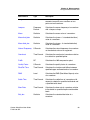
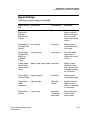
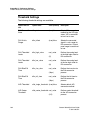
Signal Settings
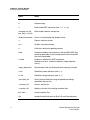
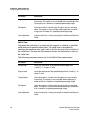
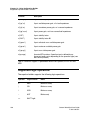
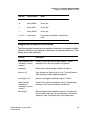
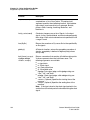
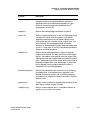
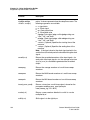
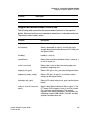
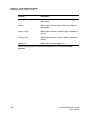
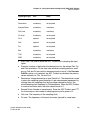
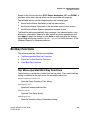
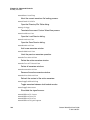
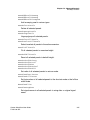
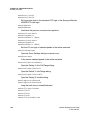
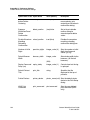
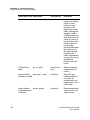
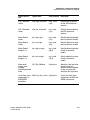
The following signal settings are available:
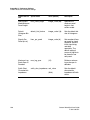
Option Name in
GUI
Option Name
Value (Default)
Description
Synchronize
Signal Alias
Between
Browser and
Display
sync_alias
(true)/false
Synchronizes the
signal name alias
between the signal
browser and the
name column in the
canvas.
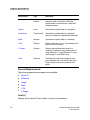
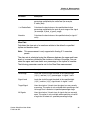
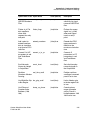
Add Brackets [ ] alias_bracket
for Signal Alias
Names
(true)/false
Adds bracket to
user-defined signal
alias name.
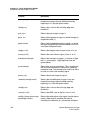
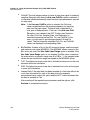
Always Name
Sweep Family
Signals as
Individual
Traces
sweep_expand
(user)/always
Treats the sweep
signal lines as
individual or a family
of lines.
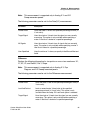
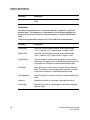
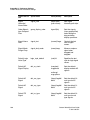
Flatten Single
Point Sweep
Signals on 2D
Panel
flatten_single_point_sweep (true)/false
Flattens sweep
signals that have
only 1 point in each
trace when plotting
on a 2D panel.
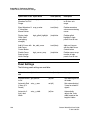
Display Signal signame_popup
Name in Popup
true/(false)
Enables signal
name popup tooltip.
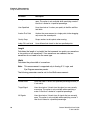
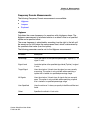
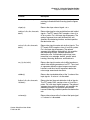
Signal Name
Width/
Adjustment
signame_align
(left)/right/
maxlen
Specifies how the
width of a name
column is displayed
in a waveview.
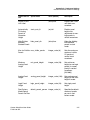
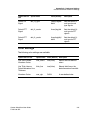
Signal Name
Content
signal_name
nameonly/
(name+file)/
name+path
Sets signal name
mode in signal
name column.
Custom WaveView User Guide
F-2011.09-SP1
229