1
KOMPAS-3D V9. User manual.
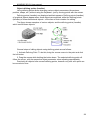
position, as when during a regular copying of objects to the clipboard.
3. Switch to the drawing, into which the view (views) is to be copied.
4. Call the Edit - Insert command or press the <Ctrl>+<V> or the <Shift>+<Ins> key
combination.
The view (views) will be copied from the clipboard into the drawing.
If a view with such ID is already present in the drawing, the system checks whether
the view contents in the clipboard can be inserted into it (combine views). To combine
views, the condition must be met of an exact match in IDs, anchor point coordinates,
rotation angles and scales (system views always adhere to these conditions). If it cannot
be done because of the difference in scale and view rotation angles, a new view is
created, which is assigned the first unused ID.
If it is necessary to copy a view (views) into the same drawing, you can avoid using
the clipboard by using the standard copying procedure with the mouse (see the topic
"Copying objects with the mouse"). Also the system does not try to combine views, but
creates a new view, assigning to it the first unused ID. The name of the copy of a view
coincides with the name of the original.
Setting up background and hidden view display
During working with the drawing you can make a part of the views background and
the others - hidden (turn Off their display on the screen). For the convenience of displaying
background and hidden layers on the screen, the system provides capabilities to
customize their display style.
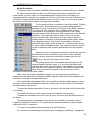
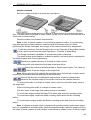
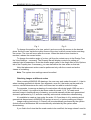
The styles of drawing those views are set up in the view displays settings dialog.
There are two ways to call it.
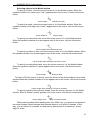
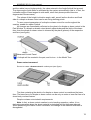
Call the command Service - States of Views or click the States of Views
button on the Current Status bar. The Document Manager dialog will be
displayed
✔
Click the View settings button on the Document Manager toolbar.
✔
Call the command Service - Options... - System - Graphic Editor - Views.
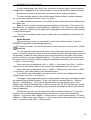
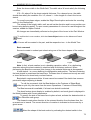
In the views displaying dialog you can set up the background views display, and also
the placeholder frames of hidden views. In case the placeholder frames of hidden views
are not to be displayed, turn Off the Show option.
Choose a line type (Solid, Dashed or Dotted). If the solid type is selected, then you
can set the line weight in the screen units (pixels).
Note. Lines of text strings and fills are always shown as solid.
To change the color of drawing background views or placeholder frames of hidden
views, use the Color button.
The styles that will be used for drawing are shown in the preview panes to let you
immediately watch the introduced changes.
Once the display settings are done, click the OK button.
If the 'View Display Settings' dialog was called from the Document Manager, close
the Document Manager as well.
145